
Crafting an Animated Border Beam Effect in Mantine UI with TypeScript
Build a captivating, reusable component featuring a dynamic light beam tracing your container's edges using Mantine and modern CSS.
The "border beam" effect adds a sleek, modern touch to user interfaces by animating a beam of light that travels around the perimeter of an element. This guide details how to create a reusable Mantine UI component in TypeScript to achieve this visually engaging effect, leveraging Mantine's styling capabilities and CSS animations.
Highlights: Key Takeaways
- Component Reusability: Create a flexible TypeScript component (
BorderBeam) that wraps any content, making it easy to apply the effect across your application. - Customization via Props: Control the beam's appearance (color, thickness, border radius) and animation (speed, delay) through intuitive component props.
- Mantine Integration: Utilize Mantine's
createStyleshook orsxprop for robust styling and seamless integration with Mantine's theming system, including theme colors.
Understanding the Border Beam Effect
What Makes It Tick?
The core idea is to simulate a moving light source along the border of a container. This is typically achieved using CSS techniques:
- Positioning: A parent container holds the main content and is set to
position: relative. - The Beam Element: An absolutely positioned pseudo-element (like
::afteror::before) or a dedicateddivis created within the container. This element represents the beam. - Styling the Beam: The beam element is styled with a gradient (linear or conic) to create the light effect.
- Animation: CSS keyframes are used to animate properties of the beam element. Common approaches include:
- Rotating a
conic-gradientbackground. - Moving a smaller gradient element along a path defined around the border (using properties like
offset-pathandoffset-distance). - Animating the position or transform of the beam element.
- Rotating a
- Masking (Optional but common): CSS masking (
maskormask-composite) is often used to clip the beam effect so it only appears precisely along the border area, not spilling into the center or outside the container.
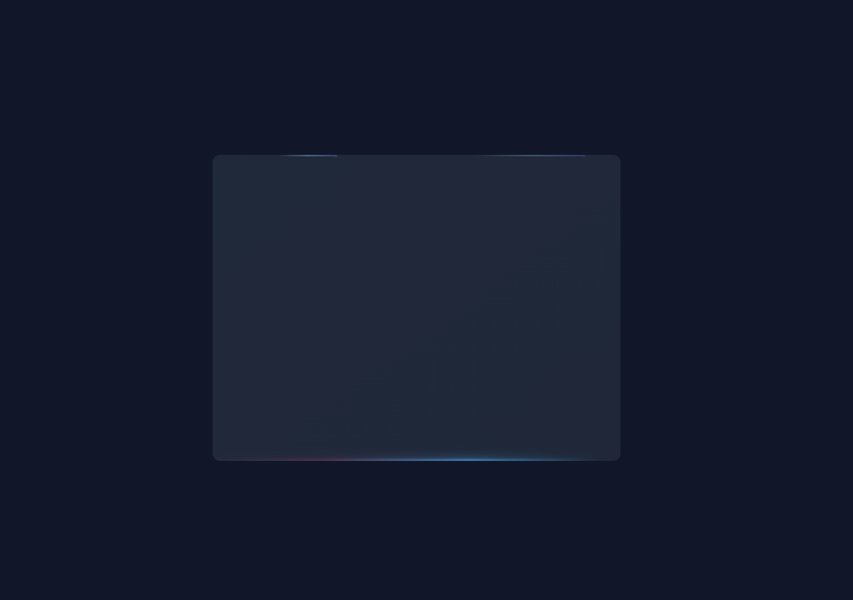
Visual representation of the Border Beam effect on a card element.
Implementation Strategy with Mantine
Choosing the Right Tools
We'll create a React functional component using TypeScript. For styling and animation within the Mantine ecosystem, you have several options:
createStylesHook (Recommended for v7): Mantine's primary API for creating reusable component styles. It offers type safety, theme access, and encapsulation.sxProp: Allows applying theme-aware inline styles directly to components. Useful for one-off styling or integrating CSS variables easily.- CSS Modules: Standard CSS Modules can be used alongside Mantine components, especially for complex animations defined in separate
.cssfiles.
This guide will primarily use the createStyles approach (common in Mantine v6/v7) combined with CSS keyframes for the animation, demonstrating a clean integration. We will implement the effect using a rotating conic-gradient masked to the border area, as it provides a smooth, continuous effect and is relatively straightforward to implement with modern CSS.
Building the BorderBeam Component
Step 1: Prerequisites
Ensure you have a Mantine project set up with React and TypeScript. If not, install the necessary packages:
npm install @mantine/core @mantine/hooks @emotion/reactOr using yarn:
yarn add @mantine/core @mantine/hooks @emotion/reactStep 2: Define Component Props
We need an interface to define the customizable properties of our component.
import { MantineTheme, MantineColor, MantineNumberSize } from '@mantine/core';

interface BorderBeamProps extends Omit<React.ComponentPropsWithoutRef<'div'>, 'style'> {
  /** Content to render inside the border beam container */
  children: React.ReactNode;
  /** Class name for custom styling */
  className?: string;
  /** Beam color (accepts theme colors like 'blue.5' or CSS colors) */
  color?: MantineColor | string;
  /** Border radius for the container and beam effect (theme key or px value) */
  borderRadius?: MantineNumberSize;
  /** Width of the border area where the beam appears (in pixels) */
  borderWidth?: number;
  /** Duration of one animation cycle in seconds */
  animationDuration?: number;
  /** Delay before the animation starts in seconds */
  animationDelay?: number;
}
Step 3: Implement the Component with createStyles
Here's the complete BorderBeam.tsx component using createStyles and the conic-gradient rotation technique:
import React from 'react'; import { createStyles, MantineTheme, Box, useMantineTheme, MantineColor, MantineNumberSize, getRadius, getSize, rem, resolveColor, // Updated import for v7+ color resolution } from '@mantine/core'; // Define the props interface (as shown in Step 2) interface BorderBeamProps extends Omit<React.ComponentPropsWithoutRef<'div'>, 'style'> { children: React.ReactNode; className?: string; color?: MantineColor | string; borderRadius?: MantineNumberSize; borderWidth?: number; animationDuration?: number; animationDelay?: number; } // Define parameters passed to the styles function interface BorderBeamStylesParams { color: string; borderRadius: string | number; borderWidth: number; animationDuration: number; animationDelay: number; } const useStyles = createStyles( ( theme: MantineTheme, { color, borderRadius, borderWidth, animationDuration, animationDelay }: BorderBeamStylesParams ) => ({ wrapper: { position: 'relative', borderRadius: getRadius(borderRadius, theme.radius), // Resolve theme radius padding: rem(borderWidth), // Use rem for scalable padding based on border width boxSizing: 'border-box', overflow: 'hidden', // Ensure beam doesn't overflow container bounds }, beam: { pointerEvents: 'none', position: 'absolute', top: 0, left: 0, right: 0, bottom: 0, borderRadius: 'inherit', // Inherit wrapper's border radius border: <code>${rem(borderWidth)} solid transparent, // Transparent border base // Use conic-gradient for the rotating beam effect // Adjust stops for desired beam appearance (e.g., thinner beam, faster transition) background:conic-gradient(from 0deg at 50% 50%, transparent 0%, ${color} 5%, transparent 15%), // Masking to confine the gradient to the border area mask: 'linear-gradient(#fff 0 0) content-box, linear-gradient(#fff 0 0)', // Mask covers content area, then border area maskComposite: 'exclude', // Subtracts content area mask from border area mask WebkitMask: 'linear-gradient(#fff 0 0) content-box, linear-gradient(#fff 0 0)', WebkitMaskComposite: 'destination-out', // Alternative composite mode for WebKit // Animation animation:border-beam-spin ${animationDuration}s linear infinite, animationDelay:${animationDelay}s, }, // Keyframes for the rotation animation '@keyframes border-beam-spin': { from: { transform: 'rotate(0deg)' }, to: { transform: 'rotate(360deg)' }, }, content: { position: 'relative', // Ensures content is above the beam visually if needed // Apply a background to the content area if desired, respecting theme backgroundColor: theme.colorScheme === 'dark' ? theme.colors.dark[7] : theme.white, borderRadius:calc(${getRadius(borderRadius, theme.radius)} - ${rem(borderWidth)}), // Adjust inner radius height: '100%', width: '100%', boxSizing: 'border-box', overflow: 'hidden', // Clip content if necessary }, }) ); export const BorderBeam: React.FC<BorderBeamProps> = ({ children, className, color = 'blue', // Default to Mantine blue borderRadius = 'md', // Default theme radius borderWidth = 1.5, // Default border width in px animationDuration = 5, // Default duration in seconds animationDelay = 0, // Default delay in seconds ...others // Pass down other div props }) => { const theme = useMantineTheme(); // Resolve the color using Mantine's utility (works for theme keys and CSS colors) const resolvedColor = resolveColor({ color, theme }); const { classes, cx } = useStyles({ color: resolvedColor, borderRadius, borderWidth, animationDuration, animationDelay, }); return ( <Box className={cx(classes.wrapper, className)} {...others}> {/* The beam element */} <Box className={classes.beam} /> {/* The content container */} <Box className={classes.content}>{children}</Box> </Box> ); }; export default BorderBeam;
Explanation:
- The
wrappersets up the relative positioning and padding for the border area. - The
beamelement is positioned absolutely to cover the wrapper. Itsbackgroundis aconic-gradientthat creates a wedge of color. - Crucially,
maskandmaskComposite(with WebKit fallbacks) are used to clip the gradient so only the part over the border area (defined by thepaddingon thewrapperand the transparentborderon thebeam) is visible. - The
@keyframes border-beam-spinsimply rotates thebeamelement, making the colored wedge appear to travel around the border. - The
contentdiv holds the children and has a background color and slightly adjusted border-radius to fit neatly inside the border area. - The
resolveColorutility ensures that theme colors (like'pink.6') and standard CSS colors (like'#ff00ff'or'rgb(255, 0, 255)') are handled correctly.
Another example illustrating an animated border concept.
Step 4: Usage Example
Integrate the BorderBeam component into your application like any other Mantine component:
import React from 'react';
import { BorderBeam } from './BorderBeam'; // Adjust import path
import { Text, Center, Stack } from '@mantine/core';

function MyComponent() {
  return (
    <Center>
      <BorderBeam
        color="cyan"
        borderRadius="lg"
        borderWidth={2}
        animationDuration={4}
        style={{ width: 350, height: 200 }} // Apply size via style or className
      >
        <Stack align="center" justify="center" style={{ height: '100%' }}>
          <Text size="xl" weight={700} color="cyan">
            Mantine Border Beam
          </Text>
          <Text size="sm" color="dimmed">
            Animated border effect component.
          </Text>
        </Stack>
      </BorderBeam>
    </Center>
  );
}

export default MyComponent;
Customization and Alternatives
Prop-Based Customization
The component is designed for flexibility through props. Here’s a summary of key customizations:
| Prop | Description | Example Values | Effect |
|---|---|---|---|
color |
Sets the color of the beam. Accepts Mantine theme colors or any valid CSS color string. | 'grape.6', '#FFA500', 'rgb(0, 255, 0)' |
Changes the hue of the animated border light. |
borderRadius |
Controls the roundness of the container corners. Accepts Mantine theme sizes ('xs', 'sm', 'md', 'lg', 'xl') or pixel values. | 'xl', 16, '8px' |
Adjusts the shape of the border corners. |
borderWidth |
Determines the thickness of the border area where the beam travels (in pixels). | 1, 2.5, 4 |
Makes the beam appear thicker or thinner. |
animationDuration |
Sets the time (in seconds) for one full rotation of the beam. | 3, 5, 10 |
Controls the speed of the animation (lower value = faster). |
animationDelay |
Adds a delay (in seconds) before the animation starts. | 0, 0.5, 2 |
Staggers the start of the animation. |
Alternative Implementation: Pseudo-element Path Animation
While the conic-gradient rotation provides a smooth, continuous glow, another common approach aims to simulate a distinct "beam" object moving along the border. This often involves:
- Using a
::beforeor::afterpseudo-element representing the beam (e.g., a small, styled element with a gradient). - Defining an
offset-path(ormotion-path) that follows the shape of the container's border (e.g.,path('M0,0 H100 V100 H0 Z')for a rectangle, scaled appropriately). - Animating the
offset-distanceproperty from0%to100%to move the pseudo-element along the defined path.
This method can offer a more literal "beam" look but requires careful path definition and relies on the CSS Motion Path module, which might have slightly different browser support compared to gradients and transforms.
Comparing Approaches: Radar Chart
This chart provides a conceptual comparison between the Conic Gradient Rotation method (implemented above) and the alternative Pseudo-element Path Animation method for creating the border beam effect.
Note: Scores are subjective estimations for illustrative purposes. Actual performance and support may vary.
Component Structure Mindmap
Visualizing the Key Elements
This mindmap outlines the structure and core components of the BorderBeam component we built.
Visual Concept Demonstration
Understanding the CSS Basis
While the component above uses Mantine and React, the underlying visual effect relies heavily on CSS animations and gradients. This video demonstrates how to create a similar border beam effect using TailwindCSS, which utilizes utility classes that map to fundamental CSS properties. Watching it can provide a deeper understanding of the CSS principles involved, even though the implementation specifics differ from our Mantine component.
Video demonstrating the creation of a border beam effect using TailwindCSS (CSS concepts are relevant).
Frequently Asked Questions (FAQ)
What about browser compatibility?
The conic-gradient rotation method relies on:
conic-gradient(): Widely supported in modern browsers (Chrome, Firefox, Safari, Edge). Not supported in IE11.- CSS Masks (
mask,mask-composite): Good support in modern browsers, but may require the-webkit-prefix for full compatibility, especially with certain composite operations. IE11 has no support. - CSS Animations (
@keyframes,animation): Excellent support across all modern browsers.
Overall, the component should work well in evergreen browsers. If you need IE11 support, this specific implementation won't work. The alternative path animation method relies on CSS Motion Path (offset-path), which has slightly less broad support than gradients and masks currently.
Does this animation impact performance?
CSS animations, especially those using `transform` (like rotation), are generally well-optimized by browsers and often hardware-accelerated. However, complex gradients and masking can add some rendering overhead.
- The impact is usually minimal for a few instances of the effect on a page.
- Using many instances simultaneously, especially with very fast animations or large elements, could potentially affect performance on lower-end devices.
- Consider using the `prefers-reduced-motion` media query to disable or simplify the animation for users who prefer less motion.
Test the performance in your specific application context, especially on target devices.
Can I animate the actual CSS `border` property instead?
Animating the standard `border-color` or `border-image` properties directly to create this kind of moving beam effect is generally not feasible or performant.
- `border-color` doesn't support gradients in a way that allows for a small segment to be animated around the perimeter easily.
- `border-image` can use gradients but animating `border-image-source` or related properties is often jerky and less performant than animating transforms or masks on a pseudo-element.
The approach using pseudo-elements or dedicated layers with transforms and masking is the standard and most effective way to achieve smooth border beam animations.
Recommended
- How can I dynamically integrate Mantine theme colors and sizes into custom components?
- What are different CSS masking techniques for creating unique UI effects?
- How can I optimize the performance of CSS animations within a React application?
- What accessibility considerations should I keep in mind for UI animations like the border beam?
References
Last updated May 6, 2025