
Comprehensive Guide to Matplotlib
Mastering Data Visualization in Python from Beginner to Expert
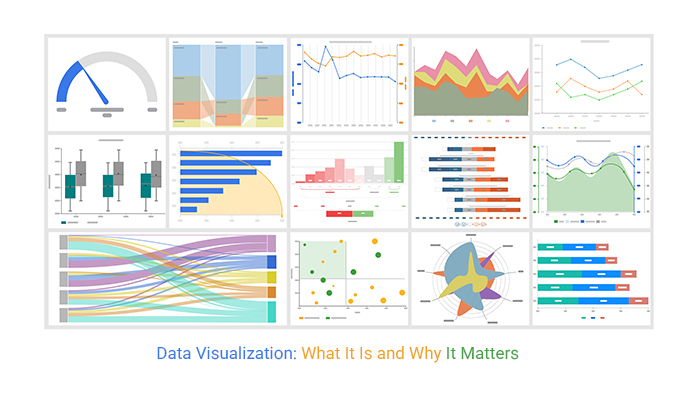
Highlights
- Structured Learning Path: Step-by-step guidance from installation and basic plots to advanced customization and integration.
- Practical Examples: Code snippets and real-case examples to demonstrate key functionalities of Matplotlib.
- Customization and Optimization: In-depth coverage of styling, annotations, multi-plot layouts, and performance optimization.
Introduction to Matplotlib
Matplotlib is a cutting-edge, feature-rich data visualization library in Python that is widely utilized for creating static, animated, and interactive plots. Built on NumPy arrays, it integrates seamlessly with Pandas and other popular data manipulation libraries. This guide is designed to take you from a beginner’s understanding of creating simple plots to an expert’s ability to produce publication-quality, interactive visualizations.
What is Matplotlib?
Matplotlib is an open-source plotting library that allows users to generate a diverse range of visualizations. Whether you need basic line or bar plots to represent trends, or complex 3D plots and interactive dashboards, Matplotlib provides the necessary tools. Its ability to integrate with various data sources and libraries makes it indispensable for data analysis and scientific research.
Beginner Level
Installation and Setup
To start using Matplotlib, install the library using pip:
# Installing using pip
pip install matplotlib
For users employing Anaconda, Matplotlib is often included by default, but you can also update it using:
# Installing/Updating conda package
conda install matplotlib
Basic Plot Creation
Importing Matplotlib
Start by importing the pyplot module:
import matplotlib.pyplot as pltCreating a Simple Line Plot
A basic line plot is created by specifying the x and y coordinates:
import matplotlib.pyplot as plt

x = [1, 2, 3, 4]
y = [1, 4, 9, 16]
plt.plot(x, y)
plt.ylabel("Some Numbers")
plt.show()
This simple plot demonstrates the fundamental concept of mapping data points onto a graph, which lays the groundwork for more elaborate visualizations.
Exploring Common Plot Types
At the beginner level, it is essential to familiarize yourself with the core types of plots in Matplotlib:
- Line Plots: Used for trends over intervals.
- Scatter Plots: Ideal for exploring relationships and distributions of individual data points.
- Bar Charts: Suitable for comparing discrete quantities.
- Histograms: Useful for visualizing distributions and frequency of data.
- Pie Charts: Display proportions and percentages.
Intermediate Level
Customizing Your Plots
Adding Titles and Labels
Enrich your plots by adding descriptive titles, axis labels, and legends. This practice makes your plots much more informative:
plt.plot(x, y)
plt.title("Simple Line Plot")
plt.xlabel("X Axis")
plt.ylabel("Y Axis")
plt.legend(["Data Series 1"])
plt.show()
Adjusting Colors and Styles
Custom styling is achieved by modifying colors, line styles, markers, and more. For example:
plt.plot(x, y, color='green', linestyle='dashed', marker='o', markerfacecolor='blue')
plt.show()
Subplots and Multi-plot Layouts
Creating multiple plots within a single figure can be done using subplots:
fig, axs = plt.subplots(2, 2)
axs[0, 0].plot(x, y)
axs[0, 1].bar(x, [1, 3, 5, 7])
axs[1, 0].scatter(x, y)
axs[1, 1].hist(y, bins=4)
plt.show()
Subplots are especially useful when comparing different datasets side by side.
Advanced Plot Types
3D Plotting
To create 3D visualizations, you need to import from mpl_toolkits.mplot3d:
import matplotlib.pyplot as plt
from mpl_toolkits.mplot3d import Axes3D
import numpy as np

fig = plt.figure()
ax = fig.add_subplot(111, projection='3d')
x = np.random.rand(100)
y = np.random.rand(100)
z = np.random.rand(100)
ax.scatter(x, y, z)
plt.show()
Heatmaps and Contour Plots
Heatmaps are great for visualizing data matrices. You can create these plots using plt.imshow() or libraries like Seaborn for enhanced styling:
import numpy as np
import matplotlib.pyplot as plt

data = np.random.rand(10, 10)
plt.imshow(data, cmap='hot', interpolation='nearest')
plt.colorbar()
plt.show()
For contour plots, use the plt.contour() function to display isolines over data grids.
Expert Level
Advanced Customization and Styling
Styling with Style Sheets
Matplotlib supports style sheets to quickly switch the entire look of your plots:
plt.style.use('seaborn-darkgrid')
plt.plot(x, y)
plt.show()
Experimenting with different style sheets like 'ggplot', 'seaborn', or custom themes, helps in achieving a professional appearance.
Annotations, Text, and Interactive Elements
Adding annotations and text provides context to data points:
plt.plot(x, y)
for i, value in enumerate(y):
    plt.text(x[i], value, f'({x[i]}, {value})', fontsize=9, ha='right')
plt.show()
For interactive plotting, consider using backends that support GUI interaction, such as Tkinter, Qt, or interactive Jupyter Notebook environments.
Integration with Other Libraries
Pandas and DataFrames
Matplotlib seamlessly integrates with Pandas, which means you can directly plot from DataFrames. Here’s a simple example:
import pandas as pd
import matplotlib.pyplot as plt

data = {'Year': [2018, 2019, 2020, 2021], 'Sales': [250, 300, 400, 500]}
df = pd.DataFrame(data)
df.plot(x='Year', y='Sales', kind='line')
plt.title('Yearly Sales Data')
plt.show()
Seaborn and Other High-Level Visualization Libraries
Although Matplotlib is powerful, libraries like Seaborn build on its foundations to provide enhanced statistical visualizations. Use Seaborn for complex plots on data distributions, heatmaps, and categorical data visualizations:
import seaborn as sns
tips = sns.load_dataset('tips')
sns.scatterplot(x='total_bill', y='tip', data=tips)
plt.title('Total Bill vs Tip')
plt.show()
Performance and Optimization
Efficient Plotting Strategies
When dealing with large datasets, performance becomes critical. Consider these strategies:
- Data Aggregation: Pre-aggregate or sample your datasets before plotting to reduce computational load.
- Efficient Rendering: Use tools like
blittingfor animated plots to update only parts of your figure, instead of redrawing everything. - Vectorized Operations: Leverage NumPy arrays for handling large data sets since they allow for rapid vectorized operations rather than slower Python loops.
Handling Large Datasets
When working with enormous datasets, consider optimizing your visualizations:
- Use scatter plots judiciously – consider using hexbin or density plots as alternatives.
- Optimize your data pipelines using libraries such as Dask for parallel processing when necessary.
- Profile your plotting time using Python’s
cProfilemodule to identify bottlenecks and optimize rendering.
Reference Table of Matplotlib Functions
| Plot Type | Function | Description |
|---|---|---|
| Line Plot | plt.plot() |
Creates a basic line graph. |
| Scatter Plot | plt.scatter() |
Displays individual data points. |
| Bar Chart | plt.bar() |
Compares quantities across groups. |
| Histogram | plt.hist() |
Shows data distribution using bins. |
| 3D Plot | Axes3D or projection='3d' |
Generates three-dimensional visualizations. |
Practice and Projects
Hands-on Learning
The best way to master Matplotlib is to engage in practical projects. Start with clean, small datasets and gradually move on to complex real-world data challenges. Kaggle and GitHub host many datasets and project ideas that can inspire you to build your portfolio.
Experiment by recreating famous visualizations or visual narratives. Use open datasets from sources like UCI Machine Learning Repository or government open data portals. Each project will enhance your understanding of customizing, optimizing, and integrating visualizations with other tools.
Additional Insights and Troubleshooting
Common Pitfalls
As you expand your expertise with Matplotlib, you might face several common issues:
- Ensuring all required libraries are imported, especially when using advanced plotting tools such as 3D plots.
- Deciding on the right plot type to represent your data efficiently.
- Optimizing rendering performance, particularly when handling large volumes of data.
- Choosing the correct backend for your environment (e.g., inline plotting in Jupyter vs. interactive GUI windows).
Address these challenges by referring to the Matplotlib documentation and leveraging community support forums.
Best Practices for Publication-quality Visualizations
To produce visualizations that meet the highest standards, consider:
- Consistent use of color schemes, labels, and fonts for clarity.
- Annotating key points with clear markers or text to guide your audience.
- Using high-resolution export options such as saving figures as PDF or SVG formats.
- Regularly reviewing your visualizations for any redundancies or unnecessary complexities.
References
- Matplotlib Documentation - Matplotlib
- Matplotlib Tutorial - GeeksforGeeks
- Beginner's Guide To Matplotlib - Zero To Mastery
- Python Plotting With Matplotlib - Real Python
- DataCamp Matplotlib Tutorial - DataCamp
Recommended Explorations
Last updated March 9, 2025