

Microsoft Access, often referred to simply as Access, is a relational database management system (RDBMS) developed by Microsoft. It's a key component of the Microsoft 365 suite, particularly useful for small to medium-sized businesses and individual users who need robust data management capabilities without extensive programming knowledge. Unlike a simple spreadsheet, Access allows for the creation of structured databases, enabling efficient storage, retrieval, and analysis of large volumes of interconnected data.
Key Highlights of Microsoft Access
- Database Management System: Access is a full-fledged RDBMS, designed for managing and organizing structured data efficiently, supporting complex relationships between data points.
- User-Friendly Interface: It provides a graphical user interface (GUI) and software-development tools, making it accessible for users to create and manage databases, forms, queries, and reports without being a professional developer.
- Integration with Microsoft Ecosystem: Access seamlessly integrates with other Microsoft Office applications like Excel, and can also connect with more powerful databases such as SQL Server and Azure SQL for enhanced scalability and security.
Understanding Microsoft Access: More Than Just a Database
Microsoft Access is not merely a tool for storing data; it's a comprehensive platform that combines the relational Access Database Engine (ACE) with a graphical interface and development tools. This combination allows users to build powerful applications for managing various types of information, from customer contacts and inventory to project tracking and billing.
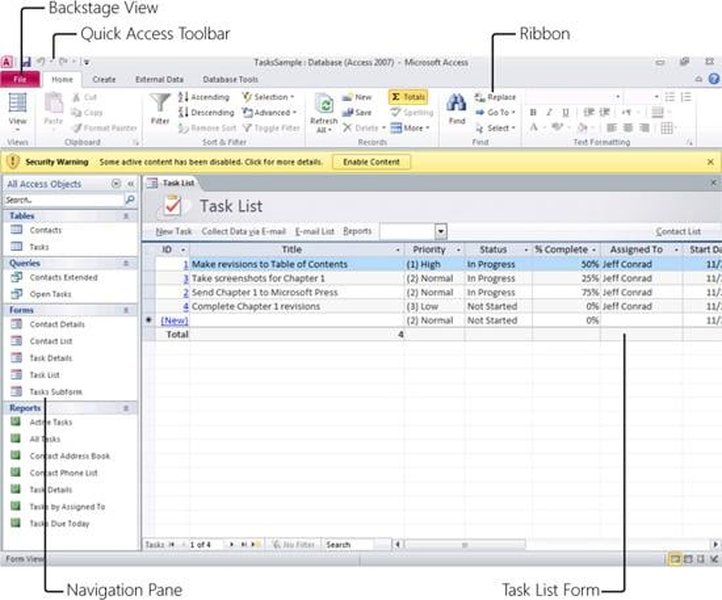
An overview of the Microsoft Access 2010 interface, showcasing its various components for database management.
The core strength of Access lies in its ability to manage related data. Imagine trying to manage a complex system where customer details, order history, and product information are all stored in separate spreadsheets. If a customer's address changes, you'd have to update it in multiple places. Access solves this by storing information once and establishing relationships between different pieces of data, ensuring data consistency and integrity.
Historical Context and Evolution
Access emerged in the desktop database market in the early 1990s, quickly becoming the dominant database program for Windows. It effectively surpassed competitors like Borland's Paradox and Ashton-Tate's dBase by incorporating advanced features and optimizing query routines. Its evolution has seen it integrate with Microsoft's broader ecosystem, offering improved reliability, scalability, and security through connections to SQL Server and Microsoft Azure SQL.
Key Features and Components of an Access Database
An Access database is structured around several interconnected objects that work together to store, manage, and present data. Understanding these components is crucial for effectively utilizing the software.
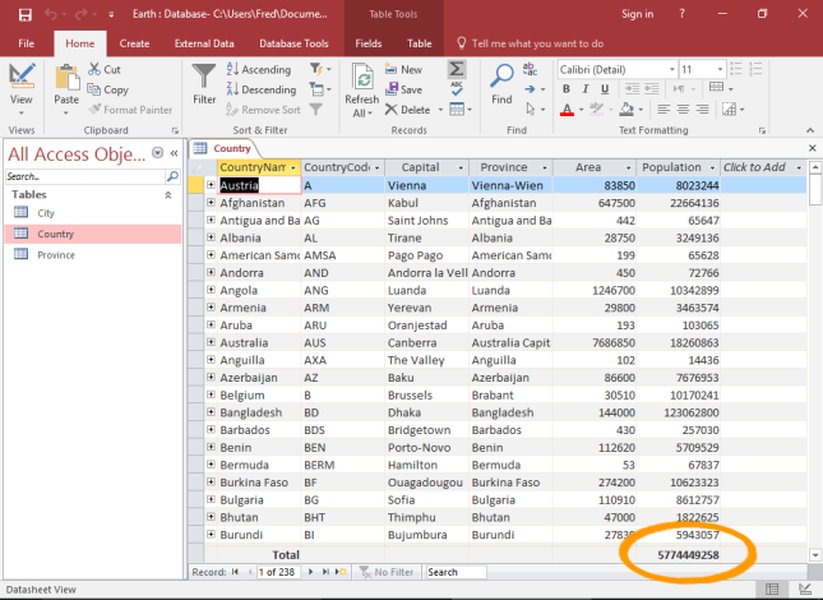
A visual representation of the various objects within a Microsoft Access database, including tables, queries, forms, and reports.
Tables: The Foundation of Data Storage
Tables are the fundamental building blocks of any Access database. They are where all your data is stored in a structured format, similar to spreadsheets but with more robust data type controls and relationship capabilities. Each table consists of rows (records) and columns (fields), and each field can be defined with specific data types (e.g., text, numbers, dates) and validation rules to ensure data accuracy. Tables also utilize primary keys, which uniquely identify each record and are essential for establishing relationships between different tables.
Queries: Extracting and Manipulating Data
Queries are powerful tools used to retrieve specific data from one or more tables based on defined criteria. They allow users to ask questions of their data, filter records, perform calculations, and even update or delete data. Access offers a user-friendly query designer for visual construction of queries, and also supports direct SQL (Structured Query Language) queries for more complex data manipulation.
Forms: User-Friendly Data Entry
Forms provide a graphical interface for users to enter, view, and modify data in a more intuitive and controlled manner than directly interacting with tables. They can be customized with various layouts, themes, and controls to improve data entry efficiency and accuracy. Forms can also include buttons and other elements to automate tasks or navigate through the database.
Reports: Presenting Insights
Reports are used to organize, summarize, and present data in a formatted way for printing or sharing. They can display data from tables and queries, incorporating various layouts, charts, and calculations to provide clear and insightful summaries. Reports are invaluable for business analysis, generating invoices, or creating mailing labels.
Modules and Macros: Automation and Customization
For advanced functionality, Access supports Modules, which are collections of Visual Basic for Applications (VBA) code, allowing for custom programming and automation of complex tasks. Macros provide a simpler way to automate repetitive tasks without writing code, by recording sequences of actions.
Access vs. Excel: Choosing the Right Tool
While both Microsoft Access and Excel are powerful tools for data handling, they are designed for different purposes. Understanding their distinctions is crucial for selecting the most appropriate application for your needs.
| Feature | Microsoft Access | Microsoft Excel |
|---|---|---|
| Primary Purpose | Database management, storing large datasets, establishing relationships between data, creating applications. | Spreadsheet calculations, numerical analysis, data visualization, smaller datasets. |
| Data Structure | Relational database (tables, queries, forms, reports) with structured relationships. | Flat-file spreadsheet (rows and columns) with limited inherent relationship capabilities. |
| Data Integrity | Strong data integrity through defined data types, validation rules, and relationships. | Weaker data integrity; easier to enter inconsistent data. |
| Scalability | Handles large volumes of data (tens of thousands to millions of records) efficiently; can link to external databases like SQL Server. | Best for smaller datasets (thousands of rows); performance can degrade with very large files. |
| Multi-user Access | Designed for multiple simultaneous users with robust concurrency control. | Primarily single-user; concurrent editing can lead to issues. |
| Complexity | Steeper learning curve for database design concepts. | Easier to learn for basic data entry and calculations. |
| Applications | Inventory management, CRM, project tracking, contact management, custom business applications. | Budgeting, financial modeling, simple lists, charts, data analysis. |
Excel excels at numerical analysis, creating charts, and performing calculations on smaller, self-contained datasets. It's flexible and intuitive for ad-hoc analysis. Access, on the other hand, is built for managing structured data, ensuring consistency, and providing a framework for robust data retrieval and reporting, especially when data points are interrelated.
Practical Applications of Microsoft Access
Microsoft Access finds its utility in a wide array of scenarios where structured data management is essential. Its capabilities allow individuals and small to medium-sized organizations to build custom solutions tailored to their specific needs.
Typical Use Cases
- Inventory Management: Tracking stock levels, product details, supplier information, and purchase orders.
- Customer Relationship Management (CRM): Managing customer contacts, interactions, sales history, and support tickets.
- Project Tracking: Monitoring project tasks, deadlines, assigned resources, and progress.
- Billing and Invoicing: Generating invoices, tracking payments, and managing client accounts.
- Contact Databases: Organizing large lists of contacts with detailed information and segmentation capabilities.
- Educational Records: Managing student data, grades, attendance, and course information.
This video provides a beginner's tutorial on how to use Microsoft Access, covering essential functions like creating tables, forms, and reports, and running SQL queries.
The tutorial video above demonstrates the fundamental steps of using Microsoft Access, from setting up a database to creating forms and running queries. It's particularly useful for those transitioning from spreadsheet-based data management to a more structured database approach, highlighting how Access can streamline processes and improve data organization.
The Power of Integration within the Microsoft Ecosystem
Access doesn't operate in isolation. Its strength is amplified by its integration within the broader Microsoft ecosystem. It can import and export data to and from Excel, making it easy to transition from spreadsheets to a database environment. Furthermore, for organizations that outgrow Access's standalone capabilities, it provides a pathway to more robust solutions.
This mindmap illustrates the comprehensive ecosystem surrounding Microsoft Access, detailing its core features, the benefits of its integration with other Microsoft products, its primary use cases, and both its advantages and limitations. It highlights how Access serves as a versatile tool for structured data management within the Microsoft environment.
For larger datasets or enterprise-level applications requiring even greater scalability, security, and concurrent user support, Access databases can be "upgraded" or linked to more powerful database backends like Microsoft SQL Server or Microsoft Azure SQL. This strategic path ensures that as an organization grows, its data management infrastructure can evolve without a complete overhaul, preserving the investment in Access-based front-end applications.
FAQ: Demystifying Microsoft Access
What is Microsoft Access?
How does Microsoft Access differ from Excel?
What are the main components of an Access database?
Can multiple users access an Access database simultaneously?
Do I need programming skills to use Microsoft Access?
Conclusion: Access as a Powerful Data Ally
Microsoft Access stands as a robust and accessible solution for structured data management, particularly for small to medium-sized businesses, individual professionals, and specific departmental needs within larger organizations. Its ability to create, manage, and relate vast amounts of information efficiently, coupled with a user-friendly interface for forms, queries, and reports, makes it an invaluable tool. While Excel shines for analytical tasks on simpler datasets, Access provides the foundational infrastructure for building custom data-driven applications, ensuring data integrity, and facilitating comprehensive reporting. Its seamless integration with the broader Microsoft ecosystem further enhances its utility, offering a scalable path for data growth and complex business processes.
Recommended Further Reading
- Microsoft Access best practices for database design
- Migrating from Excel to Access benefits
- Advanced query techniques in Microsoft Access
- Integrating Microsoft Access with SQL Server