
Unlock Seamless Full-Page Backgrounds in MJML for Flawless Outlook Display
Master the technique to extend your email background beyond the content area, ensuring perfect rendering even in tricky Outlook clients.
Creating visually consistent HTML emails that render perfectly across all email clients is a common challenge for developers. One frequent hurdle is achieving a full-page background color – one that extends across the entire email viewport, including the areas outside the main content – especially when targeting Microsoft Outlook. Outlook's unique rendering engine often ignores standard methods, but MJML provides a robust solution.
Essential Insights for Outlook Background Success
- Use
<mj-wrapper>for Global Backgrounds: This component is key to applying styles that span the full email width, specifically designed to handle background colors and images consistently. - The
full-width="full-width"Attribute is Crucial: Applying this attribute to your<mj-wrapper>tells MJML to generate the necessary code (including VML for Outlook) to stretch the background across the entire viewport. - MJML Handles the Complexity: Modern versions of MJML automatically generate the required Vector Markup Language (VML) code, ensuring your full-width background color displays correctly in Outlook desktop versions without manual VML coding.
Why Outlook Requires Special Treatment
Understanding the Rendering Engine Difference
Most web browsers and many email clients (like Gmail, Apple Mail) use rendering engines (like WebKit, Blink, Gecko) that interpret standard HTML and CSS fairly consistently. However, desktop versions of Microsoft Outlook (particularly on Windows) utilize the Microsoft Word rendering engine. This engine has significant limitations and quirks when it comes to interpreting CSS, especially for layout and background properties.
Specifically:
- Ignoring Body Backgrounds: Setting a
background-colordirectly on the<body>tag often fails to render outside the main content area (typically a 600px wide centered column) in Outlook desktop. The color might appear only behind the content itself. - VML Requirement: To display complex backgrounds (full-width colors or images), Outlook relies on Vector Markup Language (VML), a Microsoft-specific XML-based format. Standard CSS background properties are insufficient for achieving full-bleed effects.
This discrepancy means that techniques working perfectly in other clients might break or render incorrectly in Outlook, necessitating specific workarounds.
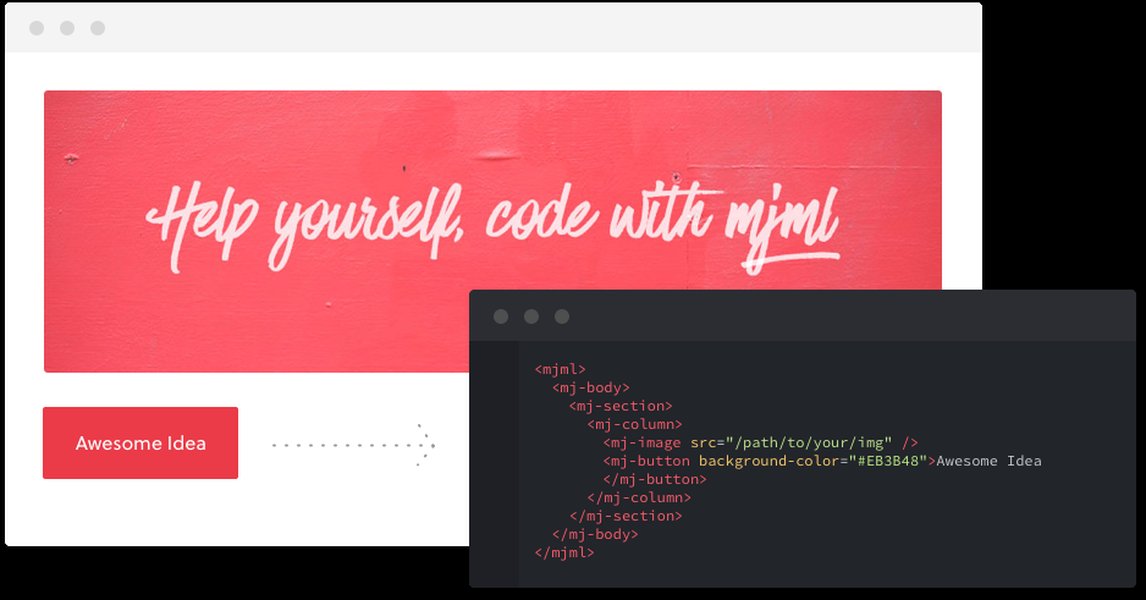
MJML simplifies responsive email coding, translating semantic tags into HTML/CSS with built-in workarounds for clients like Outlook.
The MJML Solution: Achieving Full-Page Backgrounds Step-by-Step
Leveraging <mj-wrapper> and full-width
MJML provides components and attributes specifically designed to overcome these cross-client compatibility issues. The recommended approach for a full-page background color that works reliably in Outlook involves using the <mj-wrapper> component.
Step 1: Enclose Content in <mj-wrapper>
Structure your email by placing all your <mj-section> elements inside an <mj-wrapper>. This acts as the primary container for applying the full-width background.
Step 2: Apply full-width="full-width"
Add the full-width="full-width" attribute to your <mj-wrapper> tag. This instructs MJML to make the wrapper span the entire available width and to generate the necessary VML code for Outlook compatibility.
Step 3: Set the background-color
Apply your desired background color directly to the <mj-wrapper> using the background-color attribute. This color will now extend to the edges of the email viewport in supporting clients, including Outlook.
Step 4: (Optional but Recommended) Set Body Fallback
While the mj-wrapper handles the primary background, it's good practice to also set a background-color on the <mj-body> tag. This serves as a fallback for clients that might not fully support the wrapper method or in case of unexpected rendering issues.
Example Implementation
Here’s a complete MJML example demonstrating how to apply a light gray (#f0f0f0) full-page background:
<mjml>
  <mj-head>
    <mj-title>Full Background Email</mj-title>
    <mj-attributes>
      {/* Set default body background as fallback */}
      <mj-body background-color="#cccccc" />
      {/* Ensure sections within the wrapper inherit or have their own backgrounds */}
      <mj-section padding="20px 0" />
      <mj-all font-family="Arial, sans-serif" />
    </mj-attributes>
  </mj-head>
  <mj-body>
    {/* Main wrapper for full-width background */}
    <mj-wrapper full-width="full-width" background-color="#f0f0f0" padding="40px 0">

      {/* First Content Section */}
      <mj-section background-color="#ffffff" border-radius="8px">
        <mj-column>
          <mj-text font-size="20px" color="#333333" align="center" padding="20px">
            Email Content Header
          </mj-text>
          <mj-text color="#555555" padding="10px 25px">
            This content sits within a white section, but the area outside this section (thanks to the mj-wrapper) will have the light gray (#f0f0f0) background, visible even in Outlook.
          </mj-text>
          <mj-button href="#" background-color="#007bff" color="#ffffff" border-radius="4px" padding="20px">
            Click Me
          </mj-button>
        </mj-column>
      </mj-section>

      {/* Optional: Another section directly on the wrapper background */}
       <mj-section>
         <mj-column>
           <mj-text color="#333333" align="center" padding="20px">
             This text appears directly over the wrapper's gray background.
           </mj-text>
         </mj-column>
       </mj-section>

    </mj-wrapper>
  </mj-body>
</mjml>
When compiled, MJML converts this code into HTML with embedded CSS and conditional comments containing VML specifically for Outlook, ensuring the #f0f0f0 background color fills the entire email pane.
Visualizing the MJML Background Strategy
This mindmap illustrates the core concepts and steps involved in achieving full-page backgrounds in MJML for Outlook compatibility:
<mj-wrapper>"]
id2b["Apply full-width='full-width'"]
id2c["Set background-color on Wrapper"]
id2d["(Optional) Fallback on <mj-body>"]
id3["How it Works"]
id3a["MJML Auto-Generates VML"]
id3b["Conditional Comments for Outlook"]
id3c["Ensures Full Bleed"]
id4["Key Considerations"]
id4a["Avoid Nesting Full-Width Elements"]
id4b["Background Images = More Complex"]
id4c["Test Across Clients!"]
id4d["Use Latest MJML Version"]
Comparing Background Method Effectiveness
Different methods for setting backgrounds yield varying results across email clients. This radar chart provides an estimated comparison of compatibility for achieving a full-width background effect, particularly highlighting the strength of the <mj-wrapper full-width> approach in Outlook Desktop.
Estimated compatibility score (1=Low, 10=High) for full-width background rendering.
Best Practices and Considerations
Tips for Robust Implementation
While the <mj-wrapper full-width> method is highly effective, keep these points in mind for the best results:
Consistency within Sections
Ensure that the background-color attributes on your inner <mj-section> or <mj-column> elements are set appropriately. You might want them to be transparent to show the wrapper's background or set them to a different color (like white) to create content blocks floating over the main background.
Background Images
Achieving full-width background *images* in Outlook is significantly more complex, even with MJML. It involves VML <v:image> and <v:fill> tags. While MJML helps manage this with the background-url attribute on full-width wrappers/sections, thorough testing and providing a solid background-color fallback are essential, as images are often blocked by default in Outlook.
Avoid Nesting Full-Width Elements
MJML documentation and community findings advise against nesting an <mj-section full-width="full-width"> directly inside an <mj-wrapper full-width="full-width">. This structure can lead to unexpected rendering behavior or break the layout in Outlook. Keep your full-width structure relatively flat.
MJML Version
Ensure you are using a recent version of MJML (version 4 or later). Support for full-width wrappers and sections in Outlook was significantly improved in MJML4.
Dark Mode
Be aware that some email clients, including versions of Outlook, might invert colors in dark mode. If your background color is critical, you might need to add dark mode-specific styles using <mj-style> and media queries (@media (prefers-color-scheme: dark)) to override default behavior and ensure readability. Techniques often involve embedding CSS classes to control visibility or color swaps.
Quick Reference Table: Do's and Don'ts
| Practice | Recommendation | Reason |
|---|---|---|
| Outermost Background Container | Use <mj-wrapper> |
Designed for global styles and VML generation. |
| Achieving Full Width | Apply full-width="full-width" to <mj-wrapper> |
Triggers necessary code for full-bleed effect, especially in Outlook. |
| Background Color | Set background-color on the full-width <mj-wrapper> |
Applies the color across the entire viewport where supported. |
| Fallback Color | Set background-color on <mj-body> |
Provides a basic background in less capable clients or error scenarios. |
| Nesting | Avoid nesting full-width elements |
Can cause rendering conflicts and break layouts in Outlook. |
| Background Images | Use with caution, provide color fallbacks, test rigorously | More complex VML implementation, often blocked by default. |
| Testing | Test extensively on various Outlook versions and other clients | Email client rendering varies significantly. |
Advanced Techniques and Outlook Quirks
Handling specific Outlook behaviors and implementing more advanced designs often requires deeper knowledge. This video explores some advanced MJML coding techniques, potentially covering topics like dark mode handling, overlapping content, and dealing with client-specific rendering issues which are relevant when tackling Outlook compatibility.
Notes from the Dev | Ep. 2 Part 2 | Advanced MJML Coding - Discusses handling dark mode, overlapping content, and image swapping in MJML.
Understanding how MJML generates code and how Outlook interprets it can help troubleshoot issues like unexpected white lines or image rendering problems, sometimes discussed in advanced tutorials or community forums.
Frequently Asked Questions (FAQ)
▸ Why does Outlook render backgrounds differently from other email clients?
Outlook desktop versions on Windows use the Microsoft Word rendering engine, not a web browser engine like WebKit or Blink. This engine has limited and outdated support for modern CSS, particularly for background properties and layout. It often requires specific workarounds, like using Vector Markup Language (VML), to achieve effects like full-width backgrounds.
▸ Do I need to write VML code myself when using MJML?
No, one of the main advantages of using MJML is that it automatically generates the necessary VML code (within conditional comments ``) when you use components like `` or `` with the `full-width="full-width"` attribute and background properties. This simplifies the process significantly.
▸ What if I want to use a full-page background *image* instead of a color?
MJML supports background images on full-width wrappers and sections using the `background-url` attribute. However, implementation is more complex due to Outlook's VML requirements for images (``, ``). It's crucial to provide a solid `background-color` as a fallback, as images are often blocked by default in Outlook. Attributes like `background-size`, `background-repeat`, and `background-position` also have specific behaviors and limitations in Outlook that require careful testing.
▸ Will the `mj-wrapper full-width` method work in older versions of Outlook?
Support for `full-width` elements in Outlook was significantly improved in MJML version 4. While the generated VML aims for broad compatibility across Outlook desktop versions (including 2007, 2010, 2013, 2016, 2019, 365), extremely old or obscure versions might still have issues. Always test on your target Outlook versions using tools like Email on Acid or Litmus.
▸ Is setting `background-color` on `` still useful?
Yes, it's still recommended as a fallback. While it won't create the full-width effect in Outlook desktop clients, it provides a base background color for many other email clients and can prevent a stark white background if the more complex wrapper/VML rendering fails for any reason. Think of it as a safety net.
Recommended Further Exploration
- How can I implement full-width background images in MJML that render correctly in Outlook?
- What are the best practices for applying dark mode styles in MJML emails targeting Outlook?
- How can I troubleshoot common MJML rendering problems specifically found in Outlook clients?
- How does MJML compare to other email frameworks like Foundation for Emails or HEML for handling cross-client compatibility?
References
Last updated May 4, 2025