
Unlock Responsive Email Layouts: Master MJML Body Width for Desktop & Mobile
Effortlessly set a 700px desktop width and a fluid 90% mobile width in your MJML emails.
Crafting emails that look perfect on every screen size is crucial for engagement. MJML (Mailjet Markup Language) simplifies responsive email design, but achieving specific width requirements like a fixed 700px width on desktop and a flexible 90% width on mobile requires a specific approach. This guide will walk you through the exact steps using MJML's built-in features and custom CSS.
Essential Insights
- Desktop Width: Set a fixed pixel width (e.g.,
700px) directly on the<mj-body>tag for desktop displays. - Mobile Width Override: Use custom CSS within
<mj-style>and a media query to apply a percentage width (e.g.,90%) specifically for mobile screen sizes. - Targeting & Specificity: Apply a CSS class to
<mj-body>and use!importantin your CSS rules to ensure the mobile styles override MJML's default or inline styles.
Understanding MJML Width Mechanics
How MJML Handles Responsiveness
MJML is designed to be responsive out-of-the-box. By default, the main container defined by <mj-body> typically has a width of 600px. On smaller screens (mobile devices), MJML automatically adjusts the layout, often making columns stack vertically and expanding content to fit the screen width (usually 100%).
However, when you need precise control – like a specific pixel width on desktop (700px in this case) and a specific percentage width on mobile (90%) – you need to combine MJML's attributes with custom CSS media queries.
Setting the Desktop Width
The easiest part is setting the desktop width. You simply override the default 600px by adding the width attribute to your <mj-body> tag:
<mj-body width="700px">
  ...
</mj-body>
This tells MJML to generate HTML where the main email container is 700 pixels wide on larger screens.
Achieving the Mobile Percentage Width
MJML's default mobile behavior might make the body 100% wide. To enforce a 90% width, you need to inject custom CSS styles that only apply on mobile devices. This is done using the <mj-style> component within the <mj-head> section and CSS media queries.
Step-by-Step Implementation
Follow these steps to configure your MJML email for a 700px desktop width and 90% mobile width:
1. Define the Desktop Body Width
Start by setting the desired desktop width on the <mj-body> element.
<mj-body width="700px">2. Define the Mobile Breakpoint (Optional but Recommended)
You can explicitly tell MJML at which screen width it should apply its mobile-specific styling transformations using <mj-breakpoint>. A common value is 480px.
<mj-head>
  <mj-breakpoint width="480px" />
  ...
</mj-head>
3. Add a CSS Class to the Body
To easily target the body element with your custom CSS, add a css-class attribute to the <mj-body> tag.
<mj-body width="700px" css-class="body-mobile-width">4. Implement Custom CSS with Media Query
Inside the <mj-head>, add an <mj-style> block. Within this block, define a media query (typically targeting screens up to your breakpoint width, e.g., 480px) and specify the styles for your CSS class.
<mj-head>
  <mj-breakpoint width="480px" />
  <mj-style inline="inline">
    /* Target mobile screens */
    @media only screen and (max-width:480px) {
      /* Apply 90% width to the body */
      .body-mobile-width {
        width: 90% !important;      /* Set width to 90% */
        max-width: 90% !important; /* Ensure it doesn't exceed 90% */
        min-width: unset !important; /* Remove potential minimum width */
      }
    }
  </mj-style>
  ...
</mj-head>inline="inline": This attribute helps MJML manage how styles are applied, though for media queries, the styles remain in the head.@media only screen and (max-width:480px): This targets devices with a screen width of 480px or less..body-mobile-width: Selects the element with the class you added to<mj-body>.width: 90% !important;: Overrides the fixed pixel width and sets it to 90% of the viewport width. The!importantflag is crucial for ensuring this style takes precedence over inline styles generated by MJML or default client styles.max-width: 90% !important;: Adds robustness, preventing the element from exceeding 90% width in certain clients.min-width: unset !important;: Resets any minimum width that might be applied, allowing the body to shrink properly.
5. Complete MJML Example
Here’s how the pieces fit together in a basic MJML structure:
<mjml>
  <mj-head>
    <!-- Define the mobile breakpoint -->
    <mj-breakpoint width="480px" />

    <!-- Custom CSS for mobile width -->
    <mj-style inline="inline">
      @media only screen and (max-width:480px) {
        .body-mobile-width {
          width: 90% !important;
          max-width: 90% !important;
          min-width: unset !important;
        }
      }
    </mj-style>

    <!-- Other head elements like title, preview, fonts -->
    <mj-title>Responsive Email Example</mj-title>
    <mj-preview>This email adjusts width for desktop and mobile.</mj-preview>
  </mj-head>

  <!-- Body with 700px desktop width and mobile CSS class -->
  <mj-body width="700px" css-class="body-mobile-width" background-color="#f0f0f0">

    <!-- Example Section -->
    <mj-section background-color="#ffffff" padding="20px 0">
      <mj-column>
        <mj-text align="center" font-size="20px" color="#333333" font-weight="bold">
          Responsive Width Demo
        </mj-text>
        <mj-text align="center" font-size="16px" color="#555555" padding-top="10px">
          This email container is 700px wide on desktop screens. On mobile screens (480px or less), it adapts to 90% of the screen width.
        </mj-text>
      </mj-column>
    </mj-section>

    <!-- Add more content sections as needed -->

  </mj-body>
</mjml>
Visualizing MJML Layout Strategies
Comparing Approaches Radar Chart
This chart compares different MJML width strategies based on key factors. The "Custom Responsive" strategy (700px desktop / 90% mobile using CSS) balances desktop control with mobile fluidity, though it adds slight complexity compared to default settings.
MJML Responsive Width Workflow
This mindmap outlines the core steps and considerations involved in setting up custom responsive widths in MJML, from defining the base width to implementing mobile-specific overrides and testing.
(700px Desktop / 90% Mobile)"] id1["1. Define Desktop Width"] id1a["Set
width='700px' on <mj-body>"]
id1b["Establishes base layout for larger screens"]
id2["2. Configure Mobile Responsiveness"]
id2a["Define Breakpoint (Optional but Recommended)"]
id2a1["Use <mj-breakpoint width='480px' />"]
id2b["Add CSS Class"]
id2b1["Add css-class='body-mobile-width' to <mj-body>"]
id2c["Implement Custom CSS"]
id2c1["Use <mj-style> in <mj-head>"]
id2c2["Write Media Query (@media ... max-width: 480px)"]
id2c3["Target CSS class (.body-mobile-width)"]
id2c4["Apply Mobile Styles (width: 90% !important, max-width, min-width)"]
id3["3. Structure Content"]
id3a["Use responsive components (<mj-section>, <mj-column>)"]
id3b["Consider percentage widths for columns"]
id4["4. Testing & Validation"]
id4a["Test across various email clients (Gmail, Outlook, Apple Mail)"]
id4b["Use tools like MJML Live Editor or Email on Acid/Litmus"]
id4c["Check rendering on different devices"]
Key Components and Attributes Summary
Understanding these MJML elements is key to customizing your email layout:
| Component / Attribute | Purpose | Relevance to Width Control |
|---|---|---|
<mj-body> |
The root tag for the email's content. Defines the main container. | The width attribute sets the primary container width (e.g., 700px for desktop). The css-class attribute allows targeting for mobile CSS overrides. |
<mj-head> |
Contains meta-information and styles for the email. | Holds <mj-style> for custom CSS/media queries and <mj-breakpoint> to define the mobile transition point. |
<mj-style> |
Allows embedding custom CSS styles. | Essential for adding media queries to apply the 90% width rule on mobile screens. |
<mj-breakpoint> |
Defines the screen width at which MJML switches to its mobile layout. | Helps synchronize MJML's responsive behavior with your custom media query breakpoint (e.g., 480px). |
<mj-section> |
Defines horizontal sections (rows) in the email layout. | Containers for columns. Can have background colors/images. By default, content width is constrained by mj-body width. |
<mj-column> |
Defines vertical columns within a section. Stacks on mobile by default. | Can have percentage widths (e.g., width="50%") to create multi-column layouts that adapt within the body container. |
width (attribute) |
Sets the width of elements like mj-body, mj-section, mj-column. |
Used to set the 700px desktop width on mj-body. Can use pixels or percentages on columns. |
css-class (attribute) |
Applies a CSS class name to the generated HTML element. | Used on mj-body to allow specific targeting via the custom CSS in <mj-style>. |
Visual Example of MJML Structure
MJML simplifies complex HTML email structures into manageable components, as visualized below. Understanding this component-based approach helps in applying styles and controlling layout effectively.
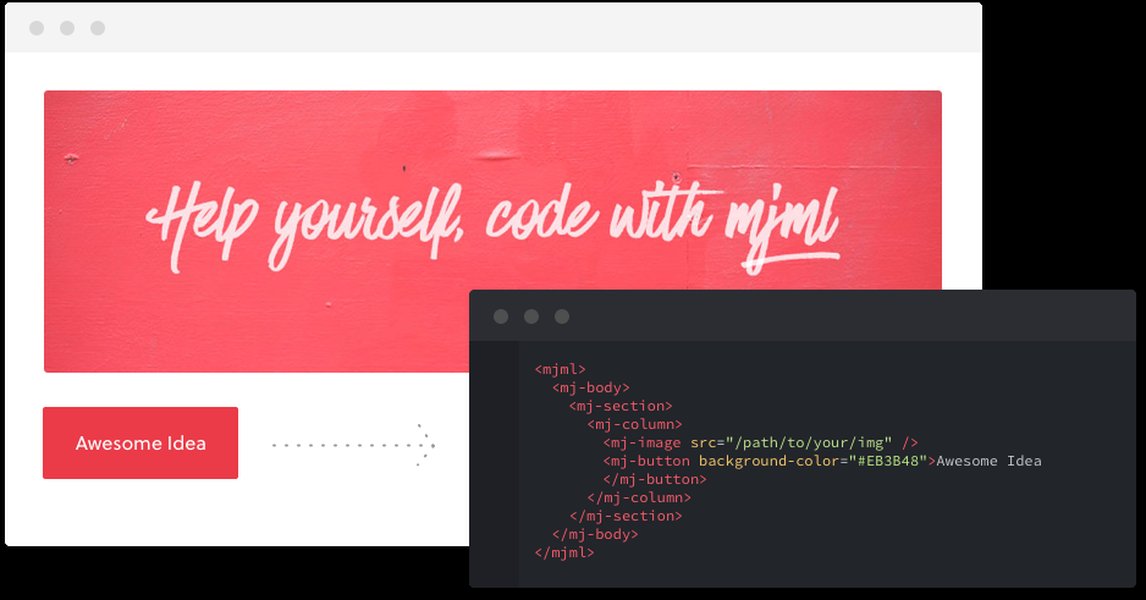
MJML editor showing code on the left and the responsive email preview on the right.
Frequently Asked Questions (FAQ)
Why use 700px for desktop width instead of the default 600px?
Why use 90% width on mobile instead of 100%?
Are there issues with specific email clients (like Outlook)?
Can I use a different breakpoint than 480px?
Recommended Further Exploration
- Learn advanced MJML techniques for sophisticated responsive email designs.
- Discover specific strategies for troubleshooting and resolving Outlook rendering quirks in MJML.
- Explore interactive MJML components like carousels and accordions to enhance email engagement.
- Find out the best tools and practices for thoroughly testing your MJML emails before sending.
References
Last updated May 4, 2025