
The Most Useful Commands in Emacs
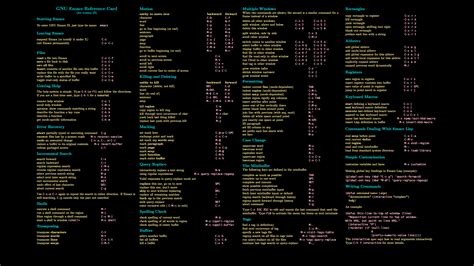
Introduction to Emacs Commands
Emacs is a highly extensible and customizable text editor favored by programmers, writers, and power users for its versatility and depth. Mastering its key commands can significantly enhance productivity and streamline workflows. This comprehensive guide explores some of the most essential and frequently used Emacs commands, categorized to help both beginners and seasoned users optimize their Emacs experience.
Basic Navigation Commands
Moving the Cursor
Efficient cursor movement is fundamental to editing in Emacs. The following commands facilitate quick navigation within a buffer:
C-f(Forward Char): Moves the cursor forward by one character.C-b(Backward Char): Moves the cursor backward by one character.C-n(Next Line): Moves the cursor to the next line.C-p(Previous Line): Moves the cursor to the previous line.
Scrolling Through Text
C-v(Scroll Up): Scrolls the view up by one screen.M-v(Scroll Down): Scrolls the view down by one screen.
Buffer Management
Opening and Switching Buffers
Managing multiple files and buffers efficiently is crucial for multitasking in Emacs:
C-x b(Switch to Buffer): Switches to another buffer. PressingC-x bfollowed by the buffer name allows quick navigation between different files or projects.C-x C-f(Find File): Opens a file for editing or creates a new buffer if the file does not exist.C-x k(Kill Buffer): Closes the current buffer, freeing up resources and decluttering the workspace.
Window Management
C-x o(Other Window): Switches focus to the next window. This is particularly useful when working with multiple splits, allowing seamless navigation between different sections of the workspace.C-x 1(Delete Other Windows): Maximizes the current window by closing all other windows. This is helpful for focusing on a single task without distractions.C-x 2(Split Window Below): Splits the current window horizontally, enabling side-by-side editing.C-x 3(Split Window Right): Splits the current window vertically, allowing for parallel workflows.
File Operations
Saving and Exiting
C-x C-s(Save Buffer): Saves the current buffer to its associated file. Regularly saving work is essential to prevent data loss and ensure that changes are recorded.C-x C-c(Save Buffers and Exit): Saves all modified buffers and exits Emacs. This command ensures that all your work is saved before closing the editor.
Opening and Closing Files
C-x C-f(Find File): Opens a specified file for editing or creates a new buffer if the file does not exist.C-x k(Kill Buffer): Closes the current buffer, prompting to save changes if necessary.
Editing Commands
Cut, Copy, and Paste
C-space(Set Mark): Begins the selection of a region for cutting or copying.C-w(Kill Region): Cuts the selected text, removing it from the buffer and placing it in the kill ring.M-w(Copy Region): Copies the selected text to the kill ring without removing it from the buffer.C-y(Yank): Pastes the most recently killed or copied text from the kill ring into the buffer.
Undo and Redo
C-/orC-_(Undo): Reverts the last change made to the buffer, allowing for experimentation without fear of irreversible mistakes.M-/(Redo): Reapplies the last undone change, enabling users to quickly toggle between different states of the buffer.
Searching and Replacing
C-s(Incremental Search Forward): Initiates a forward search as you type, allowing for quick navigation to desired text.C-r(Incremental Search Backward): Initiates a backward search, facilitating reverse navigation through the text.M-%(Query Replace): Enables find-and-replace operations with the option to confirm each replacement, ensuring changes are intentional and accurate.
Advanced Commands
Executing Extended Commands
One of Emacs's most powerful features is the ability to execute a vast array of commands through the M-x interface:
M-x(Execute Extended Command): Opens a prompt where users can type the name of any Emacs command to execute it. This command unlocks the full potential of Emacs, allowing access to hundreds of built-in and user-defined functions.M-x describe-bindings: Displays a comprehensive list of all current key bindings and their associated commands, aiding users in discovering new shortcuts and understanding existing ones.
Shell Integration
M-x shell(Start Shell): Launches an interactive shell within Emacs, enabling users to execute shell commands without leaving the editor. This integration streamlines workflows by keeping all tasks within a single environment.M-x eshell(Start Eshell): Opens Emacs's own shell, which is more integrated with Emacs's features compared to the standard shell.
Directory Editing Mode
M-x dired(Directory Editor): Opens a directory listing within Emacs, allowing users to navigate the file system, manage files, and perform operations like copying, moving, and deleting directly from the editor.
Org Mode
M-x org-mode activates Org mode, a powerful tool for organizing notes, creating to-do lists, managing projects, and even writing documents. Org mode supports outlining, scheduling, agenda views, and integrates seamlessly with Emacs's other features, making it an indispensable tool for productivity enthusiasts.
Help and Information
Accessing Help
C-h t(Emacs Tutorial): Launches the built-in Emacs tutorial, providing a guided introduction to the editor's basic features and commands. Ideal for new users to get acquainted with Emacs.C-h k(Describe Key): When followed by a key combination, it describes what command that key binding executes. This is useful for understanding the functionality of unfamiliar shortcuts.C-h f(Describe Function): Provides detailed information about a specific Emacs function, including its purpose, arguments, and usage examples.C-h v(Describe Variable): Displays documentation for a particular Emacs variable, aiding in customization and configuration.
Customization and Extensibility
Customizing Key Bindings
Emacs allows users to tailor key bindings to their preferences, enhancing efficiency:
M-x customize: Opens Emacs's customization interface, where users can modify various settings, including key bindings, themes, and plugins, without manually editing configuration files.M-x global-set-key: Lets users assign custom key bindings globally, enabling personalized shortcuts for frequently used commands.
Installing and Managing Packages
M-x package-install: Installs additional packages from Emacs repositories, extending the editor's functionality with tools for programming, writing, project management, and more.M-x package-list-packages: Displays a list of available and installed packages, allowing users to browse, install, or remove packages as needed.
Writing Custom Functions
For advanced users, Emacs's extensibility shines through its support for custom functions written in Emacs Lisp:
M-x eval-buffer: Executes all Emacs Lisp code in the current buffer, enabling users to define and test custom functions on the fly.M-x load-file: Loads and executes an Emacs Lisp file, allowing users to incorporate complex customizations and extensions into their workflow.
Optimizing Workflow with Essential Commands
Managing Multiple Files and Projects
C-x C-b(List Buffers): Displays a list of all open buffers, helping users keep track of multiple files and navigate between them efficiently.M-x projectile-find-file(Projectile Find File): With the Projectile package installed, this command allows for rapid file navigation within projects, significantly speeding up the development process.
Version Control Integration
M-x magit-status: If the Magit package is installed, this command opens a powerful and user-friendly interface for managing Git repositories directly within Emacs.
Code Editing and Development
C-c C-c(Compile): Compiles the current buffer's code, integrating with build systems and providing quick feedback on errors and warnings.C-M-x(Eval Defun): Evaluates the current function or top-level form, facilitating interactive development and testing of code snippets.C-x C-e(Eval Expression): Evaluates the expression preceding the cursor, useful for quick calculations and testing Lisp code.
Troubleshooting and Interruptions
Interrupting Commands
C-g(Keyboard Quit): Serves as an emergency exit from incomplete or unintended commands, preventing Emacs from becoming unresponsive during complex operations.
Handling Errors
C-h e(View Errors): Opens the *Messages* buffer, displaying error messages and logs that can help diagnose issues within Emacs.
Customizing Your Emacs Experience
Themes and Appearance
M-x load-theme: Allows users to change Emacs's color theme, enhancing visual comfort and reducing eye strain during prolonged use.
Adjusting Settings
M-x customize-variable: Enables users to modify specific Emacs variables, tailoring the editor's behavior to individual preferences.
Maximizing Efficiency with Macros
Recording and Playing Macros
-
C-x ((Start Macro): Begins recording a sequence of commands as a macro, automating repetitive tasks. -
C-x )(End Macro): Stops the recording of the macro. -
C-x e(Execute Macro): Plays back the recorded macro, executing the sequence of commands automatically.
Saving and Applying Macros
M-x name-last-kbd-macro: Assigns a name to the last recorded keyboard macro, allowing for easy reuse in future sessions.M-x insert-kbd-macro: Inserts the Emacs Lisp code of a named keyboard macro into a buffer, facilitating customization and sharing of macros.
Conclusion
Emacs's rich set of commands offers unparalleled flexibility and control to its users. From basic navigation and editing to advanced customization and automation, mastering these commands can transform Emacs into a powerful tool tailored to individual workflows. Whether you're a developer, writer, or general user, incorporating these essential commands into your routine will enhance your efficiency and unlock the full potential of Emacs.
Last updated January 3, 2025