
Creating a Comprehensive MS Word Article
Master the use of pictures, FAQs, and hyperlinks with full link names
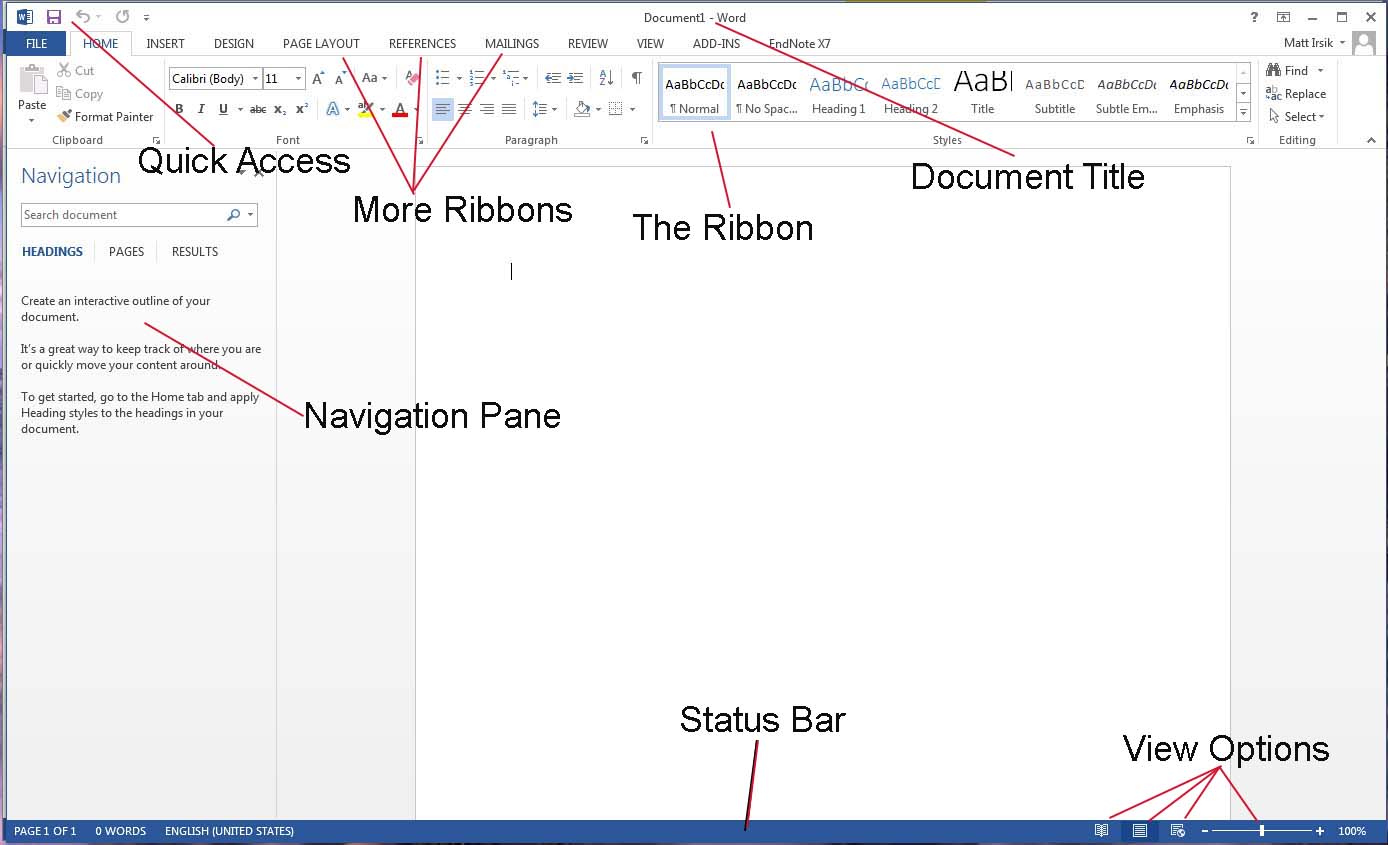
Highlights
- Inserting and Editing Pictures: Learn how to place images, adjust text wrapping, and apply editing tools to enhance visuals.
- Designing a Structured FAQ Section: Organize content clearly using heading styles and tables to answer common questions effectively.
- Creating Accessible Hyperlinks: Insert hyperlinks that display full, descriptive link names and enhance document accessibility.
Introduction
In today's digital documentation landscape, creating an engaging and informative article in Microsoft Word involves more than just typing text. An effective article integrates visual content, crucial FAQs, and well-structured hyperlinks to create a seamless reading experience. Particularly, articles focusing on tools like Sana, a knowledge assistant platform, benefit from an organized structure that combines images, frequently asked questions (FAQs), and comprehensive link details. This guide will walk you through step-by-step instructions for crafting such an article. Through clear and detailed explanations, you will learn how to insert and edit pictures, utilize table structures for FAQ sections, and deploy hyperlinks with full link names that improve both usability and accessibility.
Section 1: Preparing Your Document
Setting Up the Layout
Before inserting elements into your document, it is vital to configure the initial layout. Open Microsoft Word and create a new document. Adjust margin and layout settings via the “Page Layout” tab, ensuring a visually appealing and balanced structure. For instance, selecting a “Narrow” margin configuration can make your content appear less cluttered and more professional.
Title and Headings
Begin your article with a clear title that reflects the nature of the content. Apply the Title Style from the Home tab for consistency. Following the main title, establish headings for distinct sections such as "Introduction," "Inserting a Picture," "FAQ Section," "Hyperlink Integration," and "Conclusion." Consistent use of heading styles not only enhances readability but also facilitates automatic table of contents generation this features some enterprise-level requirements.
Section 2: Integrating Visual Content
Inserting a Picture
Visual elements capture attention and break the monotony of plain text. To insert a picture in Microsoft Word:
- Go to the Insert tab on the ribbon.
- Select Pictures from the Illustrations group.
- Choose whether to insert from your computer or via online sources, such as Microsoft's stock image library.
- After selecting the appropriate image, click Insert to add it to your document.
Editing and Positioning Pictures
Once the image is inserted, you can modify its attributes extensively. By clicking on the image, the “Picture Format” tab appears. Here you have several options:
- Resizing: Drag the corner handles of the image to maintain the aspect ratio and ensure the image fits within the desired area.
- Text Wrapping: Utilize options like “In Line with Text,” “Square,” “Tight,” or “Through” to integrate the image seamlessly with adjacent text. To refine text flow further, you can select “Wrap Text > Edit Wrap Points.”
- Editing Tools: Enhance the image with brightness, contrast, and artistic effects using the tools available under the Picture Format tab. Cropping the image and applying quick styles can also elevate its impact.
The ability to add text directly over a picture can be achieved by inserting a text box:
- Click on the “Insert” tab and choose “Text Box.”
- Then, type your message or description within the text box.
- Drag the text box over the image to position it as needed. This is particularly useful when the picture requires an annotation or caption that explains its relevance to Sana and its functionalities.
Section 3: Creating a Detailed FAQ Section
Importance of FAQs in Articles
A Frequently Asked Questions (FAQ) section serves as a critical part of many articles. It addresses common queries, provides further clarity, and improves the article's navigability. For content concerning Sana, incorporating FAQs ensures that users can quickly locate answers to any concerns or subtleties regarding its functionalities, integration, or troubleshooting.
Building Your FAQ Section
To create an effective FAQ section:
- Place the FAQ Section: Decide on a location in your document where the FAQ section will be most noticeable. Often, a dedicated section after discussing the primary content works best.
- Utilize Appropriate Formatting: Use subtotal headings for each question or consider a table format for improved visual clarity. Headings help highlight the questions themselves while paragraph text can succinctly provide the answers.
- Content Clarity: Ensure that each question is phrased in a user-friendly way. Answers should be informative yet concise, leveraging bullet points if necessary to detail multiple steps or items.
Example Table Structure for FAQs
| Question | Answer |
|---|---|
| How do I insert a picture in Word? | Select the Insert tab, click on Pictures, choose the image, and insert it into the document. |
| Can I add text on a picture? | Yes, insert a text box and overlay it on the image, adjusting its position as needed. |
| How do I create a hyperlink? | Highlight the desired text or image, press Ctrl+K, and enter the URL in the dialog box. |
| What is Sana? | Sana is a knowledge assistant platform that integrates document management and SharePoint data, providing full contextual information within organizations. |
Using a table helps in clearly segregating questions and their corresponding answers while ensuring that the content remains visually structured.
Section 4: Inserting and Managing Hyperlinks
Steps to Insert Hyperlinks
Hyperlinks are essential for navigating within the document as well as linking to external resources, such as detailed articles or additional support pages for Sana. Detailed steps to add hyperlinks in your document are as follows:
- Select the text or image you want to link.
- Navigate to the Insert tab and click on Link (or press Ctrl+K on Windows or Command+K on a Mac).
- In the dialog box that appears, paste the complete URL in the "Address" field.
- For clarity and accessibility, ensure that the text to display is descriptive; instead of generic terms like “Click here,” use text such as “Learn more about Sana’s integration features.”
- Click OK to create the hyperlink.
Best Practices for Hyperlinking
- Descriptive Link Text: Always provide full link names to help a user understand the destination of the hyperlink. For instance, display the link as “Sana SharePoint Integration Guide” instead of merely “Guide.”
- Accessible Links: Ensure that the language used for hyperlink text is natural and informative. This not only aids in human readability but also improves accessibility for users relying on screen readers.
- Internal Navigation: In addition to linking externally, hyperlinks can also guide readers to different sections within the document using bookmarks or anchored headings.
Section 5: Integrating Sana-Related Content
Why Feature Sana?
Sana enhances the documentation experience by integrating knowledge management with readily accessible data. Articles focused on Sana can address installation details, integration with SharePoint, and overall usage scenarios. Using Sana’s capabilities in your documentation enhances credibility and informs readers of the rich context behind your document’s content.
Steps to Include Sana-Related Links and Information
For integrating Sana directly into your MS Word article:
- Include Direct Links: Incorporate hyperlinks that lead directly to Sana guides, help pages, and other relevant resources. This ensures that readers can seamlessly access in-depth information.
- Use Descriptive Text: When featuring Sana links, use clear and descriptive link text. This not only informs readers about the content but also enhances SEO and accessibility.
- Integrate with Content: Place Sana-related links within sections where they are most relevant. For example, when discussing integration with SharePoint, include a hyperlinked reference describing Sana’s SharePoint integration capabilities.
The following table illustrates a sample integration of Sana-related hyperlinks within your article:
| Topic | Hyperlink Description |
|---|---|
| Sana Knowledge Assistant | Learn about Sana’s Knowledge Assistant |
| Sana SharePoint Integration | View the Sana SharePoint Integration Guide |
| General Sana Documentation | Access FAQs and detailed guides |
Section 6: Finalizing Your Article
Reviewing and Refining Your Document
Once all elements are in place – the picture, FAQ section, and hyperlinks – it’s crucial to review your document for consistency and clarity. Check the following in your document:
- Verify that images are appropriately sized and well-positioned.
- Ensure that the FAQ section is clear, with each question directly followed by its answer.
- Review hyperlinks to confirm they direct to the correct URLs and display descriptive text accurately.
- Ensure that the overall layout follows a logical sequence that enhances user experience.
Additional Tips for a Professional Finish
Use Consistent Formatting: Consistency is paramount. Apply the same font style and size across similar elements. Utilizing built-in style sets can help maintain a uniform appearance.
Document Navigation: Consider adding a table of contents at the beginning of your article if it is lengthy. Microsoft Word can automatically generate this if you have used heading styles.
Accessibility: Remember to include alternative text for all images. This assists visually impaired users and also improves the overall accessibility of your document.
Conclusion
In conclusion, designing an MS Word article that seamlessly integrates images, a detailed FAQ section, and descriptive hyperlinks is a multi-step process that enhances both the aesthetics and the usability of your content. By following a structured approach – starting with document setup and focusing on clear headings, suitably placed images, and well-organized FAQs – you can create documents that are not only visually appealing but also sufficiently informative to guide your audience.
Furthermore, the integration of Sana-related content illustrates how industry-specific resources can enrich your documentation, offering readers in-depth insights and direct access to additional resources. From adjusting picture formatting and text wrapping to incorporating detailed FAQs and accessible hyperlinks, every step contributes to the creation of a comprehensive and professional-quality article. By following these guidelines meticulously, whether you are a novice or an experienced user, you will enhance your documents' clarity and overall presentation.
References
- How to Insert and Adjust Images in a Word Document - PCWorld
- Insert Pictures - Microsoft Support
- Insert a Hyperlink in Microsoft Word - WikiHow
- Sana SharePoint Integration Guide - Sana AI
- Sana Knowledge Assistant - Sana Labs
Recommended
Last updated February 21, 2025