
Unlock Your Nextcloud: Secure External Access Demystified
Safely connect to your private cloud from anywhere by understanding essential port forwarding and crucial security practices.
Allowing external access to your self-hosted Nextcloud server opens up a world of convenience, letting you reach your files and services from anywhere. However, this accessibility must be balanced with robust security measures to protect your data. This guide will walk you through the necessary port forwarding and essential security practices to ensure your Nextcloud instance is both reachable and secure.
Key Takeaways for Secure Nextcloud Access
- Essential Ports: Primarily, you'll need to forward TCP port 443 (HTTPS) for secure, encrypted communication. TCP port 80 (HTTP) is often forwarded as well, but strictly for redirecting traffic to HTTPS.
- Layered Security is Paramount: Beyond port forwarding, implement strong SSL/TLS encryption, enable Two-Factor Authentication (2FA), configure server-side and router firewalls, and consider using a reverse proxy for enhanced protection.
- Vigilance and Updates: Keep your Nextcloud installation, operating system, and all related software regularly updated. Monitor logs and review security configurations periodically to address potential vulnerabilities.
Essential Ports for External Nextcloud Connectivity
To make your Nextcloud server accessible from the internet, you'll need to configure your router to forward specific network ports to the internal IP address of your Nextcloud server. The two fundamental ports are:
Port 443 (HTTPS): The Secure Lifeline
Port 443 is used for HTTPS (Hypertext Transfer Protocol Secure) traffic. This is the most critical port for your Nextcloud server. All communication over HTTPS is encrypted using SSL/TLS (Secure Sockets Layer/Transport Layer Security) certificates, ensuring that data exchanged between your client devices (browsers, mobile apps) and your server remains confidential and protected from eavesdropping or tampering. Always prioritize and ensure port 443 is correctly forwarded and that your Nextcloud instance is configured to use a valid SSL/TLS certificate (e.g., from Let's Encrypt).
Port 80 (HTTP): For Redirection and Initial Setup
Port 80 is used for unencrypted HTTP (Hypertext Transfer Protocol) traffic. While you might forward this port, its primary role in a secure Nextcloud setup is to redirect any incoming HTTP requests to the secure HTTPS (port 443) equivalent. This ensures that users who inadvertently try to connect via HTTP are automatically upgraded to an encrypted session. It can also be necessary for certain SSL certificate validation processes, like Let's Encrypt's HTTP-01 challenge. Direct, unencrypted access to your Nextcloud data via port 80 should be disabled in your web server configuration once HTTPS is operational.
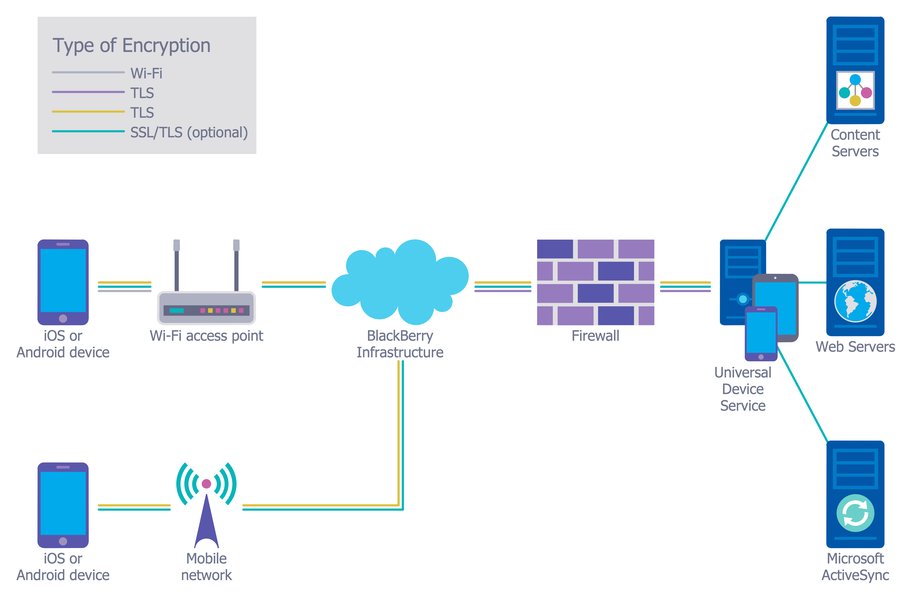
A conceptual view of a secure network architecture, highlighting the role of firewalls in protecting internal resources like your Nextcloud server.
Optional Ports for Enhanced Functionality
Depending on your Nextcloud setup and the features you use, you might consider forwarding additional ports:
Nextcloud Talk (Port 3478)
If you utilize Nextcloud Talk for audio/video calls and chat, you may need to forward port 3478 (typically UDP, but sometimes TCP as well). This port is used by STUN (Session Traversal Utilities for NAT) and TURN (Traversal Using Relays around NAT) servers, which help establish direct connections between users, especially when they are behind different NAT firewalls.
Nextcloud All-in-One (AIO) Specific Ports (e.g., 8080, 8443)
If you're running Nextcloud All-in-One (AIO), specific ports like 8080 (HTTP for AIO interface) or 8443 (HTTPS for AIO master container/interface) might be used during setup or for accessing the AIO management panel. Generally, for external user access to Nextcloud itself, you would still primarily expose ports 80 and 443, potentially through a reverse proxy that routes to the AIO instance. Forwarding AIO management ports externally should be done with extreme caution and ideally restricted to trusted IP addresses if absolutely necessary.
Fortifying Your Nextcloud Fortress: Key Security Measures
Opening ports to the internet inherently introduces risks. Therefore, coupling port forwarding with a robust security strategy is non-negotiable. Here’s a comprehensive approach to securing your externally accessible Nextcloud server:
Encryption and Authentication
Always Use HTTPS
Enforce HTTPS for all connections. Configure your web server (e.g., Apache, Nginx) to automatically redirect all HTTP (port 80) traffic to HTTPS (port 443) using a permanent (301) redirect. Obtain and correctly install a valid SSL/TLS certificate from a trusted Certificate Authority (CA), such as Let's Encrypt (which offers free certificates).
Strong Authentication
Implement strong, unique passwords for all user accounts, including administrative ones. Enable Two-Factor Authentication (2FA) for an additional layer of security. Nextcloud supports various 2FA methods, such as TOTP (Time-based One-Time Password) apps.
Network and Server Defense
Firewall Configuration
Utilize firewalls at multiple levels:
- Router Firewall: Your router’s built-in firewall should be enabled. Configure it to only allow inbound traffic on the necessary forwarded ports (primarily 443, and 80 for redirection).
- Server-Side Firewall: Install and configure a software firewall on the Nextcloud server itself (e.g., UFW on Ubuntu, firewalld on CentOS). This allows for finer-grained control, restricting access to necessary services and potentially specific IP addresses.
Fail2Ban
Install and configure Fail2Ban on your Nextcloud server. This tool monitors log files for suspicious activity, such as repeated failed login attempts, and automatically blocks the offending IP addresses by updating firewall rules. This helps mitigate brute-force attacks.
Reverse Proxy
Consider placing your Nextcloud server behind a reverse proxy (e.g., Nginx, Apache, Traefik, Caddy). A reverse proxy can handle SSL/TLS termination, load balancing, caching, and provide an additional security layer by hiding your Nextcloud server's internal IP address and potentially integrating with Web Application Firewalls (WAFs).

An example of a Nextcloud security scan result, highlighting areas for improvement.
Dynamic DNS (DDNS)
If your home internet connection has a dynamic public IP address (common for residential ISPs), use a Dynamic DNS (DDNS) service (e.g., No-IP, DuckDNS, FreeDNS). A DDNS client on your server or router will automatically update the DDNS provider with your current IP address, allowing you to use a consistent domain name (e.g., yourcloud.ddnsprovider.com) to access your Nextcloud.
Trusted Domains
In your Nextcloud config/config.php file, explicitly list all domains (and IP addresses, if necessary) through which your Nextcloud instance will be accessed in the trusted_domains array. Nextcloud will refuse connections from untrusted domains.
System and Application Hardening
Data Directory Location
For new installations, it's highly recommended to place your Nextcloud data directory (data/) outside of the web server's document root (e.g., outside /var/www/html). This prevents direct web access to your data files should there be a web server misconfiguration.
Regular Updates
Keep your Nextcloud instance, its apps, the underlying operating system (e.g., Linux distribution), web server software, PHP, and database software regularly updated. Updates often include security patches for known vulnerabilities.
Minimize Open Ports
Only forward the ports that are absolutely necessary. Each open port is a potential entry point for attackers. If you don't use Nextcloud Talk, don't forward port 3478.
Secure Random Number Generation
Ensure that your PHP environment has read access to /dev/urandom for cryptographically secure pseudo-random number generation, which Nextcloud relies on for various security functions.
Restrict Admin Actions (Optional)
For enhanced security, you can configure allowed_admin_ranges in config.php to limit administrative actions to specific IP ranges, such as your internal LAN. This prevents admin access from untrusted external networks.
Monitoring and Alternatives
Logging and Monitoring
Enable and regularly review Nextcloud's audit logs and your web server logs. These logs can help you detect suspicious activity or troubleshoot issues. Nextcloud supports integration with external logging tools like Splunk or Nagios.
VPN Access
For maximum security, especially for a small number of users, consider accessing your Nextcloud server via a Virtual Private Network (VPN) hosted on your LAN. With a VPN, you wouldn't need to forward any Nextcloud-specific ports to the public internet; instead, users would first connect to your VPN and then access Nextcloud as if they were on the local network. This significantly reduces the attack surface.
Visualizing Security Measures: Impact vs. Effort
Implementing security is a continuous process. The radar chart below provides an opinionated analysis of common Nextcloud security measures, comparing their potential security impact against the typical ease of setup and their effect on user convenience. This can help you prioritize your efforts.
Note: 'Security Impact' and 'Ease of Setup' are rated on a scale of 1-10 (higher is better/easier). 'User Convenience' is rated 1-10 (higher means less friction for users, e.g., VPN might add an extra step, thus slightly lower convenience). These are generalized assessments.
Mapping Your Secure Nextcloud Access Strategy
The mindmap below illustrates the interconnected components involved in securely exposing your Nextcloud server to the internet. It highlights the core ports, essential security layers, and necessary configurations on both your server and network.
Encrypted Traffic"] id1_2["Port 80 (HTTP)
Redirect to HTTPS"] id2["Key Security Layers"] id2_1["SSL/TLS Certificates
(e.g., Let's Encrypt)"] id2_2["Two-Factor Authentication (2FA)"] id2_3["Firewalls
(Router & Server-side)"] id2_4["Reverse Proxy
(Nginx, Apache, Traefik - Optional)"] id2_5["VPN Access
(Alternative Secure Method)"] id3["Nextcloud Server Configuration"] id3_1["Trusted Domains Setup"] id3_2["Regular Software Updates"] id3_3["Fail2Ban Integration"] id3_4["Data Directory Outside Web Root"] id4["Router & Network Setup"] id4_1["Static IP for Nextcloud Server (LAN)"] id4_2["Dynamic DNS (DDNS) for Dynamic Public IP"] id4_3["Minimize Open Ports"]
Quick Reference: Nextcloud Ports Overview
This table summarizes the common ports associated with Nextcloud and their typical use cases when considering external access:
| Port Number | Protocol | Primary Purpose | Security Recommendation & Notes |
|---|---|---|---|
| 443 | TCP | Secure Web Access (HTTPS) | Essential. Enforce for all external connections. Use with a valid SSL/TLS certificate. |
| 80 | TCP | Web Access (HTTP) | Forward primarily to redirect all traffic to HTTPS (Port 443). May be needed for Let's Encrypt HTTP-01 challenge. Do not allow unencrypted data access. |
| 3478 | TCP/UDP | Nextcloud Talk (STUN/TURN) | Optional. Forward only if Nextcloud Talk features are actively used and require external connectivity. |
| 8080 | TCP | Nextcloud AIO Interface (HTTP) / Alternative HTTP | Conditional. Primarily for Nextcloud AIO management or as an alternative HTTP port. If exposed externally, ensure it's necessary and secure (e.g., restricted IP access). |
| 8443 | TCP | Nextcloud AIO Interface (HTTPS) / Alternative HTTPS | Conditional. Primarily for Nextcloud AIO management (HTTPS). If exposed externally, ensure it's necessary and secure (e.g., restricted IP access, strong authentication). |
Visual Guide: Securing Your Nextcloud Instance
For a practical demonstration on securing Nextcloud, including aspects like SSL certificates and port forwarding configurations, the following video provides valuable insights. It covers setting up SSL with Let's Encrypt, configuring port forwarding, and using Nginx, which can act as a reverse proxy.
This video demonstrates how to secure a Nextcloud instance using SSL certificates from Let's Encrypt, configure port forwarding, and set up Nginx.
Frequently Asked Questions (FAQ)
Do I absolutely need to forward port 80?
http://yourdomain.com to https://yourdomain.com. It's also often required for the Let's Encrypt HTTP-01 challenge method for SSL certificate issuance and renewal. If you forward it, ensure your web server is configured to immediately redirect all port 80 traffic to port 443.Is using a non-standard external port for HTTPS (e.g., 65433 mapping to internal 443) more secure?
https://yourdomain.com:65433). True security relies on strong encryption, authentication, and regular patching, not just port obfuscation.What if my Internet Service Provider (ISP) blocks port 80 or 443?
- Contact your ISP: They might offer a business plan or an option to unblock these ports.
- Use non-standard ports: You could forward a different external port (e.g., 8443) to your internal port 443. Users would then need to include this port in the URL.
- Use a tunnel or VPN service: Services like Cloudflare Tunnel or a self-hosted VPN on a VPS can bypass ISP port blocking by tunneling traffic through an unblocked port.
Is a VPN a better alternative to port forwarding for Nextcloud access?
How often should I check my Nextcloud security settings and logs?
Conclusion: Balancing Accessibility with Security
Exposing your Nextcloud server to the internet requires careful consideration of which ports to forward—primarily TCP ports 443 (HTTPS) and 80 (HTTP for redirection). However, simply opening ports is not enough. A comprehensive security strategy involving strong SSL/TLS encryption, robust authentication methods like 2FA, diligent firewall configurations, regular software updates, and continuous monitoring is essential to protect your valuable data. By implementing these measures, you can confidently and securely access your personal cloud from anywhere in the world.
Recommended Further Exploration
- How do I configure Nginx as a reverse proxy for my Nextcloud server to enhance security?
- What are the comprehensive best practices for securing any home server that is accessible from the internet?
- Can you provide a detailed guide on installing and configuring Fail2Ban to protect my Nextcloud instance from brute-force attacks?
- What are the pros and cons of using a VPN versus direct port forwarding for accessing self-hosted services like Nextcloud?
References
Last updated May 21, 2025