
NextDNS Configuration Tips for Optimal macOS Performance
Enhance security, speed, and reliability of your DNS setup
Key Highlights
- Utilize Configuration Profiles & Official App: Leverage the macOS native support with configuration profiles and the official NextDNS app for easy management.
- Enable Secure DNS Protocols: Improve security and prevent DNS leaks by enabling DNS-over-HTTPS (DoH) or DNS-over-TLS (DoT).
- Optimize Settings and Troubleshoot: Fine-tune performance through dashboard configurations, regular performance monitoring, and systematic troubleshooting.
Introduction to NextDNS on macOS
NextDNS is a powerful DNS service that provides advanced security, intricate filtering, and performance optimizations. For macOS users, configuring NextDNS optimally ensures not only faster browsing but also enhanced privacy and protection against online threats. In this detailed guide, we cover various approaches—from using official tools like configuration profiles and apps, to manual adjustments—for achieving peak performance on your Mac.
Installation Methods
There are two primary methods to configure NextDNS on macOS: the use of the official app and setting up a native configuration profile. Both methods provide benefits and allow you to choose the most appropriate approach for your needs.
Using the Official NextDNS App
The easiest way to get started is by downloading the NextDNS app from the Mac App Store. This method provides an intuitive user interface that manages encrypted DNS queries across all networks:
- Download and Installation: Install the app by visiting the Mac App Store or downloading directly from the NextDNS website.
- Account Login: Open the app and sign in to your NextDNS account.
- Configuration Setup: Enter your custom configuration ID, and the app will automatically adjust your DNS settings. This ensures that your chosen policies for blocking, tracking, and content filtering are consistently applied.
- Automatic Updates: With the official app, you benefit from automatic updates that enhance performance features, security, and overall stability.
Utilizing Configuration Profiles
For a more integrated macOS experience, you may opt to install a configuration profile generated by NextDNS. This method provides native support for encrypted DNS and bypasses the need for modifying manual settings in system preferences.
- Generate Profile: Visit the NextDNS official site at NextDNS for Apple devices to generate a configuration profile.
- Download and Install: Download the .mobileconfig file and install it on your Mac. This action configures your system to use NextDNS natively.
- Application Across Networks: The profile ensures that regardless of the network your macOS connects to, your DNS queries remain secure and filtered in accordance with your custom settings.
Optimizing DNS Settings
Once installed via the app or configuration profile, it's important to further optimize your NextDNS settings to maximize performance.
Secure DNS Protocols
Security and speed are enhanced by implementing secure DNS protocols. NextDNS allows the configuration of DNS-over-HTTPS (DoH) and DNS-over-TLS (DoT):
- DNS-over-HTTPS (DoH): By routing DNS queries through an HTTPS connection, DoH prevents eavesdropping and ensures that your DNS traffic remains private. Configuration usually involves setting the DoH URL (e.g., https://dns.nextdns.io/) within your app or profile settings.
- DNS-over-TLS (DoT): With DoT, DNS queries are transmitted over TLS, which encrypts and secures your traffic. You can configure DoT by adjusting the settings in your macOS network preferences or directly within the NextDNS app.
Manual DNS Configuration
Advanced users can also configure NextDNS manually by inserting DNS server addresses directly in macOS Network Preferences:
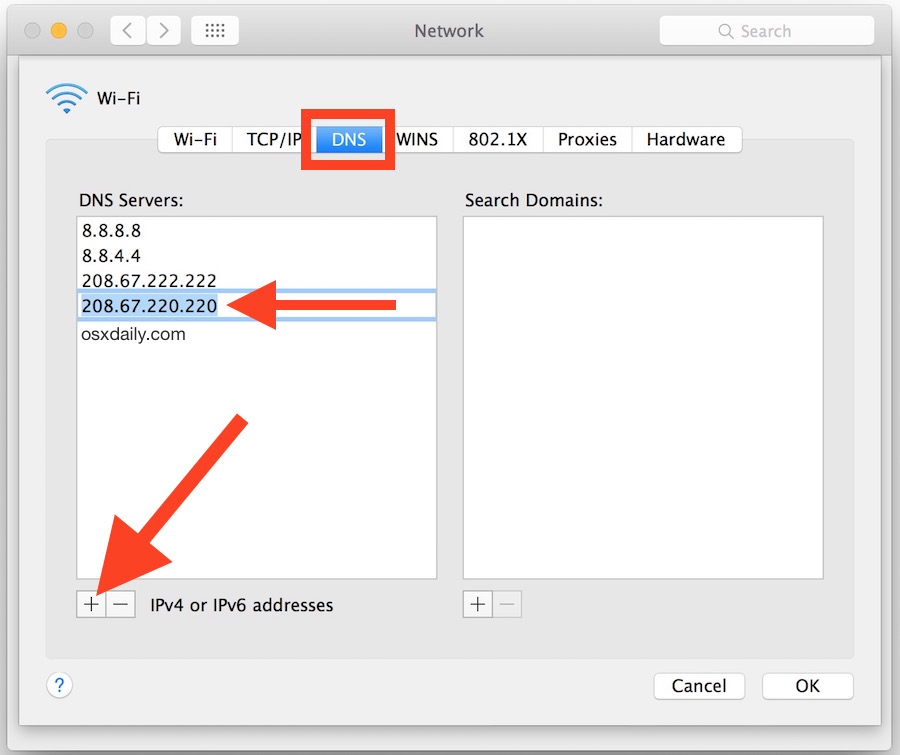
- Access Network Settings: Go to System Preferences > Network, select your active connection (Wi-Fi or Ethernet), and click “Advanced.”
-
Add DNS Servers: In the “DNS” tab, add the NextDNS server IP addresses:
For IPv4: 45.90.28.1 and 45.90.30.1
For IPv6: 2a07:a8d0:0:1::1 and 2a07:a8d0:0:2::1 - Finalize Settings: Confirm and apply the changes. It is recommended to use this method if you need specific IP configurations.
Advanced Optimizations and Performance Enhancements
After installing NextDNS and setting your DNS preferences, additional optimizations can be applied to ensure optimal performance:
Adjusting Features and Policies
NextDNS provides a variety of advanced filtering options that you can customize through its dashboard.
Ad-blocking and Tracker Protection
Enhance browsing speed and privacy by enabling ad-blocking and security features:
- Content Blocking: Enable filtering rules to block unwanted ads and trackers. Be mindful that excessive filtering may sometimes delay query responses; adjust the rules to achieve a balance between performance and protection.
Customization of Query Caching
Modify TTL (time-to-live) settings and cache rules via the NextDNS dashboard to effectively manage DNS query caching:
- Caching Settings: Properly tuned caching parameters ensure that frequently requested domains are served faster, reducing latency.
- Dashboard Monitoring: Regularly check the performance metrics within the NextDNS dashboard to determine if further adjustments are needed.
Installing as a Service/Launch Agent
For users who require always-on performance and immediate startup after boot, setting up NextDNS as a macOS service or launch agent is a great option. This method is particularly beneficial if you manage multiple configurations or require a persistent DNS service even before the user session starts:
- Command Line Setup: Follow comprehensive guides available on NextDNS support pages for installation as a service. This typically involves adding the NextDNS launch agent to your system's startup configuration.
- Automatic Loading: A launch agent ensures the NextDNS service starts automatically with your Mac, thus reducing the risk of DNS queries slipping outside the defined protections.
Troubleshooting and Conflict Resolution
Despite careful setting, conflicts or performance issues may arise. Understanding common troubleshooting steps can resolve issues related to DNS leaks or slow queries.
DNS Leaks and Interference
Identify and address any instances where other services might bypass NextDNS:
- DoH Bypass: Some applications or browsers might implement their own DNS-over-HTTPS settings that bypass system configurations. Verify that these are not interfering with your NextDNS settings.
- iCloud Private Relay: On macOS, iCloud Private Relay may override custom DNS settings. If you face issues with NextDNS not being applied, temporarily disable iCloud Private Relay and test your configuration.
Network Stability and Software Updates
Maintaining overall system performance is also reliant on ensuring that both your macOS and NextDNS software remain updated:
- Regular Updates: Frequent updates to both macOS and the NextDNS app help address bugs and introduce performance optimizations.
- Network Diagnostics: Use diagnostic tools (like dnsleaktest.com and command-line utilities such as dig or nslookup) to verify that DNS queries are properly routed through NextDNS.
Summary Table: Quick Reference for macOS NextDNS Setup
| Step | Action | Details |
|---|---|---|
| Installation | App or Profile | Use the NextDNS app from the Mac App Store or generate a configuration profile from NextDNS for Apple devices. |
| DNS Protocols | DoH/DoT | Enable DNS-over-HTTPS (https://dns.nextdns.io/) or DNS-over-TLS (tls://dns.nextdns.io) to secure DNS queries. |
| System Settings | Manual or Native | Configure DNS settings manually in System Preferences or via configuration profiles for native integration. |
| Advanced Setup | Service/Launch Agent | Install NextDNS as a service for automatic start-up and persistent background operation. |
| Troubleshooting | Monitor & Adjust | Use performance monitoring within the NextDNS dashboard; adjust caching, verify DNS leaks, and ensure compatibility with other services. |
Dashboard and Performance Monitoring
An important aspect of optimizing your DNS configuration is regular monitoring. Through the NextDNS dashboard, you can oversee several performance metrics:
Dashboard Features
The NextDNS dashboard provides real-time analytics which include:
- Query Statistics: Track the number of DNS queries processed and the sources.
- Latency Monitoring: Understand response times and identify any latency issues.
- Security Logs: Keep an eye on blocked queries or potential security threats.
Using these monitoring tools, you can tailor your settings in response to real-world usage and troubleshoot issues as they arise.
Device & Network Compatibility Considerations
macOS users must be aware of potential device-specific or network-related conflicts. For example, if you utilize VPNs, secondary DNS services, or iCloud Private Relay, adjustments may be necessary:
Handling Multiple DNS Layers
Make sure that NextDNS remains the primary DNS resolver:
- VPN Integration: Some VPN clients may override DNS settings; check VPN configuration options to ensure that DNS queries continue to be routed through NextDNS.
- Third-party Applications: Applications using their own DNS settings may bypass system configurations, so it’s important to verify compatibility.
Optimizing Through Apple Ecosystem Tools
With macOS, additional tools can help monitor network performance:
- Little Snitch: Users of Little Snitch 6 can use its built-in DNS-over-HTTPS proxy by entering the NextDNS DoH URL. This ensures that network monitoring and DNS privacy coexist seamlessly.
- System Diagnostics: macOS’s built-in diagnostic tools can provide insights into network performance, allowing you to fine-tune your configuration if you notice any lag or slow response times.
References
Below are some relevant resources for deepening your understanding and troubleshooting NextDNS on macOS:
- NextDNS for Apple devices - NextDNS
- Best Way to Install as Service on Mac - NextDNS Help Center
- Optimal NextDNS Profile Settings for iPhone and MacOS - Reddit
- NextDNS on the Mac App Store - Apple
- Troubleshooting Slow Performance - NextDNS Help Center
Recommended Related Queries
Last updated March 22, 2025