
Nginx Configuration for Unity WebGL Builds
A detailed walkthrough for setting up optimal performance and security
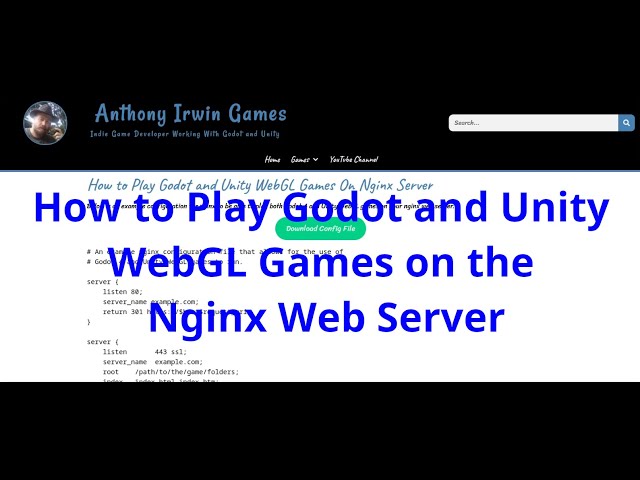
Key Highlights
- Compression Strategies: Utilize both gzip and Brotli compression to serve pre-compressed Unity WebGL assets, ensuring faster load times.
- MIME Types and Headers: Configure correct MIME types and add appropriate Content-Encoding headers to properly serve .unityweb, .data, .js, .wasm, and other Unity-related files.
- Security and Performance: Employ SSL, security headers, and redirections to enhance user security while delivering high-performance content.
Overview
Unity WebGL builds rely on Nginx’s capability to efficiently serve static files, enforce security, and optimize performance through compression techniques. Configuring Nginx appropriately is essential to ensure that Unity WebGL content loads quickly, maintains high-quality performance, and is secure. In this guide, we delve into the various essential aspects, including server setup, handling compressed files, MIME type declaration, and security considerations.
Basic Server Block Setup
At its simplest, an Nginx configuration file for a Unity WebGL build will include a server block that listens on port 80 (HTTP) or port 443 (HTTPS) depending on whether SSL is being used. This basic example specifies a root directory where the Unity WebGL build resides and defaults the index file to “index.html”. The configuration below represents a foundational setup:
# Basic Nginx configuration for Unity WebGL
server {
    listen 80;
    server_name yourdomain.com;
    root /path/to/unity/webgl/build;
    index index.html;

    location / {
        try_files $uri $uri/ =404;
    }
}
Handling Compressed Unity WebGL Files
Unity builds typically generate large files (.unityweb, .data, etc.) that heavily benefit from pre-compression. By enabling gzip—and optionally Brotli—you can serve these compressed files directly. It is crucial not to double-compress files that have already been pre-compressed. Here’s an in-depth explanation of setting up these configurations for both gzip and Brotli.
Gzip Compression
Gzip is a popular method for compressing web assets. In the context of a Unity WebGL build, specific file types such as .data (or symbols.json) are pre-compressed and stored with a .gz extension. The configuration instructs Nginx to add a Content-Encoding header and ensures that the correct MIME type is served:
# Enable gzip compression
gzip on;
gzip_types application/octet-stream;

# Serve pre-compressed Unity files for gzip (if they exist)
location ~ .+\.(data|symbols\.json)\.gz$ {
    gzip off;
    add_header Content-Encoding gzip;
    default_type application/octet-stream;
}

location ~ .+\.js\.gz$ {
    gzip off;
    add_header Content-Encoding gzip;
    default_type application/javascript;
}

location ~ .+\.wasm\.gz$ {
    gzip off;
    add_header Content-Encoding gzip;
    default_type application/wasm;
}
Explanation:
- The gzip on directive enables compression.
- gzip_types specifies which MIME types to compress; for Unity-related files this is typically application/octet-stream.
- The location blocks that match files ending in .gz disable any dynamic compression (gzip off) and add the appropriate Content-Encoding header, ensuring browsers understand the file is compressed.
Brotli Compression
Brotli compression is a modern technique that can improve compression ratios beyond gzip, leading to smaller file sizes and often faster load times. Similar to gzip, pre-compressed files ending with a .br extension are served directly:
# Example configuration for Brotli compressed files
location ~ .+\.(data|symbols\.json)\.br$ {
    gzip off;  # Stop gzipping already brotlied files
    add_header Content-Encoding br;
    default_type application/octet-stream;
}

location ~ .+\.js\.br$ {
    gzip off;
    add_header Content-Encoding br;
    default_type application/javascript;
}

location ~ .+\.wasm\.br$ {
    gzip off;
    add_header Content-Encoding br;
    default_type application/wasm;
}
Explanation:
- The configuration uses a similar approach as gzip but instead relies on the Content-Encoding br header to indicate brotli compressed content. - gzip off remains essential to prevent double compression.
Security and SSL Configuration
When deploying Unity WebGL applications over the internet, especially with game content that may be sensitive or require secure data transfers, it is important to implement SSL certificates and proper security headers. The configuration typically includes a redirection from HTTP to HTTPS to ensure all traffic is secure. Consider the following example:
# Redirect from HTTP to HTTPS
server {
    listen 80;
    server_name yourdomain.com;
    return 301 https://$host$request_uri;
}

# Main server block for HTTPS
server {
    listen 443 ssl;
    server_name yourdomain.com;
    root /path/to/unity/webgl/build;
    index index.html;

    # SSL certificate locations
    ssl_certificate /etc/ssl/certs/yourdomain.crt;
    ssl_certificate_key /etc/ssl/private/yourdomain.key;
    ssl_protocols TLSv1.2 TLSv1.1 TLSv1;

    # Security headers for Unity WebGL content
    location / {
        try_files $uri $uri/ =404;
        add_header Cross-Origin-Resource-Policy same-origin;
        add_header Cross-Origin-Opener-Policy same-origin;
        add_header Cross-Origin-Embedder-Policy require-corp;
    }

    # Additional locations for handling compressed files are included below.
}
Explanation:
- The HTTP server block immediately redirects to HTTPS, promoting secure connections.
- The HTTPS server block sets the root to the build directory, defines SSL certificates, and specifies supported SSL protocols.
- Security headers such as Cross-Origin policies are added to maintain strict resource embedding and avoid cross-origin risks.
Advanced File Handling
Unity WebGL builds often include a variety of file types: JavaScript, WebAssembly (WASM), JSON data files, and others. Configuring Nginx to properly handle these files ensures that each type is served with the correct MIME type and enhancements appended where applicable. Below is an integrated configuration that covers both the compressed and uncompressed scenarios for multiple file extensions:
| File Type | Compression | MIME Type | Content-Encoding Header |
|---|---|---|---|
| .unityweb, .data, symbols.json | gzip or Brotli | application/octet-stream | gzip or br (as appropriate) |
| .js | gzip or Brotli | application/javascript | gzip or br (as appropriate) |
| .wasm | gzip or Brotli | application/wasm | gzip or br (as appropriate) |
Explanation:
This table summarizes how different file types should be handled. It specifies appropriate compression methods (i.e., gzip or Brotli) and associated MIME types along with the required Content-Encoding header. Keeping these details in mind while configuring Nginx ensures that assets are delivered correctly to browsers.
Integrated Example Configuration
The following is an integrated and detailed example of an Nginx configuration file for hosting a Unity WebGL build. This configuration merges considerations for HTTP/HTTPS redirection, compression, MIME types, and security headers:
# HTTP to HTTPS redirection
server {
    listen 80;
    server_name yourdomain.com;
    return 301 https://$host$request_uri;
}

# HTTPS server block for Unity WebGL Build
server {
    listen 443 ssl;
    server_name yourdomain.com;
    root /path/to/unity/webgl/build;
    index index.html index.htm;

    # SSL certificate settings - update with your certificate paths
    ssl_certificate /etc/ssl/certs/yourdomain.crt;
    ssl_certificate_key /etc/ssl/private/yourdomain.key;
    ssl_protocols TLSv1.2 TLSv1.1 TLSv1;

    # Security headers to enforce safe cross-origin policies
    location / {
        try_files $uri $uri/ =404;
        add_header Cross-Origin-Resource-Policy same-origin;
        add_header Cross-Origin-Opener-Policy same-origin;
        add_header Cross-Origin-Embedder-Policy require-corp;
    }

    # Gzip compression settings for Unity WebGL files
    gzip on;
    gzip_types application/octet-stream;

    # Serve pre-compressed .unityweb or .data files with gzip
    location ~ .+\.(data|symbols\.json)\.gz$ {
        gzip off;
        add_header Content-Encoding gzip;
        default_type application/octet-stream;
    }

    location ~ .+\.js\.gz$ {
        gzip off;
        add_header Content-Encoding gzip;
        default_type application/javascript;
    }

    location ~ .+\.wasm\.gz$ {
        gzip off;
        add_header Content-Encoding gzip;
        default_type application/wasm;
    }

    # Brotli compression settings
    location ~ .+\.(data|symbols\.json)\.br$ {
        gzip off;
        add_header Content-Encoding br;
        default_type application/octet-stream;
    }

    location ~ .+\.js\.br$ {
        gzip off;
        add_header Content-Encoding br;
        default_type application/javascript;
    }

    location ~ .+\.wasm\.br$ {
        gzip off;
        add_header Content-Encoding br;
        default_type application/wasm;
    }
}
Additional Considerations
Depending on your server setup and deployment strategy, additional modifications might be necessary. For example:
- Custom File Paths: Ensure that the root directive accurately reflects the location of your Unity WebGL build on the server.
- Cache Strategies: Consider implementing caching policies by using additional headers or Nginx’s caching features to reduce load times for repeat visits.
- Dynamic Compression: In scenarios where assets might dynamically update or you are not serving pre-compressed files, you may also activate additional gzip settings.
- Extensive Logging and Debugging: Utilize Nginx logging to monitor the performance and identify any issues with file serving. This can be crucial during the initial deployment and debugging process.
Example: Adding Cache Control Headers
To improve performance, you might want to add caching directives. For instance:
location / {
    try_files $uri $uri/ =404;
    add_header Cache-Control "public, max-age=86400, immutable";
}
This header tells browsers to cache resources for 24 hours (86400 seconds) without expecting any dynamic changes, thus reducing round-trips to the server.
Optimizing for Different Environments
The provided configurations are designed as robust starting points. However, real-world environments can vary greatly. If you are deploying within containers using Docker, ensure that the file paths and network configurations properly map to your container settings. In cloud environments or production-grade servers, you might also layer additional security measures such as Web Application Firewalls (WAF), rate limiting, or even utilize Content Delivery Networks (CDNs) to offload static asset delivery.
Furthermore, testing your configuration in development is always recommended before pushing changes into production. This helps you catch potential misconfigurations that might prevent assets from loading or result in unoptimized performance.
Troubleshooting Common Issues
Despite careful planning and configuration, several common issues might arise:
- Incorrect MIME Types: Ensure that file extensions are mapped to appropriate MIME types. Unity WebGL files should generally use application/octet-stream, while JavaScript and WASM files need their respective MIME types.
- Double Compression: If you notice that files are served with double compression or improper headers, verify the gzip off settings in the configuration sections handling pre-compressed assets.
- Security Header Conflicts: If embedding the game fails due to security restrictions, review the Cross-Origin headers to ensure they match your requirements.
Performance Monitoring & Fine Tuning
After deployment, continually monitor server performance using Nginx’s access logs and error logs. Tools like Grafana or Prometheus can be integrated for visual monitoring and alerting. Fine tuning parameters, such as compression levels (e.g., gzip_comp_level), should be adjusted based on practical observations from your server workload.
Additionally, if you’re serving a high volume of requests, look into worker process tuning, connection buffering, and keep-alive settings to optimize handling simultaneous connections.
Summary
In summary, setting up a robust Nginx configuration for your Unity WebGL build involves several interlocking components:
- Configuring separate server blocks to redirect HTTP traffic to HTTPS, ensuring encrypted communications.
- Enabling compression (gzip and Brotli) to serve already pre-compressed Unity assets without double compressing them.
- Defining accurate MIME types and setting headers correctly so that browsers interpret file formats appropriately.
- Implementing security headers to enhance the safety of the content delivery while allowing compliant resource sharing.
- Establishing caching policies and advanced file handling techniques to maximize performance and resource delivery speed.
Conclusion
The preparation and configuration of Nginx for Unity WebGL builds is a sophisticated process that goes beyond merely pointing to a file directory. It requires careful consideration of compression techniques—both gzip and Brotli—to serve large assets efficiently, proper assignment of MIME types and headers to enable correct file interpretation by browsers, and strict security measures to ensure a safe deployment environment. Moreover, additional aspects such as caching strategies, performance monitoring, and troubleshooting are crucial for maintaining an optimal user experience.
By following this comprehensive guide, developers can confidently set up their servers to host Unity WebGL content. This configuration not only maximizes speed and performance but also ensures a secure environment that aligns with best practices.
References
- How to Play Godot and Unity WebGL Games On Nginx Server - Anthony Irwin
- Unity Manual: Web Server Config for Nginx - Unity
- NGINX setup for .unityweb - Stack Overflow
-
Nginx for Unity WebGL - Nallib Tala
- Configure Nginx to serve .unityweb with gzip header - Unity Forum
Recommended
Last updated February 21, 2025