
Unlock Your Inner Artist: Effortlessly Redesign Your Pictures Online!
Discover how modern AI-powered tools can transform your images with just a few clicks, no expert skills needed.
Indeed, you can absolutely redesign a picture! The digital age has ushered in a plethora of online tools that make image editing and redesign accessible to everyone, regardless of technical expertise. Many of these platforms harness the power of Artificial Intelligence (AI) to offer sophisticated editing capabilities, allowing for transformations that once required professional software and skills. Let's explore how you can breathe new life into your photos.
Key Insights: Redesigning Your Images
- AI-Powered Simplicity: Modern online photo editors utilize Artificial Intelligence to automate and simplify complex tasks like background removal, object manipulation, and quality enhancement.
- Accessible & Versatile Tools: A wide range of user-friendly platforms (many with free options) offer diverse features, from basic adjustments to advanced generative edits.
- Creative Freedom: Redesigning can mean anything from subtle enhancements to complete artistic overhauls, giving you the power to realize your visual ideas.
Why Opt for Online Photo Editors?
Online photo editors present a compelling alternative to traditional desktop software for several reasons:
- Convenience: They operate directly within your web browser, eliminating the need for software installations and updates. You can access them from any device with an internet connection.
- Cost-Effectiveness: Many top-tier online editors offer robust free versions, providing access to a wide array of features without any financial commitment. Paid upgrades are available for those needing more advanced functionalities.
- User-Friendliness: Designed with intuitive interfaces, often featuring drag-and-drop functionality, these tools are generally easier to learn and use, especially for beginners.
- AI Integration: The increasing integration of AI streamlines complex editing processes, enabling users to achieve professional-looking results with minimal effort.
- Collaboration: Some platforms offer features that facilitate teamwork on design projects.
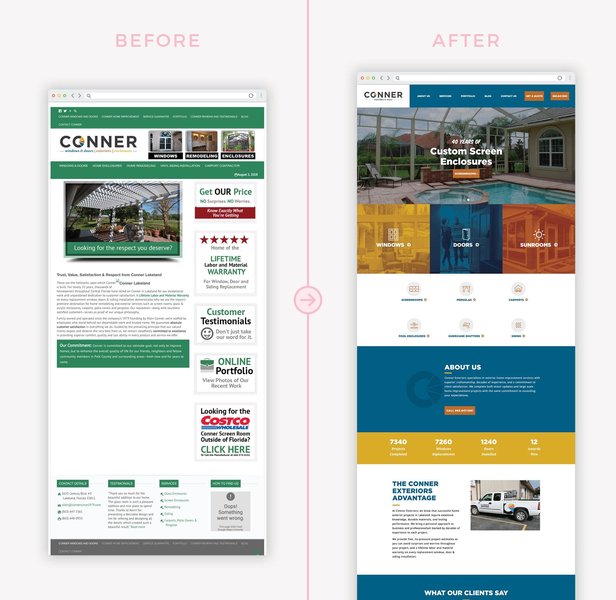
Modern tools offer a plethora of design options for your images.
Premier Online Tools for Picture Redesign
Several online platforms stand out for their comprehensive features and ease of use in redesigning pictures. Here’s a look at some of the leading options:
1. Canva
Known for its incredibly intuitive drag-and-drop interface, Canva is a powerhouse for both photo editing and graphic design. It offers a suite of AI-powered tools like "Magic Eraser" for object removal, background remover, and smart object detection. Canva excels in creating social media graphics, presentations, posters, and photo collages, with a vast library of templates, fonts, and elements.
Website: Canva Photo Editor
2. Pixlr
Pixlr provides a suite of online photo editors, including Pixlr X (for quick edits) and Pixlr E (for more advanced editing). It boasts AI-driven tools such as generative fill (to intelligently add or remove content), object removal, background removal, and various artistic filters. It's a versatile option suitable for both quick enhancements and more detailed creative work.
Website: Pixlr
3. Adobe Express
Adobe Express brings Adobe's professional-grade editing capabilities into a user-friendly online and mobile application. Key features include one-click background removal, quick actions for resizing and cropping, animation tools, and access to Adobe Stock photos and fonts. It’s excellent for creating social media content, flyers, and other designs, powered by generative AI for tasks like text-to-template.
Website: Adobe Express Image Editor
4. Fotor
Fotor offers a comprehensive set of online photo editing tools, including AI photo enhancers, object removers, background changers, and a wide array of filters and effects. It's designed to be less complex than software like Photoshop, making it suitable for both amateurs and professionals looking for quick, high-quality edits and creative compositions.
Website: Fotor
5. Photopea
Photopea is a remarkable free online editor that mirrors many functionalities of Adobe Photoshop. It supports layers, masks, smart objects, and a wide range of file formats (including PSD). It's an excellent choice for users who need advanced editing capabilities without purchasing expensive software, offering powerful tools for detailed image manipulation.
Website: Photopea
6. Designify
Designify leverages AI to automatically create professional designs from your photos. By uploading an image, Designify can automatically remove the background, enhance colors, adjust shadows, and place your subject into various design templates. It’s particularly useful for e-commerce product photos and marketing visuals.
Website: Designify
Visualizing Editor Strengths: A Comparative Look
To help you choose the best tool for your needs, the radar chart below provides a visual comparison of some popular online photo editors based on key features. This is an opinionated analysis based on common user experiences and feature sets typically offered, where a higher score indicates better performance in that category.
Core Redesign Capabilities at Your Fingertips
Online photo editors offer a wide spectrum of features to help you redesign your images. Here are some common capabilities:
Basic Editing and Enhancement
This includes fundamental adjustments such as cropping, resizing, rotating, and fine-tuning brightness, contrast, saturation, and sharpness. Many tools offer one-click auto-enhancements.
Object Removal and Manipulation
AI-powered "Magic Eraser" or "Content-Aware Fill" type tools allow you to seamlessly remove unwanted objects, people, or blemishes from your photos. You can also move, duplicate, or resize elements within the image.
Background Removal and Replacement
Easily remove the existing background to make it transparent or replace it with a solid color, gradient, or another image. AI tools can often detect and isolate subjects automatically for precise background removal.
Generative Fill and Expand
Advanced AI features like Generative Fill allow you to select an area of your image and use text prompts to generate new content within that space. Generative Expand intelligently extends the borders of your image, filling in the new areas cohesively.
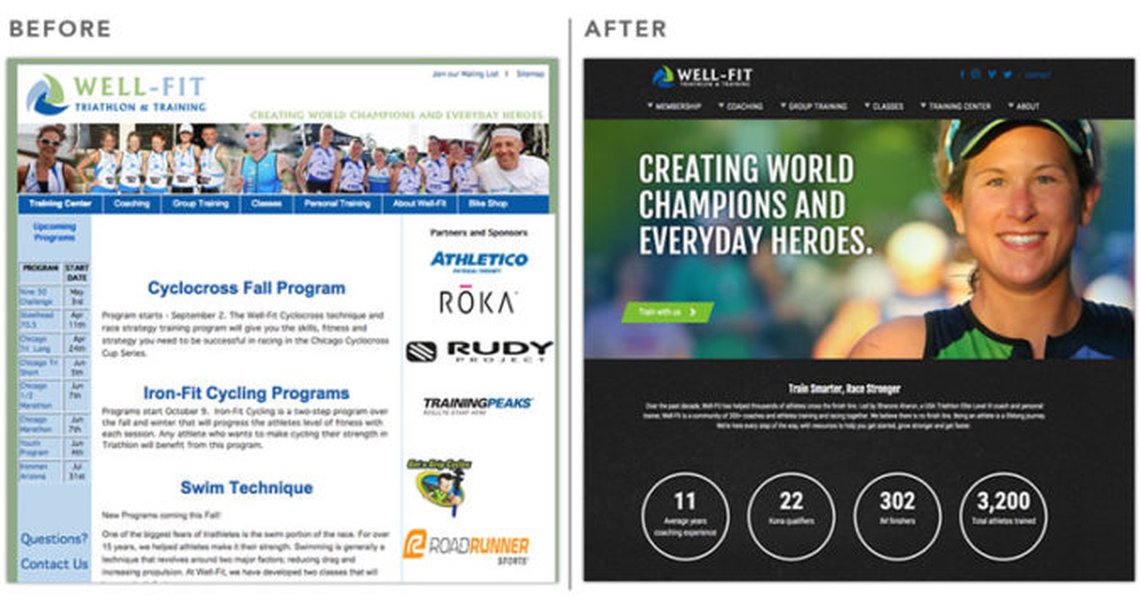
Visualizing the impact of a redesign process, similar to transforming an image.
Stylistic Transformations
Apply artistic filters and effects to transform your photos into sketches, paintings, cartoons, vintage styles, or apply trendy aesthetics. Some tools offer AI-driven style transfers from famous artworks.
Adding Text, Graphics, and Elements
Overlay text with various fonts, styles, and effects. Access libraries of stock photos, icons, shapes, stickers, and other graphic elements to enhance your image or create composite designs.
Resizing and Formatting
Quickly resize images for specific platforms (e.g., Instagram, Facebook, Twitter) or for print, often with pre-set templates. Crop images into various shapes beyond simple rectangles.
Color Manipulation
Beyond basic adjustments, selectively change the color of objects within your image, apply color grading for a cinematic look, or use AI to enhance overall color quality and vibrancy.
Mapping Your Redesign Journey
The mindmap below illustrates the interconnected elements involved in the picture redesign process, from choosing the right tools to applying various techniques to achieve your desired visual outcome.
(Crop, Resize, Brightness)"] id2b["AI-Powered Features"] id2b1["Object Removal"] id2b2["Background Change"] id2b3["Generative Fill"] id2c["Creative Additions"] id2c1["Filters & Effects"] id2c2["Text & Graphics"] id2c3["Stylistic Transformation"] id2d["Color Correction"] id3["Desired Outcomes"] id3a["Social Media Content"] id3b["Marketing Materials"] id3c["Personal Projects"] id3d["Artistic Expression"] id4["Key Considerations"] id4a["Original Image Quality"] id4b["User Skill Level"] id4c["Purpose of Redesign"] id4d["Time Investment"]
Step-by-Step: Redesigning Your Picture Online
While specific steps might vary slightly between tools, here's a general workflow for redesigning your picture using an online editor:
- Choose Your Tool: Select an online photo editor from the options above based on your needs and comfort level.
- Upload Your Picture: Most platforms allow you to drag and drop your image file or upload it from your computer or cloud storage. Start with the highest resolution image possible for best results.
- Assess and Plan: Decide what changes you want to make. Are you looking for simple enhancements, background changes, object removal, or a complete creative overhaul?
- Perform Basic Edits:
- Crop and Resize: Adjust the composition or resize for specific dimensions (e.g., social media posts).
- Adjust Lighting and Colors: Modify brightness, contrast, saturation, and temperature. Many tools offer auto-enhancement features.
- Utilize Advanced & AI Tools:
- Remove or Replace Backgrounds: Use AI tools for quick and clean background removal.
- Erase Unwanted Objects: Clean up your image by removing distracting elements.
- Generative Fill/Expand: Add new elements or extend your image using AI text prompts.
- Add Creative Elements:
- Apply Filters and Effects: Experiment with different styles to achieve the desired mood.
- Add Text and Graphics: Incorporate text overlays, stickers, icons, or other design elements.
- Create Collages: Combine multiple images if your tool supports collage making.
- Review and Refine: Zoom in to check details. Undo and redo changes as needed. Ensure the overall composition is balanced and appealing.
- Save and Export: Download your redesigned image in a suitable format (e.g., JPG for photos, PNG for images with transparency). Most tools offer options to optimize for web or print.
Watch and Learn: Canva Photo Editing Tips
Canva is a popular and user-friendly tool for redesigning images. The video below offers some excellent tips and tricks to help you master photo editing within Canva, showcasing how to apply various adjustments and effects to transform your pictures. This can give you a practical idea of how online editors work.
This tutorial demonstrates how to leverage Canva's features for common photo editing tasks, such as adjusting brightness, contrast, and saturation, applying filters, cropping and resizing, and even using some of its AI-powered capabilities like background removal. These techniques are foundational and can be applied conceptually across various online editing platforms.
Feature Comparison of Top Online Photo Redesign Tools
The table below provides a quick overview of some key features across the recommended online photo editing tools, helping you to select the one that best fits your redesign needs.
| Tool | Key AI Features | Best For | Free Version Strengths | Potential Limitations of Free Version |
|---|---|---|---|---|
| Canva | Magic Eraser, Background Remover, AI-powered design suggestions, Magic Write (for text) | Social media graphics, presentations, quick designs, collages, beginners | Extensive templates, vast element library, core AI tools | Some advanced AI tools (e.g., Magic Resize) and premium assets require Pro subscription |
| Pixlr | Generative Fill, AI Object Removal, AI Background Removal, Auto-fix, AI Image Generation | Quick edits, creative effects, users wanting a balance of simplicity and power | Good range of basic and AI tools, no account needed for basic use | Higher resolution saving, more advanced AI features (like batch editing) often paid |
| Adobe Express | AI Background Removal, Text-to-Image (beta), Text-to-Template, Quick Actions (resize, convert) | Social media content, marketing materials, integrating with Adobe ecosystem | Many quick actions, good selection of templates and Adobe Fonts | Premium templates, full Adobe Stock access, and some generative AI features are in the paid version |
| Fotor | AI Enhancer, AI Object Remover, AI Background Remover, AI Photo Effects, AI Skin Retouch | Photo enhancement, portrait retouching, creative effects, users of all levels | Basic editing tools, some AI features, and effects | Ad-supported, watermarks on some features, full AI capabilities and higher quality downloads often require Pro |
| Photopea | Limited direct AI tools (focus on manual control), but supports smart objects and complex selections | Advanced users familiar with Photoshop, detailed manual editing, PSD file editing | Nearly all features are free, supports layers and advanced tools | Interface can be complex for beginners, ad-supported, no cloud storage |
| Designify | Automated AI background removal, color enhancement, shadow generation, smart object placement in designs | E-commerce product images, quick batch processing for consistent branding | Free for limited resolutions and a few credits | Higher resolution, batch processing, and more credits require paid plans |
Frequently Asked Questions (FAQ)
Do I need advanced skills to redesign pictures online? ▼
No, not at all! Most modern online photo editors are designed to be user-friendly, with intuitive interfaces and AI-powered features that automate complex tasks. Tools like Canva and Adobe Express are particularly great for beginners, offering templates and simple drag-and-drop controls.
Are these online photo editors free to use? ▼
Many of the best online photo editors, including Pixlr, Canva, Fotor, and Adobe Express, offer robust free versions. These free tiers typically provide a wide range of essential editing tools. For more advanced features, premium assets, or higher resolution downloads, they usually offer optional paid subscriptions.
What kind of changes can I make with AI photo editing tools? ▼
AI photo editing tools can perform a variety of sophisticated tasks with ease. This includes automatically removing backgrounds, erasing unwanted objects or people, enhancing image quality (colors, sharpness, lighting), generating new image content from text prompts (generative fill), transforming styles (e.g., to cartoon or painting), and even retouching portraits.
Can I use these tools on my mobile device? ▼
Yes, many online photo editors are accessible via web browsers on mobile devices. Additionally, popular platforms like Canva, Adobe Express, and Pixlr offer dedicated mobile apps for both iOS and Android, providing a seamless editing experience on the go.
What's the difference between generative fill and object removal? ▼
Object removal typically uses AI to identify and erase an unwanted element in your photo, intelligently filling the space with content that matches the surrounding area. Generative fill is more advanced; it allows you to select an area and then, often using a text prompt, instruct the AI to create entirely new content to fill that space. For example, you could remove a person (object removal) or select an empty patch of grass and ask the AI to "add a red picnic blanket" (generative fill).
Recommended Further Exploration
To delve deeper into enhancing your images, consider exploring these related topics:
- How can I use AI to generate images from text descriptions?
- What are the best free Photoshop alternatives for advanced photo editing?
- Tips for improving photo composition before editing?
- How to create professional-looking product photos using online tools?
References
The information presented is based on data from reputable online sources, including the official websites of the tools mentioned and technology review sites.
Last updated May 16, 2025