
Unlock a Clutter-Free Tablet: Master Icon Grouping on Your Samsung Galaxy Tab A9+
Streamline your digital life by organizing apps into neat folders on your Samsung A9+ for quicker access and a cleaner look.
Organizing the app icons on your Samsung Galaxy Tab A9+ into groups, or folders, is a fantastic way to declutter your Home screen and Apps screen, making it easier and faster to find the applications you need. This guide will walk you through the simple steps to create and manage these groups, helping you personalize your tablet experience for optimal efficiency.
Quick Highlights: Your Path to an Organized Tablet
- Effortless Folder Creation: Simply drag one app icon on top of another to instantly create a new folder.
- Easy Customization: Name your folders descriptively and, if your One UI version supports it, even change their color for better visual organization.
- Flexible Management: Add or remove apps from folders, rearrange icons within them, and move folders around your screens with intuitive drag-and-drop actions.
Step-by-Step: Creating and Populating Icon Groups (Folders)
The Samsung One UI, which powers your Galaxy Tab A9+, makes icon grouping a straightforward process. You can perform these actions on both your Home screen and the Apps screen (accessed by swiping up from the Home screen).
1. Creating Your First Folder
The Drag-and-Drop Method
This is the primary way to initiate a new group:
- Navigate to your Home screen or open the Apps screen.
- Locate the first app icon you want to include in a group.
- Touch and hold the app icon. After a moment, the icon will appear to "float," indicating it's ready to be moved.
- Without lifting your finger, drag this app icon directly on top of another app icon that you wish to group it with.
- As you hover the first icon over the second, you'll see a visual cue, often a highlighted box or folder outline, indicating they will merge.
- Release your finger. A new folder containing both app icons will be automatically created.
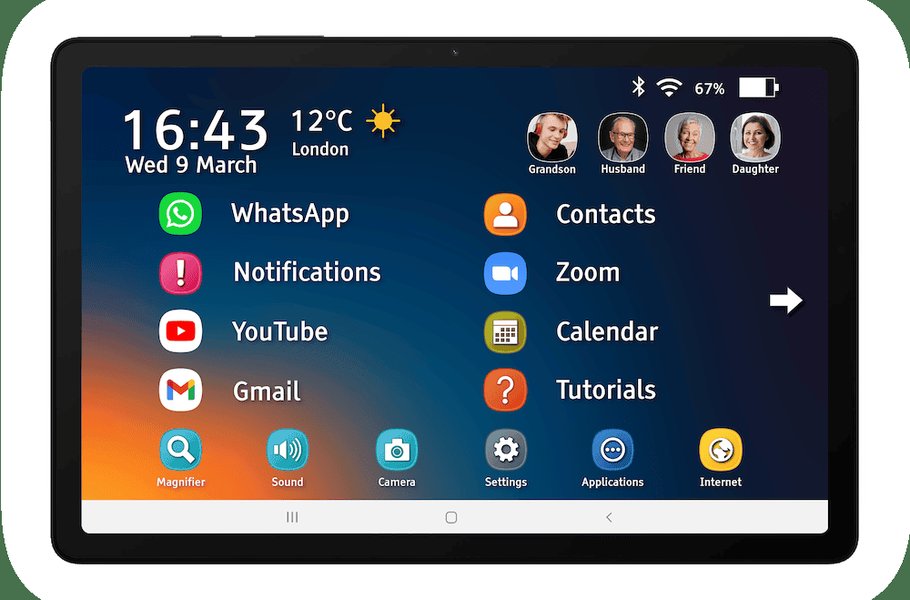
A typical Samsung Galaxy Tab Home screen, ready for app organization.
2. Naming Your Folder
A descriptive name helps you identify the folder's contents at a glance.
- Once the folder is created, tap on it to open it.
- At the top of the open folder view, you'll typically see a field labeled "Folder name" or an existing generic name (e.g., "Unnamed Folder," or a name Samsung suggests based on the apps). Tap this name field.
- The on-screen keyboard will appear. Type in your desired name (e.g., "Productivity," "Social Media," "Games").
- Tap "Done" or tap outside the text field to save the new name.
3. Adding More Apps to an Existing Folder
You can add more apps to a folder in two main ways:
Method 1: Drag and Drop
- Locate the app icon (on your Home screen or Apps screen) that you want to add to an existing folder.
- Touch and hold the app icon until it becomes movable.
- Drag the icon over the target folder. Pause momentarily over the folder until it opens or highlights.
- Once the folder is visually receptive, release the app icon inside the folder area.
Method 2: Using the 'Add' Button (Inside the Folder)
- Tap the folder to open it.
- Look for a "+" (plus) icon or an "Add apps" button within the folder interface. Tap it.
- You'll be presented with a list or grid of your installed apps. Select the apps you wish to add by tapping their checkboxes.
- After selecting all desired apps, tap "Done" or "Add" to include them in the folder.
Visualizing Your App Organization Strategy
A mindmap can help illustrate the different facets of organizing icons on your tablet. This diagram outlines the core actions involved in creating and managing app groups.
Samsung Galaxy Tab A9+"] id1["Creating a New Folder"] id1a["Touch & hold first app"] id1b["Drag over second app"] id1c["Release to form folder"] id2["Managing Folder Content"] id2a["Adding More Apps"] id2a1["Drag app into existing folder"] id2a2["Open folder, tap '+' icon, select apps"] id2b["Removing Apps"] id2b1["Open folder, touch & hold app"] id2b2["Drag app out of folder to Home/Apps screen"] id3["Customizing Folders"] id3a["Renaming the Folder"] id3a1["Open folder, tap name field"] id3a2["Type new name, confirm"] id3b["Changing Folder Color"] id3b1["Open folder, tap palette icon (if available)"] id3b2["Select desired color"] id4["Managing Folders Themselves"] id4a["Moving Folders on Screen"] id4a1["Touch, hold, and drag folder to new location"] id4b["Deleting Folders"] id4b1["Touch & hold folder, select 'Delete folder'"] id4b2["Alternatively, remove all apps from folder (folder auto-deletes)"] id5["Key Benefits"] id5a["Enhanced Visual Clarity"] id5b["Faster App Navigation"] id5c["Personalized Tablet Layout"]
This mindmap provides a clear overview of the process, from initial creation to ongoing management of your app folders.
Advanced Folder and Icon Management
Beyond basic creation, Samsung's One UI offers several ways to refine your app organization.
Customizing Folder Appearance
Folder Color
Some versions of One UI allow you to change the color of your folders for better visual distinction:
- Open the folder you wish to customize.
- Look for a palette icon (often a small circle or a painter's palette symbol) in the upper right-hand corner of the folder view.
- Tap the palette icon. A selection of colors will appear.
- Choose your preferred color. The folder's icon on the Home/Apps screen will update to reflect this change. (Note: This feature availability can vary slightly based on software updates.)
Rearranging and Removing Icons/Folders
Rearranging Apps Within a Folder
- Open the folder.
- Touch and hold the app icon you want to move.
- Drag it to your desired position within the folder's grid and release.
Removing an App from a Folder
- Open the folder.
- Touch and hold the app icon you want to remove.
- Drag the icon out of the folder area and onto the Home screen or Apps screen.
- Release the icon. It will be removed from the folder but will remain installed on your tablet.
Moving a Folder
Folders can be moved around your Home screen pages just like individual app icons:
- Touch and hold the folder icon on your Home or Apps screen.
- Drag it to the desired new location on the current screen, or drag it to the edge of the screen to move it to a different Home screen panel.
- Release the folder in its new spot.
Deleting a Folder
There are two main ways to delete a folder:
- Method 1: Direct Deletion: Touch and hold the folder icon. An options menu may appear; select "Delete folder." Confirm the deletion if prompted. The folder will be removed, and its contained apps will return to their original locations on the Apps screen or Home screen (they are not uninstalled).
- Method 2: Emptying the Folder: If you remove all apps from a folder, the folder will typically disappear automatically.
Effectiveness of App Organization Techniques
Organizing apps can significantly improve your tablet experience. The radar chart below offers an opinionated comparison of different organizational states on your Samsung Galaxy Tab A9+, focusing on key usability factors. The scale is from 1 (least effective) to 10 (most effective).
As the chart suggests, actively grouping apps into folders generally offers superior visual clarity and navigation speed compared to leaving apps scattered or relying solely on multiple home screen pages.
Visual Guide: Creating and Managing Folders
For a hands-on demonstration, the following video showcases how to create and remove folders on Samsung Galaxy Tab A9/A9+ devices. This visual aid can be very helpful in understanding the drag-and-drop mechanics and interface elements involved.
Video demonstrating folder creation and removal on Samsung Galaxy Tab A9/A9+.
Watching this can provide practical insight into how these features work in real-time on your tablet's interface.
Summary Table: Key Folder Actions
Here's a quick reference table summarizing the primary actions for managing app icon groups on your Samsung Galaxy Tab A9+:
| Action | Primary Method | Notes |
|---|---|---|
| Create Folder | Drag one app icon on top of another. | Automatically groups the two apps. |
| Rename Folder | Open folder, tap the name field, type new name. | Essential for clear identification. |
| Add App to Folder | Drag app icon into the folder, OR open folder and use '+' icon. | Ensures folder is open/receptive for drag-and-drop. |
| Remove App from Folder | Open folder, drag app icon out of the folder area. | App is not uninstalled, just ungrouped. |
| Change Folder Color | Open folder, tap palette icon (if available), select color. | Feature may vary slightly by One UI version. |
| Move Folder | Touch, hold, and drag folder to new location on Home/Apps screen. | Similar to moving individual app icons. |
| Delete Folder | Touch and hold folder, select "Delete folder" OR remove all apps. | Apps within are returned to Home/Apps screen, not uninstalled. |
Additional Tips for a Tidy Tablet
-
Multiple Home Screens: Don't be afraid to use multiple Home screen pages. To add a new screen, pinch inward on an empty area of your Home screen, then swipe to the leftmost or rightmost page and tap the "+" icon.
-
Apps Screen Sorting: Within the Apps screen, you can often sort apps alphabetically or in a custom order. Look for a menu (three dots) and select "Sort."
-
Quick Panel Customization: While not folders, you can customize the icons in your Quick Panel (swipe down from the top) for faster access to settings and features. Tap the pencil icon in the Quick Panel to edit.
-
Regular Review: Periodically review your apps and folders. Uninstall apps you no longer use to free up space and reduce clutter. Samsung's "Device Care" feature (in Settings) can help manage storage and performance.
-
Lock Home Screen Layout: To prevent accidental changes once you're happy with your setup, go to Settings > Home screen and toggle on "Lock Home screen layout." Remember to disable this if you want to make further changes.
Troubleshooting Common Issues
Icons Not Grouping
Ensure you are dragging one icon directly on top of another and holding it there for a moment until the folder outline appears. If the folder is already created, ensure it's fully visible and open before trying to drag additional apps into it.
Software Updates
Keep your Galaxy Tab A9+ software up to date (Settings > Software update > Download and install). Updates can bring UI improvements and bug fixes that might affect home screen organization features.
System Apps
Some pre-installed system apps may have limitations on being moved or grouped, but most user-installed apps can be managed freely.
Frequently Asked Questions (FAQ)
How many apps can I put in a single folder on my Samsung Galaxy Tab A9+?
Will deleting a folder uninstall the apps inside it?
Can I create folders within folders (nested folders)?
What happens if I drag an app out of a folder that only contains two apps?
Can I change the size of the folder icons?
Conclusion
Organizing icons into groups or folders on your Samsung Galaxy Tab A9+ is a simple yet powerful way to enhance your tablet's usability. By creating logical groupings for your applications, you can significantly reduce clutter, find apps more quickly, and create a more personalized and efficient digital environment. Experiment with different folder names, colors, and layouts to find what works best for your workflow.
Recommended Further Exploration
References
Last updated May 21, 2025