
Unlock the Secrets to Effortlessly Managing Your 2000-Book Treasury: Word vs. Excel
Discover the definitive method to catalog your extensive book collection for easy access and organization, leveraging the power of familiar software.
Organizing a substantial library of around 2000 books can seem like a daunting task. However, with the right tools and approach, you can transform your collection into a well-ordered and easily navigable resource. While you've expressed a preference for Microsoft Word or Excel, one clearly stands out for its suitability to manage such a volume of information. This guide will walk you through the best way to achieve this, focusing on creating an efficient and comprehensive digital catalog.
Key Insights: Organizing Your Library Digitally
- Excel is the Superior Choice: For cataloging 2,000 books, Microsoft Excel offers unparalleled advantages over Word due to its robust data management, sorting, and filtering capabilities.
- Comprehensive Data Fields are Crucial: A detailed catalog should include essential information such as Title, Author, Genre, ISBN, Publication Year, and physical Location for effective organization.
- Combine Digital and Physical Systems: Your digital Excel catalog will be most effective when paired with a logical physical organization system for your bookshelves, ensuring books are easy to find.
Why Excel Triumphs Over Word for Library Cataloging
When faced with the task of cataloging a collection as large as 2,000 books, the choice between Microsoft Word and Excel becomes critical. While Word is an excellent tool for creating text-based documents, Excel is specifically designed for data organization, management, and analysis, making it the far more effective solution for your library.
The Limitations of Word for Large Collections
Using Word for a library catalog of this size would primarily involve creating long lists or tables within a document. This approach has several drawbacks:
- Poor Data Structure: Word is not designed for structured data entry in the same way a spreadsheet is. Each book entry would be less defined, making systematic cataloging difficult.
- Limited Sorting and Filtering: While Word tables offer basic sorting, they lack the advanced and multi-level sorting and filtering capabilities inherent in Excel. Finding specific books or groups of books based on multiple criteria would be cumbersome.
- Scalability Issues: A Word document with 2,000 entries can become slow and difficult to manage. Adding new information or modifying existing entries without disrupting formatting can be challenging.
- Lack of Analytical Tools: Excel allows for potential data analysis (e.g., how many books per genre, average publication year) which is not feasible in Word.
Excel's Advantages for a 2,000-Book Library
Excel offers a suite of features perfectly suited for creating and maintaining a comprehensive book catalog:
- Structured Data Management: Excel's grid format of rows and columns allows each piece of information about a book (title, author, genre, etc.) to be stored in a separate, sortable field. This structured approach is fundamental for an organized catalog.
- Powerful Sorting and Filtering: You can instantly sort your entire collection by any column (e.g., alphabetically by author, by publication year, by genre). Advanced filtering allows you to view specific subsets of your library (e.g., all unread fiction books published after 2000).
- Scalability: Excel can comfortably handle thousands of entries. Its performance remains robust, and the interface is designed for managing large datasets.
- Templates and Customization: Numerous pre-built Excel templates for book catalogs are available online, providing a ready-made structure. Alternatively, you can easily create a custom spreadsheet tailored to your specific needs, adding or removing columns as required.
- Data Entry Efficiency: Features like data validation (to ensure consistent entries for genres or formats) and the "Form" tool can speed up the process of adding new books.
- Advanced Functionality: For those interested, Excel supports formulas (e.g., to track the number of books, or even create simple loan tracking systems), conditional formatting (e.g., to highlight books loaned out), and even VBA for more complex automation.
Step-by-Step Guide: Creating Your Library Catalog in Excel
Here’s a practical approach to setting up your 2,000-book library catalog using Microsoft Excel:
Step 1: Plan Your Catalog Structure
Decide on Key Information Fields
Before you start, determine what information you want to record for each book. A comprehensive list ensures your catalog is useful. Consider the fields detailed in the table below. The more relevant details you include, the more powerful your organizational tool will be.
Step 2: Set Up Your Excel Spreadsheet
Choose a Method: Template or Blank Sheet
You have two main options:
- Use a Template: Search online for "Excel book catalog template" or "book inventory Excel template." Many free templates are available that provide a pre-defined structure, saving you setup time.
- Start from Scratch: Open a new Excel workbook. In the first row, enter your chosen column headers (e.g., "Title", "Author", "Genre").
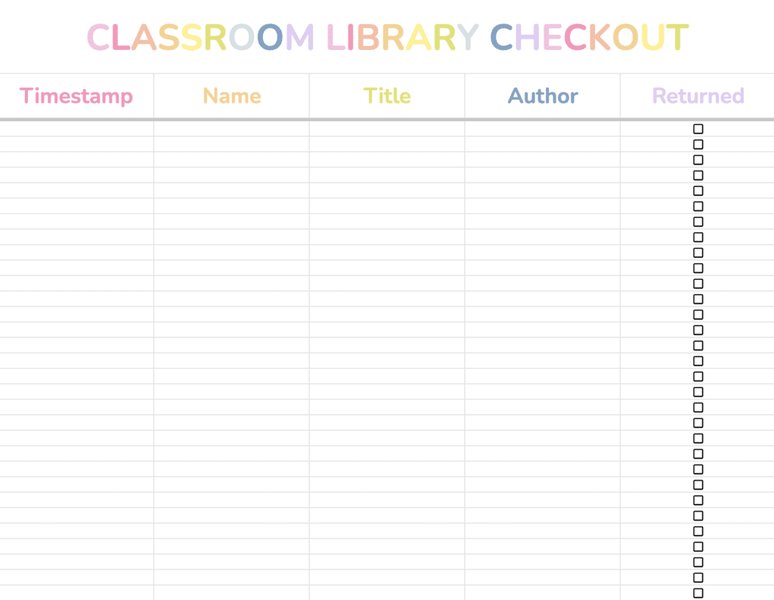
An example illustrating a spreadsheet interface similar to what your Excel catalog might look like.
Define Your Columns (Headers)
Ensure each piece of information has its own column. This is crucial for effective sorting and filtering. Make your headers clear and descriptive.
Step 3: Populate Your Catalog
Systematic Data Entry
Begin entering the details for each of your 2,000 books. This is the most time-consuming part but is essential. Be consistent with your data entry (e.g., always enter author names as "Last Name, First Name").
Consider Using the "Form" Feature (Optional)
For easier data entry, you can enable the "Form" feature in Excel's Quick Access Toolbar. This provides a simple dialog box for entering data for each book, one at a time, which can be less error-prone than typing directly into cells across a wide row.
- Right-click the Quick Access Toolbar (usually above or below the ribbon).
- Select "Customize Quick Access Toolbar..."
- In the "Choose commands from:" dropdown, select "All Commands."
- Scroll down and select "Form..." then click "Add >>".
- Click "OK." The Form icon will now be on your Quick Access Toolbar. To use it, select any cell within your data range (or just the header row) and click the Form icon.
Step 4: Enhance Your Catalog with Excel Features
Convert Your Data to an Excel Table
Once you have some data entered (even just the headers and a few rows), convert your range into an Excel Table:
- Select any cell within your data.
- Go to the "Insert" tab and click "Table."
- Ensure the range is correct and check "My table has headers." Click "OK."
Using an Excel Table provides automatic benefits like banded rows for readability, filter buttons in headers, and easier formula application.
Utilize Sorting and Filtering
Click the dropdown arrows in your table headers to sort data (e.g., A-Z by Title) or filter it (e.g., show only books by a specific author or in a particular genre).
Conditional Formatting (Optional)
Use conditional formatting (Home tab) to highlight certain data, such as books that are loaned out, unread books, or books in poor condition.
Step 5: Maintain and Backup Your Catalog
Regular Updates
Make it a habit to update your catalog whenever you acquire new books, lend books out, or finish reading one. Scanning new books as they arrive can help maintain accuracy if you have a barcode scanner and software that can export data.
Backup Your File
Regularly save your Excel file and keep backups, preferably on a cloud storage service (like OneDrive, Google Drive, Dropbox) or an external hard drive to prevent data loss.
Essential Data Fields for Your Excel Library Catalog
A well-structured catalog is built on comprehensive data fields. Here’s a table summarizing key information you should consider including for each book. Tailor this list to your specific needs, adding or removing fields as you see fit.
| Field Name | Purpose | Example Entry |
|---|---|---|
| Book ID / Accession No. | Unique identifier for each book for easy reference and tracking. | LIB0001 |
| Title | The full title of the book. | To Kill a Mockingbird |
| Author(s) | The name(s) of the author(s) or editor(s). | Harper Lee |
| Genre / Category | The primary genre or category (e.g., Fiction, Non-Fiction, Sci-Fi, History). You can add sub-genres too. | Fiction, Southern Gothic |
| Publication Year | The year the specific edition of the book was published. | 1960 |
| ISBN | International Standard Book Number (unique for each edition). Useful for precise identification and looking up details. | 978-0061120084 |
| Publisher | The company that published the book. | J. B. Lippincott & Co. |
| Language | The language the book is written in. | English |
| Format | The physical or digital format (e.g., Hardcover, Paperback, E-book, Audiobook). | Paperback |
| Condition | The physical condition of the book (e.g., New, Good, Fair, Damaged, Signed). | Good |
| Location | The physical location of the book in your library (e.g., "Living Room Shelf A," "Office Desk Left"). | Study, Shelf 3B |
| Status | Current status (e.g., Read, Unread, Reading, Loaned Out, To Be Read). | Read |
| Borrower | If the book is loaned out, the name of the person who borrowed it. | John Smith |
| Date Loaned | The date the book was loaned out. | 2025-05-01 |
| Due Date | The date the book is expected to be returned. | 2025-06-01 |
| Series (if applicable) | If the book is part of a series, the series name and number. | Harry Potter, Book 1 |
| Rating (Optional) | Your personal rating of the book (e.g., 1-5 stars). | 5 |
| Date Added | The date you added the book to your collection/catalog. | 2024-01-15 |
| Notes / Personal Comments | Any personal remarks, favorite quotes, edition details, or other unique information. | Gift from Aunt Mary; particularly liked Chapter 5. |
| Value / Price (Optional) | If tracking for insurance or personal valuation. | $15.99 |
By including these fields, you create a rich database that can be sorted and filtered in numerous ways, providing deep insights into your collection.
Visualizing Your Organizational Options: A Comparative Look
To better understand why Excel is recommended, and how it stacks up against Word or even dedicated library software, consider the following comparison. This radar chart evaluates these options based on key organizational attributes. Excel strikes a strong balance between functionality and accessibility for a personal library of 2,000 books.
As the chart illustrates, Excel offers a robust feature set ideal for your needs, particularly in sorting, filtering, and scalability for a 2000-book collection, while remaining cost-efficient as it's part of a widely available software suite.
Structuring Your Excel Catalog: A Mindmap Overview
To help visualize the organization of your Excel library catalog, the mindmap below outlines the key components and relationships within your spreadsheet. It demonstrates how different pieces of information connect to provide a comprehensive overview of your collection.
This mindmap illustrates the interconnected nature of information you'll store, from basic identification to detailed tracking and personal notes, all manageable within your Excel catalog.
Visual Guide: Creating a Library Database in Excel
For a more hands-on understanding of how to set up your Excel library catalog, the following video provides a step-by-step tutorial. It demonstrates the process of preparing your data, creating the spreadsheet structure, and utilizing Excel's features for effective library management. Watching this can provide practical insights to complement the written guide.
This video, "How to Create a Library Database in Excel," walks through eight simple steps to prepare, create, and manage your book data effectively within an Excel environment, which is highly relevant for organizing a collection of 2,000 books.
Complementing Your Digital Catalog: Physical Organization Strategies
While your Excel catalog will be the brain of your library system, effective physical organization of your books on shelves is equally important. Here are some common strategies to arrange your 2,000 books, which can be noted in your Excel sheet's "Location" field:

An example of a well-organized bookshelf, which your digital catalog can help you maintain.
- By Subject/Genre: This is often the most intuitive method for personal libraries. Group books by broad categories (Fiction, History, Science, Cooking, etc.) and then, within those categories, you might alphabetize by author or title.
- Alphabetical by Author: A straightforward system, especially if you tend to remember authors' names easily. Within each author's section, you can then arrange books alphabetically by title or chronologically by publication date.
- Alphabetical by Title: Similar to organizing by author, but uses the book title as the primary sorting key.
- By Series/Author: For authors with multiple books or series, group all books by that author together, and then organize their works by series, and chronologically within each series.
- Chronological: Organizing books by their publication date. This can be interesting for historical or literary collections.
- By Color (Aesthetic): While visually appealing, this method makes it difficult to find specific books unless you have a photographic memory for spine colors. It's generally not recommended for large, frequently accessed collections.
- "Vibrational Shelving": A more flexible approach where books are grouped by series/author and then by genre, allowing for easier additions without constantly re-shifting entire shelves.
- Simplified Dewey Decimal or Library of Congress System (Advanced): While typically used in public and academic libraries, a simplified version could be adopted for very large and diverse personal collections if you require precise subject-based organization. This often involves labeling book spines.
Before you start physically organizing, it's a good idea to "curate" your collection: decide which books to keep, donate, or discard (e.g., damaged books, unwanted duplicates). This ensures your catalog and shelves only contain books you value.
Beyond Word and Excel: Other Digital Options (Brief Mention)
While your preference is for Word or Excel, it's worth noting that for a library of 2,000 books, dedicated book cataloging software or apps exist. These often offer features like barcode scanning for quick data entry, integration with online book databases (like Goodreads), community features, and dedicated interfaces for tracking reading progress. Some popular options include:
- LibraryThing: A robust, library-quality cataloging tool.
- Goodreads: Widely used for tracking reading, discovering books, and community interaction.
- Libib: Offers cataloging for books, movies, music, and games, with barcode scanning.
- CLZ Books (Collectorz.com): Dedicated software for serious collectors.
- Bookly: A mobile app focused on tracking reading habits and managing book collections.
However, Excel remains a highly flexible, powerful, and readily available tool that can effectively manage a personal library of your size without additional cost if you already own Microsoft Office.
Frequently Asked Questions (FAQ)
Is Excel really that much better than Word for cataloging 2,000 books?
What are the absolute most crucial pieces of information to include in my Excel catalog?
Can I use a pre-made template for my Excel library catalog?
How should I handle books I lend out to friends or family in my Excel sheet?
Are there any free alternatives if I decide Excel isn't for me, or I want more specialized features?
Conclusion: Embracing Excel for Your Literary Collection
For organizing a library of approximately 2,000 books, Microsoft Excel stands out as the decisively superior choice over Microsoft Word. Its inherent capabilities for structured data storage, robust sorting and filtering, scalability, and customization make it an ideal tool for creating a comprehensive and manageable digital catalog. By setting up a well-thought-out Excel spreadsheet with relevant data fields and combining it with a logical physical shelving system, you can transform your extensive book collection from a potential source of clutter into an accessible and enjoyable resource. Regular updates and backups will ensure your digital library remains a valuable asset for years to come.
Recommended Further Exploration
To deepen your understanding or explore related aspects, consider these queries:
- How can I use advanced Excel features like pivot tables or macros for library management?
- What are the best practices for digitizing a large personal book collection using ISBN scanning apps that integrate with spreadsheets?
- When does it make sense to move from Excel to dedicated library software for a home collection, especially if it grows beyond 5000 books?
- What are some creative and space-saving physical book organization ideas for large home libraries?
References

Last updated May 21, 2025