
Color-coding your Outlook calendar can significantly improve your ability to quickly scan and understand your schedule. By automatically categorizing meetings based on criteria like whether you are an optional attendee, the sender, or if you were invited, you can gain immediate visual cues about your commitments.
While directly applying categories based on attendee type (like "optional") through standard Outlook rules is not a built-in feature, there are methods and workarounds to achieve a degree of automation and visual organization for your calendar events in the new Outlook. This includes utilizing conditional formatting, rules based on keywords or senders, and potentially leveraging Power Automate for more advanced automation.
Key Insights for Auto-Categorizing Outlook Meetings
- Conditional Formatting for Visual Distinction: While direct automatic categorization by attendee type (required vs. optional) isn't a standard rule option, you can use conditional formatting to visually distinguish meetings based on certain criteria, such as keywords in the subject or body, or the sender. This allows for color-coding even without applying a formal category.
- Rules for Sender or Keywords: Outlook rules can be created to automatically categorize meetings based on the sender or specific keywords present in the meeting request. This is a practical approach for categorizing internal meetings, external meetings, or meetings related to specific projects.
- Power Automate for Advanced Scenarios: For more complex automation, such as categorizing based on being an optional attendee, exploring tools like Power Automate can provide the necessary functionality by connecting to your Outlook account and applying logic based on meeting details.
Understanding Outlook Categories and Their Purpose
Outlook categories serve as visual tags or labels that you can apply to various items, including calendar events, emails, tasks, and contacts. They help in organizing and quickly identifying related items at a glance. By assigning color categories, you can make your calendar much easier to read and manage.
The Power of Color-Coding Your Calendar
Color-coding your calendar appointments and meetings provides an immediate visual overview of your day or week. Different colors can represent different types of meetings, priorities, or projects. This allows you to quickly understand your schedule's composition without needing to read the details of every entry.
For example, you could use:
- Red for urgent meetings
- Green for team meetings
- Blue for client appointments
- Yellow for focus time
Managing Your Categories
In the new Outlook, you can manage your color categories by navigating to Settings > Accounts > Categories. Here, you can create new categories, rename existing ones, change their colors, and assign shortcut keys. These categories are personal and are typically only visible to you.
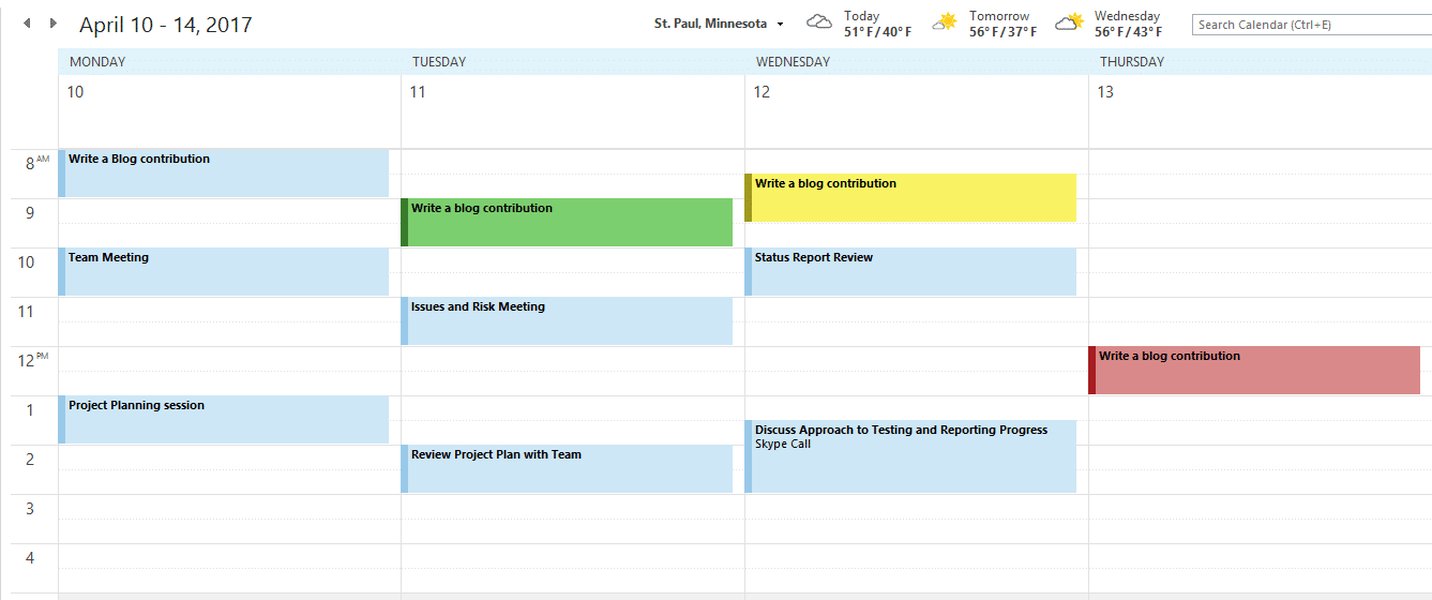
Managing color categories in Outlook.
Automating Categorization in the New Outlook
While the ability to automatically categorize based on granular details like being an optional attendee is not a direct rule option in Outlook, there are several methods to automate the categorization process to some extent, primarily using rules based on available criteria and conditional formatting for visual cues.
Using Rules to Categorize by Sender or Keywords
Outlook rules are a powerful tool for automating actions based on incoming messages, including meeting invitations. You can create rules that automatically apply a category based on the sender of the meeting request or specific keywords found in the subject or body of the invitation.
Creating a Rule in the New Outlook
To create a rule in the new Outlook for Windows:
- Open Settings (the gear icon in the top right).
- Select Mail > Rules.
- Click "Add new rule".
- Give your rule a name.
- Under "Add a condition," select the criteria you want to use, such as "From" to specify a sender or "Subject includes" or "Body includes" to look for keywords.
- Under "Add an action," select "Categorize."
- Choose the category you want to apply from the dropdown list. If the desired category isn't visible, click "All categories" or "New category" to create one.
- Save the rule.
This method is effective for categorizing meetings from specific individuals or teams (e.g., all meetings from your manager) or for meetings with specific terms in the subject (e.g., "Project Alpha Meeting").
Conditional Formatting for Visual Distinctions
Conditional formatting allows you to automatically change the appearance of calendar items based on specified conditions. While it doesn't apply a formal category tag, it visually color-codes the entries on your calendar view, which can achieve a similar organizational benefit.
Setting up Conditional Formatting
Conditional formatting options are typically found within the view settings of your calendar. You can create rules based on various fields and criteria, such as:
- The sender of the meeting.
- Keywords in the subject or location.
- The "Show Time As" status (e.g., Free, Busy, Tentative).
While you cannot directly create a conditional formatting rule based on whether you are a required or optional attendee through the standard interface, you might be able to use keywords in the subject or body as a workaround if meeting invitations consistently include such information.

An example of a color-coded Outlook calendar using conditional formatting.
Addressing the "Optional Attendee" Challenge
Directly automating categorization based on being an optional attendee is a known limitation of Outlook's standard rules and conditional formatting features. Meeting invitations do not typically include a field that explicitly flags whether a recipient is optional in a way that can be used by a simple rule condition.
Exploring Power Automate
For users with more advanced needs and access to Microsoft Power Automate (formerly Flow), it is possible to create custom workflows that can analyze incoming meeting requests in more detail. A Power Automate flow could potentially examine the recipient list and their response type (required or optional) to trigger an action, such as applying a category or updating a separate list.
This approach requires a greater level of technical expertise and setup compared to standard Outlook rules, but it offers significant flexibility for complex automation scenarios.
Manual Categorization and Workarounds
Until more granular automatic categorization features are available, manually categorizing meetings remains a straightforward option. You can right-click on a calendar event and select "Categorize" to assign a color category. While not automated, it allows for precise categorization based on your role or any other criteria.
Some users also adopt conventions like including specific keywords in the subject line (e.g., "OPTIONAL: Meeting Title") that they can then use with Outlook rules or conditional formatting to achieve a form of automated visual distinction.
Comparing Automation Methods
Here's a table summarizing the different methods for visually organizing or categorizing meetings in Outlook:
| Method | Automated? | Criteria Supported | Complexity | Applies Formal Category? | Visual Impact |
|---|---|---|---|---|---|
| Outlook Rules | Yes | Sender, Keywords (Subject/Body) | Low to Medium | Yes | Applies color tag to event |
| Conditional Formatting | Yes | Sender, Keywords (Subject/Location), Show Time As | Medium | No (Visual only) | Changes color of event display |
| Power Automate | High degree possible | Highly customizable (including attendee details if accessible via API) | High | Yes (via flow action) | Applies color tag to event |
| Manual Categorization | No | Any (user decides) | Low | Yes | Applies color tag to event |
Step-by-Step Guides for Common Scenarios
Creating a Rule to Categorize by Sender
This is useful for easily identifying meetings from specific colleagues, teams, or external contacts.
- Go to Settings > Mail > Rules.
- Click "Add new rule".
- Name the rule (e.g., "Meetings from Team Lead").
- Under "Add a condition," select "From."
- Enter the email address of the sender.
- Under "Add an action," select "Categorize."
- Choose the desired category (e.g., "Team Lead Meetings").
- Click "Save."
Creating a Rule to Categorize by Keyword
This is helpful for categorizing meetings related to specific projects or recurring event types.
- Go to Settings > Mail > Rules.
- Click "Add new rule".
- Name the rule (e.g., "Project X Meetings").
- Under "Add a condition," select "Subject includes" or "Body includes."
- Enter the specific keyword or phrase (e.g., "Project X").
- Under "Add an action," select "Categorize."
- Choose the desired category (e.g., "Project X").
- Click "Save."
Using Conditional Formatting for Visual Cues
While not applying a category, this changes the color of the calendar entry itself.
The process for setting up conditional formatting can vary slightly depending on the specific Outlook view you are using, but generally involves accessing view settings and adding a new rule.
In classic Outlook, you would go to View > View Settings > Conditional Formatting. In the new Outlook, this might be integrated into the View tab or settings for the calendar view.
- Navigate to your Calendar.
- Find the view settings or options (often in the View tab).
- Look for "Conditional Formatting" or "Automatic Formatting."
- Click "Add" to create a new rule.
- Give the rule a name.
- Choose the color for the calendar items that meet the condition.
- Click "Condition" to define the criteria (e.g., subject contains specific words, or sender is a specific person).
- Set the conditions in the filter dialog.
- Click "OK" on all open dialog boxes to apply the formatting.
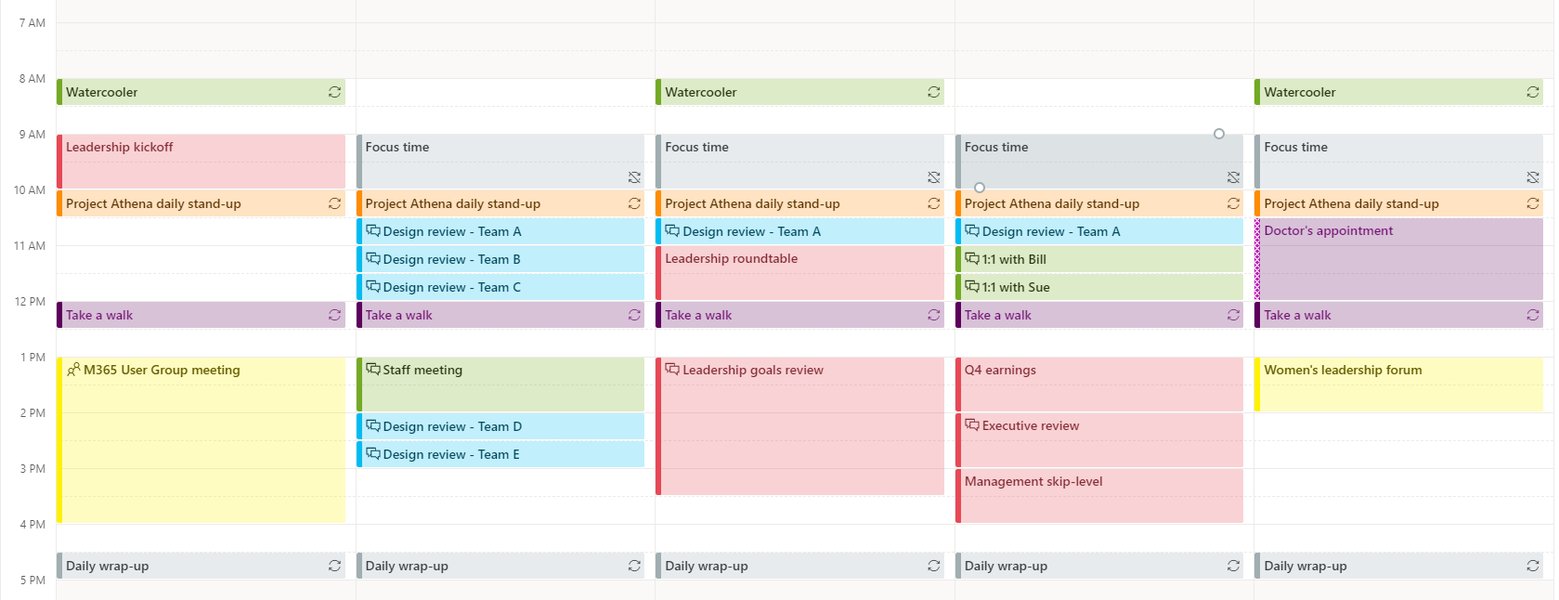
A color-coded calendar view in Outlook.
Limitations and Considerations
It's important to be aware of the limitations when trying to automate calendar categorization in Outlook:
-
Optional Attendee Recognition: As mentioned, Outlook's standard rules do not have a built-in condition to differentiate between required and optional attendees for automatic categorization.
-
Recipient View: Categories you apply to your calendar events are typically only visible to you. Recipients of meeting invitations will not automatically see the color categories you've assigned on their own calendars.
-
Series vs. Instances: In some versions of Outlook, you may not be able to apply a category to an individual instance of a recurring meeting series using rules; the category might only apply to the series as a whole or require manual application to individual instances.
-
Complexity of Rules: While rules are helpful, creating overly complex rules with multiple conditions and exceptions can sometimes lead to unexpected behavior.
Potential Future Developments
Microsoft continuously updates Outlook and Microsoft 365. Features and functionalities are often added or improved based on user feedback. It is possible that future updates may include more advanced options for automating calendar organization, including more granular conditions for rules.
FAQ
Can I automatically categorize meetings based on whether I am a required or optional attendee?
No, standard Outlook rules do not have a built-in condition to automatically categorize meetings based on whether you are marked as a required or optional attendee. This level of automation might require using tools like Power Automate.
Will the color categories I apply be visible to other meeting attendees?
No, the color categories you apply to calendar events in Outlook are typically only visible on your own calendar and are not automatically shared with other attendees.
Can I use keywords in the subject or body of a meeting request to trigger automatic categorization?
Yes, you can create Outlook rules that look for specific keywords in the subject or body of incoming meeting requests and automatically apply a category.
What is the difference between using rules and conditional formatting for color-coding?
Outlook rules apply a formal category tag to the calendar event, which is visible in the event's details and can be used for filtering and searching. Conditional formatting changes the visual display color of the event on your calendar view but does not apply a category tag.
Is it possible to automatically categorize meetings accepted via email?
Automating categorization specifically upon accepting a meeting might require more advanced methods like VBA scripts (in classic Outlook) or Power Automate, as standard rules primarily process the initial incoming invitation.
References
 tdalon.blogspot.com
Last updated May 8, 2025