
Unlocking Sonic Perfection: A Deep Dive into Parametric EQ for Headphones
Transform Your Listening Experience with Precision Audio Customization
Highlights of Parametric EQ Mastery
- Parametric EQ offers unparalleled precision: Unlike graphic EQs, parametric equalizers allow you to meticulously control frequency, bandwidth (Q), and gain, enabling surgical adjustments to your headphone's sound profile. This precision is key to correcting inherent headphone deficiencies or tailoring the sound to your personal preferences.
- Start with a target curve or your headphone's frequency response: While personal preference is paramount, a solid starting point involves understanding your headphone's inherent sound signature through a frequency response graph. Tools like AutoEq provide pre-computed settings based on measurements, offering a neutral foundation from which to fine-tune.
- Trust your ears and experiment: While technical measurements and target curves are valuable guides, the ultimate goal is a sound that pleases *your* ears. Don't be afraid to experiment with small adjustments, listen critically, and bypass the EQ frequently to compare the "before" and "after" sound.
Equalization (EQ) is a powerful tool that allows you to sculpt the sound output of your headphones, addressing their inherent characteristics and tailoring the audio to your unique listening preferences. While various types of EQs exist, a parametric equalizer stands out for its exceptional precision and control. This guide will walk you through the process of applying parametric EQ to your headphones, helping you achieve a truly personalized and optimal listening experience.
Understanding the Essence of Equalization
At its core, an equalizer adjusts the balance of different frequencies within an audio signal. Every sound you hear, from the deepest bass notes to the crispest highs, comprises various frequencies. Headphones, by their design, often have a unique "frequency response" – how loudly or softly they reproduce these different frequencies. This can lead to certain sounds being overly emphasized (peaks) or under-represented (dips), resulting in an imbalanced sound signature. Equalization allows you to correct these imbalances or intentionally modify the sound to suit specific genres or activities.
While some people prefer a "flat" EQ, meaning no adjustments are made to the original recording, many find that even high-quality headphones can benefit from careful equalization. The goal isn't to alter the artist's original mix but to compensate for the shortcomings of your playback system or to adapt the sound to your personal hearing and environment.
The Power of Parametric EQ
Unlike graphic EQs, which offer fixed frequency bands, parametric EQs provide granular control over three key parameters for each filter band:
- Frequency (Freq): This defines the exact center frequency you want to adjust. Instead of a pre-set band (like 200 Hz), you can choose any frequency within the audible spectrum (20 Hz to 20 kHz).
- Gain (Level/Amplitude): This determines how much you boost (increase) or cut (decrease) the amplitude of the selected frequency, typically measured in decibels (dB). Positive values boost, negative values cut.
- Bandwidth (Q Factor): Also known as "Q" (Quality factor), this controls the width of the frequency range affected by the adjustment. A high Q value results in a narrow, precise adjustment (like a sharp hill or valley), while a low Q value creates a wider, more gradual adjustment (like a broad hill or valley). This is where the "magical precision" of parametric EQ truly shines.
Most parametric EQs typically offer between 3 and 7 movable control points, allowing for highly targeted adjustments across the frequency spectrum. This level of control is why parametric EQs are often preferred by audio professionals and enthusiasts alike.
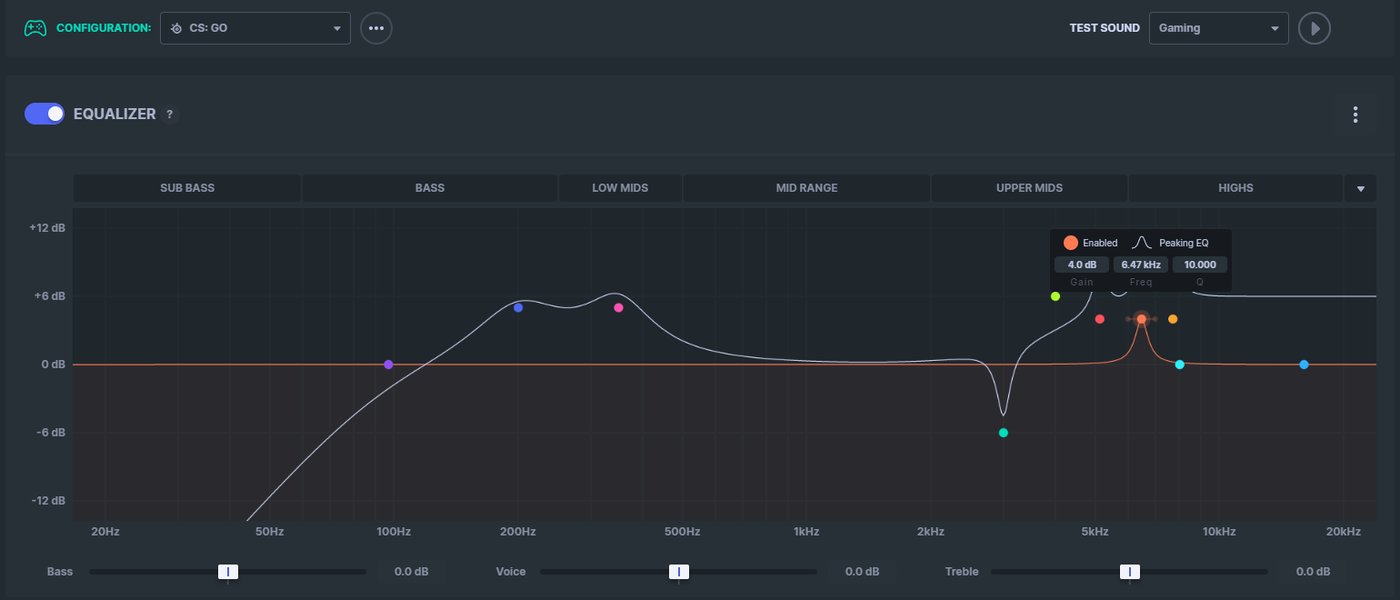
Visualizing the precise control offered by a parametric EQ with its adjustable frequency, gain, and Q values.
The Frequency Spectrum: Your Sonic Canvas
To effectively use a parametric EQ, it's crucial to understand the different frequency ranges and the sounds they typically represent. This knowledge will help you identify what aspects of your audio you want to modify.
| Frequency Range | Typical Hz Range | Audible Characteristics | Impact on Sound |
|---|---|---|---|
| Sub-bass | 20 Hz - 50 Hz | Deep rumble, physical impact, subwoofer territory | Adds "feel" to explosions, deep synth bass, kick drums |
| Bass | 50 Hz - 200 Hz | Warmth, fundamental tones of bass instruments, lower male vocals | Adds fullness, impact to drums, bass guitar |
| Lower Midrange / Upper Bass | 200 Hz - 800 Hz | Body of instruments (guitars, pianos), muddiness | Can sound boomy if over-emphasized, provides warmth and presence |
| Midrange | 800 Hz - 2 kHz | Clarity of vocals, lead instruments, primary attack of many sounds | Crucial for intelligibility, can sound "nasal" or "harsh" if not balanced |
| Upper Mids | 2 kHz - 4 kHz | Presence, clarity, crispness of vocals and instruments, sibilance | Adds detail and forwardness, too much can be fatiguing |
| Treble / Highs | 4 kHz - 20 kHz | Airiness, sparkle, cymbals, high-frequency details, hiss | Adds openness and spaciousness, too much can be sharp or brittle |
Understanding these ranges helps you pinpoint where to make adjustments. For example, if your headphones lack bass impact, you'd focus on boosting frequencies below 250 Hz, particularly between 50 Hz and 100 Hz. If vocals sound recessed, you might look at boosting the midrange around 800 Hz to 2 kHz.
Methods for Applying Parametric EQ
There are several approaches to implementing parametric EQ for your headphones, ranging from automated solutions to manual, ear-driven adjustments.
Leveraging AutoEq and Pre-computed Settings
One of the easiest and most reliable ways to get started is by utilizing databases of pre-computed EQ settings. Projects like AutoEq offer equalization settings for over 3000 headphones, based on extensive measurements and various target curves (like the Harman target response curve). These settings are designed to bring your headphones closer to a neutral, well-balanced sound.
- Find your headphone model: Visit the AutoEq website or repository to see if your specific headphone model has pre-computed settings.
- Understand target curves: AutoEq provides settings for different target curves, which are essentially ideal frequency response profiles. The Harman target curve is widely recognized for its preference among listeners.
- Apply settings to your EQ software: AutoEq generates settings compatible with various types of equalizers, including parametric equalizers. You'll typically get values for frequency, gain, and Q for multiple filters. You then manually input these into your chosen EQ software.
This method provides a strong scientific starting point, often correcting major deficiencies in your headphone's sound signature and offering significant improvements with minimal effort.
Software and Hardware Implementations
To apply parametric EQ, you'll need suitable software or hardware:
- Headphone Manufacturer Apps: Many modern wireless headphones come with companion smartphone apps that include built-in EQ functionalities. These can range from simple presets to more robust virtual sliders that offer parametric-like control. The advantage here is that these settings are often saved directly to the headphones, persisting across different devices.
- Desktop EQ Software:
- Windows: Equalizer APO, often paired with the Peace GUI, is a popular and powerful free parametric EQ solution for Windows.
- Mac: While Equalizer APO is Windows-specific, Mac users can look for third-party audio routing tools or specific plugins for their media players that offer parametric EQ.
- Digital Audio Converters (DACs) / Headphone Amps: Some higher-end DACs or headphone amplifiers include built-in digital signal processing (DSP) features that incorporate parametric EQ. This can be a convenient hardware solution, especially for those seeking an all-in-one setup.
- Music Player Apps: Some music streaming services or local music player applications might have their own EQ built-in. However, it's generally recommended to apply EQ as close to the listening device as possible (e.g., headphone app, system-wide EQ) to avoid "double-EQing" if your music service also has one.
Manual Fine-Tuning and Listening by Ear
Even with pre-computed settings, personal preference plays a crucial role. Your ears, individual hearing physiology (HRTF), and the specific music you listen to will influence what sounds "best."
- Start with a flat EQ: Before making any adjustments, listen to your headphones with a flat EQ to understand their default sound signature.
- Identify problem areas: Play a variety of music tracks you're familiar with. Listen critically for areas that sound boomy, harsh, recessed, or lacking detail. Use test tones (like sine wave sweeps) if available to pinpoint specific frequencies.
- Make small, iterative adjustments:
- Cutting vs. Boosting: Generally, it's recommended to make cuts rather than boosts to avoid clipping or introducing distortion, especially with lower-quality audio files or equipment. If you boost a frequency, you might need to apply a "preamp gain" reduction (a negative gain applied across the entire spectrum) to prevent the audio from exceeding the maximum level.
- Focus on one band at a time: When adjusting, isolate one frequency band, make a small change, and then listen to its effect.
- Adjust Q factor: Experiment with the Q value to see if a narrow or wide adjustment sounds more natural and effective for the problem you're trying to solve.
- Bypass and Compare: Frequently toggle the EQ on and off (bypass) to hear the difference your adjustments are making. This helps you determine if the changes are truly improving the sound.
- Genre-specific tuning: While a neutral sound is often a good baseline, you might want to create specific EQ profiles for different music genres (e.g., boosting bass for electronic music, emphasizing midrange for vocals).
Practical Applications and Scenarios
Parametric EQ isn't just for correcting flaws; it's also about tailoring the experience.
Enhancing Bass and Treble
A common desire is to adjust the bass and treble. For more bass, focus on frequencies below 250 Hz, particularly 50-100 Hz. If you want more "rumble" for gaming effects or electronic music, target the sub-bass (20-50 Hz). For clearer highs and more "air," look at boosting frequencies above 4 kHz, but be careful not to introduce sibilance or harshness, especially around 2-4 kHz (upper mids).
Achieving Clarity and Detail
If your music sounds muffled or lacking in detail, it's often an issue in the midrange and upper midrange. Small cuts in the lower midrange (200-500 Hz) can reduce muddiness, while subtle boosts in the upper midrange (2-4 kHz) can bring vocals and instruments forward and add presence. Be cautious, as too much in this region can lead to a "shouty" or fatiguing sound.
Gaming and Movie Experiences
For gaming, you might boost bass for impactful effects and strategically adjust midrange and treble to enhance footsteps or dialogue. For movies, boosting the midrange can improve dialogue clarity, while emphasizing low-end provides cinematic impact. Some gaming headsets are already tuned for these purposes, but EQ can fine-tune them further.
This radar chart illustrates generalized EQ preferences for different audio scenarios, highlighting how various frequency ranges are prioritized. The values are illustrative and represent typical tendencies rather than exact measurements.
Common Pitfalls and Best Practices
- Don't over-EQ: Excessive boosting or cutting can introduce distortion and make your audio sound unnatural. Small adjustments are often more effective.
- Avoid double-EQing: If your headphones have a built-in EQ, and your music app or operating system also has one, disable one to avoid compounding the effects.
- Consider your source material: EQ cannot fix a poorly recorded or low-quality audio file. It works best with good source material.
- Listen in a quiet environment: External noise can influence your perception of sound. A quiet listening environment helps you make more accurate EQ decisions.
- Save presets: Once you find settings you like for different scenarios, save them as presets in your EQ software or headphone app.
Visualizing EQ Adjustments
Many parametric EQ programs offer a visual representation of the frequency response, showing how your adjustments impact the sound curve. This visual feedback, combined with careful listening, is invaluable for understanding and refining your EQ settings. Comparing your adjusted curve to known "ideal" frequency response graphs (like the Harman target) can also be a helpful guide.
This video provides a comprehensive explanation of how EQ works, differentiating between parametric and graphic EQs, and discussing target curves and measurement techniques for optimizing headphone sound for various uses, including gaming and music.
The provided video delves into the fundamentals of equalization, explaining the differences between parametric and graphic EQs, which is crucial for a deeper understanding of the precise control offered by parametric equalizers. It also explores the concept of target curves, such as the Harman curve, and how measurements are used to create optimal EQ settings for different headphones. This context is vital for users who want to move beyond basic adjustments and truly master their audio experience, whether for critical music listening, immersive gaming, or clear dialogue in movies.
Frequently Asked Questions (FAQ)
What is the "Harman Target Response Curve"?
Can I damage my headphones by using EQ?
Is there a "perfect" EQ setting?
Do I need special equipment to use parametric EQ?
How often should I adjust my EQ settings?
Recommended Further Exploration
- Explore the science behind the Harman target curve and its application in headphone equalization.
- Discover highly-rated free parametric EQ software options for your computer system.
- Learn to interpret headphone frequency response graphs to inform your EQ adjustments.
- Find recommended EQ settings tailored to various music genres for an optimized listening experience.
References
Last updated May 21, 2025