

Key Insights into Lingering Captive Portal Issues
- Captive Portal Remnant: The primary reason for this persistent message is that your device has retained cached information or settings from the motel's public Wi-Fi, known as a captive portal, even after you've reconnected to your home network.
- Device-Specific Troubleshooting: Solutions range from simple restarts and forgetting Wi-Fi networks to clearing browser data, flushing DNS, and resetting network settings, tailored to different operating systems.
- Preventive Measures for Future Travel: Understanding how captive portals work and proactively clearing network states can prevent this inconvenience when switching between public and private networks.
Experiencing the message "the network you are using may require you to visit its login page" while comfortably at home, especially after a visit to a motel or other public Wi-Fi hotspot, can be quite perplexing. This phenomenon is a classic example of a "captive portal remnant." Public Wi-Fi networks, such as those found in hotels, airports, or coffee shops, often employ a technology called a captive portal. This system requires users to authenticate (log in, agree to terms, or watch an advertisement) before granting full internet access. Your device, having recently interacted with such a network, has likely retained some of its configuration or cached state, leading it to misinterpret your secure home network as still requiring a login.
The problem isn't that your home network actually requires a login page, but rather that your device's operating system, browser, or network settings are holding onto remnants of the motel's captive portal authentication process. This can include stored authentication tokens, proxy settings, specific DNS configurations, or even browser cookies. Consequently, your device is attempting to apply these outdated requirements to your current home network, triggering the familiar but now irrelevant login page prompt.
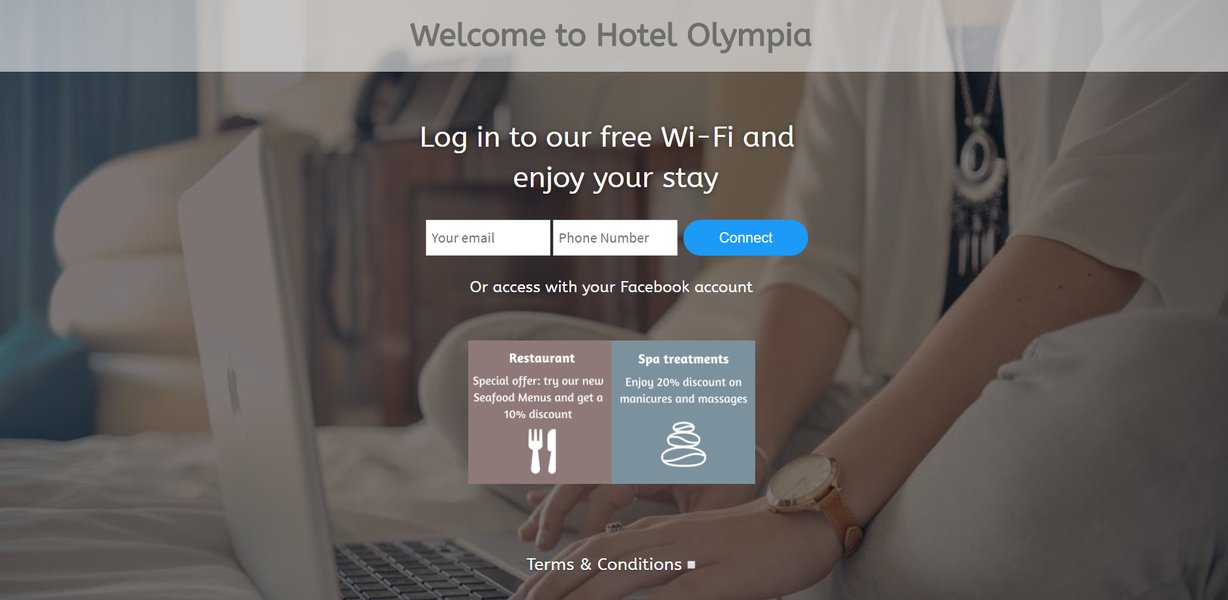
Example of a typical hotel login page, a captive portal interface.
The Mechanics of Captive Portals and Their Persistence
To fully grasp why this message lingers, it's essential to understand how captive portals function. When you connect to a public Wi-Fi network that uses a captive portal, the network redirects all your initial HTTP (non-secure) web traffic to a specific login page. Only after you successfully interact with this page (e.g., enter credentials, click "agree") does the network allow unrestricted internet access. Your device learns this behavior and often caches certain elements or configurations related to this interaction.
When you transition from the motel's network to your home Wi-Fi, your device might not fully purge these temporary settings or cached states. This can manifest as:
- Cached Authentication State: Your browser or operating system might remember that it was in an "unauthenticated" state on the previous network and continue to look for a login page.
- DNS Issues: The motel's network might have temporarily assigned specific DNS servers, or your device might have cached DNS entries that now conflict with your home network.
- Proxy Settings: Less common, but some captive portals can temporarily configure proxy settings on your device, which, if not cleared, can prevent normal internet access at home.
- Stale Network Configurations: IP addresses, gateway information, and other network parameters from the motel might still be subtly influencing your device's network stack.
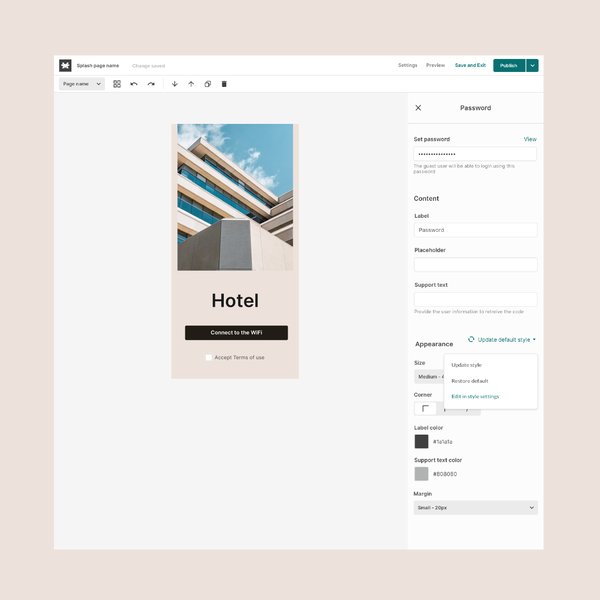
Visual representation of a splash page editor, highlighting the customization options for captive portals.
Immediate Troubleshooting Steps for a Quick Resolution
Fortunately, addressing this issue usually involves a series of straightforward steps designed to clear these lingering captive portal remnants. It's often best to start with the simplest solutions and work your way up to more involved network resets.
Restarting Your Devices and Router
A classic IT solution, restarting your devices and router can often resolve temporary glitches by clearing their memory and re-establishing fresh connections. First, power off your computer, phone, or tablet. Then, unplug your home Wi-Fi router from its power source for about 30 seconds before plugging it back in and allowing it to fully boot up. Finally, restart your personal devices.
Forgetting and Reconnecting to Your Home Wi-Fi
This is one of the most effective methods to clear any corrupted or mixed-up network profiles. By "forgetting" the network, you instruct your device to discard all stored settings and credentials for that specific Wi-Fi network.
On Windows:
- Go to "Settings" > "Network & Internet" > "Wi-Fi".
- Click "Manage known networks".
- Select your home Wi-Fi network and click "Forget".
- Then, reconnect to your home Wi-Fi, entering your password when prompted.
On macOS:
- Go to "System Settings" > "Network" > "Wi-Fi".
- Click "Advanced..." at the bottom.
- In the "Known Networks" list, select your home Wi-Fi and click the minus ("-") button to remove it.
- Click "OK" and then reconnect to your home Wi-Fi.
On iOS/Android:
- Go to "Settings" > "Wi-Fi".
- Tap the information icon (i) next to your home Wi-Fi network.
- Select "Forget This Network" (iOS) or "Forget" (Android).
- Then, search for your home network and reconnect.
Clearing Browser Data
Sometimes, the captive portal state is primarily cached within your web browser. Clearing your browser's cache, cookies, and site data can help. It's also a good idea to test connectivity in an incognito or private browsing window, which typically ignores cached data.
For Chrome/Edge:
- Open your browser settings.
- Navigate to "Privacy and security" > "Clear browsing data".
- Select "Cookies and other site data" and "Cached images and files".
- Choose a time range (e.g., "All time") and clear the data.
Deeper Network Diagnostics and Solutions
If the simpler steps don't resolve the issue, you might need to delve into more comprehensive network resets and configurations.
Flushing DNS and Resetting Network Settings
Your device's DNS cache stores recently resolved domain names, and if this cache contains stale entries from the motel's network, it can cause redirection issues. Resetting network settings completely refreshes your device's network stack.
On Windows (Administrator Command Prompt):
netsh winsock reset
netsh int ip reset
ipconfig /release
ipconfig /renew
ipconfig /flushdns
Alternatively, use the "Network Reset" feature in Windows: Settings > Network & Internet > Status > Network Reset > Reset Now (this will restart your PC).
On macOS (Terminal):
While there isn't a direct "flush all DNS" command as in Windows, restarting your Mac often clears the DNS cache. For more specific actions, you can try:
sudo dscacheutil -flushcache
sudo killall -HUP mDNSResponder
You can also go to System Settings > Network > Wi-Fi > Details > DNS and try setting DNS to Automatic or using a public DNS like 1.1.1.1 or 8.8.8.8.
On iOS/Android:
These devices typically have an option to "Reset Network Settings" under their general or system settings. Be aware that this will erase all saved Wi-Fi networks and passwords, cellular settings, and VPN configurations.
Disabling Proxy/LAN Settings (Windows)
In some cases, a public network might temporarily configure proxy settings on your Windows device. It's crucial to ensure these are cleared.
- Press
Windows + R, typeinetcpl.cpl, and press Enter. - Go to the "Connections" tab and click "LAN settings".
- Ensure "Automatically detect settings" is unchecked, and any proxy server options are also unchecked.
- Click "OK" twice and restart your browser.
Testing with Non-HTTPS Sites
Captive portals primarily rely on redirecting non-HTTPS traffic. If your device is still looking for a captive portal, trying to access a site like http://neverssl.com can either trigger the captive portal page (if one is somehow still active) or demonstrate that your internet connection is now clear. For iOS devices, navigating to http://captive.apple.com can serve a similar purpose, as Apple devices use this URL to detect captive portals.
Preventative Measures and Further Considerations
While the above steps should resolve the issue, understanding preventative measures can help avoid similar situations in the future. Always make sure to formally disconnect from public Wi-Fi networks when you're done using them, rather than simply walking away. Also, regularly updating your device's operating system ensures that it has the latest patches for network management and bug fixes.
This mindmap visually outlines the journey from the root cause (motel captive portal) to the device's retention of stale information and the various troubleshooting steps to resolve the persistent login page message.
Device-Specific Reset Options Overview
The table below summarizes common network reset options across different operating systems, highlighting their impact and typical locations in settings.
| Action/Setting | Windows | macOS | iOS | Android |
|---|---|---|---|---|
| Forget Wi-Fi Network | Settings > Network & Internet > Wi-Fi > Manage known networks | System Settings > Network > Wi-Fi > Advanced... | Settings > Wi-Fi > (i) > Forget This Network | Settings > Wi-Fi > (network name) > Forget |
| Clear Browser Cache | Browser Settings (e.g., Chrome/Edge: Privacy and security > Clear browsing data) | |||
| Flush DNS | Command Prompt (Admin): ipconfig /flushdns |
Terminal: sudo dscacheutil -flushcache, sudo killall -HUP mDNSResponder |
Usually requires full Network Settings Reset or device restart | |
| Reset Network Settings | Settings > Network & Internet > Status > Network Reset | System Settings > General > Transfer or Reset > Reset > Reset Network Settings (affects Wi-Fi and some VPNs) | Settings > General > Transfer or Reset iPhone > Reset > Reset Network Settings | Settings > System > Reset options > Reset Wi-Fi, mobile & Bluetooth (path may vary) |
When to Consider External Factors
While highly unlikely that your home network is intentionally using a captive portal without your knowledge, if the issue persists across multiple devices and after extensive troubleshooting, consider these rare scenarios:
- Router Misconfiguration: A very unusual scenario where your home router's firmware might be corrupted or have a setting that mimics a captive portal. A factory reset of the router (with proper backup of settings) might be a last resort.
- Third-Party Security Software: Overly aggressive antivirus or firewall software on your device might be intercepting network traffic in a way that triggers this message. Temporarily disabling such software to test can help diagnose.
The YouTube video "How to fix The Network You Are Using May Require You to Visit its Login windows 11" provides a visual guide that covers some of the troubleshooting steps discussed, particularly for Windows users. It walks through the process of addressing network credentials and potential login page issues that can arise in various scenarios, including those related to captive portals. While its title focuses on Windows 11, many of the underlying principles and solutions for clearing network states are broadly applicable to other operating systems.
This video offers practical guidance on resolving the "network requires login page" message, focusing on Windows 11, but many tips are widely applicable for clearing stubborn network configurations.
Frequently Asked Questions
What exactly is a captive portal?
Why does my device keep showing the login page message at home?
Will clearing browser data fix this issue?
Is it safe to reset my network settings?
What if the problem persists on all my devices at home?
Conclusion
The persistence of a "login page" message from a motel's captive portal on your home network is a common, albeit frustrating, side effect of modern device networking. It stems from your device holding onto outdated network configurations or cached data. By systematically applying the troubleshooting steps – starting with simple restarts and forgetting Wi-Fi networks, then moving to clearing browser data, flushing DNS, and performing comprehensive network resets – you can effectively purge these remnants and restore seamless internet access on your home network. Remember to be methodical in your approach, and your device will soon recognize your home Wi-Fi for what it truly is: a trusted, open gateway to the internet.
Recommended Further Exploration
- How do captive portals work on public Wi-Fi networks?
- Best practices for securing devices on public Wi-Fi
- Troubleshooting common home Wi-Fi connectivity issues
- Advanced network settings for Windows and macOS