
Unlocking Wireless Temperature Monitoring with Raspberry Pi Pico W
Seamlessly transmit temperature data via Bluetooth using MicroPython on your Pico W.
Key Insights into Raspberry Pi Pico W Bluetooth Temperature Monitoring
- Native Bluetooth Support: The Raspberry Pi Pico W, built around the RP2040 microcontroller, now natively supports both Bluetooth Classic and Bluetooth Low Energy (BLE) with recent firmware updates for MicroPython and C SDK, eliminating the need for external modules like HC-05 for basic wireless communication.
- Onboard Temperature Sensing: The Pico W includes an internal temperature sensor connected to its Analog-to-Digital Converter (ADC), providing a convenient way to monitor the temperature of the RP2040 chip itself. While useful for general environmental sensing, be aware that its readings can be influenced by the board's own heat generation.
- Flexible Data Transmission: Temperature data can be wirelessly transmitted from the Pico W to various central devices, including smartphones (via apps like nRF Connect or LightBlue), other Pico W boards, or even web browsers using Web Bluetooth, enabling a wide range of IoT applications.
The Raspberry Pi Pico W has emerged as a highly versatile and affordable microcontroller board, particularly with the recent addition of native Bluetooth support. This enhancement significantly expands its capabilities, allowing for wireless communication in a myriad of Internet of Things (IoT) projects. One of the most common and practical applications involves reading sensor data and transmitting it wirelessly. This guide delves into how you can leverage the Pico W's onboard temperature sensor and Bluetooth Low Energy (BLE) capabilities to monitor temperatures and send this data to other devices.
Understanding the Raspberry Pi Pico W's Wireless Capabilities
The Power of Integrated Wi-Fi and Bluetooth 5.2
The Raspberry Pi Pico W stands out due to its integrated Infineon CYW43439 chip, which provides both 2.4 GHz 802.11n Wi-Fi and Bluetooth 5.2 connectivity. While Wi-Fi was available from its initial launch, official Bluetooth support became available with the release of version 1.5.1 of the C SDK and the latest MicroPython builds. This means that existing Pico W boards can gain Bluetooth functionality through a simple firmware update, eliminating the need to purchase new hardware.
This dual-mode capability allows the Pico W to act as both a central device (e.g., connecting to multiple Bluetooth peripherals) and a peripheral device (e.g., broadcasting sensor data). This flexibility makes it an ideal choice for diverse IoT applications, from simple sensor nodes to more complex control systems.
Bluetooth Low Energy (BLE) vs. Bluetooth Classic
The Pico W supports both Bluetooth Classic and Bluetooth Low Energy (BLE). For sensor data transmission, BLE is often preferred due to its lower power consumption, making it suitable for battery-powered applications and prolonged monitoring. BLE operates on a client-server model, where devices can act as "peripherals" (broadcasting data) or "centrals" (scanning for and connecting to peripherals to receive data). For temperature sensing, the Pico W typically acts as a peripheral, advertising its temperature data, while a smartphone or another Pico W acts as a central to receive and display this information.
Accessing the Onboard Temperature Sensor
The RP2040's Internal Thermometer
The Raspberry Pi Pico W's RP2040 microcontroller chip features an internal temperature sensor. This sensor is connected to the fifth Analog-to-Digital Converter (ADC) channel (ADC4). It measures the Vbe voltage of a biased bipolar diode, and this voltage is proportional to the chip's temperature. While convenient, it's important to note that the readings from this onboard sensor reflect the temperature of the RP2040 die itself, which can be affected by the heat generated by the board's operation. Therefore, for highly accurate ambient temperature readings, an external sensor like a DHT11, DHT22, or DS18B20 might be more suitable. However, for many monitoring applications or as a quick proof-of-concept, the onboard sensor is perfectly adequate.
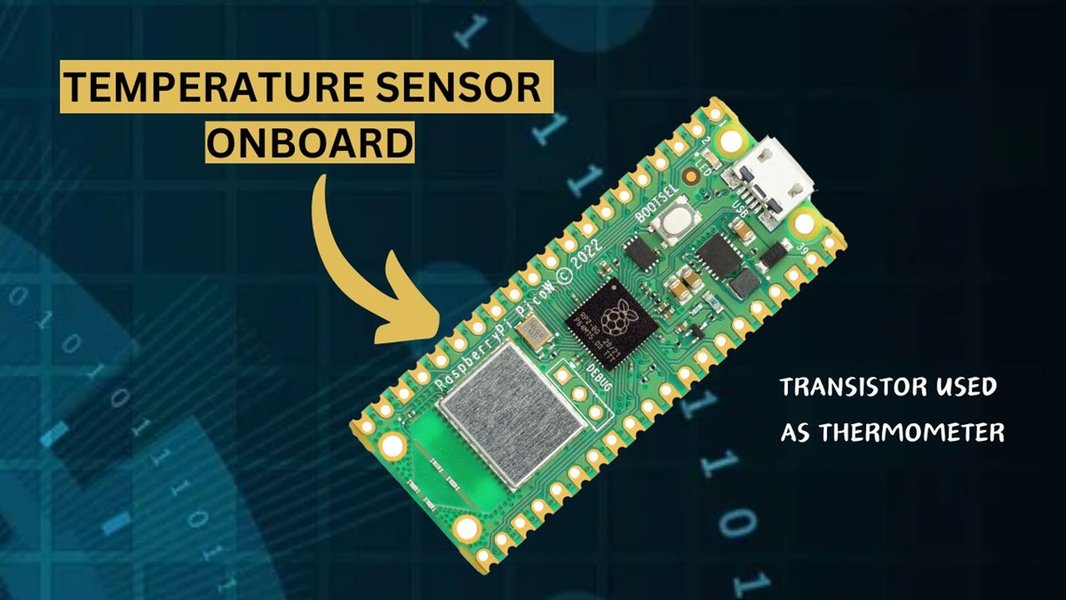
The RP2040 microcontroller, featuring the integrated temperature sensor accessible via ADC4.
Reading Temperature with MicroPython
To read the temperature using MicroPython, you'll utilize the machine.ADC module. The internal sensor is accessed via pin 4 (or machine.ADC(4)). The raw ADC value is a 16-bit unsigned integer, which then needs to be converted into degrees Celsius using a specific formula provided in the RP2040 datasheet. This formula compensates for the voltage-to-temperature relationship of the diode.
Here's a basic MicroPython code snippet to read the onboard temperature:
import machine
import time

# ADC channel for the internal temperature sensor
temp_sensor_adc = machine.ADC(4)

# Conversion factor for 16-bit ADC to voltage (3.3V / 65535)
conversion_factor = 3.3 / (65535)

def read_onboard_temperature():
    # Read the raw ADC value
    raw_adc_value = temp_sensor_adc.read_u16()

    # Convert raw ADC value to voltage
    voltage = raw_adc_value * conversion_factor

    # Convert voltage to temperature in Celsius
    # According to RP2040 datasheet: Vbe = 0.706V at 27°C, with a slope of -1.721mV/°C
    temperature = 27 - (voltage - 0.706) / 0.001721

    return round(temperature, 2)

while True:
    current_temp = read_onboard_temperature()
    print(f"Internal Temperature: {current_temp}°C")
    time.sleep(5)
Implementing Bluetooth Communication for Temperature Data
Setting up the Pico W as a BLE Peripheral
To send temperature data via Bluetooth, the Pico W needs to act as a BLE peripheral that advertises its services and characteristics. A "service" groups related data, and "characteristics" are the actual data points. For temperature, you'd typically use the Environmental Sensing Service (ESS) and a Temperature Characteristic. MicroPython's bluetooth and aioble modules are crucial for this. You'll also often need a utility file like ble_advertising.py to handle the advertisement payload.
The general workflow involves:
- Initializing the Bluetooth module.
- Defining the BLE service (e.g., Environmental Sensing Service UUID).
- Defining characteristics within the service (e.g., Temperature Characteristic UUID).
- Creating an advertisement payload to announce the device and its services.
- Starting the BLE advertising.
- Periodically updating the temperature characteristic value and notifying connected central devices.
Example MicroPython Code for BLE Temperature Sensor (Peripheral)
The following example, adapted from official Raspberry Pi Pico W documentation and community examples, demonstrates how to configure the Pico W as a BLE temperature sensor. This code will broadcast the onboard temperature, which can then be picked up by a central device like a smartphone or another Pico W.
import bluetooth
import random
import struct
import time
import machine
import ubinascii
from micropython import const

# Custom advertising payload (simplified for example)
_ADV_TYPE_FLAGS = const(0x01)
_ADV_TYPE_NAME = const(0x09)
_ADV_TYPE_UUID16_COMPLETE = const(0x03)
_ADV_TYPE_UUID32_COMPLETE = const(0x05)
_ADV_TYPE_UUID128_COMPLETE = const(0x07)

def advertising_payload(limited_disc=False, br_edr=False, name=None, services=None, appearance=0):
    payload = bytearray()

    def _append(adv_type, value):
        nonlocal payload
        payload += struct.pack("BB", len(value) + 1, adv_type) + value

    _append(
        _ADV_TYPE_FLAGS,
        struct.pack("B", (0x01 if limited_disc else 0x02) + (0x00 if br_edr else 0x04)),
    )

    if name:
        _append(_ADV_TYPE_NAME, name.encode("utf-8"))

    if services:
        for uuid in services:
            if isinstance(uuid, bluetooth.UUID):
                if uuid.size == 16:
                    _append(_ADV_TYPE_UUID16_COMPLETE, struct.pack("<H", uuid.v16))
                elif uuid.size == 32:
                    _append(_ADV_TYPE_UUID32_COMPLETE, struct.pack("<L", uuid.v32))
                else:
                    _append(_ADV_TYPE_UUID128_COMPLETE, uuid.v128)
            else:
                raise ValueError("Expected bluetooth.UUID for services")

    # Add appearance (optional, but good practice for specific device types)
    if appearance:
        _append(const(0x19), struct.pack("<H", appearance))

    return payload

# BLE setup
BLE_NAME = "PicoW_TempSensor"
ADV_INTERVAL_MS = 2000 # Advertise every 2 seconds

_IRQ_CENTRAL_CONNECT = const(1)
_IRQ_CENTRAL_DISCONNECT = const(2)
_IRQ_GATTS_INDICATE_DONE = const(20)

# Environmental Sensing Service (ESS) UUID (Standard Bluetooth UUID)
_ENV_SENSE_UUID = bluetooth.UUID(0x181A)
# Temperature Characteristic UUID (Standard Bluetooth UUID)
_TEMP_CHAR_UUID = bluetooth.UUID(0x2A6E)

# Define the BLE service and characteristics
# Permissions: Read, Notify (for sending updates to connected centrals)
_TEMP_SERVICE = (
    _ENV_SENSE_UUID,
    (
        (_TEMP_CHAR_UUID, bluetooth.FLAG_READ | bluetooth.FLAG_NOTIFY,),
    ),
)

class BLETemperatureSensor:
    def __init__(self, ble):
        self._ble = ble
        self._ble.active(True)
        self._ble.irq(self._irq)
        ((self._handle,),) = self._ble.gatts_create_service(_TEMP_SERVICE)
        self._connections = set()
        self._temperature_c = 0.0 # Initialize temperature

        # Onboard temperature sensor setup
        self.temp_sensor_adc = machine.ADC(4)
        self.conversion_factor = 3.3 / (65535)

    def _irq(self, event, data):
        if event == _IRQ_CENTRAL_CONNECT:
            conn_handle, _, _ = data
            print("Connected to central:", conn_handle)
            self._connections.add(conn_handle)
        elif event == _IRQ_CENTRAL_DISCONNECT:
            conn_handle, _, _ = data
            print("Disconnected from central:", conn_handle)
            self._connections.remove(conn_handle)
            # Restart advertising when disconnected
            self.advertise()
        elif event == _IRQ_GATTS_INDICATE_DONE:
            conn_handle, value_handle, status = data
            print(f"Notification complete: {value_handle}, status: {status}")

    def read_onboard_temperature(self):
        # Read the raw ADC value
        raw_adc_value = self.temp_sensor_adc.read_u16()

        # Convert raw ADC value to voltage
        voltage = raw_adc_value * self.conversion_factor

        # Convert voltage to temperature in Celsius
        temperature = 27 - (voltage - 0.706) / 0.001721

        return round(temperature, 2)

    def update_temperature(self):
        self._temperature_c = self.read_onboard_temperature()
        # The temperature characteristic expects a SFLOAT (Signed 16-bit float)
        # For simplicity, we'll pack it as an integer scaled by 100
        # For true SFLOAT, use struct.pack("<h", int(temperature * 100))
        # and specify the exponent in the characteristic's GATT description if needed.
        # For this example, we'll just send an integer scaled by 100.
        packed_temp = struct.pack("<h", int(self._temperature_c * 100)) # Pack as signed short
        self._ble.gatts_write(self._handle, packed_temp) # Write to characteristic
        print(f"Advertising Temperature: {self._temperature_c}°C")

        # Notify all connected central devices
        for conn_handle in self._connections:
            try:
                self._ble.gatts_notify(conn_handle, self._handle)
            except Exception as e:
                print(f"Error notifying: {e}")

    def advertise(self):
        # Generate the advertising payload
        payload = advertising_payload(name=BLE_NAME, services=[_ENV_SENSE_UUID])
        self._ble.gap_advertise(ADV_INTERVAL_MS, adv_data=payload)
        print("Advertising started...")

# Main execution
if __name__ == "__main__":
    ble_sensor = BLETemperatureSensor(bluetooth.BLE())
    ble_sensor.advertise()

    last_update_time = time.time()
    while True:
        if time.time() - last_update_time > 10: # Update every 10 seconds
            ble_sensor.update_temperature()
            last_update_time = time.time()
        time.sleep(1) # Small delay to prevent busy-waiting
To run this code:
- Ensure your Raspberry Pi Pico W has the latest MicroPython firmware with Bluetooth support installed.
- Save the
ble_advertising.pyhelper file (available in the official Raspberry Pi Pico W MicroPython examples on GitHub) to your Pico W as well. - Save the provided temperature sensor code as
main.pyor another.pyfile on your Pico W. - Run the script using an IDE like Thonny.
Once running, your Pico W will start advertising as "PicoW_TempSensor". You can then use a Bluetooth LE scanner app on your smartphone (e.g., nRF Connect for Android or LightBlue for iOS) to discover and connect to your Pico W, and view the temperature readings in the app's terminal or characteristic viewer.
Receiving Temperature Data on a Central Device
Connecting and Interpreting BLE Advertisements
A central device, such as another Raspberry Pi Pico W, a standard Raspberry Pi, or a smartphone, needs to be programmed to scan for BLE advertisements, connect to the peripheral (your temperature sensor Pico W), and then read or subscribe to notifications from the temperature characteristic. The process involves:
- Scanning for devices advertising the specific service UUID (Environmental Sensing Service).
- Connecting to the identified peripheral.
- Discovering services and characteristics on the connected device.
- Enabling notifications for the temperature characteristic to receive real-time updates.
- Parsing the received data to extract the temperature value.
Example MicroPython Code for BLE Temperature Reader (Central)
Here's a simplified example of MicroPython code for a Pico W acting as a central device to read the temperature from the peripheral Pico W created earlier:
import bluetooth
import random
import struct
import time
from micropython import const

_IRQ_SCAN_RESULT = const(5)
_IRQ_SCAN_DONE = const(6)
_IRQ_CENTRAL_CONNECT = const(1)
_IRQ_CENTRAL_DISCONNECT = const(2)
_IRQ_GATTC_SERVICE_RESULT = const(9)
_IRQ_GATTC_SERVICE_DONE = const(10)
_IRQ_GATTC_CHARACTERISTIC_RESULT = const(11)
_IRQ_GATTC_CHARACTERISTIC_DONE = const(12)
_IRQ_GATTC_READ_RESULT = const(13)
_IRQ_GATTC_NOTIFY = const(18)

# Environmental Sensing Service (ESS) UUID
_ENV_SENSE_UUID = bluetooth.UUID(0x181A)
# Temperature Characteristic UUID
_TEMP_CHAR_UUID = bluetooth.UUID(0x2A6E)

class BLETemperatureReader:
    def __init__(self, ble):
        self._ble = ble
        self._ble.active(True)
        self._ble.irq(self._irq)
        self._reset()

    def _reset(self):
        self._adv_match = False
        self._conn_handle = None
        self._temp_service_handle = None
        self._temp_char_handle = None
        self._temperature_c = 0.0

    def _irq(self, event, data):
        if event == _IRQ_SCAN_RESULT:
            addr_type, addr, adv_type, rssi, adv_data = data
            name = self._decode_name(adv_data)
            if name == "PicoW_TempSensor" and not self._adv_match:
                print(f"Found PicoW_TempSensor: {ubinascii.hexlify(addr).decode()} (RSSI: {rssi})")
                self._adv_match = True
                self._ble.gap_connect(addr_type, addr)
        elif event == _IRQ_SCAN_DONE:
            if not self._adv_match:
                print("No PicoW_TempSensor found, scanning again...")
                self.scan()
        elif event == _IRQ_CENTRAL_CONNECT:
            self._conn_handle, _, _ = data
            print("Connected to", self._conn_handle)
            self._ble.gattc_discover_services(self._conn_handle)
        elif event == _IRQ_CENTRAL_DISCONNECT:
            print("Disconnected from", data[0])
            self._reset()
            self.scan() # Restart scan on disconnect
        elif event == _IRQ_GATTC_SERVICE_RESULT:
            conn_handle, start_handle, end_handle, uuid = data
            if conn_handle == self._conn_handle and uuid == _ENV_SENSE_UUID:
                self._temp_service_handle = (start_handle, end_handle)
        elif event == _IRQ_GATTC_SERVICE_DONE:
            if self._temp_service_handle:
                print("Service found, discovering characteristics...")
                self._ble.gattc_discover_characteristics(self._conn_handle, self._temp_service_handle[0], self._temp_service_handle[1])
            else:
                print("Temperature service not found.")
                self._ble.gap_disconnect(self._conn_handle)
        elif event == _IRQ_GATTC_CHARACTERISTIC_RESULT:
            conn_handle, def_handle, value_handle, properties, uuid = data
            if conn_handle == self._conn_handle and uuid == _TEMP_CHAR_UUID:
                self._temp_char_handle = value_handle
                print("Temperature characteristic found.")
        elif event == _IRQ_GATTC_CHARACTERISTIC_DONE:
            if self._temp_char_handle:
                print("Enabling notifications for temperature...")
                # Enable notifications (0x01) for the characteristic
                self._ble.gattc_write(self._conn_handle, self._temp_char_handle + 1, b'\x01\x00')
                print("Notifications enabled.")
            else:
                print("Temperature characteristic not found.")
                self._ble.gap_disconnect(self._conn_handle)
        elif event == _IRQ_GATTC_READ_RESULT:
            conn_handle, value_handle, char_data = data
            if conn_handle == self._conn_handle and value_handle == self._temp_char_handle:
                self._temperature_c = struct.unpack("<h", char_data)[0] / 100.0
                print(f"Read Temperature: {self._temperature_c}°C")
        elif event == _IRQ_GATTC_NOTIFY:
            conn_handle, value_handle, notify_data = data
            if conn_handle == self._conn_handle and value_handle == self._temp_char_handle:
                self._temperature_c = struct.unpack("<h", notify_data)[0] / 100.0
                print(f"Notify Temperature: {self._temperature_c}°C")

    def _decode_name(self, adv_data):
        i = 0
        name = None
        while i + 1 < len(adv_data):
            len = adv_data[i]
            type = adv_data[i + 1]
            if type == _ADV_TYPE_NAME and len > 1:
                name = adv_data[i + 2 : i + len + 1].decode("utf-8")
                break
            i += 1 + len
        return name

    def scan(self):
        self._ble.gap_scan(2000, 30000, 30000) # Scan indefinitely with interval/window
        print("Scanning for peripherals...")

# Main execution
if __name__ == "__main__":
    ble_reader = BLETemperatureReader(bluetooth.BLE())
    ble_reader.scan()

    while True:
        # Keep the program running to process IRQ events
        time.sleep(1)
This central device code will continuously scan for the "PicoW_TempSensor," connect to it, and then print the temperature values received via BLE notifications. Ensure you have the latest MicroPython firmware and the ble_advertising.py file on both Pico W boards.
Visualizing Temperature Data via Bluetooth
Displaying Real-time Readings
Once you have the temperature data streaming from your Pico W via Bluetooth, you can visualize it in various ways. For mobile devices, apps like nRF Connect or LightBlue offer basic terminal views or characteristic explorers. For more sophisticated displays, you could develop a custom mobile application (Android/iOS) or a web application using Web Bluetooth API. The latter allows you to connect to the Pico W directly from a web browser and display the data on a webpage, offering a highly accessible monitoring solution.

A Raspberry Pi Pico W transmitting temperature data to a smartphone using Bluetooth.
Comparative Analysis of Wireless Temperature Monitoring
To provide a broader perspective on the Pico W's capabilities for temperature monitoring, let's compare it against other common methods and platforms. This radar chart will illustrate the perceived strengths across various criteria.
This radar chart provides a comparative overview of the Raspberry Pi Pico W (using its onboard sensor and Bluetooth) against a standard Raspberry Pi Pico with an external Bluetooth module, and other popular microcontrollers like ESP32/ESP8266 with external sensors. The Pico W excels in cost-effectiveness and native Bluetooth setup, offering a compact and integrated solution. While its onboard sensor's accuracy might be slightly less than dedicated external sensors, its power efficiency for BLE and robust MicroPython ecosystem support make it a strong contender for many wireless temperature monitoring projects. The flexibility to act as both central and peripheral devices further enhances its appeal.
Advanced Considerations and Project Ideas
Expanding Functionality and Applications
Beyond simple temperature readings, the Pico W's Bluetooth capabilities open doors to more complex IoT applications. You can integrate other sensors (humidity, pressure, light) and transmit a comprehensive environmental data package. For example, combining a DHT11 or BME280 sensor with the Pico W allows for a more complete weather station that sends temperature and humidity data wirelessly.
Consider the following applications:
- Remote Environmental Monitoring: Deploying multiple Pico W units with temperature sensors in different rooms or areas and having a central Pico W or smartphone app collect data from all of them.
- Automated Climate Control: Using temperature data to trigger actions, such as turning on a fan or heater via a smart plug, based on predefined thresholds.
- Data Logging: Transmitting temperature data to a cloud platform or a local database (e.g., QuestDB on another Raspberry Pi) for long-term storage and analysis.
- Human-Machine Interface (HMI): Creating a simple control interface on a smartphone to adjust settings on the Pico W, such as temperature reporting intervals.
Utilizing External Temperature Sensors
While the onboard sensor is convenient, for higher accuracy or specific environmental conditions (like water temperature), external sensors are recommended. Popular choices include:
- DS18B20: A waterproof 1-Wire digital thermometer, ideal for liquid temperature monitoring.
- DHT11/DHT22: Inexpensive sensors for both temperature and humidity.
- BME280/BMP280: More advanced sensors providing temperature, humidity, and atmospheric pressure.
Integrating these sensors with the Pico W involves connecting them to appropriate GPIO pins and using their respective MicroPython libraries. The process of transmitting their data via Bluetooth remains similar to that of the onboard sensor, by packaging the readings into BLE characteristics.
Two-Way Communication and Control
The Pico W's ability to act as both a central and peripheral device enables two-way communication. This means one Pico W can send data (e.g., sensor readings) to another, while simultaneously receiving commands (e.g., to adjust a setting or activate an output) from the same or a different central device. This capability is fundamental for creating interactive projects like robot car control or remote lighting systems.
This video provides a detailed demonstration of setting up two-way Bluetooth communication between two Raspberry Pi Pico W devices using MicroPython, highlighting practical applications beyond simple sensor transmission.
The video above demonstrates two-way Bluetooth communication between two Raspberry Pi Pico W boards. This is particularly relevant because it illustrates how one Pico W can act as a temperature sensor peripheral, sending data, while another Pico W (or a smartphone) can act as a central device to receive that data. Crucially, the video also shows how the central device can send commands back to the peripheral, opening up possibilities for interactive control systems where temperature thresholds could trigger actions on the sensor board itself, or a remote control can adjust the behavior of the temperature monitoring system.
Bluetooth Protocols and Best Practices
Understanding UUIDs and GATT
Bluetooth Low Energy communication relies heavily on the Generic Attribute Profile (GATT). GATT defines how data is organized and exchanged. Services and characteristics within GATT are identified by Universally Unique Identifiers (UUIDs). Standard UUIDs (e.g., 0x181A for Environmental Sensing Service, 0x2A6E for Temperature Characteristic) ensure interoperability with other Bluetooth devices and applications. For custom data, you can define your own 128-bit UUIDs.
| Concept | Description | Relevance for Temperature Monitoring |
|---|---|---|
| Peripheral | A device that advertises its presence and data, typically a sensor. | Your Pico W with the temperature sensor acts as the peripheral. |
| Central | A device that scans for and connects to peripherals to consume data. | Your smartphone, PC, or another Pico W acts as the central. |
| Service | A collection of characteristics that define a specific function or feature. | Environmental Sensing Service (ESS) groups temperature, humidity, etc. |
| Characteristic | A data point within a service, along with its properties (read, write, notify). | The Temperature Characteristic holds the actual temperature value. |
| UUID | Universally Unique Identifier, used to uniquely identify services and characteristics. | Standard UUIDs ensure compatibility with existing BLE ecosystems. |
| Advertisement | Short messages broadcast by a peripheral to announce its presence and basic info. | Allows central devices to discover your Pico W temperature sensor. |
| Notification | A mechanism for the peripheral to push characteristic value updates to connected centrals. | Essential for real-time temperature monitoring, as data is sent automatically. |
Firmware and Libraries
Always ensure your Pico W has the latest MicroPython firmware that includes Bluetooth support. This is critical for accessing the built-in Bluetooth functionality. The micropython-lib/bluetooth/aioble library, which provides asynchronous BLE functionality, is highly recommended for more robust and non-blocking Bluetooth applications on the Pico W. While the basic bluetooth module is sufficient for simple tasks, aioble offers better control and flexibility for complex interactions.
Frequently Asked Questions (FAQ)
Can I use an external Bluetooth module like HC-05 with the Raspberry Pi Pico W?
How accurate is the onboard temperature sensor on the Raspberry Pi Pico W?
What software and firmware do I need for Bluetooth on the Pico W?
bluetooth module and potentially the aioble library for more advanced asynchronous Bluetooth Low Energy (BLE) applications, along with helper files like ble_advertising.py.
Can the Pico W communicate with both Wi-Fi and Bluetooth simultaneously?
Can I connect the Pico W to a PC or smartphone via Bluetooth to read temperature?
Conclusion
The Raspberry Pi Pico W, with its integrated Bluetooth capabilities, has significantly simplified the development of wireless temperature monitoring solutions. By leveraging its onboard temperature sensor and MicroPython's Bluetooth libraries, users can effortlessly transmit real-time temperature data to various central devices, from smartphones to other microcontrollers. While the onboard sensor offers convenience, the flexibility to integrate external sensors provides avenues for enhanced accuracy and specialized applications. This robust wireless functionality, combined with the Pico W's affordability and compact size, positions it as an excellent choice for a wide array of IoT projects, enabling seamless data collection and fostering innovative remote monitoring and control systems.
Recommended Further Exploration
- How to connect Raspberry Pi Pico W to a web application using Web Bluetooth?
- Implementing two-way Bluetooth communication between two Raspberry Pi Pico W boards.
- Using external DHT11 sensor with Raspberry Pi Pico W and Bluetooth Low Energy.
- Developing a mobile app to display Raspberry Pi Pico W sensor data via Bluetooth.
References
Last updated May 22, 2025