
Reclaiming Your Pixel's Photo Experience: Setting Simple Gallery Pro as Default
A comprehensive guide to making Simple Gallery Pro your primary photo viewer and ensuring Google Photos doesn't interfere.
Key Insights for Gallery Control
- Clearing Defaults is Crucial: The first and most critical step is to clear any existing default settings for Google Photos, forcing your Pixel to prompt you for an app choice.
- "Open With" and "Always" Selection: If a direct "Default Gallery" setting isn't immediately visible, using the "Open with" option for a photo and then selecting "Always" for Simple Gallery Pro is a highly effective way to set the default.
- Managing Google Photos Behavior: While complete uninstallation might be difficult, disabling Google Photos or revoking its auto-launch permissions can significantly reduce its intrusiveness, though it may impact cloud backup features.
For users of the Google Pixel 6 who prefer a non-Google photo organizing application, such as Simple Gallery Pro, establishing it as the default gallery app while preventing Google Photos from continually reasserting itself is a common goal. This guide provides a detailed, step-by-step approach to achieve this, ensuring Simple Gallery Pro becomes your primary photo viewer and manager. The process involves strategically managing default app settings, clearing existing associations, and understanding the nuances of Android's app behavior on a Pixel device.
The Core Process: Setting Simple Gallery Pro as Your Default
The foundation of making Simple Gallery Pro your go-to gallery app lies in understanding how Android handles default applications. Google Photos, being a pre-installed system app, often sets itself as the default. Overriding this requires a specific sequence of actions within your Pixel 6's settings.
Step-by-Step Configuration
1. Install and Prepare Simple Gallery Pro
Before proceeding, ensure Simple Gallery Pro is installed on your Google Pixel 6. You can download it from the Google Play Store. Once installed, open the app to allow it to initialize and grant any necessary permissions, particularly for storage access (e.g., "Photos and videos"). This ensures the app can properly access and display your media.
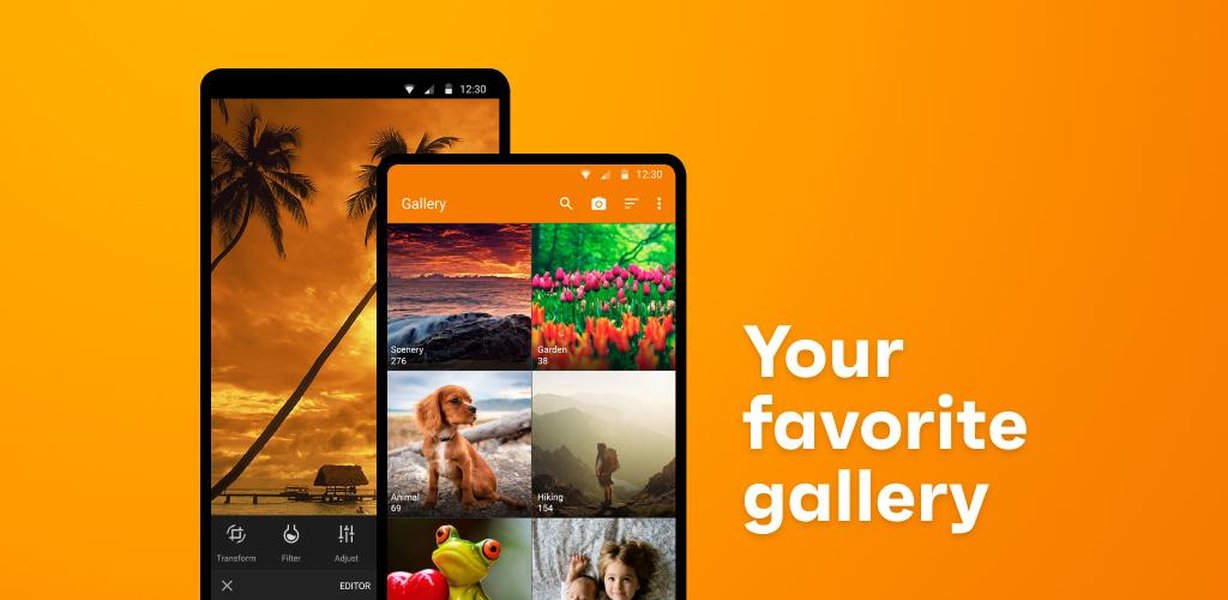
The app icon for Simple Gallery Pro, a popular alternative gallery application.
2. Clear Default Settings for Google Photos
This is often the most critical step. By clearing Google Photos' defaults, you remove its automatic association with opening photo files, thereby prompting your system to ask for your preferred application the next time a photo is opened.
- Open your Pixel 6's Settings app. You can do this by swiping down from the top of your screen and tapping the gear icon, or by finding it in your app drawer.
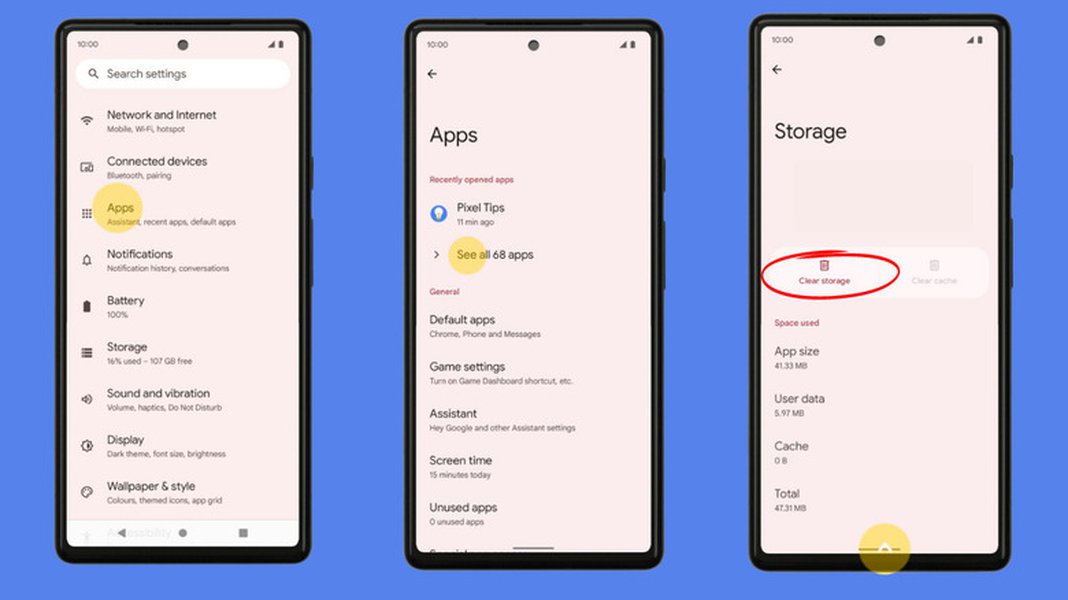
- Navigate to Apps or Apps & notifications.
- Tap See all apps to view the complete list of installed applications.
- Scroll down and select Google Photos from the list.
- On the Google Photos app info page, locate and tap Open by default (or "Set as default").
- If available, tap Clear defaults. This action revokes Google Photos' automatic status for handling photo-related intents.
3. Explicitly Set Simple Gallery Pro as Default
After clearing Google Photos' defaults, you can now explicitly tell your Pixel 6 to use Simple Gallery Pro for photo viewing. There are two primary ways to achieve this:
Method A: Through Default Apps Settings (Recommended)
This method is the most direct way if your Android version provides a clear "Gallery" or "Photos" default option.
- From your device's Settings, go to Apps & notifications.
- Look for an option like Default apps. This might be directly visible, or you may need to tap Advanced first.
- Tap on Gallery or Photos (the exact name varies, but it typically refers to the default photo viewer).
- A list of compatible apps will appear. Select Simple Gallery Pro.
- Confirm your selection if prompted, choosing "Always" to make it the permanent default.

An example screenshot showing where to find "Default apps" in Android settings.
Method B: Using the "Open With" Prompt
If you don't find a direct "Gallery" or "Photos" option under "Default apps," this method is highly effective.
- Open a photo file from your file manager (e.g., Google Files), your camera app's preview, or any other app that typically triggers a gallery.
- Your Pixel 6 should now display an "App picker" prompt, asking you which application you want to use to open the image.
- From the list of options, select Simple Gallery Pro.
- Crucially, choose "Always" (instead of "Just once") to make Simple Gallery Pro the permanent default for opening photos.
This video explains how to change default app settings on Android, a fundamental concept for managing your photo gallery.
Preventing Google Photos from Taking Over
Even after setting Simple Gallery Pro as default, Google Photos might still try to interfere due to its deep system integration. Here's how to further limit its behavior:
Managing Google Photos Intrusiveness
1. Disable Unnecessary Notifications and Permissions
While not directly preventing it from opening photos, managing notifications can reduce its prominence.
- Go to Settings > Apps > Google Photos.
- Tap Notifications and disable any notifications you don't need or want to see.
- Review Permissions. While revoking storage permissions might affect its backup capabilities, you can assess if other permissions are unnecessarily broad for your usage.
2. Consider Disabling Google Photos (Use with Caution)
For a more aggressive approach, you can disable the Google Photos app entirely. Be aware that this will stop any cloud backup and sync features associated with Google Photos, but it will NOT affect your locally stored photos.
- Go to Settings > Apps > See all apps.
- Find and tap on Photos (Google Photos).
- On the app info page, you should see a Disable button. Tap it and confirm your choice.
If you decide to disable Google Photos, be aware that your camera app might sometimes prompt you to re-enable it when you try to view a recently taken picture. However, with Simple Gallery Pro set as the default, this prompt should ideally be bypassed, or you can simply select Simple Gallery Pro again.
Troubleshooting and Important Considerations
While the steps above are comprehensive, certain scenarios might require additional attention or awareness.
Common Issues and Solutions
If the System Doesn't Prompt You to Choose a Default App
If, after clearing Google Photos' defaults, your Pixel 6 still doesn't present the "Open with" prompt when you try to open a photo, it might be due to locked app preferences.
- Go to Settings > Apps.
- Tap the three-dot menu (or gear icon) and select Reset app preferences.
Visual representation of "Reset app preferences" in Android settings.
Be aware that resetting app preferences will clear *all* default apps on your phone, so you will need to reconfigure them for other actions (e.g., browser, messaging app) as well.
Camera App Integration
The stock Pixel Camera app might have a strong default to Google Photos for viewing recent photos. If, after setting Simple Gallery Pro as default, tapping the camera's preview thumbnail still opens Google Photos, you might need to clear defaults for the Camera app itself:
- Go to Settings > Apps > See all apps > Camera.
- Tap Open by default and then Clear defaults (if available).
Syncing and Data Safety
Changing your default gallery app does not affect your photos or cloud storage. Simple Gallery Pro manages local files, while Google Photos handles cloud backups and synchronization. If you rely on Google Photos for backups, you can keep it installed (even disabled) and continue to access your backed-up photos via the web at photos.google.com.
Android Version Variations and Updates
While these steps are generally applicable to the Google Pixel 6 (likely running Android 13 or later as of 2025), minor variations in menu names or button placements might occur. Regularly check your default app settings after major system updates, as these can sometimes reset preferences. Keeping both Simple Gallery Pro and your Android system updated ensures the best compatibility and stability.
Why This Approach Works on Pixel Devices
The Google Pixel line, known for its "pure" Android experience, generally adheres to standard Android default app management protocols. This allows users significant flexibility in customizing their device behavior. The methods outlined leverage core Android functionalities for app management, making them reliable for most Pixel users.
Understanding App Default Behavior
To provide a clearer picture of how apps handle default actions and user preferences, here's a radar chart comparing Google Photos and Simple Gallery Pro based on typical user needs for a default gallery app. This chart reflects common perceptions and functionalities, not specific benchmark data.
This radar chart illustrates the perceived strengths of Simple Gallery Pro versus Google Photos when considering their roles as a default gallery app. Simple Gallery Pro excels in local management, privacy, and simplicity, making it ideal for users prioritizing offline control. Google Photos, conversely, is strong in cloud sync, advanced editing, and deep system integration, catering to users who leverage its comprehensive ecosystem. The chart helps visualize why a user might prefer one over the other based on specific needs.
Mind Map of Default App Management on Android
To further conceptualize the process of setting default apps and managing conflicts, here is a mind map illustrating the key components and actions involved.
This mind map visually organizes the steps and considerations for managing default gallery apps on your Google Pixel 6. It starts with the main objective and branches out into the primary actions: clearing old defaults, setting new ones, and mitigating interference. It also includes important troubleshooting points and general considerations for a robust understanding of the process.
Summary of Actions to Take
This table provides a concise overview of the actions required, along with their purpose, to effectively manage your default gallery app settings.
| Action Step | Detailed Operation | Purpose |
|---|---|---|
| Install/Update Simple Gallery Pro | Download from Google Play Store; Grant Storage/Photos & Videos permissions. | Ensures the app is ready and capable of accessing your media. |
| Clear Google Photos Defaults | Settings > Apps > Google Photos > Open by default > Clear defaults. | Removes Google Photos as the automatic handler for photo files. |
| Set Simple Gallery Pro as Default | Settings > Apps > Default apps > Gallery/Photos > Select Simple Gallery Pro; OR Open a photo > Select Simple Gallery Pro > "Always". | Establishes Simple Gallery Pro as the preferred app for opening photos. |
| Manage Google Photos Intrusiveness | Settings > Apps > Google Photos > Notifications (disable unnecessary); Optionally: Disable app. | Reduces unwanted notifications and prevents the app from running in the background or opening automatically. |
| Test Functionality | Take a new photo and tap its preview; Open photos from file manager, messaging apps, etc. | Confirms Simple Gallery Pro is now the default photo viewer across various scenarios. |
| Troubleshoot (if needed) | Reset app preferences; Clear Camera app defaults. | Resolves persistent conflicts or if prompts aren't appearing as expected. |
Frequently Asked Questions (FAQ)
Will setting Simple Gallery Pro as default delete my photos or affect my Google Photos cloud backups?
What if I don't see a "Gallery" or "Photos" option under "Default apps" in Settings?
Can I completely uninstall Google Photos from my Pixel 6?
Why does Google Photos keep "taking over" even after I've set another default?
Conclusion
Successfully setting Simple Gallery Pro as your default photo gallery app on your Google Pixel 6 and mitigating Google Photos' takeover requires a precise application of Android's default app management features. By meticulously clearing existing defaults, explicitly assigning Simple Gallery Pro as the preferred viewer, and understanding how to limit Google Photos' background activity, you can gain full control over your photo viewing experience. This empowers you to utilize your preferred application for local media management, offering a streamlined and personalized experience tailored to your needs on your Pixel device.
Recommended Further Exploration
- Advanced Android app management tips for Google Pixel 6
- Exploring the full features and benefits of Simple Gallery Pro
- Best practices for managing Google Photos cloud sync and privacy settings
- Strategies for optimizing photo storage and organization on Google Pixel 6