
Pixel 8 Screen Going Dark? Unveiling the Reasons and Solutions!
Discover why your Pixel 8 display turns off and how to troubleshoot common screen blackout issues.
Key Insights at a Glance
- Normal Power Saving: Most often, your Pixel 8 screen going black when not in use is a standard feature called "Screen Timeout," designed to conserve battery life. This is customizable in your phone's display settings.
- Potential Software Glitches: Unexpected blackouts can sometimes be caused by third-party app conflicts, operating system bugs, or misconfigured settings. Troubleshooting steps like booting in Safe Mode or performing a force restart can help diagnose these.
- Hardware Concerns & Support: In rarer cases, a black screen, especially if accompanied by unresponsiveness, flickering, or vertical lines, might indicate a hardware issue. Google has an Extended Repair Program for eligible Pixel 8 devices experiencing specific display problems.
If you've noticed your Google Pixel 8 screen turning black when you're not actively using it, you're encountering a behavior that can range from perfectly normal to indicative of an underlying issue. Understanding the different causes is key to finding the right solution.
Understanding Normal Screen Behavior
Your Pixel 8 is designed with several features to manage screen activity, primarily to optimize battery life and user experience.
The Role of Screen Timeout
The most common reason your Pixel 8 screen goes black is the Screen Timeout feature. This is a built-in Android function that automatically turns off the display after a predetermined period of inactivity (e.g., 30 seconds, 1 minute, etc.).
Why it Happens:
Its main purpose is to conserve battery power. An active display is one of the largest consumers of battery on a smartphone. By turning off the screen when not needed, your Pixel 8 can significantly extend its battery life.
How to Adjust:
You can easily customize this setting to better suit your preferences:
- Open the Settings app on your Pixel 8.
- Navigate to Display.
- Tap on Screen timeout (it might also be under "Screen & Lock" or similar phrasing).
- Select your preferred duration, ranging from a few seconds to several minutes.
Adaptive Features: Screen Attention and Brightness
Pixel phones often include "smart" features to enhance display management:
- Screen Attention (or Adaptive Timeout): This feature uses the front camera to detect if you are looking at the screen. If it senses you are, it can keep the screen on longer, even if the standard timeout period has passed. If it can't detect your face, it might let the screen turn off sooner.
- Adaptive Brightness: While not directly causing blackouts, Adaptive Brightness adjusts screen illumination based on ambient light. Sometimes, in very dark conditions, it might dim the screen significantly, which could be mistaken for it turning off if it then proceeds to timeout.
You can usually find toggles for these features within the Settings > Display menu.
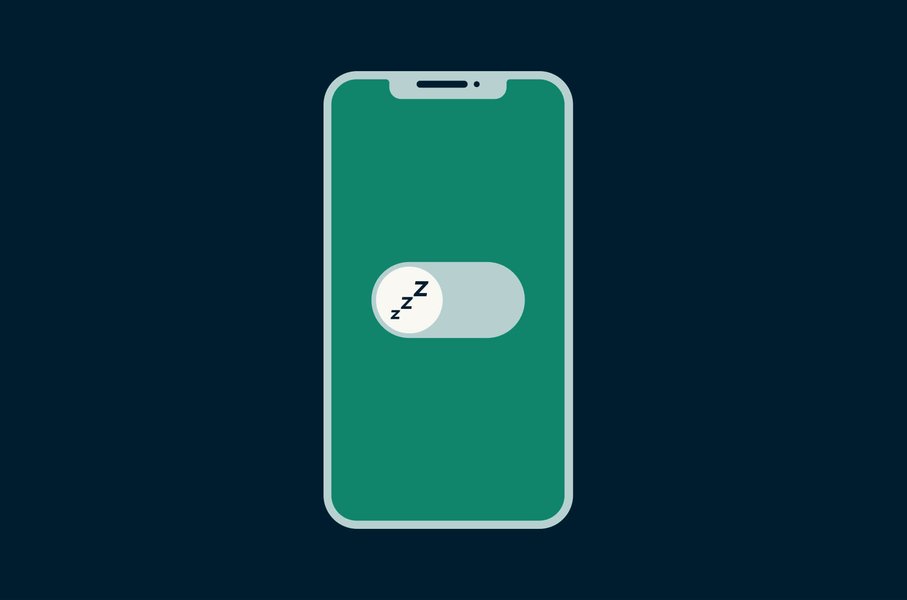
Pixel 8 display settings, including Always-On Display and timeout options, influence when your screen turns off.
Always-On Display (AOD) and Power Saving Modes
- Always-On Display (AOD): If enabled, AOD shows limited information (like time and notifications) on a mostly black screen when the device is locked. Issues with AOD functionality, though rare, could lead to a completely black screen instead of the intended AOD view.
- Battery Saver Modes: When your Pixel 8 is in a Battery Saver mode, it will more aggressively manage power. This often includes reducing the screen timeout duration, dimming the screen, and limiting background activity, all of which can contribute to the screen turning black more quickly.
When Black Screens Indicate a Problem
While screen timeout is normal, if your Pixel 8 screen goes black unexpectedly, becomes unresponsive, or exhibits other unusual symptoms, it might point to a software or hardware issue.
The "Black Screen of Death"
This term describes a situation where the phone's display remains entirely black and unresponsive, even though the device itself might still be powered on (e.g., you might hear notification sounds or feel vibrations). This is distinct from the normal screen timeout, as you typically cannot wake the screen by tapping it or pressing the power button.

An unresponsive black screen on a Pixel device might indicate a more serious issue than simple screen timeout.
Software-Related Culprits
Third-Party App Interference
A misbehaving or poorly optimized third-party application can conflict with your phone's system processes, including display management. This can lead to unexpected screen blackouts, freezes, or unresponsiveness. To check if an app is the cause, you can boot your Pixel 8 into Safe Mode. Safe Mode temporarily disables all third-party apps. If the screen issue disappears in Safe Mode, an installed app is likely the culprit. You would then need to uninstall recently installed or updated apps one by one to identify the problematic one.
To enter Safe Mode:
- Press and hold the Power button until the power menu appears.
- Tap and hold the "Power off" option on the screen.
- A prompt will appear asking if you want to reboot into Safe Mode. Tap "OK."
System Glitches and Outdated Software
Bugs within the Android operating system or pending software updates can sometimes cause display anomalies. Keeping your Pixel 8's software up to date is crucial, as Google regularly releases updates that include bug fixes and performance improvements. Check for updates via Settings > System > System update.
Misconfigured Settings
Beyond just the screen timeout, other less obvious settings or combinations thereof might inadvertently lead to the screen turning off more often than desired. This could involve interactions between accessibility settings, developer options, or specific app permissions.
Hardware-Related Issues
Display Component Failures
In some instances, the black screen could be due to a hardware problem with the display itself or its connection to the motherboard. This might manifest as intermittent blackouts, flickering, vertical lines on the screen, or a completely dead display. Such issues often require professional repair.
Proximity Sensor Malfunctions
The proximity sensor, usually located near the earpiece, turns the screen off during calls when you hold the phone to your ear to prevent accidental touches. If this sensor is obstructed (e.g., by a poorly fitting screen protector or case, or dirt) or malfunctioning, it might erroneously turn the screen off at other times.
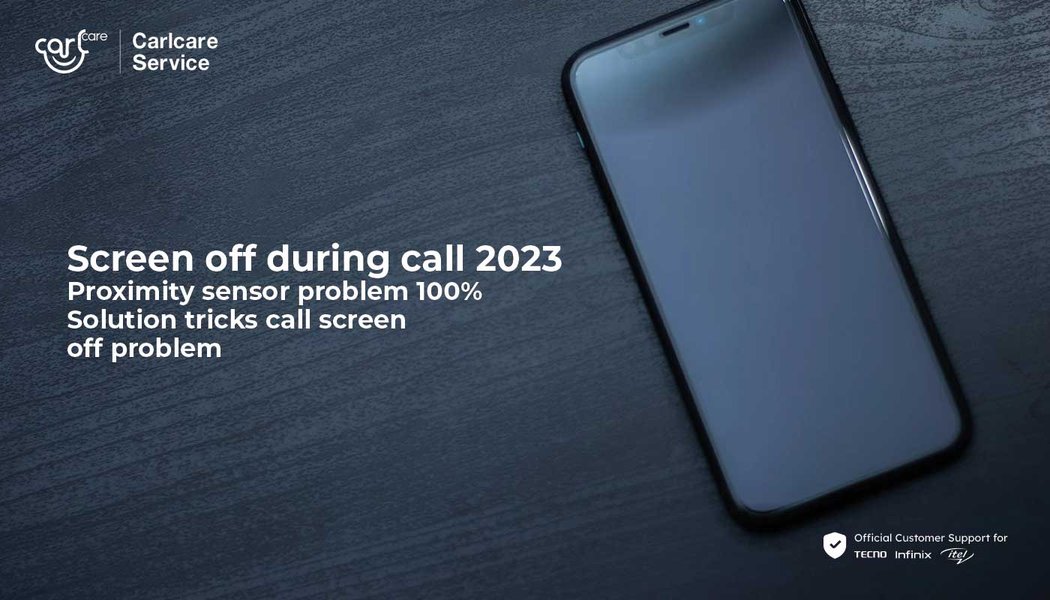
The proximity sensor plays a role in turning the screen off, especially during calls.
Overheating
If your Pixel 8 becomes excessively hot (e.g., from intensive gaming, prolonged use in direct sunlight, or charging), it may automatically dim or turn off the screen as a protective measure to prevent damage to internal components. Allow the phone to cool down before attempting to use it again.
Battery Problems
A completely drained or faulty battery can cause the screen to remain black and unresponsive. Ensure your phone is sufficiently charged. If it doesn't show signs of charging, there might be an issue with the battery, charging port, or cable.
Google's Extended Repair Program for Pixel 8
Google has acknowledged certain display-related issues affecting a limited number of Pixel 8 devices. These include problems like persistent vertical lines running across the screen and screen flickering. To address this, Google launched an Extended Repair Program.
This program extends the support coverage for eligible Pixel 8 devices for three years after the original retail purchase date. If your device exhibits these specific display issues (which can sometimes manifest as or lead to black screen problems), it may qualify for a free display replacement. However, the program typically does not cover devices with physical damage like cracked screens or liquid damage. You can check your device's eligibility and find authorized repair options through Google's support channels.
Troubleshooting Your Pixel 8 Screen
Here's a table summarizing common troubleshooting steps you can take to address screen blackout issues on your Pixel 8:
| Step | Description | Common Scenarios Solved |
|---|---|---|
| Check Screen Timeout | Navigate to Settings > Display > Screen timeout and adjust the duration. |
Screen turns off too quickly due to current settings. |
| Adjust Adaptive Features | Toggle Adaptive Timeout/Screen Attention and Adaptive Brightness in Display settings. | Screen behavior is inconsistent with user presence or ambient light. |
| Force Restart | Press and hold the Power button and the Volume Up button simultaneously for about 15-30 seconds, until the Google logo appears. | Temporary software glitches, unresponsiveness, "black screen of death." |
| Boot into Safe Mode | Press and hold the Power button, then tap and hold "Power off" on the screen, and select "OK" for Safe Mode. | Issues caused by third-party apps interfering with display functions. |
| Update Software | Go to Settings > System > System Update to check for and install any available updates. |
Bugs or known issues fixed in newer OS versions. |
| Check Battery & Charge | Ensure the phone is adequately charged. Connect it to a charger for at least 30 minutes if it's unresponsive. Try a different cable/charger. | Screen is black due to a completely depleted or unrecognized battery. |
| Check for Overheating | If the phone feels unusually hot, turn it off and allow it to cool down in a shaded, ventilated area. | Screen blackouts or dimming caused by excessive heat. |
| Inspect Proximity Sensor | Clean the area around the top speaker/front camera. Remove any screen protector or case that might be obstructing it. | Screen turns black inappropriately, especially during calls or when something is near the top of the phone. |
| Factory Reset (Last Resort) | Warning: This erases all data. Back up your phone first. Go to Settings > System > Reset options > Erase all data (factory reset). |
Persistent software issues not resolved by other steps. |
| Contact Google Support | If problems persist, especially if you see flickering, lines, or the screen is consistently unresponsive, contact Google Support or visit an authorized repair center. Inquire about the Extended Repair Program if applicable. | Potential hardware defects requiring professional assessment or repair. |
Visual Troubleshooting Guide
This video offers visual guidance on several methods to fix a black screen issue on Google Pixel 8 devices, which can be helpful in conjunction with the steps outlined above:
This video demonstrates several ways to address black screen issues on Google Pixel 8 smartphones.
Comparing Potential Causes of Pixel 8 Screen Blackouts
The following chart visualizes the relative likelihood, potential impact, and user control over various factors that can cause your Pixel 8 screen to go black. "Likelihood" refers to how commonly the factor is a cause (1-10, higher is more common). "Impact" refers to the severity or difficulty in resolving the issue (1-10, higher is more severe). "User Control" indicates how much a user can typically do to resolve it themselves (1-10, higher means more user control).
Pixel 8 Screen Blackout: Causes & Solutions Map
This mind map offers a visual overview of the common reasons your Pixel 8 screen might go black and the corresponding solutions or diagnostic steps you can take.
Extended Repair Program"] id2b1b["Contact Google Support"] id2b2["Proximity Sensor Issues"] id2b2a["Clean Sensor Area"] id2b2b["Remove Obstructing
Screen Protector/Case"] id2b3["Overheating"] id2b3a["Allow Phone to Cool Down"] id2b4["Battery Problems"] id2b4a["Charge Phone Adequately"] id2b4b["Test Different Charger/Cable"] id2c["'Black Screen of Death' (Unresponsive)"] id2c1["Attempt Force Restart (Power + Vol Up)"] id2c2["If Persistent, Suspect Hardware Fault
or Severe Software Corruption"]
Frequently Asked Questions (FAQ)
Is it normal for my Pixel 8 screen to go black when I'm not using it?
How can I stop my Pixel 8 screen from turning off so quickly?
What is the "black screen of death" on a Pixel 8?
Could a third-party app be causing my Pixel 8 screen to go black?
What if a force restart doesn't fix the black screen on my Pixel 8?
Conclusion
Your Pixel 8 screen going black when not in use is, in most cases, a deliberate and customizable power-saving feature. By adjusting your screen timeout and adaptive display settings, you can often tailor this behavior to your liking. However, if the screen blackouts are sudden, frequent during active use, or accompanied by unresponsiveness or other display artifacts, it's important to systematically troubleshoot for software glitches or potential hardware issues. Utilizing Safe Mode, ensuring your device is updated, and performing a force restart are good initial steps. For persistent problems, especially those aligning with known display issues, Google's support and its Extended Repair Program offer further avenues for resolution.
Recommended Further Exploration
- How to optimize battery life on the Google Pixel 8.
- What are the latest features in the most recent Pixel 8 software update?
- Troubleshooting guide for Google Pixel 8 overheating issues.
- Understanding the Google Pixel 8 Extended Repair Program eligibility criteria.