
Unlock Hourly WiFi Traffic Insights with This PowerShell Secret!
Automate logging of your WiFi adapter's data usage every hour using a simple PowerShell script.
Tracking your internet data consumption can be crucial for managing bandwidth, identifying potential issues, or simply understanding your usage patterns. While Windows offers built-in tools, automating this process specifically for your WiFi adapter on an hourly basis requires a bit of scripting. PowerShell, a powerful command-line shell and scripting language, provides the necessary tools to achieve this efficiently.
Highlights
- Automated Monitoring: Set up a script to automatically record bytes sent and received through your 'WiFi' adapter every hour.
- Precise Measurement: Utilize the
Get-NetAdapterStatisticscmdlet to fetch accurate, cumulative traffic data directly from the network adapter. - Detailed Logging: Store timestamped hourly usage data (calculated differences) in an easy-to-analyze CSV file for historical review.
Understanding the PowerShell Approach
Leveraging Built-in Tools for Network Monitoring
PowerShell allows interaction with various Windows system components, including network interfaces. The key to recording traffic volume lies in accessing the statistics maintained by the operating system for each network adapter. Specifically, we use cmdlets designed for network adapter management:
Get-NetAdapter: This cmdlet helps identify your network adapters and confirm the exact name of your WiFi interface (it might not always be simply 'WiFi').Get-NetAdapterStatistics: This cmdlet retrieves detailed statistics for a specified network adapter, including the total number of bytes sent and received since the adapter was last reset or the system started.
Since Get-NetAdapterStatistics provides cumulative totals, tracking hourly usage involves capturing these totals at the beginning and end of each hour. The difference between these two readings represents the traffic volume for that specific hour.
Calculating Hourly Usage
To get the data usage for a single hour, the script performs the following logic:
- Get the current cumulative
BytesSentandBytesReceivedfor the 'WiFi' adapter. - Wait for one hour (3600 seconds).
- Get the new cumulative
BytesSentandBytesReceived. - Calculate the difference (delta) between the new and old values for both sent and received bytes. This delta represents the traffic during that hour.
- Log the calculated delta values along with a timestamp.
- Store the latest cumulative values to use as the starting point for the next hour's calculation.
This process repeats, creating a continuous log of hourly network traffic.
PowerShell Script for Hourly WiFi Traffic Logging
The Code to Capture Your Data
Below is a PowerShell script designed to run continuously, recording the data usage for the network adapter named 'WiFi' every hour and saving it to a CSV log file. Ensure you run this script in a PowerShell window with administrative privileges.
# Define the name of the network adapter to monitor
$adapterName = "WiFi"

# Define the path for the log file
$logFile = "C:\NetworkTrafficLogs\WiFiTrafficLog.csv" # Ensure this directory exists or the script creates it

# Define the logging interval in seconds (1 hour = 3600 seconds)
$intervalSeconds = 3600

# --- Script Start ---

# Check if the log directory exists, create if not
$logDirectory = Split-Path $logFile -Parent
if (-not (Test-Path $logDirectory)) {
    try {
        New-Item -ItemType Directory -Path $logDirectory -Force -ErrorAction Stop
        Write-Host "Log directory created at: $logDirectory"
    } catch {
        Write-Error "Failed to create log directory: $($_.Exception.Message). Please create it manually or check permissions."
        exit
    }
}

# Check if the log file exists, create with headers if not
if (-not (Test-Path $logFile)) {
    try {
        "Timestamp,HourlyBytesSent,HourlyBytesReceived,CumulativeBytesSent,CumulativeBytesReceived" | Out-File -FilePath $logFile -Encoding utf8 -ErrorAction Stop
        Write-Host "Log file created with headers at: $logFile"
    } catch {
        Write-Error "Failed to create log file: $($_.Exception.Message). Check permissions for $logDirectory."
        exit
    }
}

# Function to get current statistics for the specified adapter
function Get-AdapterStats {
    param (
        [string]$Name
    )
    try {
        $stats = Get-NetAdapterStatistics -Name $Name -ErrorAction Stop
        return @{
            Time = Get-Date
            BytesSent = $stats.SentBytes
            BytesReceived = $stats.ReceivedBytes
        }
    } catch {
        Write-Warning "Could not retrieve stats for adapter '$Name'. It might be disconnected or the name is incorrect. Error: $($_.Exception.Message)"
        return $null
    }
}

# Get initial statistics to establish a baseline
Write-Host "Getting initial statistics for adapter '$adapterName'..."
$oldStats = Get-AdapterStats -Name $adapterName

# Check if initial stats were retrieved successfully
if ($oldStats -eq $null) {
    Write-Error "Failed to get initial statistics for '$adapterName'. Exiting script."
    exit
}

Write-Host "Initial stats recorded. Starting hourly monitoring loop..."
Write-Host "Press CTRL+C to stop the script."

# Infinite loop to monitor traffic hourly
while ($true) {
    # Wait for the specified interval
    Write-Host "Waiting for $intervalSeconds seconds (1 hour)... Current time: $(Get-Date)"
    Start-Sleep -Seconds $intervalSeconds

    # Get new statistics
    $newStats = Get-AdapterStats -Name $adapterName

    # If stats retrieval failed (e.g., adapter disconnected), skip this iteration
    if ($newStats -eq $null) {
        Write-Warning "Skipping log entry for this hour due to issues retrieving stats."
        # Optional: Consider how to handle the 'oldStats' baseline if the adapter comes back online.
        # For simplicity here, we keep the last known good stats.
        continue
    }

    # Calculate the difference (delta) in bytes
    # Handle potential counter resets (where new value is lower than old) - log 0 in such cases or handle as needed
    $sentDelta = $newStats.BytesSent - $oldStats.BytesSent
    if ($sentDelta -lt 0) { $sentDelta = 0 } # Basic handling for counter reset

    $receivedDelta = $newStats.BytesReceived - $oldStats.BytesReceived
    if ($receivedDelta -lt 0) { $receivedDelta = 0 } # Basic handling for counter reset

    # Prepare the log entry string
    $logEntry = "$(Get-Date -Format 'yyyy-MM-dd HH:mm:ss'),$sentDelta,$receivedDelta,$($newStats.BytesSent),$($newStats.BytesReceived)"

    # Append the log entry to the CSV file
    try {
        $logEntry | Out-File -FilePath $logFile -Append -Encoding utf8 -ErrorAction Stop
        Write-Host "Logged hourly traffic at $(Get-Date -Format 'HH:mm:ss'): Sent=$sentDelta bytes, Received=$receivedDelta bytes."
    } catch {
        Write-Warning "Failed to write to log file: $($_.Exception.Message). Check disk space or file permissions."
    }

    # Update the 'oldStats' for the next iteration
    $oldStats = $newStats
}
How to Use This Script
- Save the Script: Copy the code above and save it to a file named
Log-WiFiTraffic.ps1(or any name you prefer with a.ps1extension). - Create Directory: Ensure the directory
C:\NetworkTrafficLogsexists, or modify the$logFilevariable to point to a location where the script has permission to write. The script attempts to create the directory if it doesn't exist. - Run as Administrator: Open PowerShell as an Administrator (right-click the PowerShell icon and select "Run as administrator").
- Navigate and Execute: Use the
cdcommand to navigate to the directory where you saved the script. Run it by typing.\Log-WiFiTraffic.ps1and pressing Enter. - Let it Run: The script will run continuously in the PowerShell window, logging data every hour. To stop it, press
CTRL+Cin the PowerShell window where it's running.
Automating with Windows Task Scheduler (Recommended for Unattended Use)
Making Monitoring Robust
While the loop script works, it requires a PowerShell window to remain open constantly. For a more robust, unattended solution, use the Windows Task Scheduler to run a modified script hourly. This involves:
- Modifying the script to run once, calculate the delta based on the *last recorded values* (which would need to be stored persistently, perhaps in a separate state file or by reading the last line of the log), log the result, and then exit.
- Creating a scheduled task in Windows Task Scheduler to execute this modified script every hour.
Setting up Task Scheduler:
- Open Task Scheduler (search "Task Scheduler" in the Start menu).
- Click "Create Basic Task..." or "Create Task...".
- Follow the wizard:
- Name: Give it a descriptive name (e.g., "Hourly WiFi Traffic Log").
- Trigger: Set it to run "Daily" and configure it to repeat "every 1 hour" indefinitely.
- Action: Select "Start a program".
- Program/script:
powershell.exe - Add arguments:
-ExecutionPolicy Bypass -File "C:\path\to\your\script.ps1"(use the correct path to your script file).
- Program/script:
- Conditions/Settings: Configure options like running whether the user is logged on or not, running with highest privileges (required for network stats), and stopping the task if it runs longer than needed.
This method ensures the logging happens reliably in the background without needing manual intervention or an open console window.
Visualizing the Process: Network Logging Workflow
A Mind Map Overview
This mind map illustrates the key steps involved in the hourly WiFi traffic logging process using the PowerShell script.
(e.g., WiFi, Wi-Fi 2)"] id1.2["Use Get-NetAdapter"] id2[Fetch Statistics] id2.1["Use Get-NetAdapterStatistics"] id2.2["Get Cumulative Bytes Sent"] id2.3["Get Cumulative Bytes Received"] id3[Calculate Hourly Delta] id3.1["Store previous reading"] id3.2["Get current reading"] id3.3["Subtract: Current - Previous"] id3.4["Handle counter resets"] id4[Log Data] id4.1["Append to CSV File"] id4.2["Include Timestamp"] id4.3["Record Hourly Bytes Sent"] id4.4["Record Hourly Bytes Received"] id5[Automate Execution] id5.1["Method 1: Continuous Loop"] id5.1.1["Start-Sleep for 1 hour"] id5.1.2["Requires open PS window"] id5.2["Method 2: Task Scheduler"] id5.2.1["Recommended for robustness"] id5.2.2["Runs script hourly"] id5.2.3["Requires state management (optional)"] id6[Requirements] id6.1["Admin Privileges"] id6.2["Correct Adapter Name"] id6.3["PowerShell Environment"] id6.4["Writable Log Directory"]
Verifying Your WiFi Adapter Name
Ensuring the Script Targets the Right Interface
The script uses "WiFi" as the default adapter name. However, your system might use a different name (e.g., "Wi-Fi", "Wireless Network Connection", "Wi-Fi 2"). To find the correct name, open PowerShell and run:
Get-NetAdapter | Where-Object {$_.Status -eq "Up"} | Format-Table Name, InterfaceDescription, StatusLook for the adapter that corresponds to your active wireless connection. Note its exact name from the 'Name' column and update the $adapterName variable in the script accordingly.
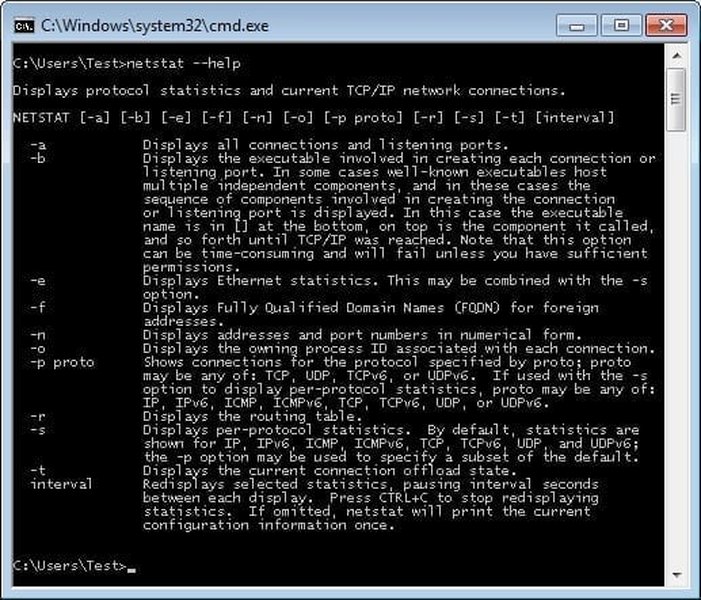
Example command line output showing network details (Image similar to using Get-NetAdapter).
Comparing Network Monitoring Approaches
PowerShell Scripting vs. Other Methods
While PowerShell offers great flexibility, it's one of several ways to monitor network traffic. This chart compares PowerShell scripting against GUI-based Windows tools (like Task Manager or Resource Monitor) and dedicated third-party monitoring software across several factors.
PowerShell strikes a balance, offering high flexibility, automation, and granularity at no cost, though requiring some setup and scripting knowledge. GUI tools are easiest but lack automation and detail. Third-party tools often provide the most features and visualizations but can have associated costs and higher resource usage.
Analyzing the Log Data
Making Sense of the CSV File
The script generates a CSV (Comma Separated Values) file named WiFiTrafficLog.csv in the specified directory (default C:\NetworkTrafficLogs). This file can be opened with spreadsheet software like Microsoft Excel, Google Sheets, or LibreOffice Calc. Each row represents one hour of data:
| Column Header | Description |
|---|---|
| Timestamp | The date and time when the hourly data was recorded. |
| HourlyBytesSent | The number of bytes transmitted (uploaded) through the WiFi adapter during the previous hour. |
| HourlyBytesReceived | The number of bytes received (downloaded) through the WiFi adapter during the previous hour. |
| CumulativeBytesSent | The total number of bytes sent since the adapter/system was last reset, as of the recorded timestamp. |
| CumulativeBytesReceived | The total number of bytes received since the adapter/system was last reset, as of the recorded timestamp. |
You can use this data to create charts, calculate daily/weekly totals, or identify peak usage times.
Further Exploration: Network Monitoring Techniques
Capturing Network Traffic with PowerShell
Beyond just logging traffic volume, PowerShell (versions 5.x and above) includes cmdlets for capturing raw network packets, similar to tools like Wireshark. This is achieved using the NetEventSession cmdlets. While more complex and generating much larger files (ETL format), this allows for deep inspection of network activity. The video below demonstrates this capability.
Video demonstrating network packet capture using PowerShell cmdlets.
This advanced technique is useful for troubleshooting specific network problems or security analysis but is generally overkill for simple hourly bandwidth monitoring compared to the Get-NetAdapterStatistics method.
Frequently Asked Questions (FAQ)
Why does the script require Administrator privileges?
Accessing detailed network adapter statistics using Get-NetAdapterStatistics requires elevated permissions because it involves querying low-level system information about network hardware performance. Standard users typically do not have the rights to access this data for security and system stability reasons.
What if my WiFi adapter isn't named exactly 'WiFi'?
You need to find the correct name for your adapter. Run `Get-NetAdapter | Where-Object {$_.Status -eq "Up"} | Format-Table Name, InterfaceDescription` in PowerShell to list active adapters. Identify your WiFi adapter and replace `"WiFi"` in the script's `$adapterName` variable with the exact name shown in the 'Name' column.
How large will the log file become over time?
The log file grows relatively slowly, as each entry is just a line of text. Each line contains a timestamp and four numerical values (hourly sent/received, cumulative sent/received). A rough estimate is around 100-150 bytes per line. Logging hourly (24 lines/day) means approximately 2.4-3.6 KB per day, or around 1 MB per year. This is generally manageable, but you might consider implementing log rotation (e.g., creating a new file monthly or yearly) for very long-term monitoring.
Are the recorded traffic numbers completely accurate?
The numbers come directly from the Windows network adapter statistics counters, which are generally very accurate for the traffic passing through that specific adapter. However, be aware of potential discrepancies:
- Counter Resets: The cumulative counters can reset if the network adapter is disabled/enabled, the driver is updated, or the system reboots. The script includes basic handling for negative deltas (assuming a reset), logging 0 for that hour, but this might slightly skew totals if resets happen mid-hour.
- Overhead: The byte counts typically include packet headers (IP, TCP/UDP, Ethernet), not just the payload data.
- Timing: The `Start-Sleep` interval is approximate. System load can cause minor variations in the exact timing of readings, but over hourly intervals, this effect is usually negligible.
For most usage monitoring purposes, the accuracy is more than sufficient.
Recommended Reading
- Discover how PowerShell can potentially track network usage by specific applications.
- Learn techniques to visualize the data you've logged for better insights.
- Explore methods for managing log file sizes over long periods.
- Investigate more advanced PowerShell scripts for diagnosing network quality issues beyond just traffic volume.
References
 chentiangemalc.wordpress.com
Last updated April 27, 2025