
Comprehensive Troubleshooting Guide for Pressure Transmitter Display Stuck on LCDAW Initialization
Effective Solutions to Resolve LCDAW Initialization Issues in Pressure Transmitters
Key Takeaways
- Ensure Stable Power Supply: Verifying the integrity and stability of the power supply is crucial for proper transmitter and display initialization.
- Firmware Integrity: Updating or reinstalling firmware can resolve software-related initialization issues.
- Isolate Component Failures: Systematically testing both the display module and the transmitter helps in accurately identifying the faulty component.
Introduction
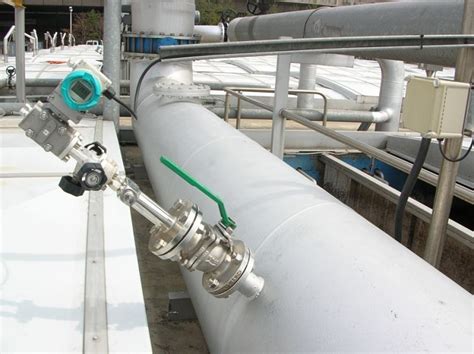
Pressure transmitters are essential components in industrial automation, providing critical data on system pressures. When a pressure transmitter's display remains stuck on the LCDAW initialization screen during every startup, it signals potential firmware or communication issues. This comprehensive guide outlines systematic troubleshooting steps to address both display-related problems and potential transmitter faults, ensuring accurate and reliable pressure measurements.
1. Verifying the Power Supply
1.1. Check Voltage Levels
The first step is to ensure that the pressure transmitter receives the correct power supply voltage. Most models operate on a 24VDC power supply.
- Measure Voltage: Use a multimeter to measure the voltage at the transmitter terminals. Ensure that the voltage meets the manufacturer's specifications.
- Stable Power Supply: Confirm that the power supply is stable and free from fluctuations. An unstable power source can prevent the transmitter from initializing properly.
- Polarity Verification: Ensure that the power supply polarity is correct to avoid potential damage to the transmitter.
1.2. Inspect Wiring Connections
Faulty wiring can disrupt communication between the display and the transmitter.
- Check for Loose Connections: Ensure that all wiring connections are secure. Loose connections can lead to intermittent power issues.
- Examine for Damage: Inspect the wires for signs of wear, corrosion, or damage. Replace any compromised wiring segments.
1.3. Power Cycling the Transmitter
Power cycling can resolve temporary firmware glitches that prevent proper initialization.
- Procedure: Turn off the power supply to the transmitter, wait for 30 seconds to 1 minute, and then restore power.
- Observation: After power restoration, check if the transmitter proceeds beyond the LCDAW initialization screen.
2. Resetting the Transmitter
2.1. Soft Reset
Performing a soft reset can clear temporary glitches without affecting the transmitter’s configuration.
- Method: Access the transmitter’s menu (if possible) and select the reset option.
- Outcome: The transmitter reboots, potentially clearing the initialization issue.
2.2. Factory Reset
A factory reset restores the transmitter to its default settings, which can resolve persistent firmware issues.
- Procedure: Refer to the transmitter’s manual to locate the reset button or menu option. Execute the factory reset as per instructions.
- Considerations: Be aware that a factory reset may erase customized settings and configurations.
3. Checking and Updating Firmware
3.1. Verify Firmware Version
Outdated or corrupted firmware can cause initialization problems.
- Check Current Firmware: Use a HART communicator or similar diagnostic tool to determine the current firmware version of the transmitter.
- Compare with Latest Version: Visit the manufacturer’s website or contact support to verify if a newer firmware version is available.
3.2. Update Firmware
Updating to the latest firmware ensures that known issues are addressed and new features are supported.
- Download Firmware: Obtain the latest firmware from the manufacturer’s official website.
- Follow Update Instructions: Adhere strictly to the manufacturer’s guidelines during the firmware update process to prevent further issues.
- Post-Update Verification: After updating, restart the transmitter and monitor if the initialization screen issue persists.
3.3. Firmware Reinstallation
If updating does not resolve the issue, reinstalling the existing firmware can fix corrupted files.
- Reinstallation Process: Use the manufacturer’s diagnostic tools to reinstall the current firmware version.
- Ensure Stability: Make sure the transmitter remains powered during the reinstallation to avoid corruption.
4. Inspecting the Display Module
4.1. Physical Connection Check
Ensuring that the display module is properly connected to the transmitter is essential for normal operation.
- Reseat Connectors: Disconnect and reconnect the display module connectors to ensure a secure fit.
- Inspect for Damage: Look for signs of wear, corrosion, or physical damage on the display connectors and ribbon cables.
4.2. Display Replacement Test
Testing with a known-good display can help determine if the issue lies with the display module or the transmitter itself.
- Swap Display Modules: Connect a functional display module to the transmitter and observe if the initialization issue persists.
- Result Analysis: If the new display functions correctly, the original display module is likely faulty and requires replacement.
4.3. Environmental Factors
Environmental conditions can affect display functionality.
- Moisture and Contamination: Inspect the display assembly for moisture ingress or contamination that could impair functionality.
- Temperature Conditions: Ensure that the ambient temperature is within the transmitter’s specified operating range.
5. Diagnosing the Transmitter Functionality
5.1. Output Signal Verification
Confirming that the transmitter is providing the correct output signal ensures that the transmitter is functioning independently of the display.
- 4-20 mA Loop Testing: Connect a multimeter in series with the loop to measure the current output. At zero pressure, the output should be around 4 mA, increasing proportionally with applied pressure.
- Voltage Drop Measurement: Use a 250-ohm resistor to measure the voltage drop, where 1V corresponds to 4 mA.
- Result Interpretation: If the output signal remains steady or unresponsive despite changes in pressure, the transmitter may be faulty.
5.2. Pressure Input Assessment
Verifying that the input pressure is within the sensor’s operational range is critical for accurate measurements.
- Independent Gauge Usage: Utilize an independent pressure gauge or calibrator to confirm the applied process pressure.
- Process Connection Inspection: Ensure that the process connections are free from blockages or leaks that could affect pressure sensing.
5.3. Pressure Simulation
Simulating different pressure inputs can help determine if the internal sensing mechanisms of the transmitter are operational.
- Calibration Device Utilization: Employ a pressure calibration device to simulate various pressures within the transmitter’s range.
- Output Observation: Monitor the output signal corresponding to the simulated pressures. Lack of response indicates potential internal faults.
5.4. Electrical Wiring Inspection
Ensuring the integrity of the electrical wiring is vital for consistent transmitter performance.
- Continuity Testing: Use a multimeter to check for continuity in the signal and power wiring, identifying any shorts or open circuits.
- Connection Security: Verify that all connections are tight and free from corrosion or damage.
5.5. Configuration Verification
Incorrect configuration settings can lead to transmitter malfunctions.
- Range and Scaling Checks: Ensure that the transmitter’s pressure range, unit scaling, and alarm conditions are correctly set as per system requirements.
- Parameter Validation: Use configuration tools or interfaces to verify that all operational parameters are correctly configured.
5.6. Hardware Inspection
Physical inspection of the transmitter can reveal signs of damage that affect functionality.
- Physical Damage Assessment: Look for any visible damage to the transmitter’s casing, sensors, or internal components.
- Corrosion and Moisture Checks: Inspect for corrosion, moisture intrusion, or overheating signs that could impair transmitter performance.
6. Utilizing Diagnostic Tools
6.1. HART Communication
HART (Highway Addressable Remote Transducer) communication allows for advanced diagnostics of the transmitter.
- Connect HART Communicator: Use a handheld HART communicator or a laptop interface to establish communication with the transmitter.
- Retrieve Error Codes: Access diagnostic information and error codes that can pinpoint specific issues with the transmitter or display.
- Parameter Adjustments: Perform necessary adjustments or calibrations through the HART interface to rectify configuration-related problems.
6.2. Manufacturer’s Diagnostic Software
Some manufacturers provide proprietary diagnostic tools or software that offer in-depth analysis.
- Software Installation: Install the manufacturer’s diagnostic software on a compatible computer.
- System Scan: Run system diagnostics to identify firmware issues, communication faults, or hardware malfunctions.
- Follow Recommendations: Adhere to the software’s recommendations for resolving identified issues.
7. Final Determination and Action
7.1. Isolating the Fault
After completing the above troubleshooting steps, determine whether the issue is isolated to the display module or if the transmitter itself is faulty.
- Functional Transmitter with Faulty Display: If the transmitter’s output is correct despite a frozen display, the issue lies with the display module.
- Faulty Transmitter: If both the display and output signals are malfunctioning, the transmitter may require repair or replacement.
7.2. Contacting Manufacturer Support
If the problem persists after all troubleshooting steps, reaching out to the manufacturer’s technical support is advisable.
- Provide Detailed Information: Supply the model number, firmware version, and a comprehensive description of the issue to facilitate efficient support.
- Warranty Considerations: If the transmitter is under warranty, request repair or replacement as per the warranty terms.
- Professional Repair Services: For out-of-warranty devices, consider sending the transmitter to authorized service centers for professional repairs.
8. Preventive Measures and Additional Tips
8.1. Regular Maintenance
Implementing routine maintenance schedules can prevent initialization issues and extend the lifespan of pressure transmitters.
- Scheduled Inspections: Regularly inspect wiring, connections, and the physical condition of the transmitter and display modules.
- Firmware Updates: Keep the transmitter’s firmware updated to the latest version to benefit from bug fixes and enhancements.
8.2. Environmental Controls
Maintaining optimal environmental conditions ensures the reliable operation of pressure transmitters.
- Temperature Regulation: Ensure that the transmitter operates within the specified temperature range to prevent thermal-related faults.
- Moisture Protection: Use appropriate enclosures or protective measures to shield the transmitter from moisture and contaminants.
8.3. Proper Installation Practices
Correct installation techniques are fundamental to the performance and longevity of pressure transmitters.
-
Secure Mounting: Mount the transmitter securely to avoid vibrations that could damage internal components.
-
Correct Wiring: Follow manufacturer guidelines for wiring configurations to ensure reliable power and signal transmission.
-
Adequate Ventilation: Provide sufficient ventilation around the transmitter to dissipate heat and prevent overheating.
Conclusion
Addressing a pressure transmitter stuck on the LCDAW initialization screen requires a methodical approach to troubleshoot both the display module and the transmitter's internal components. By ensuring a stable power supply, verifying firmware integrity, inspecting physical connections, and utilizing diagnostic tools, technicians can effectively identify and resolve the underlying issues. Regular maintenance and adhering to proper installation practices further enhance the reliability and performance of pressure transmitters in industrial applications.
References
 assets.yoreparo.com
Last updated January 18, 2025