
Procedural Generation of Spongy Bone Marrow-like Environments in Unreal Engine 5
Creating an Organic, Walkable Lattice for Immersive Gameplay
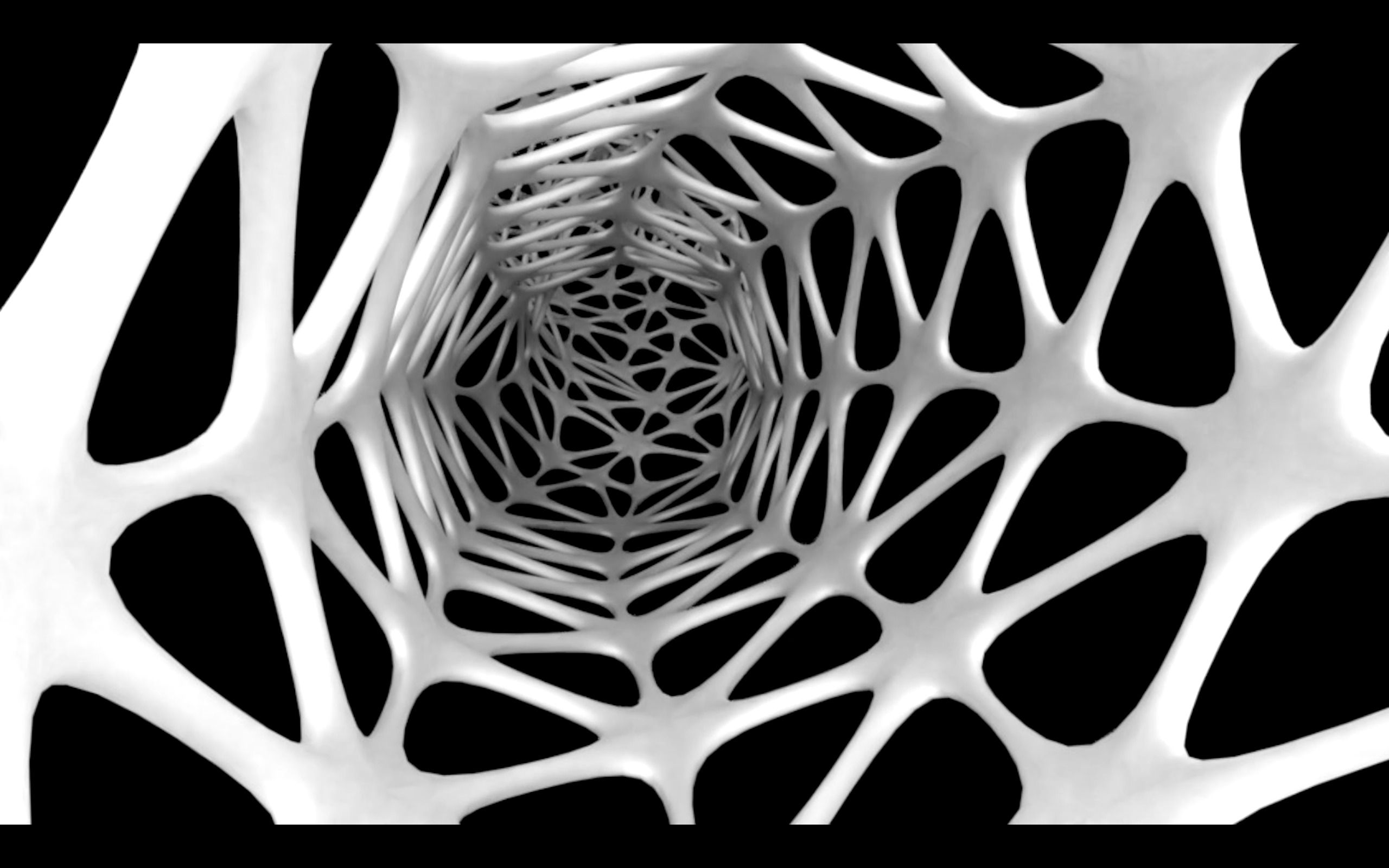
Key Takeaways
- Advanced Algorithms: Utilize Voronoi diagrams and Delaunay triangulation to generate organic, interconnected lattice structures.
- Performance Optimization: Implement Level of Detail (LOD), instanced meshes, and culling techniques to maintain high performance.
- Walkable and Interactive: Ensure proper collision setup and navigation mesh configurations to allow seamless player interaction.
1. Defining the Procedural Generation Algorithm
To emulate the trabecular structure of spongy bone marrow, it's essential to start with a robust procedural generation algorithm. Two primary algorithms are well-suited for this purpose:
1.1 Voronoi Diagram
A Voronoi diagram partitions space into regions based on distance to a specific set of points (nodes). Each region contains all points closer to one node than to any other. The edges of these regions form the beams of the lattice:
- Generate a set of random nodes within a defined 3D volume.
- Create regions around each node using the Voronoi algorithm.
- Extract the edges of these regions to form the lattice beams.
1.2 Delaunay Triangulation
Delaunay triangulation connects nodes to form triangles in a way that maximizes the minimum angle of all triangles, resulting in a natural and evenly distributed mesh:
- Connect nodes based on proximity, ensuring no overly acute angles.
- Create beams by linking the edges of the resulting triangles.
- Enhance the mesh with additional randomness to mimic biological structures.
2. Implementing the Algorithm in Unreal Engine 5
Unreal Engine 5 offers both Blueprint scripting and C++ for procedural content generation. However, for advanced control and performance, C++ is recommended.
2.1 Generating Random Nodes
Start by defining the volume within which the lattice will be generated. Use Unreal's random functions to create nodes with randomized positions:
  // BoneMarrowGenerator.h
  #pragma once

  #include "CoreMinimal.h"
  #include "GameFramework/Actor.h"
  #include "BoneMarrowGenerator.generated.h"

  UCLASS()
  class YOURPROJECT_API ABoneMarrowGenerator : public AActor
  {
      GENERATED_BODY()

  public:
      ABoneMarrowGenerator();

  protected:
      virtual void BeginPlay() override;

  public:
      virtual void Tick(float DeltaTime) override;

      UPROPERTY(EditAnywhere, BlueprintReadWrite, Category = "Procedural Settings")
      FVector VolumeSize;

      UPROPERTY(EditAnywhere, BlueprintReadWrite, Category = "Procedural Settings")
      int32 NodeCount;

      UPROPERTY(EditAnywhere, BlueprintReadWrite, Category = "Procedural Settings")
      float MinBeamThickness;

      UPROPERTY(EditAnywhere, BlueprintReadWrite, Category = "Procedural Settings")
      float MaxBeamThickness;

  private:
      void GenerateLattice();
      void CreateBeam(const FVector& Start, const FVector& End, float Thickness);
  };
// BoneMarrowGenerator.cpp
#include "BoneMarrowGenerator.h"
#include "Components/StaticMeshComponent.h"

ABoneMarrowGenerator::ABoneMarrowGenerator()
{
    PrimaryActorTick.bCanEverTick = true;
    VolumeSize = FVector(1000, 1000, 1000);
    NodeCount = 100;
    MinBeamThickness = 5.0f;
    MaxBeamThickness = 15.0f;
}

void ABoneMarrowGenerator::BeginPlay()
{
    Super::BeginPlay();
    GenerateLattice();
}

void ABoneMarrowGenerator::Tick(float DeltaTime)
{
    Super::Tick(DeltaTime);
}

void ABoneMarrowGenerator::GenerateLattice()
{
    TArray<FVector> Nodes;

    // Generate random node points
    for (int32 i = 0; i < NodeCount; i++)
    {
        FVector RandomPosition = FMath::RandPointInBox(FBox(-VolumeSize / 2, VolumeSize / 2));
        Nodes.Add(RandomPosition);
    }

    // Connect nodes with beams
    for (int32 i = 0; i < Nodes.Num(); i++)
    {
        for (int32 j = i + 1; j < Nodes.Num(); j++)
        {
            float Distance = FVector::Dist(Nodes[i], Nodes[j]);
            if (Distance < 300.0f) // Threshold for connecting nodes
            {
                float Thickness = FMath::RandRange(MinBeamThickness, MaxBeamThickness);
                CreateBeam(Nodes[i], Nodes[j], Thickness);
            }
        }
    }
}

void ABoneMarrowGenerator::CreateBeam(const FVector& Start, const FVector& End, float Thickness)
{
    UStaticMesh* BeamMesh = LoadObject<UStaticMesh>(nullptr, TEXT("/Game/BeamMesh.BeamMesh"));
    if (!BeamMesh) return;

    UStaticMeshComponent* BeamComponent = NewObject<UStaticMeshComponent>(this);
    if (BeamComponent)
    {
        BeamComponent->SetStaticMesh(BeamMesh);
        BeamComponent->SetWorldLocation((Start + End) / 2);
        BeamComponent->SetWorldScale3D(FVector(Thickness, Thickness, FVector::Dist(Start, End)));
        BeamComponent->RegisterComponent();
    }
}
2.2 Creating the Lattice Structure
Implement the chosen algorithm (Voronoi or Delaunay) to connect the generated nodes. This can be done by:
- Applying the algorithm to determine which nodes connect to which.
- Generating beam meshes between connected nodes.
- Randomizing beam thickness and length for an organic appearance.
2.3 Generating the Mesh
Use Unreal Engine's Procedural Mesh Component to dynamically create the beams and nodes:
- Beams: Utilize cylindrical meshes with varying thickness and length.
- Nodes: Represent intersections with spherical or custom-shaped meshes.
2.4 Randomizing Parameters
Introduce randomness to spacing, thickness, and positions using noise functions like Perlin Noise to achieve subtle variations:
// Example: Applying Perlin Noise to beam thickness
float BeamThicknessVariation = FMath::PerlinNoise3D(FVector(Start.X, Start.Y, Start.Z)) * 2.0f;
float FinalThickness = BaseThickness + BeamThicknessVariation;
3. Optimizing for Performance
To maintain high performance, especially in large levels, implement the following optimization techniques:
3.1 Level of Detail (LOD)
Implement LOD systems to reduce mesh complexity for distant parts of the lattice:
- Create multiple versions of beam meshes with varying detail levels.
- Switch between LODs based on the camera's distance to the lattice section.
3.2 Instanced Static Meshes
Use Instanced Static Mesh Components (ISMC) to handle numerous identical meshes efficiently:
// Example: Adding beams to an Instanced Static Mesh Component
UInstancedStaticMeshComponent* ISMC = NewObject<UInstancedStaticMeshComponent>(this);
ISMC->SetStaticMesh(BeamMesh);
ISMC->RegisterComponent();

FTransform BeamTransform;
BeamTransform.SetLocation((Start + End) / 2);
BeamTransform.SetScale3D(FVector(Thickness, Thickness, FVector::Dist(Start, End)));
ISMC->AddInstance(BeamTransform);
3.3 Culling Techniques
Implement frustum and occlusion culling to render only visible parts of the lattice:
- Frustum Culling: Automatically handled by Unreal Engine, ensuring only objects within the camera view are rendered.
- Occlusion Culling: Prevents rendering objects blocked by others, reducing unnecessary draw calls.
3.4 Collision Optimization
Use simplified collision meshes for beams and nodes to minimize physics calculations:
- Assign simple box or capsule collisions to beam meshes.
- Avoid complex collision shapes that can degrade performance.
4. Ensuring Walkability
For the player character to navigate the lattice seamlessly, proper collision and walkable surfaces are crucial.
4.1 Collision Setup
Configure collision presets to allow interaction:
- Set beams and nodes to use the "BlockAll" collision preset.
- Ensure that collision responses are set correctly to prevent passing through the lattice.
4.2 Walkable Surfaces
Integrate navigation meshes to define walkable areas:
- Mark the top surfaces of beams as walkable in the NavMesh settings.
- Adjust the NavMesh to account for gaps and ledges, ensuring smooth pathfinding.
4.3 Physics Configuration
Set appropriate physics properties to maintain stability:
- Assign static or stationary physics to beams to prevent unintended movements.
- Ensure that dynamic objects interact correctly with the lattice structure.
5. Replicating the Appearance of Spongy Bone Marrow
To achieve the porous and irregular visual appearance of spongy bone marrow, focus on material design and surface detailing.
5.1 Material Design
Utilize advanced material properties to mimic biological textures:
- Use Subsurface Scattering (SSS) materials to achieve a translucent look.
- Apply procedural textures with noise and irregular patterns to simulate pores and imperfections.
5.2 Surface Detailing
Add decals or small meshes to enhance realism:
- Implement decals to represent pores and minor surface irregularities.
- Use tessellation or displacement maps to add depth and variation to beam surfaces.
5.3 Dynamic Material Instances
Enable dynamic adjustments to materials for varied appearances:
- Create material instances that allow runtime changes to properties like color, roughness, and scattering.
- Randomize these properties per beam or node to enhance organic diversity.
6. Performance Optimization Techniques
Maintaining high performance is essential, especially for expansive levels. Implement the following strategies:
6.1 Level of Detail (LOD)
Use LODs to reduce the complexity of distant meshes:
- Create multiple LODs for beam meshes.
- Configure LOD transitions based on camera distance.
6.2 Instanced Static Meshes
Use ISMCs to handle multiple instances efficiently:
- Batch similar beam meshes into single instances.
- Reduce draw calls by leveraging instancing.
6.3 Mesh Merging
Combine nearby meshes to minimize the number of draw calls:
- Merge beam and node meshes that are in close proximity.
- Use Unreal's mesh merging tools to optimize rendering.
6.4 Spatial Partitioning
Divide the level into manageable chunks:
- Implement a chunk-based loading system.
- Generate and load only the visible chunks based on player position.
7. Testing and Iteration
Continuous testing ensures that the procedural generation meets design goals and performance standards.
7.1 Visual Inspection
Regularly preview the generated lattice to assess organic feel and visual fidelity:
- Use Editor viewport to navigate and inspect the lattice structure.
- Adjust randomization parameters based on visual feedback.
7.2 Performance Profiling
Use Unreal Engine's profiling tools to monitor performance:
- Identify and address bottlenecks in mesh generation and rendering.
- Optimize LOD settings and instancing to enhance frame rates.
7.3 Gameplay Testing
Ensure walkability and player interaction are seamless:
-
Test character movement across beams and nodes.
-
Adjust collision settings to prevent unintended behaviors.
Conclusion
By leveraging advanced procedural generation algorithms like Voronoi diagrams and Delaunay triangulation, and by implementing robust optimization techniques, you can create a highly organic and walkable lattice structure in Unreal Engine 5 that mimics the intricate architecture of spongy bone marrow. Ensuring performance through Level of Detail, instanced meshes, and culling, combined with meticulous material design and collision setup, will result in an immersive and efficient player environment.
References
Last updated January 21, 2025