
Crafting the Perfect Email: Sending Your Updated RFI Format with Confidence
Transforming your message into a professional, clear, and effective email for sharing critical Excel files.
Sending important documents like a Request for Information (RFI) format via email requires clarity, professionalism, and specific instructions, especially when dealing with complex files like Excel spreadsheets that have built-in features. Below, we've reformatted your message into a comprehensive email template, incorporating best practices and providing context to ensure your recipients, Mubeen and Naveen, understand the process and the importance of maintaining the file's integrity.
Key Highlights
- Professional Email Format: The provided text is transformed into a structured, professional email with a clear subject, greeting, body, and signature.
- Emphasis on File Integrity: Crucial instructions regarding the Excel file's format and sheet order are highlighted to ensure the one-click checklist feature functions correctly.
- Contextual Understanding: Background information on RFIs and best practices for handling shared Excel files are included for comprehensive guidance.
Your Professionally Formatted Email
Ready-to-Send Template
Here is the refined email format based on your request, integrating best practices for clarity and professionalism. Ensure you attach the correct Excel file before sending.
Subject: Updated Excel RFI Format Attached - Important Instructions Included
To: Mubeen; Naveen
Cc: [Optional: Include relevant stakeholders if necessary]
Attachment: [Attach the "Updated_Excel_RFI_Format.xlsx" file here]
Dear Mubeen & Naveen,
Please find attached the updated Excel file containing the format for the Request for Information (RFI).
We have refined this format to streamline the process. A key feature of this updated file is its ability to automatically generate the related checklist with just one click after you have prepared the RFI information within the provided structure. This is designed to enhance efficiency for subsequent steps in the process.
Should you encounter any difficulties, have any questions while using this updated format, or need clarification regarding the checklist generation, please do not hesitate to contact me for assistance.
Important Note: It is crucial for the functionality of the one-click checklist generation feature that the format and the order of the sheets within the attached Excel file are not changed. Please ensure the file structure remains exactly as provided to avoid errors or disruption to the automated features.
Thank you for your attention to these instructions and your cooperation.
Best Regards,
[Your Full Name]
[Your Job Title]
[Your Company Name]
[Your Phone Number - Optional]
[Your Email Address]
Understanding the Request for Information (RFI) Context
Why a Standardized Format Matters
A Request for Information (RFI) is a standard business process used primarily in procurement and project planning. Its main purpose is to gather general information from potential suppliers or stakeholders about their capabilities, solutions, or perspectives regarding a specific need or project. It's often a preliminary step before more formal requests like a Request for Proposal (RFP) or Request for Quotation (RFQ).
Key Purposes of an RFI:
- Information Gathering: To understand the market landscape and available solutions.
- Vendor Comparison: To compare suppliers based on their initial information before shortlisting.
- Planning: To refine project requirements based on the information received.
- Efficiency: To structure the information gathering process, especially with complex requirements or numerous potential vendors.
Using a standardized Excel template, like the one you are sharing, ensures consistency in the information requested and received. It allows for easier comparison and analysis. The one-click checklist feature further enhances efficiency by automating a subsequent task, saving time and reducing potential manual errors.
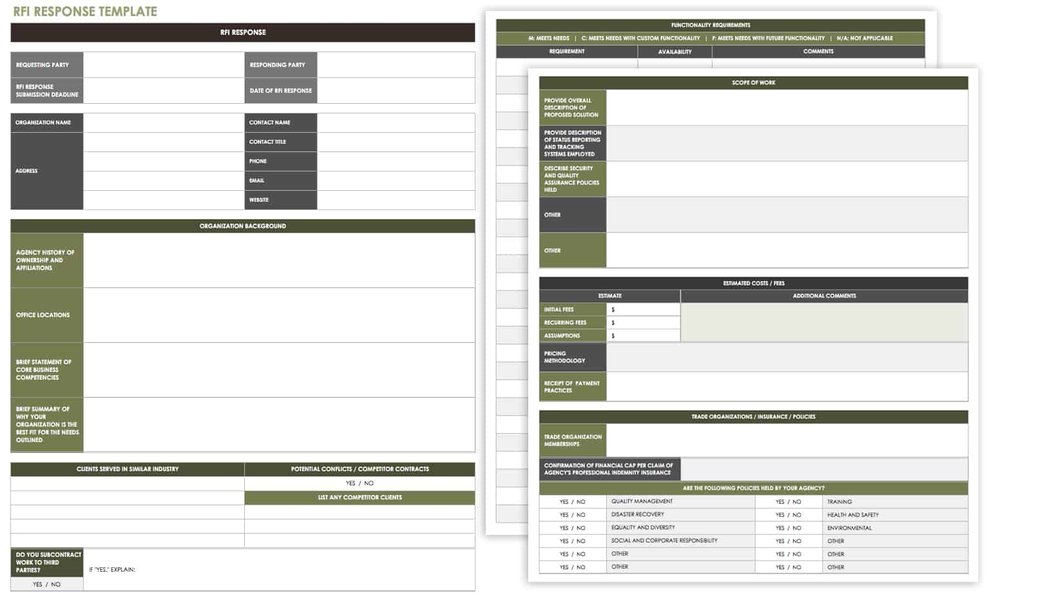
Example structure often found in RFI templates.
Handling the Excel File: Best Practices
Ensuring Functionality and Data Integrity
Excel files, especially those with built-in automation like macros or specific formulas linked across sheets (as implied by the "one-click checklist" feature), require careful handling. Modifying the structure can easily break these functionalities.
Why Maintaining Format and Sheet Order is Critical:
- Formula Dependencies: Formulas might reference specific cells or ranges on particular sheets. Changing the order can lead to incorrect calculations or #REF! errors.
- Macro Functionality: Macros often rely on specific sheet names, cell locations, or sheet order to execute correctly. Alterations can cause macros to fail or produce unexpected results.
- Data Integrity: The structure ensures data is entered and processed consistently, which is vital for the accuracy of the RFI and the generated checklist.
- User Experience: A consistent format makes it easier for users to navigate and use the file as intended.
Tips for Recipients:
- Use a Compatible Excel Version: Open the file in a recent version of Microsoft Excel or a fully compatible program to ensure all features work.
- Save a Copy: Before making any entries, consider saving a copy of the file (`Save As`) to preserve the original template.
- Follow Instructions Carefully: Adhere strictly to the note about not changing the format or sheet order.
- Enable Content/Macros if Prompted: If the file contains macros for the checklist generation, Excel might display a security warning. Content needs to be enabled (usually via a yellow bar at the top) for the feature to work, but only do so if the source is trusted (which, in this case, it is).
- Contact Sender for Issues: If any errors occur or the checklist feature doesn't work as expected, contact the sender immediately instead of attempting to fix the structure yourself.
Visualizing RFI Email Effectiveness
Comparing Communication Attributes
Effective communication is key when sharing important documents like RFIs. The radar chart below evaluates the recommended email template against key communication attributes compared to a more basic, less informative email. This illustrates the value added by providing clear instructions, context, and maintaining professionalism.
As the chart suggests, the recommended email format scores higher across key attributes, particularly in providing clear warnings about file integrity and highlighting the efficiency benefits, making it more effective in guiding the recipients.
Structuring the RFI Communication Process
A Mindmap Overview
This mindmap illustrates the key components involved in sending and receiving the RFI Excel file, emphasizing the critical steps and considerations discussed.
Sharing Excel Files via Email: A Quick Guide
Visual Demonstration
Sharing Excel files through email is a common task. While features vary slightly between Excel versions, the basic process remains similar. The video below demonstrates how to use the sharing features available in Excel, which can sometimes streamline the process of attaching your file to an email client like Outlook.
Video demonstrating how to share an Excel file using email options within Excel.
Remember, while sharing directly from Excel can be convenient, always double-check that the correct file is attached and that your email message contains all necessary instructions, like the warning about not modifying the RFI template's structure.
Recipient Checklist: Handling the RFI Excel File
Key Steps and Precautions
This table summarizes the essential actions and precautions for Mubeen and Naveen when working with the attached RFI Excel file.
| Action | Description | Important Note |
|---|---|---|
| Download File | Save the attached Excel file to your computer. | Work on a local copy if possible. |
| Open File | Use Microsoft Excel or a fully compatible application. | Enable content/macros if prompted by Excel and you trust the source. |
| Prepare RFI | Fill in the required information in the designated sections as per the RFI format. | Enter data accurately. |
| Generate Checklist | Locate and use the "one-click" feature (e.g., a button or macro) to generate the related checklist. | This should work automatically if the file structure is intact. |
| Contact Sender | Reach out immediately if you have any doubts, encounter errors, or the checklist doesn't generate correctly. | Do not attempt to modify the file structure yourself. |
| Maintain Integrity | CRITICAL: Do not change the existing format, sheet names, or the order of the sheets. | Altering the structure will likely break the checklist generation feature and may cause data errors. |
Frequently Asked Questions (FAQ)
▶ What exactly is an RFI?
RFI stands for Request for Information. It's a formal process used to collect written information regarding the capabilities of various suppliers or stakeholders. Typically, it's used early in a procurement process or project planning phase to gather broad information and understand the options available before issuing a more detailed Request for Proposal (RFP) or Quotation (RFQ).
▶ Why is it so important not to change the Excel format or sheet order?
The email states that the file allows for one-click checklist generation. This kind of automation in Excel usually relies on specific cell references, named ranges, sheet names, and the order of sheets. If you change the format (e.g., add/delete columns/rows) or reorder the sheets, the formulas or macros powering the checklist feature will likely break, leading to errors (#REF!, #VALUE!) or incorrect output. Maintaining the structure ensures the intended automation works correctly.
▶ How does the "one-click checklist" likely work?
It could be implemented using various Excel features, most commonly:
- Excel Macros (VBA): A script recorded or written in Visual Basic for Applications that performs a sequence of actions when triggered by a button click.
- Formulas: Complex formulas (perhaps array formulas or functions like FILTER, UNIQUE available in newer Excel versions) on a dedicated checklist sheet that pull data from the RFI input sheet based on certain criteria.
- Power Query: Used to transform and load data from the RFI input sheets into a structured checklist format, possibly refreshed with a button click.
Regardless of the method, it depends heavily on the predefined structure of the workbook.
▶ What should I do if I accidentally change the format?
If you accidentally modify the structure, it's best not to save the changes if possible. Close the file without saving and reopen the original attachment or a fresh copy. If you have already saved the changes, contact the sender immediately, explain what happened, and request a fresh copy of the template. Do not try to fix the structure yourself unless you are certain you know how, as this could worsen the problem.
▶ Can I use Google Sheets or another program instead of Excel?
It is generally recommended to use Microsoft Excel, especially if the file contains macros (VBA) or advanced features. While Google Sheets and other spreadsheet programs can open .xlsx files, they may not fully support all Excel functions, formulas, or VBA macros. Using a different program could lead to compatibility issues, broken features (like the one-click checklist), or subtle changes in formatting upon saving. Stick to Excel if possible, or check with the sender first.
References
- How To Write a Request for Information (With Template) | Indeed.com - Indeed
- Request for Information (RFI) Templates - ASU Enterprise Technology - Arizona State University
- Sample Email for Request for Information (RFI) - Emails in English
- Create an email message template - Microsoft Support
- How to Email an Excel Spreadsheet from Excel - Layer Blog
- Free Request for Information Templates | Smartsheet - Smartsheet
Recommended
Last updated April 25, 2025