
Unlock Automated Observability: Programmatic Dynatrace OneAgent Setup on Azure App Service
Streamline your Azure monitoring by deploying the Dynatrace OneAgent extension effortlessly through code and automation.
Manually installing monitoring agents across numerous Azure App Services can be time-consuming and prone to inconsistencies. Fortunately, Azure provides robust mechanisms to programmatically install the Dynatrace OneAgent extension. This allows for seamless integration into your DevOps pipelines, ensuring consistent full-stack observability from the get-go. This guide explores the primary methods to automate this deployment, empowering you to enhance your application performance monitoring (APM) strategy efficiently.
Highlights: Key Insights for Automated Deployment
- Multiple Automation Paths: You can programmatically install the Dynatrace OneAgent using Azure Resource Manager (ARM) templates, Azure CLI, PowerShell scripts (often leveraging the Kudu REST API), and Terraform.
- Essential Prerequisites: Successful programmatic installation requires your Dynatrace Environment ID, an API Token with OneAgent installation permissions, and appropriate Azure credentials/permissions for the target App Service.
- Critical Post-Installation Step: Restarting the Azure App Service after the OneAgent extension installation is crucial for the agent to initialize and begin monitoring your application.
Understanding the Core: Dynatrace OneAgent on Azure App Service
Dynatrace OneAgent provides deep, full-stack monitoring capabilities for applications hosted on Azure App Service. For Windows-based App Services, the OneAgent is typically deployed as a Site Extension. This mechanism uses Azure's Kudu service, the deployment engine behind App Services, to install and manage the agent. This approach avoids direct OS access, which is restricted in the PaaS environment of App Services.
It's important to note that for Linux-based or containerized Azure App Services, the Site Extension method is not applicable. Instead, OneAgent integration involves embedding it directly into your container images or using sidecar patterns. This guide primarily focuses on programmatic installation for Windows-based App Services.
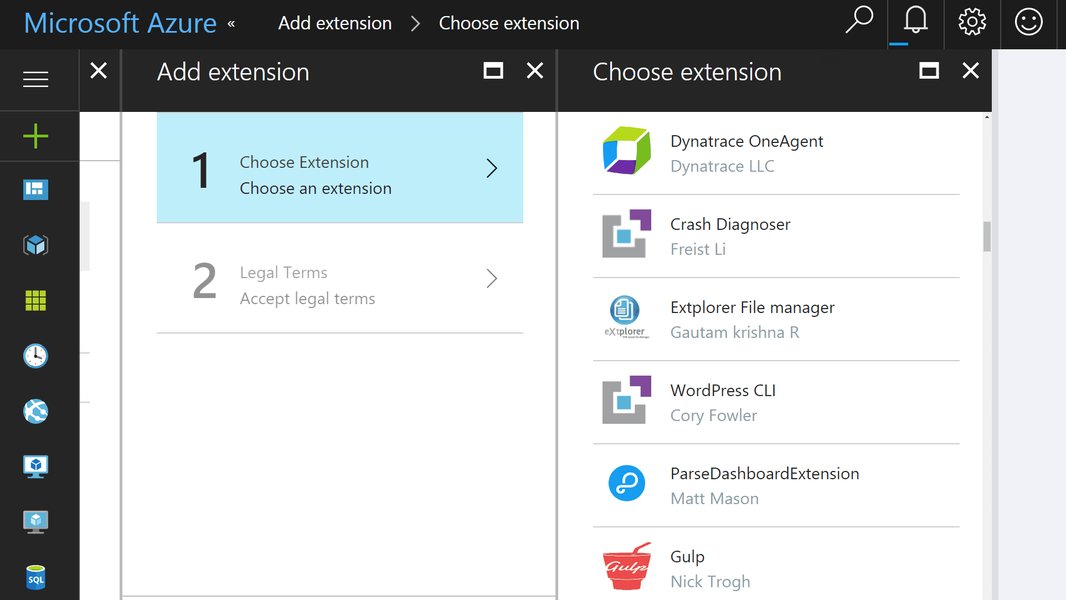
The Dynatrace OneAgent site extension available in the Azure portal, which can be automated.
Essential Prerequisites
Before embarking on programmatic installation, ensure you have the following:
- Dynatrace Account Details:
- Environment ID: Your unique Dynatrace environment identifier (e.g.,
{your-environment-id}.live.dynatrace.com). - PaaS Token (API Token): An API token generated from your Dynatrace environment with `PaaS integration - OneAgent installer download` permissions. Securely store this token.
- Environment ID: Your unique Dynatrace environment identifier (e.g.,
- Azure Subscription and Permissions: An active Azure subscription and credentials (like a Service Principal) with sufficient permissions (e.g., Contributor role) on the target Azure App Service and its resource group.
- Target App Service Information: The name of the Azure App Service and its resource group.
- Tooling: Depending on your chosen method, you'll need the Azure CLI, PowerShell (with Azure modules), or Terraform installed and configured.
Programmatic Installation Methods Explored
Several robust methods allow you to automate the Dynatrace OneAgent extension deployment. The choice often depends on your existing infrastructure management practices and tooling preferences.
1. Azure Resource Manager (ARM) Templates
ARM templates provide a declarative way to define your Azure infrastructure as code. You can include the Dynatrace OneAgent site extension as a resource within your App Service ARM template.
How it Works:
You define the site extension resource within the `resources` array of your App Service definition. When the ARM template is deployed, Azure ensures the extension is installed.
Example ARM Template Snippet:
This snippet shows how to define the "DynatraceOneAgent" site extension for an existing App Service:
{
  "type": "Microsoft.Web/sites/siteextensions",
  "apiVersion": "2021-02-01", // Use a recent API version
  "name": "[concat(parameters('appServiceName'), '/DynatraceOneAgent')]",
  "location": "[resourceGroup().location]",
  "dependsOn": [
    "[resourceId('Microsoft.Web/sites', parameters('appServiceName'))]"
  ],
  "properties": {
    // No specific properties needed here for the extension itself;
    // Configuration is typically done via App Settings.
  }
}
Note: Dynatrace configuration (Environment ID and PaaS Token) is usually set via Application Settings on the App Service, which can also be defined in the ARM template:
// Part of the Microsoft.Web/sites resource properties
"siteConfig": {
  "appSettings": [
    {
      "name": "DT_TENANT",
      "value": "[parameters('dynatraceTenantId')]" // Your Dynatrace Environment ID without https:// or /e/
    },
    {
      "name": "DT_TENANTTOKEN",
      "value": "[parameters('dynatracePaasToken')]" // Your Dynatrace PaaS Token
    },
    {
      "name": "DT_CONNECTION_POINT",
      "value": "[parameters('dynatraceConnectionPoint')]" // Semicolon-separated list of Dynatrace server endpoints. e.g., "https://{your-environment-id}.live.dynatrace.com/communication;https://{your-managed-server}/communication"
    }
    // Potentially other DT_ settings like DT_HOST_GROUP, DT_TAGS etc.
  ]
}
Deployment:
Deploy the ARM template using Azure CLI or PowerShell:
# Azure CLI
az deployment group create --resource-group MyResourceGroup --template-file azuredeploy.json --parameters appServiceName=MyAppService dynatraceTenantId=abc12345 dynatracePaasToken=SECRET_TOKEN dynatraceConnectionPoint="https://abc12345.live.dynatrace.com/communication"

# PowerShell
New-AzResourceGroupDeployment -ResourceGroupName MyResourceGroup -TemplateFile azuredeploy.json -appServiceName MyAppService -dynatraceTenantId abc12345 -dynatracePaasToken SECRET_TOKEN -dynatraceConnectionPoint "https://abc12345.live.dynatrace.com/communication"
2. Azure CLI
The Azure Command-Line Interface (CLI) offers commands to manage Azure resources, including App Service extensions.
How it Works:
You use Azure CLI commands to set the required application settings for Dynatrace and then install the site extension. This method is excellent for scripting and CI/CD pipelines.
Commands:
# Set Application Settings for Dynatrace
az webapp config appsettings set --resource-group MyResourceGroup --name MyAppService \
  --settings \
    DT_TENANT="abc12345" \
    DT_TENANTTOKEN="SECRET_TOKEN" \
    DT_CONNECTION_POINT="https://abc12345.live.dynatrace.com/communication"

# Install the Dynatrace OneAgent Site Extension
# Note: The extension name might vary or be implicitly handled. Often, setting the app settings is enough to trigger Kudu to fetch and run the agent installer if the native Azure Marketplace Dynatrace offering is used.
# If direct extension installation is needed:
# az webapp extension add --resource-group MyResourceGroup --name MyAppService --extension-name DynatraceOneAgent (This command might not exist; check current Azure CLI capabilities for site extensions, usually done via Kudu or ARM)
# A more common approach with CLI is to use it to deploy an ARM template that includes the extension, or use Kudu API interaction via scripts.

# The primary mechanism for the site extension is often via Kudu, triggered by app settings or portal integration.
# For programmatic CLI-driven site extension management without ARM, a Kudu API call is typically made.
# However, the recommended CLI approach for extensions is often via ARM deployment as shown above.
# If you need to ensure the extension is specifically installed, the `az resource update` or `create` for the siteextension resource type is also an option.

# Restart the App Service (CRUCIAL STEP)
az webapp restart --resource-group MyResourceGroup --name MyAppService
While `az webapp extension add` might not be directly available for all site extensions, setting the correct DT_ application settings is often the trigger for the Dynatrace site extension (especially when integrated via the Azure Marketplace offering) to install/configure itself. If not, using Azure CLI to deploy a minimal ARM template defining the extension is the most robust CLI-native way.
3. PowerShell with Kudu REST API
PowerShell, combined with direct calls to the Kudu REST API, provides granular control over App Service management, including site extension installation.
How it Works:
Kudu is the engine that powers deployments in Azure App Service. You can script interactions with its REST API to manage site extensions. You'll need publishing credentials for your App Service to authenticate Kudu API requests.
Conceptual PowerShell Script Steps:
- Retrieve App Service publishing credentials.
- Construct the Kudu API URL for site extensions (e.g.,
https://<your-app-name>.scm.azurewebsites.net/api/siteextensions/DynatraceOneAgent). - Set Dynatrace application settings using
Set-AzWebAppor via Kudu API if preferred. - Make a `PUT` or `POST` request to the Kudu API endpoint to install or update the "DynatraceOneAgent" extension. The body of the request might specify the package or simply trigger an install if the extension is known to Kudu from the gallery.
- Restart the App Service using
Restart-AzWebApp.
# Example (Conceptual - ensure correct Kudu API usage and auth)
$appServiceName = "MyAppService"
$resourceGroupName = "MyResourceGroup"
$dynatraceTenantId = "abc12345"
$dynatracePaasToken = "SECRET_TOKEN" # Securely manage this
$dynatraceConnectionPoint = "https://abc12345.live.dynatrace.com/communication"

# Set App Settings
$appSettings = @{
    "DT_TENANT" = $dynatraceTenantId
    "DT_TENANTTOKEN" = $dynatracePaasToken
    "DT_CONNECTION_POINT" = $dynatraceConnectionPoint
}
Set-AzWebApp -ResourceGroupName $resourceGroupName -Name $appServiceName -AppSettings $appSettings

# Kudu API Interaction for installing the extension (simplified example)
# Requires fetching publishing user/password for Basic Auth with Kudu
$publishingUser = (Get-AzWebAppPublishingProfile -ResourceGroupName $resourceGroupName -Name $appServiceName).userName
$publishingPassword = (Get-AzWebAppPublishingProfile -ResourceGroupName $resourceGroupName -Name $appServiceName).userPWD
$base64AuthInfo = [Convert]::ToBase64String([Text.Encoding]::ASCII.GetBytes(("{0}:{1}" -f $publishingUser, $publishingPassword)))

$kuduApiUrl = "https://$($appServiceName).scm.azurewebsites.net/api/siteextensions/DynatraceOneAgent"
$headers = @{
    "Authorization" = "Basic $base64AuthInfo"
    "If-Match"      = "*" # Required for some Kudu PUT/DELETE operations
}

# This PUT request attempts to install/update the extension.
# The specific payload might not be needed if it's a gallery extension.
Invoke-RestMethod -Uri $kuduApiUrl -Method Put -Headers $headers -ContentType "application/json" -Body "{}"

# Restart App Service
Restart-AzWebApp -ResourceGroupName $resourceGroupName -Name $appServiceName
Dynatrace provides sample PowerShell scripts for automating OneAgent site extension setup on their GitHub repository, which can serve as a more detailed reference.
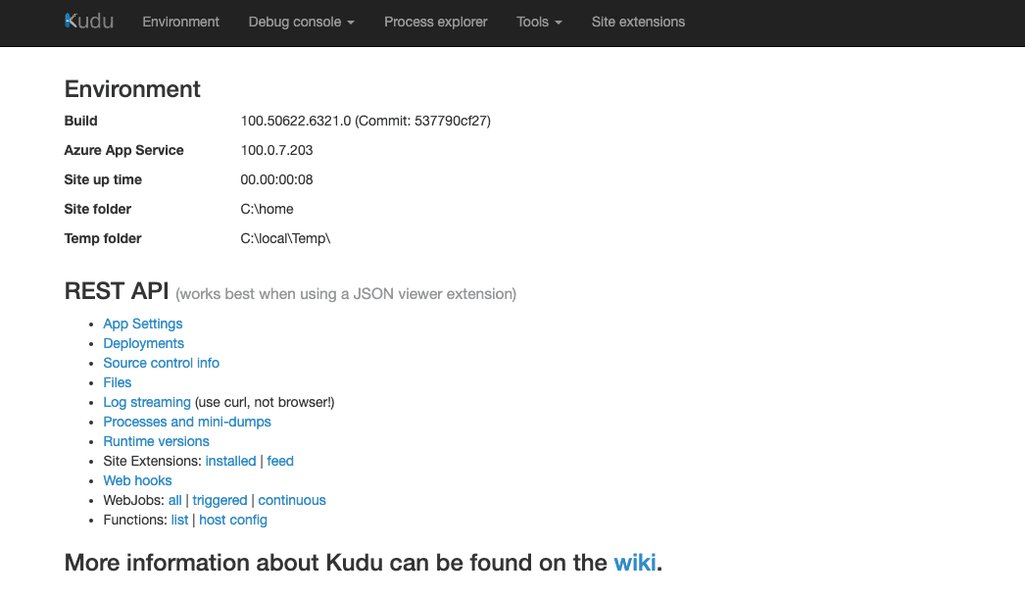
The Dynatrace OneAgent site extension visible in the Kudu interface of an Azure App Service.
4. Terraform
Terraform by HashiCorp is a popular Infrastructure as Code (IaC) tool that can manage Azure resources, including App Service extensions.
How it Works:
You define the `azurerm_web_app_extension` (or `azurerm_windows_web_app_site_extension` / `azurerm_linux_web_app_site_extension` depending on the provider version and specific resource) resource in your Terraform configuration file (`.tf`). Terraform then provisions or updates the extension during `terraform apply`.
Example Terraform HCL Snippet:
provider "azurerm" {
  features {}
}

resource "azurerm_resource_group" "rg" {
  name     = "MyResourceGroup"
  location = "West Europe"
}

resource "azurerm_service_plan" "plan" {
  name                = "myappservice-plan"
  resource_group_name = azurerm_resource_group.rg.name
  location            = azurerm_resource_group.rg.location
  os_type             = "Windows"
  sku_name            = "P1v2"
}

resource "azurerm_windows_web_app" "app" {
  name                = "MyAppService-Terraform"
  resource_group_name = azurerm_resource_group.rg.name
  location            = azurerm_service_plan.plan.location
  service_plan_id     = azurerm_service_plan.plan.id

  site_config {
    // other site configs
  }

  app_settings = {
    "DT_TENANT"         = "abc12345" // Use var.dynatrace_tenant_id for production
    "DT_TENANTTOKEN"    = "SECRET_TOKEN" // Use var.dynatrace_paas_token and mark as sensitive
    "DT_CONNECTION_POINT" = "https://abc12345.live.dynatrace.com/communication"
  }
}

resource "azurerm_web_app_extension" "dynatrace_extension" {
  // Note: Terraform resource names for extensions can vary.
  // Check the latest AzureRM provider documentation for azurerm_site_extension or similar.
  // The example below uses a generic concept. Often, managing extensions might be part of azurerm_windows_web_app itself
  // or via a specific extension resource like `azurerm_app_service_site_extension`.
  // As of some provider versions, you might use `azurerm_app_service_active_slot` or the main app resource to define extensions.
  // The following is a conceptual representation of an extension resource.
  // The Dynatrace extension is often named "DynatraceOneAgent".
  // Example if a dedicated extension resource exists:
  /*
  resource "azurerm_app_service_site_extension" "dynatrace" {
    name                = "DynatraceOneAgent"
    app_service_name    = azurerm_windows_web_app.app.name
    resource_group_name = azurerm_resource_group.rg.name
  }
  */
  // More commonly, setting the DT_ app settings is the primary integration point for the Azure Marketplace sourced extension.
  // If using the Azure Native Dynatrace Service, this is handled differently through that service's resources.
  // For basic site extensions, if not directly supported as a top-level resource, ARM template deployment via Terraform is an alternative.
  // For this guide, we assume the app_settings trigger the agent installation from the gallery extension.
  // The app_settings are crucial.
  depends_on = [azurerm_windows_web_app.app]
}

# Don't forget to restart the app service. Terraform might do this if app_settings change,
# or you might need a provisioner or separate step in your pipeline.
# A null_resource with a local-exec provisioner can call 'az webapp restart'.
resource "null_resource" "restart_app_service" {
  triggers = {
    app_settings_json = jsonencode(azurerm_windows_web_app.app.app_settings)
  }

  provisioner "local-exec" {
    command = "az webapp restart --name ${azurerm_windows_web_app.app.name} --resource-group ${azurerm_resource_group.rg.name}"
  }
  depends_on = [azurerm_windows_web_app.app] // or dynatrace_extension if explicitly defined
}
Deployment:
Run standard Terraform commands:
terraform init
terraform plan
terraform apply
Ensure you manage sensitive values like the PaaS token using Terraform variables and mark them as sensitive, or use a secrets manager.
Comparing Programmatic Installation Methods
Each method offers distinct advantages depending on your specific needs and existing tooling. The following table and chart provide a comparative overview:
| Feature | ARM Templates | Azure CLI | PowerShell (Kudu API) | Terraform |
|---|---|---|---|---|
| Nature | Declarative | Imperative | Imperative | Declarative |
| Primary Use Case | Infrastructure provisioning, CI/CD | Scripting, ad-hoc tasks, CI/CD | Custom automation, fine-grained control | Multi-cloud IaC, state management |
| Learning Curve | Moderate (JSON syntax) | Low to Moderate | Moderate to High (API interaction) | Moderate (HCL syntax, state concepts) |
| Ecosystem | Azure-native | Azure-native | Azure-native, scripting environments | HashiCorp, multi-cloud |
| Idempotency | Yes (generally) | Depends on script logic | Depends on script logic | Yes (core feature) |
Visual Comparison of Methods
The radar chart below offers a visual comparison of these methods across several dimensions. These are subjective assessments to illustrate general characteristics:
This chart visualizes how each method scores on factors like ease of setting up for the first time, suitability for CI/CD pipelines, the level of detailed control offered, and alignment with Infrastructure as Code principles. Higher scores (towards the outer edge) indicate better performance in that dimension.
Visualizing the Deployment Landscape
The mindmap below illustrates the key components and considerations involved in programmatically installing the Dynatrace OneAgent on Azure App Service.
Installation on Azure App Service"] Prerequisites ["Dynatrace Account
(Environment ID, PaaS Token)"] ["Azure Subscription & Permissions"] ["Target App Service Details"] ["Correct Tooling Installed
(Azure CLI, PowerShell, Terraform)"] CoreMethods["Installation Methods"] ARM_Templates["ARM Templates"] Features["Declarative IaC"] Deployment["Azure CLI / PowerShell"] Azure_CLI["Azure CLI"] Features["Imperative Scripting"] Usage["Direct Commands, CI/CD"] PowerShell_Kudu["PowerShell & Kudu API"] Features["Granular Control"] Usage["Custom Automation Scripts"] Terraform_HCL["Terraform"] Features["Declarative Multi-Cloud IaC"] Deployment["Terraform CLI"] KeySteps["General Workflow"] ["1. Prepare Credentials & Tools"] ["2. Choose & Configure Method"] ["3. Set Dynatrace App Settings
(DT_TENANT, DT_TENANTTOKEN, DT_CONNECTION_POINT)"] ["4. Deploy/Install Extension"] ["5. Restart App Service (Crucial!)"] ["6. Verify Installation in Dynatrace UI"] ImportantConsiderations["Considerations"] OS_Differences["Windows vs. Linux/Containers
(Site Extension for Windows only)"] Security_Tokens["Secure Management of PaaS Token"] Agent_Updates["Check Dynatrace docs for update strategy"] Troubleshooting["Kudu Console, Azure Logs, Dynatrace Deployment Status"]
This mindmap provides a bird's-eye view, starting from the central goal and branching out into prerequisites, the different installation methodologies, the general steps involved in any method, and crucial considerations to keep in mind for a successful and secure deployment.
Post-Installation: The Critical Restart and Verification
Regardless of the programmatic method used, a critical step after the Dynatrace OneAgent extension is installed (or its configuration is updated) is to restart the Azure App Service. This allows the OneAgent to be injected into your application's processes and start monitoring.
Restarting the App Service:
- Azure CLI:
az webapp restart --name <YourAppServiceName> --resource-group <YourResourceGroupName> - PowerShell:
Restart-AzWebApp -Name <YourAppServiceName> -ResourceGroupName <YourResourceGroupName> - ARM Templates/Terraform: Changes to app settings or certain configurations might trigger an automatic restart. If not, ensure a restart step is included in your deployment script or pipeline.
Verifying the Installation:
- Allow a few minutes for the OneAgent to initialize and connect to your Dynatrace environment.
- Log in to your Dynatrace environment.
- Navigate to the "Deployment status" or "Hosts" section to see if the new App Service instance is reporting data.
- Check the "Processes" or "Services" views to confirm your application processes are being monitored.
- Examine the Kudu console (
https://<your-app-name>.scm.azurewebsites.net/ProcessExplorer/) for OneAgent processes if troubleshooting.
This video demonstrates deploying Dynatrace on an Azure Web App, covering aspects relevant to understanding the OneAgent integration.
The embedded video provides a visual walkthrough of deploying Dynatrace on Azure Web Apps. While it may cover manual portal steps, the underlying concepts of how OneAgent integrates with App Services are valuable for understanding what your programmatic deployment achieves.
Frequently Asked Questions (FAQ)
What are the essential Dynatrace application settings for Azure App Service?
The key application settings required by the Dynatrace OneAgent extension are:
DT_TENANT: Your Dynatrace environment ID (e.g.,abc12345for an environment URL likehttps://abc12345.live.dynatrace.com).DT_TENANTTOKEN: The PaaS token generated from your Dynatrace environment with permissions to download the OneAgent installer.DT_CONNECTION_POINT: A semicolon-separated list of Dynatrace server URLs for OneAgent communication (e.g.,https://<your-environment-id>.live.dynatrace.com/communicationor for Managed environments,https://<your-managed-server>/communication;https://<your-other-managed-server>/communication).
Additional optional settings like DT_HOST_GROUP, DT_TAGS, or DT_NODE_NAME can also be configured as needed.
Is restarting the App Service always necessary after installing or updating the OneAgent extension?
Yes, restarting the Azure App Service is a crucial step. The OneAgent needs to inject itself into the application's worker processes (w3wp.exe for IIS-based Windows apps). This injection typically happens when these processes start. A restart ensures that new worker processes are launched with the OneAgent enabled.
How does OneAgent installation differ for Linux or Containerized Azure App Services?
Azure App Service Site Extensions are primarily designed for Windows-based App Services. For Linux-based App Services or when using custom containers (Web App for Containers):
- You generally need to integrate the OneAgent directly into your Docker image during the build process. This involves adding commands to your Dockerfile to download and install the OneAgent code modules.
- Environment variables (
DT_TENANT,DT_TENANTTOKEN,DT_CONNECTION_POINT, etc.) must be passed to the container at runtime, typically via App Service application settings or your container orchestration configuration. - Dynatrace provides specific instructions and code modules for various technologies running on Linux (Java, Node.js, Python, .NET Core, etc.).
The programmatic methods discussed (ARM, CLI, Terraform) can still be used to manage the App Service itself and its application settings, but the agent installation within the container is a separate concern handled at the image level.
Where can I find my Dynatrace Environment ID and PaaS Token?
Environment ID: This is part of your Dynatrace environment URL. For example, if your URL is https://abc12345.live.dynatrace.com, your Environment ID is abc12345. For Dynatrace Managed, it's the server address you use.
PaaS Token (API Token):
- Log in to your Dynatrace environment.
- Go to Manage > Access tokens (or Settings > Integration > Dynatrace API in older UIs, or Access tokens under the user menu).
- Click Generate new token.
- Give the token a name (e.g., "AzureAppServiceIntegration").
- Ensure the scope PaaS integration - OneAgent installer download (or similar wording like `InstallerDownload`) is enabled.
- Click Generate.
- Important: Copy the generated token immediately and store it securely. You will not be able to see it again after closing the dialog.
Recommended Next Steps
To further enhance your understanding and capabilities, consider exploring these related topics:
- How can I securely manage Dynatrace PaaS tokens when automating deployments in Azure CI/CD pipelines?
- What are the best practices for comprehensive monitoring of Azure App Services using Dynatrace?
- What are common troubleshooting steps if the Dynatrace OneAgent fails to report data from an Azure App Service?
- How can I automate the update process for Dynatrace OneAgent on my Azure App Services?
References
 docs.aws.amazon.com
Last updated May 13, 2025