
Unlocking PSoC 62 Debugging: A Comprehensive Guide to SWD in ModusToolbox
Dive deep into the essential steps for configuring Serial Wire Debug on your PSoC 62, ensuring seamless development and troubleshooting.
Key Insights for PSoC 62 SWD Debugging
- ModusToolbox Setup and KitProg3: A crucial first step involves installing the latest ModusToolbox and ensuring your PSoC 62 development kit's onboard debugger (KitProg) is updated to version 3 for compatibility.
- Precise IDE Configuration: Within ModusToolbox, setting the debug parameters for SWD, including "Port" to SW, "Max Clock" to 1 MHz, "Connect" to Normal, and "Reset" to VECTRESET, is paramount for a successful connection.
- Hardware Awareness & Best Practices: Understanding that SWD pins are multiplexed GPIOs and avoiding their reassignment in your code, along with managing low-power modes, are vital for maintaining a stable debug session.
Configuring a PSoC 62 microcontroller for Serial Wire Debug (SWD) within Infineon's ModusToolbox is a fundamental process for embedded developers. SWD is a two-pin interface offering a streamlined alternative to JTAG, enabling comprehensive access to the device's memory, registers, and debugging capabilities. This guide integrates essential information from multiple sources to provide a robust, step-by-step approach for setting up your PSoC 62 for effective SWD debugging.
Laying the Foundation: ModusToolbox and Hardware Preparation
Successful SWD debugging begins with a properly configured development environment and hardware. ModusToolbox acts as the central hub for development, while the PSoC 62 kit provides the necessary physical interface for debugging.
Setting Up Your ModusToolbox Environment
The first critical step is to ensure your ModusToolbox installation is up-to-date. This integrated development environment (IDE) is specifically designed for Infineon's microcontrollers, including the PSoC Arm Cortex MCUs. Always download and install the latest version directly from Infineon's official website to benefit from the most recent features, bug fixes, and compatibility updates. Newer versions, particularly ModusToolbox 3.0 and beyond, offer enhanced user experience, especially for dual-core debugging capabilities present in PSoC 62 devices.
Upon installation, the ModusToolbox Setup program will help manage different versions and available packages, ensuring you have all the necessary components, such as the GCC compiler for Arm and the KitProg3/MiniProg4 debugger tools.
Hardware Readiness: Connecting Your PSoC 62 Board
The physical connection and preparation of your PSoC 62 development board are equally important. Most PSoC 62 kits, such as the CY8CKIT-062-BLE, CY8CKIT-062-WIFI-BT, CY8CPROTO-062-4343W, or CY8CKIT-062S4, come equipped with an onboard programmer/debugger known as KitProg. For SWD debugging with ModusToolbox, it is imperative that this KitProg firmware is updated to KitProg3.
Many older kits might still have KitProg2 firmware, which is incompatible with ModusToolbox's debugging capabilities. If your kit has KitProg2, you must update its firmware to KitProg3 using the fw-loader tool or the ModusToolbox Setup program. This update enables crucial features like USB-UART and USB-I2C bridge functionality, in addition to SWD programming and debugging.
Connect your PSoC 62 board to your computer using a USB cable. For kits like the CY8CEVAL-062S2, ensure that jumper settings, such as J18, are correctly positioned (e.g., 3-5 for 3.3V) as specified in your kit's quick start guide. Verify that your computer recognizes the board and that the necessary drivers are installed automatically.
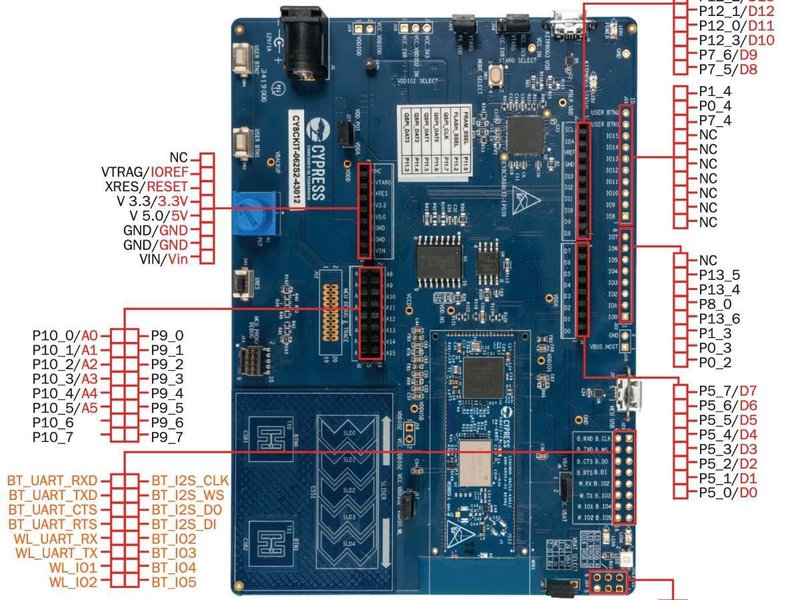 PSoC 62S2 Wi-Fi BT Pioneer Kit with onboard KitProg3 debugger.
Configuring Debug Settings in ModusToolbox IDE
Once your environment and hardware are ready, the next phase involves meticulously configuring the debug settings within the ModusToolbox IDE. This is where you specify the SWD protocol and other parameters for reliable communication with the PSoC 62.
Navigating to Debug Configurations
Open your PSoC 62 project in the ModusToolbox IDE. In the Project Explorer, select your project. You can access the debug configurations through two primary methods:
- Quick Panel: In the ModusToolbox IDE's Quick Panel, scroll down to the "Launches" section and click on the debug configuration specific to your project (e.g., KitProg3_MiniProg4 or GDB OpenOCD Debugging).
- Menu Path: Alternatively, go to
Run > Debug Configurationsin the top menu bar. This will open a dialog where you can expand "GDB OpenOCD Debugging" (or "GDB SEGGER J-Link Debugging" if using an external J-Link probe) and select your project's configuration.
It's crucial to ensure no other debug processes are actively running, as this can lead to conflicts and prevent a successful connection.
Essential SWD Parameter Settings
Within the Debug Configurations dialog, typically under the "Debug" tab or "Target Driver Setup," you need to configure several key parameters for SWD debugging on PSoC 6 devices:
| Parameter | Recommended Setting for PSoC 62 (SWD) | Explanation |
|---|---|---|
| Port | SW | Specifies the Serial Wire Debug protocol, as opposed to JTAG. |
| Max Clock | 1 MHz | Sets a stable maximum clock frequency for the SWD interface, ensuring reliable communication. |
| Connect | Normal | Defines the standard connection mode for the target device. |
| Reset | VECTRESET | Specifies the type of reset performed upon connection. VECTRESET is standard for PSoC 6 devices. |
| Reset after Connect | Enabled (checked) | Automatically resets the target device after establishing a debug connection, which aids in synchronizing the debugger. |
These settings dictate how ModusToolbox's debugger interacts with your PSoC 62 device via the SWD interface. For KitProg3, ensure the correct interface configuration file (e.g., interface/kitprog3.cfg) is selected within your debug launch settings.
Debugging Multi-Core PSoC 62 MCUs
PSoC 62 MCUs are dual-core, featuring a Cortex-M4 as the primary application processor and a Cortex-M0+ for low-power operations. ModusToolbox supports multi-core debugging, allowing you to debug both the CM0+ and CM4 applications concurrently. When configuring your debug session, you may need to specify which core you intend to debug. Ensure your ModusToolbox version (ideally 3.0 or later) is capable of seamless dual-core debugging to avoid issues like hangs or exceptions when debugging the CM0+.
Strategic Best Practices and Troubleshooting
Beyond the fundamental setup, adhering to best practices and understanding common troubleshooting scenarios will significantly enhance your SWD debugging experience with PSoC 62.
Optimizing SWD Pin Usage and Power Modes
The SWD pins (SWDIO and SWCLK) on PSoC 62 devices are typically multiplexed with general-purpose I/O (GPIO) pins. During an active debug session, these pins must be dedicated to debugging. It is critical to avoid reassigning or using these pins as regular GPIOs in your firmware, as this can interrupt or prevent debug functionality. Best practices suggest keeping the "Debug Enable On SWD Pins" option enabled in your system configuration to prevent accidental disabling of debug access.
Additionally, PSoC 62 devices can enter low-power modes where the SWD interface might be disabled or require special reset sequences to regain debug connection. If you encounter issues connecting or maintaining a debug session in low-power scenarios, try connecting "under Reset" or holding the target in reset while initiating the debug session. For older KitProg firmware (below version 2.14), commands like kitprog init_acquire_psoc might have been necessary, but newer KitProg3 firmwares handle this more seamlessly.
Welcome to Modus Toolbox: #4 Program & Debug - This video introduces the ease of setting up debugger connections in ModusToolbox, highlighting its integrated approach to streamlining the development workflow by minimizing manual configuration efforts for programming and debugging.
Common Debugging Obstacles and Solutions
Even with careful setup, you might encounter issues. Here's a breakdown of common problems and their resolutions:
- SWD Connect Fails:
- Ensure the USB cable is securely connected and KitProg3 firmware is up-to-date.
- Verify jumper settings on your development board.
- Restart ModusToolbox IDE and attempt to reconnect.
- Check if another debug process is running in the background.
- "Failed to read memory" errors:
- This can stem from incorrect ELF files, bad target state, or memory access restrictions. Try resetting the target and restarting the debug session.
- Examine OpenOCD configuration in your debug launch settings; commands like
-c "psoc6 sflash_restrictions 1"andinit; reset initare often relevant.
- Debugger not halting at breakpoints (especially CM0+):
- Ensure you are using a ModusToolbox version that is friendly for dual-core debugger mode (e.g., MTB 3.0+).
- Verify that debug symbols (.elf files) are correctly generated during your project build.
- Check if the CM0+ application is entering a state (e.g., deep sleep or exception) that prevents debugger access.
- Power-related issues:
- Ensure your board is adequately powered. If using an external programmer like MiniProg4, verify it can power the board, or provide external power if necessary.
Understanding Debugging Capabilities and Complexities
Debugging a PSoC 62 involves leveraging ModusToolbox's features to gain insight into the chip's behavior, especially given its dual-core architecture and low-power considerations.
Architectural Considerations for Debugging
The PSoC 62's dual-core design (Cortex-M4 and Cortex-M0+) introduces complexities that ModusToolbox is equipped to handle. The Cortex-M4 typically runs the main application, while the Cortex-M0+ often manages low-power tasks or security features. ModusToolbox's multi-core debugging allows developers to simultaneously monitor and control both cores, which is essential for understanding inter-core communication and synchronization. Debug symbols (.elf files) generated during the build process are crucial for stepping through code, setting breakpoints, and examining variables, providing a symbolic view of your application's execution.
Debugging Features Overview
ModusToolbox, in conjunction with KitProg3, provides standard debugging functionalities:
- Breakpoints: You can set up to 6 hardware breakpoints to halt execution at specific lines of code or memory addresses.
- Watchpoints: Up to 4 watchpoints can be configured to pause execution when a specific memory location is accessed or modified.
- Single-Stepping: Execute code line-by-line to observe real-time variable changes and program flow.
- Variable Inspection: Monitor the values of variables and registers in real-time, providing deep insight into program state.
SWD Debugging Scenario Analysis
The radar chart below provides a qualitative comparison of various aspects related to SWD debugging on PSoC 62 using ModusToolbox. These metrics reflect the perceived ease, effectiveness, and resource requirements associated with different aspects of the debugging process.
The radar chart illustrates that while ModusToolbox with PSoC 62 generally offers a good experience in terms of initial setup ease, performance, and documentation, areas like troubleshooting difficulty and dual-core debugging robustness might require more attention compared to a general embedded debugging baseline. Understanding these nuances helps developers anticipate potential challenges and optimize their debugging strategies.
Mindmap of PSoC 62 SWD Debugging Flow
This mindmap visually outlines the comprehensive steps and considerations involved in configuring and executing SWD debugging on the PSoC 62 using ModusToolbox, providing a structured overview of the entire process.
Frequently Asked Questions (FAQ)
What is SWD and why is it preferred for PSoC 62 debugging?
Do I need to update my KitProg firmware for PSoC 62 debugging?
What are the essential debug settings in ModusToolbox for SWD?
Can I debug both cores (Cortex-M4 and Cortex-M0+) of PSoC 62 simultaneously?
What should I do if my SWD connection fails or the debugger doesn't halt at breakpoints?
Conclusion
Configuring the PSoC 62 for SWD debugging in ModusToolbox is a systematic process that combines proper hardware setup, meticulous IDE configuration, and adherence to best practices. By ensuring your ModusToolbox environment is up-to-date, your KitProg firmware is at version 3, and your debug parameters are correctly set to SWD protocol with appropriate clock and reset options, you can establish a robust debugging environment. Understanding the dual-core architecture of PSoC 62, managing SWD pin usage to avoid conflicts with GPIO, and recognizing how low-power modes can impact debug connectivity are all crucial for a seamless development experience. Following these guidelines will empower you to efficiently monitor code execution, identify issues, and develop high-quality embedded applications on the PSoC 62 platform.
Recommended Further Exploration
- Deep dive into ModusToolbox advanced debugging features for PSoC 62
- Optimizing PSoC 62 low power modes with SWD debugging considerations
- Understanding the PSoC 62 Cortex-M4 and Cortex-M0+ inter-core communication for debugging
- Troubleshooting common ModusToolbox and KitProg3 issues in PSoC 62 development
Referenced Search Results
 static4.arrow.com
 aws.amazon.com