
Ready to Build Something Big? Let's Code an Automated Birthday Emailer Step-by-Step!
Unlock the power of Python by creating a practical, real-world application from scratch, complete with full instructions for use.
Project Highlights
- Practical Application: You'll build an automated system to send personalized birthday emails, a project that combines file handling, date manipulation, and email automation.
- Skill Development: Learn essential Python programming concepts, work with popular libraries like Pandas, and understand best practices for structuring and documenting code.
- Step-by-Step Guidance: From setting up your environment to writing, testing, and using the final code, you'll receive detailed instructions to guide you through the entire process.
Embarking on Your "Big" Coding Journey: An Automated Birthday Email Sender
You're looking to code "something big" and want clear instructions. That's an excellent goal! To make this concrete, we'll build a practical and moderately complex Python project: an Automated Birthday Email Sender. This project is "big" enough to be engaging and teach valuable skills, involving reading data from a file, processing dates, and interacting with an email service.
Why This Project?
This project was chosen because it allows us to explore several key aspects of software development:
- Real-world Utility: Automating repetitive tasks like sending birthday greetings is a common application of programming.
- Core Programming Concepts: You'll work with functions, loops, conditional statements, error handling, and file input/output.
- External Libraries: We'll use powerful Python libraries like
pandasfor data manipulation andsmtplibfor sending emails. - Scalability: While we'll start with a script, this project can be expanded with features like a graphical user interface (GUI), database integration, or support for multiple notification channels.
What Will It Do?
The Automated Birthday Email Sender will perform the following tasks:
- Read a list of contacts (names, email addresses, and birthdays) from an Excel file.
- Check daily if any contact has a birthday on the current date.
- For each contact whose birthday it is, send a personalized birthday email.
- Log its activities, such as which emails were sent or if there were any errors.
Phase 1: Planning Your Project
Before writing a single line of code, careful planning is essential, especially for larger projects. This ensures your project is well-organized, maintainable, and meets your objectives.
Define Scope and Goals
Clearly outline what you want your application to achieve. For our birthday emailer, the core goal is to automate birthday greetings. Initial features include reading from Excel, date checking, and email sending via Gmail.
Choose the Right Tools
Programming Language
We'll use Python. It's renowned for its readability, extensive libraries, and suitability for beginners and complex applications alike. Many resources emphasize Python for its versatility in web development, data science, and automation.
Integrated Development Environment (IDE)
An IDE helps you write, test, and debug code efficiently. We recommend Visual Studio Code (VS Code) due to its popularity, rich feature set, and excellent Python support. Other options include PyCharm or even online IDEs like Replit for quick setups.
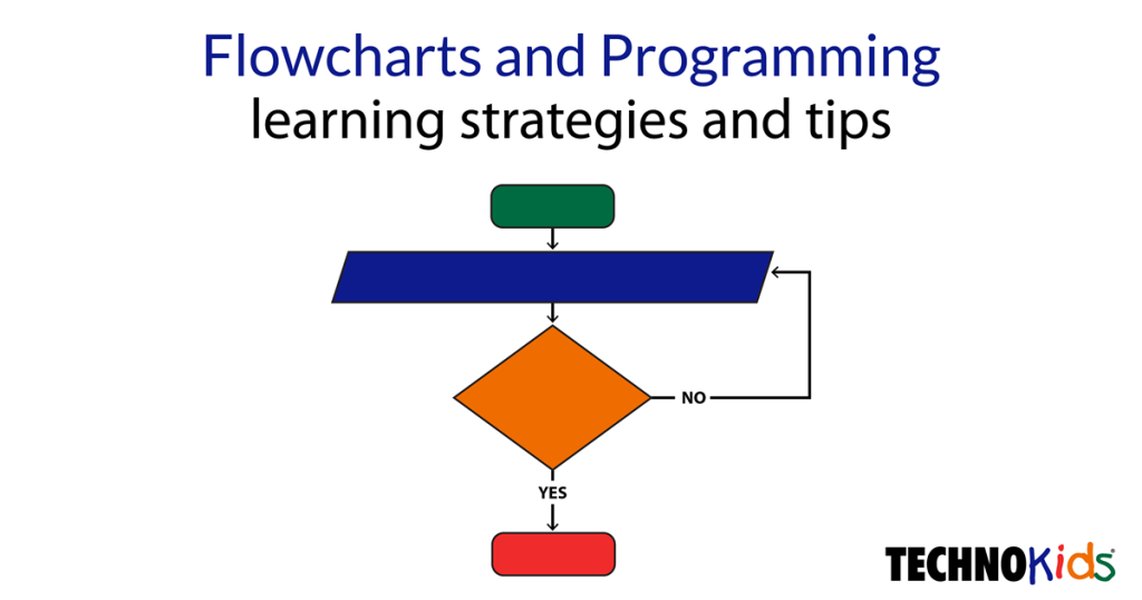
A flowchart can be a useful tool for planning the logic of your program before coding.
Break Down the Project
Divide the "big" project into smaller, manageable modules or functions. For our emailer:
- Module 1: Load and parse contact data from Excel.
- Module 2: Check for birthdays based on the current date.
- Module 3: Compose and send personalized emails.
- Module 4: Handle logging and errors.
This modular approach makes development easier to tackle and test incrementally.
Phase 2: Setting Up Your Development Environment
A proper setup is crucial for a smooth coding experience.
Install Python
If you don't have Python installed, download the latest version (Python 3.8 or newer recommended) from python.org. Follow the installation instructions for your operating system. Ensure you check the box "Add Python to PATH" during installation on Windows.
Install Required Libraries
We'll use external libraries. Open your terminal or command prompt and install them using pip, Python's package installer:
pip install pandas openpyxl- pandas: For easily reading and manipulating data from the Excel file.
- openpyxl: A dependency for pandas to work with
.xlsxExcel files. smtplibandemail.message: These are part of Python's standard library for sending emails, so no separate installation is needed.datetimeandos: Also standard libraries for date/time operations and operating system interactions, respectively.
Set Up Your Code Editor (VS Code)
- Download VS Code from code.visualstudio.com and install it.
- Install the Python extension for VS Code: Open VS Code, go to the Extensions view (Ctrl+Shift+X or Cmd+Shift+X), search for "Python" by Microsoft, and install it.
- Create a new folder for your project (e.g.,
BirthdayEmailer) and open this folder in VS Code (File > Open Folder).
Phase 3: Writing the Code - Automated Birthday Email Sender
Now, let's write the Python code. Create a new file named birthday_emailer.py in your project folder.
# birthday_emailer.py
import pandas as pd
import smtplib
from email.message import EmailMessage
from datetime import datetime
import os

# --- Configuration ---
# IMPORTANT: For security, consider using environment variables or a config file for credentials.
# For Gmail, you might need to generate an "App Password".
# How to generate App Password for GMAIL:
# 1. Go to your Google Account (myaccount.google.com).
# 2. Select "Security" from the left navigation panel.
# 3. Under "Signing in to Google," select "2-Step Verification" and enable it if not already.
# 4. At the bottom of the "2-Step Verification" page, select "App passwords."
# 5. Select the app (Mail) and device (e.g., Windows Computer) for which you want to generate the app password, then select "Generate."
# 6. Use this 16-digit password in the SENDER_PASSWORD field.
SENDER_EMAIL = "your_email@gmail.com"  # Replace with your Gmail address
SENDER_PASSWORD = "your_app_password"  # Replace with your Gmail App Password
CONTACTS_FILE = "contacts.xlsx"  # Name of your Excel file
LOG_FILE = "email_log.txt"

def log_message(message):
    """Appends a message to the log file with a timestamp."""
    timestamp = datetime.now().strftime("%Y-%m-%d %H:%M:%S")
    with open(LOG_FILE, "a") as f:
        f.write(f"{timestamp} - {message}\n")
    print(f"{timestamp} - {message}")

def load_contacts(file_path):
    """Loads contacts from an Excel file.
    The Excel file must have columns: 'Name', 'Email', 'Birthday' (format YYYY-MM-DD).
    """
    try:
        df = pd.read_excel(file_path)
        # Ensure 'Birthday' column is parsed as datetime objects
        df['Birthday'] = pd.to_datetime(df['Birthday'], errors='coerce')
        # Drop rows where 'Birthday' could not be parsed
        df.dropna(subset=['Birthday'], inplace=True)
        return df
    except FileNotFoundError:
        log_message(f"ERROR: Contacts file '{file_path}' not found.")
        return None
    except Exception as e:
        log_message(f"ERROR: Could not load contacts from '{file_path}'. Details: {e}")
        return None

def check_for_birthdays(contacts_df):
    """Checks the contacts DataFrame for any birthdays today."""
    if contacts_df is None or contacts_df.empty:
        return pd.DataFrame() # Return empty DataFrame if no contacts

    today = datetime.now()
    # Compare month and day, ignoring the year
    birthdays_today = contacts_df[
        (contacts_df['Birthday'].dt.month == today.month) &
        (contacts_df['Birthday'].dt.day == today.day)
    ]
    return birthdays_today

def send_birthday_email(recipient_email, recipient_name):
    """Sends a personalized birthday email."""
    subject = f"Happy Birthday, {recipient_name}!"
    body = f"""
    Dear {recipient_name},

    Wishing you a very Happy Birthday! We hope you have a fantastic day filled with joy and celebration.

    Best regards,
    Your Automated System
    """

    msg = EmailMessage()
    msg.set_content(body)
    msg['Subject'] = subject
    msg['From'] = SENDER_EMAIL
    msg['To'] = recipient_email

    try:
        with smtplib.SMTP_SSL('smtp.gmail.com', 465) as smtp_server:
            smtp_server.login(SENDER_EMAIL, SENDER_PASSWORD)
            smtp_server.send_message(msg)
        log_message(f"Successfully sent birthday email to {recipient_name} ({recipient_email}).")
        return True
    except smtplib.SMTPAuthenticationError:
        log_message(f"ERROR: SMTP Authentication Failed for {SENDER_EMAIL}. Check email/password and ensure 'less secure app access' or 'app password' is set up for Gmail.")
        return False
    except Exception as e:
        log_message(f"ERROR: Failed to send email to {recipient_name} ({recipient_email}). Details: {e}")
        return False

def main():
    """Main function to run the birthday emailer."""
    log_message("Starting Birthday Emailer script...")

    if SENDER_EMAIL == "your_email@gmail.com" or SENDER_PASSWORD == "your_app_password":
        log_message("CRITICAL ERROR: Please update SENDER_EMAIL and SENDER_PASSWORD in the script.")
        print("CRITICAL ERROR: Please update SENDER_EMAIL and SENDER_PASSWORD in the script before running.")
        return

    contacts = load_contacts(CONTACTS_FILE)

    if contacts is not None:
        if contacts.empty:
            log_message("No contacts loaded or contacts file is empty.")
        else:
            log_message(f"Successfully loaded {len(contacts)} contacts from '{CONTACTS_FILE}'.")

            today_birthdays = check_for_birthdays(contacts)

            if not today_birthdays.empty:
                log_message(f"Found {len(today_birthdays)} birthday(s) today!")
                for index, person in today_birthdays.iterrows():
                    recipient_name = person['Name']
                    recipient_email = person['Email']
                    send_birthday_email(recipient_email, recipient_name)
            else:
                log_message("No birthdays today.")
    else:
        log_message("Halting script due to issues loading contacts.")

    log_message("Birthday Emailer script finished.")

if __name__ == "__main__":
    main()
Code Explanation:
- Imports: We import necessary libraries:
pandasfor data,smtplibandemail.messagefor emails,datetimefor dates, andos(implicitly used via file paths, explicitly for logging here). - Configuration:
SENDER_EMAIL,SENDER_PASSWORD,CONTACTS_FILE, andLOG_FILEshould be configured. Crucially, replace placeholder credentials with your actual Gmail email and an App Password. log_message(message): A simple function to write timestamped messages to a log file and print them to the console.load_contacts(file_path): Reads the Excel file (specified byCONTACTS_FILE) into a pandas DataFrame. It expects 'Name', 'Email', and 'Birthday' columns. Birthdays should be in YYYY-MM-DD format.check_for_birthdays(contacts_df): Filters the DataFrame to find contacts whose birthday (month and day) matches today's date.send_birthday_email(recipient_email, recipient_name): Constructs and sends an email using Gmail's SMTP server. It requires SSL encryption (SMTP_SSL) and uses port 465.main(): The main function that orchestrates the script: loads contacts, checks for birthdays, and sends emails if any are found. It also includes basic error checking for credentials.if __name__ == "__main__":: This standard Python construct ensures thatmain()is called only when the script is executed directly (not when imported as a module).
Visualizing Project Aspects: A Radar Chart Perspective
To understand how our Automated Birthday Emailer fits into the broader spectrum of coding projects, consider the following radar chart. It compares our project against a very simple script and a much larger web application across several dimensions like learning curve, scalability, and real-world applicability. A higher score (further from the center) indicates more of that characteristic. The scale is from 1 to 10.
This chart helps illustrate that while our project is more complex than a basic script, it serves as a stepping stone towards larger, more intricate applications, providing a balanced learning experience.
Understanding the Project Workflow: A Mindmap
The following mindmap visually breaks down the Automated Birthday Emailer project into its main components and their relationships, providing a clear overview of its architecture and flow.
(SENDER_EMAIL, SENDER_PASSWORD)"] id1b["Contact List File
(contacts.xlsx)"] id1c["Log File
(email_log.txt)"] id2["Core Logic"] id2a["Load Contacts
(pandas.read_excel)"] id2b["Process Birthdays
(pd.to_datetime)"] id2c["Check for Today's Birthdays
(datetime comparison)"] id2d["Compose Email
(EmailMessage class)"] id2e["Send Email
(smtplib.SMTP_SSL)"] id3["Execution & Output"] id3a["Run Python Script
(python birthday_emailer.py)"] id3b["Console Output"] id3c["Log File Entries
(email_log.txt)"] id4["Error Handling"] id4a["File Not Found"] id4b["Email Authentication Errors"] id4c["Data Parsing Issues"] id5["Key Libraries"] id5a["Pandas"] id5b["smtplib"] id5c["email.message"] id5d["datetime"]
This mindmap helps in understanding how different parts of the script interact, from initial setup and data input to the final email sending and logging processes.
Phase 4: Testing and Debugging Your Code
Thorough testing is vital to ensure your code works correctly.
- Run the Code: Open a terminal in VS Code (Terminal > New Terminal), navigate to your project directory (if not already there), and run the script using:
python birthday_emailer.py - Incremental Testing: Test each function individually if possible. For example, you could temporarily call
load_contactsand print its output to verify data loading. - Check Logs: Review
email_log.txtand console output for error messages or status updates. - Use the Debugger: VS Code has a built-in debugger. Set breakpoints by clicking in the gutter to the left of the line numbers, then run the debugger (F5). This allows you to step through your code, inspect variables, and identify issues.
- Test Edge Cases:
- What happens if
contacts.xlsxis missing? (Should be handled byFileNotFoundError) - What if the Excel file is empty or has incorrect column names?
- What if a birthday is incorrectly formatted? (
pd.to_datetimewitherrors='coerce'helps) - Test with a contact whose birthday is today, one whose isn't, and one with an invalid email.
- What happens if
Phase 5: Step-by-Step Instructions on How to Use the Code
Once your code is written and tested, here’s how to use it:
1. Prepare Your Data (contacts.xlsx)
- Create an Excel file named
contacts.xlsxin the same directory as yourbirthday_emailer.pyscript. - This file must have three columns with these exact headers:
Name,Email,Birthday. - Populate the rows with contact information. Ensure birthdays are in
YYYY-MM-DDformat (e.g.,1990-05-17).Example
contacts.xlsxcontent:
<script>document.getElementById('current-date-placeholder').textContent = new Date().toISOString().slice(0,10);</script>Name Email Birthday John Doe john.doe@example.com 1985-11-23 Jane Smith jane.smith@example.com 2025-05-17 Current Day Test test.user@example.com - Save and close the Excel file.
2. Configure Email Credentials in the Script
- Open
birthday_emailer.pyin VS Code. - Locate the configuration section at the top.
- Replace
"your_email@gmail.com"with your actual Gmail address. - Replace
"your_app_password"with the 16-digit App Password you generated from your Google Account settings. (Refer to comments in the code for instructions on generating an App Password). - Save the changes to the script.
3. Run the Program
- Open your terminal or command prompt.
- Navigate to your project directory (e.g.,
cd path/to/your/BirthdayEmailer). - Execute the script using the command:
python birthday_emailer.py
4. View Output and Logs
- The script will print status messages to the console as it runs.
- A file named
email_log.txtwill be created (or appended to) in the project directory. This file contains a timestamped log of actions, such as emails sent or errors encountered.
Project Component Breakdown
This table summarizes the key components of our Automated Birthday Emailer project:
| Component Type | Name/Library | Purpose in Project |
|---|---|---|
| Python File | birthday_emailer.py |
Contains all the logic for the application. |
| Data File | contacts.xlsx |
Stores contact names, email addresses, and birthdays. |
| Log File | email_log.txt |
Records script activity and errors for monitoring. |
| Python Library | pandas |
Used for reading and processing data from the Excel file. |
| Python Library | smtplib |
Standard library for sending emails using the SMTP protocol. |
| Python Library | email.message |
Standard library for creating and formatting email messages. |
| Python Library | datetime |
Standard library for handling dates and times, used for checking birthdays. |
Enhancing and Scaling Your Project
This project serves as a great foundation. Here are some ideas to make it even "bigger" and better:
- Automated Scheduling: Use your operating system's task scheduler (like Task Scheduler on Windows or cron on macOS/Linux) to run the
birthday_emailer.pyscript automatically every day. - Database Integration: Instead of an Excel file, store contacts in a database (e.g., SQLite, PostgreSQL). This is more robust for larger datasets.
- Web Interface/GUI: Develop a simple web interface (using Flask or Django) or a desktop GUI (using Tkinter or PyQt) to manage contacts and view logs.
- More Email Providers: Adapt the email sending function to work with other email services beyond Gmail.
- Advanced Personalization: Allow for more complex email templates, perhaps using template engines like Jinja2.
- Improved Error Handling: Implement more sophisticated error handling and notification systems (e.g., send an alert email to yourself if the script fails).
Learn More: Project-Based Python Tutorial
Watching tutorials that walk through complete projects can be incredibly helpful for understanding how different concepts come together. The video below demonstrates learning Python by building a project, similar to the approach we've taken here.
This video, "Learn Python With This ONE Project!" by Tech With Tim, offers insights into project-based learning.
Frequently Asked Questions (FAQ)
How can I use a different email provider (not Gmail)?
To use a different email provider, you'll need to change the SMTP server address and port in the send_birthday_email function. For example, for Outlook, the SMTP server is often smtp.office365.com and the port is 587 (usually with STARTTLS, so you might use smtplib.SMTP() and then smtp_server.starttls() instead of smtplib.SMTP_SSL()). You'll also need to check the authentication requirements for your chosen provider. The basic structure of using smtplib will remain similar.
How can I make the email message more personalized or use HTML?
To use HTML in your emails, you can use msg.add_alternative(html_content, subtype='html') instead of msg.set_content(plain_text_body). You would define html_content as a string containing your HTML markup. For more advanced personalization, you could add more columns to your Excel file (e.g., 'FavoriteHobby') and incorporate that data into the email body using f-strings or a templating engine like Jinja2.
What are common errors I might encounter and how to fix them?
FileNotFoundError: Ensurecontacts.xlsxis in the same directory as the script and spelled correctly.smtplib.SMTPAuthenticationError: Double-check your email and App Password. Ensure 2-Step Verification and App Passwords are correctly set up in your Google Account.KeyError(e.g., for 'Name', 'Email', 'Birthday'): Make sure your Excel column headers exactly match these names.- Date parsing errors: Ensure birthdays in Excel are in YYYY-MM-DD format. The script tries to handle some errors, but consistent formatting is key.
- Emails not sending/going to spam: This can be complex. Ensure your sender email is reputable. Sometimes, newly configured email sending scripts can be flagged by spam filters. Using an App Password helps.
Always check the email_log.txt file for detailed error messages.
How do I ensure my email credentials are secure?
Hardcoding passwords directly into scripts is generally not recommended for production or shared code. For this tutorial project, using an App Password (which is specific to this application and can be revoked) is better than your main account password. For more advanced security:
- Environment Variables: Store your password in an environment variable and access it in Python using
os.environ.get('GMAIL_APP_PASSWORD'). - Configuration Files: Store credentials in a separate configuration file (e.g.,
.envorconfig.ini) that is not committed to version control (e.g., add it to.gitignore). - Secrets Management Tools: For larger applications, use dedicated secrets management tools like HashiCorp Vault or cloud provider services (AWS Secrets Manager, Google Secret Manager).
Recommended Further Exploration
- How can I schedule a Python script to run daily on Windows or Linux?
- What are the best practices for error handling in Python applications?
- How do I use environment variables to store sensitive data in Python?
- Can you show me how to build a simple web interface for a Python script using Flask?
References

Last updated May 17, 2025