
Unlock the Power of "Tesseract" in Python: From Text Recognition to 4D Geometry
Explore two distinct Python implementations: harnessing the Tesseract OCR engine and visualizing a 4D hypercube.
Highlights
- Dual Meaning: Discover that "making a tesseract" in Python usually refers either to using the Tesseract OCR engine for text extraction or modeling the geometric 4D hypercube.
- OCR Powerhouse: Learn how to install and use the
pytesseractlibrary to accurately extract text from images and PDFs, including crucial preprocessing steps. - Visualizing the Impossible: Understand how to generate the vertices of a geometric tesseract and use Python libraries like Matplotlib to visualize its 3D projection.
Interpretation 1: Harnessing Tesseract OCR for Text Extraction
What is Tesseract OCR?
In the context of software, "Tesseract" most commonly refers to the Tesseract Optical Character Recognition (OCR) engine. Developed initially by Hewlett-Packard and now maintained by Google, it's a powerful open-source tool designed to recognize and extract text embedded within images (like JPEGs, PNGs) or image-based documents (like scanned PDFs).
Python developers typically interact with the Tesseract engine using a wrapper library called pytesseract. This library simplifies the process of sending images to the Tesseract engine and receiving the recognized text back within a Python script.
Setting Up Your Environment
System-Level Installation (Tesseract Engine)
Before using pytesseract, you must install the Tesseract OCR engine itself on your operating system.
- Windows: Download installers from the official Tesseract GitHub page (look for UB Mannheim installers). Ensure you add Tesseract to your system's PATH during installation, or note the installation directory.
- macOS: Use Homebrew:
brew install tesseract - Linux (Debian/Ubuntu): Use apt:
sudo apt update && sudo apt install tesseract-ocr - Language Data: You might also need to install language data packs (e.g.,
sudo apt install tesseract-ocr-engfor English).
Python Library Installation
Install the necessary Python packages using pip:
pip install pytesseract Pillow opencv-python pdf2imagepytesseract: The Python wrapper for the Tesseract engine.Pillow: A fork of PIL (Python Imaging Library) used for opening and manipulating image files.opencv-python: OpenCV library, commonly used for image preprocessing tasks that significantly improve OCR accuracy.pdf2image: Used to convert PDF pages into images, as Tesseract works directly on images. Note:pdf2imageoften requires a system dependency likepoppler-utils(sudo apt install poppler-utilson Debian/Ubuntu, or download for Windows).
Core OCR Functionality: Image to Text
Basic Text Extraction
The fundamental use case is extracting text from an image file. The image_to_string function is key here.
import pytesseract
from PIL import Image

# IMPORTANT: Specify Tesseract path if not in system PATH
# Example for Windows (adjust path as necessary)
# pytesseract.pytesseract.tesseract_cmd = r'C:\Program Files\Tesseract-OCR\tesseract.exe'
# Example for Linux/macOS (if installed in a non-standard location)
# pytesseract.pytesseract.tesseract_cmd = r'/usr/local/bin/tesseract'

def extract_text_basic(image_path):
    """Extracts text from an image using pytesseract."""
    try:
        # Open the image file
        img = Image.open(image_path)

        # Perform OCR using pytesseract
        # Default language is English ('eng')
        text = pytesseract.image_to_string(img, lang='eng')

        print("--- Extracted Text (Basic) ---")
        print(text)
        return text
    except FileNotFoundError:
        print(f"Error: Image file not found at {image_path}")
        return None
    except pytesseract.TesseractNotFoundError:
        print("Error: Tesseract executable not found or not configured correctly.")
        print("Ensure Tesseract is installed and the path (if needed) is set.")
        return None
    except Exception as e:
        print(f"An unexpected error occurred: {e}")
        return None

# Example Usage: Replace 'sample_image.png' with your image file
image_file = 'sample_image.png'
extract_text_basic(image_file)
Improving Accuracy with Image Preprocessing
Raw images often contain noise, skew, poor contrast, or inconsistent lighting, which can drastically reduce OCR accuracy. Preprocessing the image before sending it to Tesseract is crucial for reliable results. Common techniques include:
- Grayscale Conversion: Reduces complexity by removing color information.
- Thresholding/Binarization: Converts the image to black and white, making text stand out from the background. Adaptive thresholding is often effective for varying lighting conditions.
- Resizing: Sometimes increasing image resolution can help Tesseract recognize smaller characters.
- Noise Removal: Applying filters (e.g., median blur) can remove speckles.
- Deskewing: Correcting the rotation of a scanned document.
Here's how you can use OpenCV (cv2) for basic preprocessing:
import cv2
import pytesseract
from PIL import Image
import os

# Set Tesseract path if needed (as shown previously)
# pytesseract.pytesseract.tesseract_cmd = r'C:\Program Files\Tesseract-OCR\tesseract.exe'

def preprocess_and_extract(image_path):
    """Preprocesses image using OpenCV and then extracts text."""
    try:
        # Read image with OpenCV
        img_cv = cv2.imread(image_path)
        if img_cv is None:
            print(f"Error: Could not read image file at {image_path} with OpenCV.")
            return None

        # 1. Convert to Grayscale
        gray = cv2.cvtColor(img_cv, cv2.COLOR_BGR2GRAY)

        # 2. Apply Adaptive Thresholding
        # Adjust parameters based on image characteristics
        thresh = cv2.adaptiveThreshold(gray, 255, cv2.ADAPTIVE_THRESH_GAUSSIAN_C,
                                       cv2.THRESH_BINARY_INV, 11, 2)
                                       # Inverted threshold often works well

        # Optional: Denoising (example using median blur)
        # denoised = cv2.medianBlur(thresh, 3)

        # Save preprocessed image temporarily (optional, for debugging)
        temp_filename = "preprocessed_temp.png"
        cv2.imwrite(temp_filename, thresh) # Use 'thresh' or 'denoised'

        # Perform OCR on the preprocessed image (using the temp file path)
        preprocessed_img = Image.open(temp_filename)

        # Use configuration options for potentially better results
        # --psm 6 assumes a single uniform block of text. Experiment with others (0-13)
        custom_config = r'--oem 3 --psm 6' # OEM 3 is default engine, PSM 6 often good start
        text = pytesseract.image_to_string(preprocessed_img, lang='eng', config=custom_config)

        print("--- Extracted Text (Preprocessed) ---")
        print(text)

        # Clean up temporary file
        os.remove(temp_filename)

        return text

    except FileNotFoundError:
        print(f"Error: Image file not found at {image_path}")
        return None
    except pytesseract.TesseractNotFoundError:
        print("Error: Tesseract executable not found or not configured correctly.")
        return None
    except Exception as e:
        print(f"An unexpected error occurred during preprocessing/OCR: {e}")
        return None

# Example Usage:
image_file = 'sample_image.png' # Replace with your image file
preprocess_and_extract(image_file)
Handling PDF Documents
Tesseract cannot read PDF files directly. You need to convert each page of the PDF into an image first using the pdf2image library.
import pytesseract
from pdf2image import convert_from_path
from PIL import Image
import os

# Set Tesseract path if needed
# pytesseract.pytesseract.tesseract_cmd = r'C:\Program Files\Tesseract-OCR\tesseract.exe'
# Ensure poppler path is in system PATH or specify it for pdf2image (Windows example):
# poppler_path = r"C:\path\to\poppler-xx\bin"

def extract_text_from_pdf(pdf_path, poppler_path=None):
    """Converts PDF to images and extracts text from each page."""
    full_text = ""
    try:
        # Convert PDF to a list of PIL Image objects
        # Increase dpi for better quality if needed (e.g., dpi=300)
        print(f"Converting PDF: {pdf_path}...")
        if poppler_path:
             pages = convert_from_path(pdf_path, dpi=200, poppler_path=poppler_path)
        else:
             pages = convert_from_path(pdf_path, dpi=200) # Assumes poppler is in PATH

        print(f"Found {len(pages)} pages. Performing OCR...")

        for i, page_image in enumerate(pages):
            # Optional: Preprocess each page image here using OpenCV if needed
            # (convert PIL Image to OpenCV format, preprocess, convert back)

            # Perform OCR on the image
            text = pytesseract.image_to_string(page_image, lang='eng')
            full_text += f"--- Page {i+1} ---\n{text}\n\n"
            print(f"Processed Page {i+1}/{len(pages)}")

        print("--- Extracted Text (PDF) ---")
        print(full_text)
        return full_text

    except Exception as e:
        # Catch specific pdf2image errors if possible
        print(f"An error occurred during PDF processing: {e}")
        print("Ensure the PDF file exists and pdf2image/poppler are set up correctly.")
        return None

# Example Usage: Replace 'sample_document.pdf' with your PDF file
pdf_file = 'sample_document.pdf'
# If poppler isn't in PATH on Windows, provide the path:
# extract_text_from_pdf(pdf_file, poppler_path=r"C:\path\to\poppler-xx\bin")
extract_text_from_pdf(pdf_file)
Language Support
Tesseract supports over 100 languages. You need to have the corresponding language data files installed (e.g., tesseract-ocr-fra for French). Specify the language using the lang parameter in image_to_string. For multiple languages, separate them with a plus sign (+).
# Example: Extracting English and French text
# text = pytesseract.image_to_string(img, lang='eng+fra')
Tesseract OCR Workflow Mindmap
This diagram illustrates the typical workflow when using Tesseract OCR with Python for text extraction, including optional preprocessing steps.
(pytesseract, Pillow, OpenCV)"] id2c["Configure Tesseract Path (if needed)"] id3["Processing (pytesseract)"] id3a["Optional: Image Preprocessing (OpenCV)"] id3a1["Grayscale Conversion"] id3a2["Thresholding / Binarization"] id3a3["Noise Removal"] id3a4["Resizing / Scaling"] id3a5["Deskewing"] id3b["Core OCR Step"] id3b1["pytesseract.image_to_string()"] id3b1a["Specify Language (lang='...')"] id3b1b["Set Configuration (config='...')"] id4["Output"] id4a["Extracted Text (String)"] id4b["Handle Errors / Exceptions"]
Interpretation 2: Modeling a Geometric Tesseract (4D Hypercube)
What is a Geometric Tesseract?
In geometry, a tesseract is the four-dimensional analogue of a cube. Just as a cube is formed by six square faces, a tesseract is bounded by eight cubical cells. It has 16 vertices (corners), 32 edges, 24 square faces, and 8 cubical cells. Representing or visualizing a 4D object directly in our 3D world is impossible. However, we can create and visualize its projections into 3D or 2D space, similar to how a 3D cube can be drawn as a 2D projection on paper.
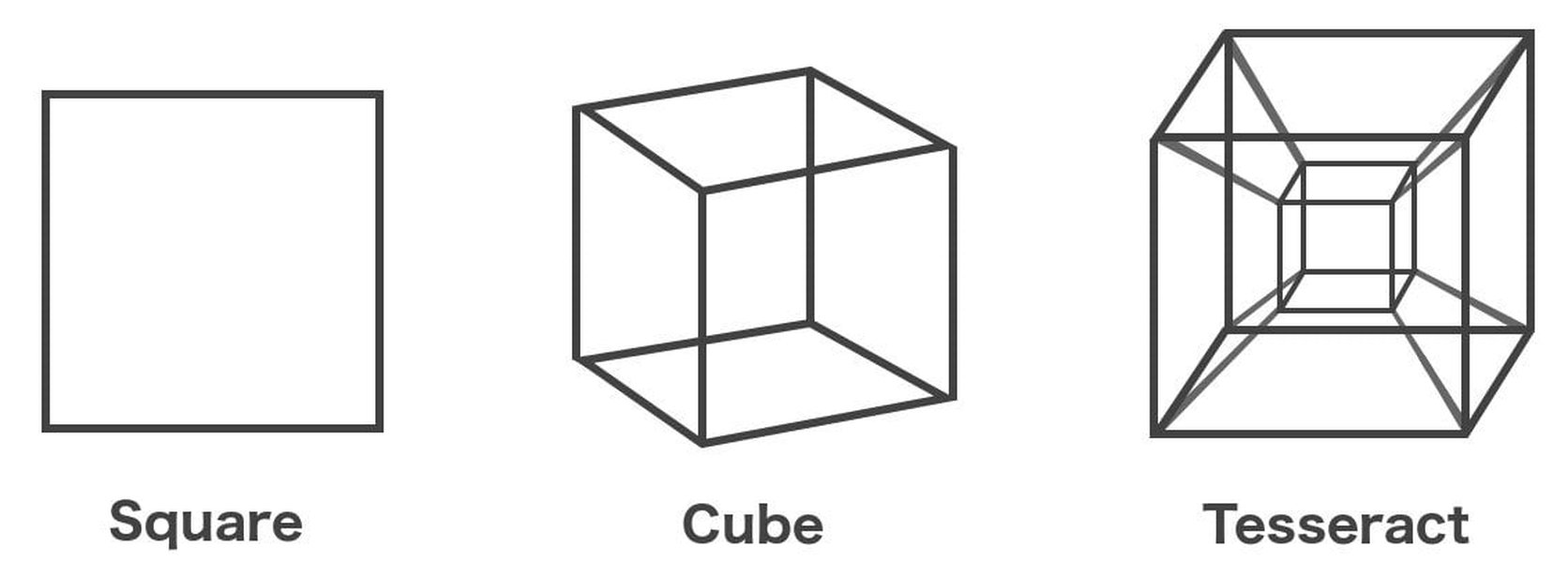
Analogy: A point (0D), line (1D), square (2D), cube (3D), and a projection of a tesseract (4D).
Generating Tesseract Vertices in 4D
The 16 vertices of a tesseract centered at the origin in 4D space can be represented by coordinates where each of the four components is either +1 or -1.
import itertools
import numpy as np

# Generate the 16 vertices of the tesseract in 4D space
vertices_4d = np.array(list(itertools.product([-1, 1], repeat=4)))

print("--- 4D Tesseract Vertices ---")
print(vertices_4d)
print(f"\nTotal vertices: {len(vertices_4d)}")
Projecting and Visualizing in 3D
To visualize the tesseract, we need to project its 4D vertices into 3D space. There are various projection methods. A common one is perspective projection, where points further away in the 4th dimension appear smaller or closer to the center when projected. Another simpler method is orthographic projection, which essentially drops one dimension.
The following code projects the 4D vertices into 3D using a simple perspective projection formula and then uses Matplotlib to plot the projected vertices and the edges connecting them.
import itertools
import numpy as np
import matplotlib.pyplot as plt
# Ensure you have matplotlib installed: pip install matplotlib
# No need for from mpl_toolkits.mplot3d import Axes3D in recent matplotlib versions for basic 3D plot

def project_4d_to_3d_perspective(points_4d, distance=5):
    """Projects 4D points to 3D using perspective projection."""
    # 'w' coordinate (4th dimension) scales the x, y, z coordinates
    # Points with larger 'w' (further away in 4D) are scaled down more
    w = distance / (distance - points_4d[:, 3])
    projected = points_4d[:, :3] * w[:, np.newaxis] # Apply scaling
    return projected

# Generate 4D vertices
vertices_4d = np.array(list(itertools.product([-1, 1], repeat=4)))

# Project vertices to 3D
vertices_3d = project_4d_to_3d_perspective(vertices_4d)

# Identify edges: pairs of vertices that differ in exactly one coordinate
edges = []
num_vertices = len(vertices_4d)
for i in range(num_vertices):
    for j in range(i + 1, num_vertices):
        # Calculate Hamming distance (number of differing coordinates)
        diff = np.sum(vertices_4d[i] != vertices_4d[j])
        if diff == 1:
            edges.append((i, j))

print(f"\nIdentified {len(edges)} edges.")

# Plotting the 3D projection
fig = plt.figure(figsize=(8, 8))
ax = fig.add_subplot(111, projection='3d')

# Plot vertices
ax.scatter(vertices_3d[:, 0], vertices_3d[:, 1], vertices_3d[:, 2], color='red', s=50, label='Vertices')

# Plot edges
for start_idx, end_idx in edges:
    point1 = vertices_3d[start_idx]
    point2 = vertices_3d[end_idx]
    ax.plot(*zip(point1, point2), color='blue', alpha=0.6) # Use zip to unpack coordinates

ax.set_title('3D Perspective Projection of a 4D Tesseract')
ax.set_xlabel('X axis')
ax.set_ylabel('Y axis')
ax.set_zlabel('Z axis')
# Optional: Set limits for better viewing
ax.set_xlim([-2, 2])
ax.set_ylim([-2, 2])
ax.set_zlim([-2, 2])
ax.legend()
ax.grid(True) # Add grid for better spatial perception
plt.show()
This visualization shows a "shadow" or projection of the 4D hypercube in 3D space. The inner and outer cubes represent different cells of the tesseract projected onto each other.
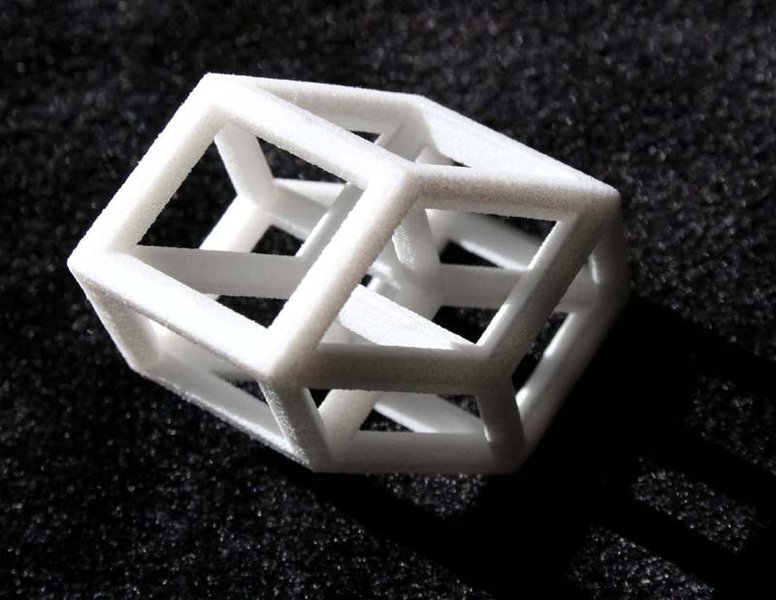
A physical model representing a 3D projection of a tesseract.
Understanding 4D Concepts
Visualizing higher dimensions is conceptually challenging. This video by Carl Sagan provides a classic, intuitive explanation of how one might conceive of a tesseract by analogy with lower dimensions.
Carl Sagan explains the concept of a Tesseract (4D Hypercube).
Comparing the Two "Tesseracts"
The Tesseract OCR engine and the geometric tesseract are fundamentally different concepts often confused due to the shared name. This radar chart highlights some key differences in their implementation aspects within Python.
This chart visually compares the two concepts across several dimensions. For instance, Tesseract OCR generally has higher 'Common Usefulness' for typical software tasks but requires more 'External Dependencies' (the Tesseract engine itself). Conversely, visualizing a geometric tesseract involves higher 'Conceptual Complexity' and 'Visualization Difficulty' due to the nature of 4D space.
Summary Table
Here's a table summarizing the key characteristics of each interpretation:
| Feature | Tesseract OCR (via pytesseract) |
Geometric Tesseract (Visualization) |
|---|---|---|
| Primary Goal | Extract text from images/PDFs | Model/visualize a 4-dimensional hypercube |
| Core Concept | Optical Character Recognition (AI/ML) | Higher-Dimensional Geometry (Mathematics) |
| Key Python Libraries | pytesseract, Pillow, opencv-python, pdf2image |
numpy, matplotlib, itertools |
| External Dependencies | Tesseract OCR engine installation, Poppler (for PDFs) | None (typically relies only on Python libraries) |
| Input | Image files (PNG, JPG, etc.), PDF files | Mathematical definition (vertices, edges) |
| Output | Extracted text (string) | 3D or 2D plot representing a projection |
| Common Applications | Document digitization, data entry automation, reading text in images | Educational visualization, mathematical exploration, computer graphics theory |
Frequently Asked Questions (FAQ)
► How can I improve Tesseract OCR accuracy significantly?
Improving accuracy often involves several strategies:
- Preprocessing: This is crucial. Use libraries like OpenCV to convert the image to grayscale, apply thresholding (adaptive thresholding often works well), remove noise (e.g., using blurring techniques), resize the image (aim for around 300 DPI), and deskew (correct rotation).
- Tesseract Configuration: Experiment with Page Segmentation Modes (PSM) using the
configparameter (e.g.,config='--psm 6'). Different modes are optimized for different page layouts. Check the Tesseract documentation for PSM options (0-13). Also, ensure you're using the best OCR Engine Mode (OEM), though the default (--oem 3) is usually good. - Language Data: Ensure you have the correct and highest quality language data files installed for the language(s) in your document. Specify the correct language using the
langparameter. - Bounding Boxes: If you only need text from specific regions, use functions like
image_to_dataorimage_to_boxesto get bounding box information and extract text only from relevant areas, ignoring noise elsewhere. - Training Tesseract: For highly specific fonts or document types, you can train Tesseract on your own data, but this is an advanced process.
► Can Tesseract OCR handle handwritten text?
Tesseract's primary strength is printed text. While later versions (especially Tesseract 4+) have improved significantly with LSTM models and can recognize *some* neat handwriting, its accuracy on cursive or variable handwriting is generally much lower than for printed text. For robust handwriting recognition, specialized models or cloud-based OCR services (like Google Vision AI, Azure Computer Vision) often perform better.
► Why am I getting errors when processing PDFs with `pdf2image`?
Common issues include:
- Poppler Not Found: `pdf2image` depends on the Poppler PDF rendering library. Ensure Poppler is installed on your system. On Windows, you often need to download Poppler, extract it, and either add its `bin` directory to your system's PATH or explicitly provide the path to `convert_from_path(..., poppler_path='C:\\path\\to\\poppler\\bin')`. On Linux/Mac, install it via package managers (`sudo apt install poppler-utils` or `brew install poppler`).
- Incorrect PDF Path: Double-check that the path to your PDF file is correct and the file exists.
- Permissions: Ensure your script has read permissions for the PDF file.
- Memory Issues: Converting very large or complex PDFs, especially at high DPI, can consume significant memory. Try lowering the DPI or processing the PDF in chunks if possible.
► Can we truly visualize a 4D geometric tesseract?
Humans perceive the world in 3 spatial dimensions. We cannot directly "see" or experience a 4D object in its entirety. What we *can* do is visualize its projections or "shadows" in lower dimensions (3D or 2D), or create representations like unfolded nets (analogous to unfolding a cube into six squares). The Matplotlib code shown creates such a 3D projection. These projections help us understand some of the tesseract's structure and properties mathematically, even if we can't intuitively grasp the full 4D form.
► Are there other ways to visualize a geometric tesseract in Python?
Yes, besides static Matplotlib projections, you can:
- Animations: Create animations showing the tesseract rotating in 4D space, projected into 3D. This helps visualize how its structure changes from different 4D perspectives. Libraries like `matplotlib.animation` can be used.
- Interactive Visualizations: Use libraries like Plotly or PyVista to create interactive 3D plots where you can rotate and zoom the projection.
- Different Projections: Implement other projection methods besides simple perspective or orthographic projection, such as stereographic projection.
- Unfolding (Net): Write code to generate the 8 cubical cells that make up the tesseract's "surface" and visualize how they connect (its 3D net).
Recommended Reading
- Explore advanced techniques for improving Tesseract OCR accuracy using Python and OpenCV.
- Learn about the process of training Tesseract OCR for specific fonts or new languages.
- Discover Python libraries suitable for creating interactive visualizations of 4D objects like the tesseract.
- Delve deeper into the mathematical properties of the tesseract and various methods for its projection.
References
Last updated April 30, 2025