
The Ultimate Guide to Installing QTPlaskin for Plasma Kinetics Analysis
Master the installation process for this powerful ZDPlasKin visualization tool across multiple operating systems
Key Installation Highlights
- Multiple Installation Methods: Choose between direct GitHub cloning, Python package installation (pip), or system package managers
- Cross-Platform Compatibility: QTPlaskin works on Linux, macOS, and Windows with proper dependencies installed
- Recommended Repository: The updated fork at github.com/erwanp/qtplaskin offers improved features and simplified installation
Understanding ZDPlasKin and QTPlaskin
ZDPlasKin (Zero-Dimensional Plasma Kinetics) is a specialized Fortran90 module designed to simulate the time evolution of species densities and gas temperatures in non-thermal plasmas with complex chemistry. It solves differential equations to predict chemical species behavior under electric field influence, making it valuable for research in plasma physics, atmospheric studies, and industrial plasma processes.
QTPlaskin complements ZDPlasKin as a graphical interface tool specifically designed to visualize and analyze results from plasma kinetic simulations. It supports HDF5 data formats and provides an intuitive way to interpret the complex data generated by ZDPlasKin. The software allows researchers to track and analyze species evolution, reaction rates, and other key plasma parameters through its user-friendly interface.
The Relationship Between ZDPlasKin and QTPlaskin
While ZDPlasKin handles the computational heavy lifting by solving complex differential equations, QTPlaskin serves as the visualization front-end that makes the results accessible and interpretable. This separation of concerns follows good software design principles—ZDPlasKin focuses on performance and accuracy in simulation, while QTPlaskin specializes in data visualization and analysis.
Comparative Analysis of QTPlaskin Installation Methods
The radar chart above illustrates a comparison between different QTPlaskin installation approaches. The updated fork by ErwanP shows superiority in ease of installation and feature completeness, while package manager installations offer the simplest setup process but may lack the latest features. The original repository maintains strong performance characteristics but requires more technical expertise during installation.
Step-by-Step Installation Guide for QTPlaskin
Method 1: Installation via Python Package (Recommended)
This method uses the updated fork by ErwanP, which provides a simplified installation process and additional features:
- Set up Python Environment: Install a scientific Python distribution like Anaconda or Miniconda to manage dependencies efficiently.
- Clone the Repository:
git clone https://github.com/erwanp/qtplaskin.git cd qtplaskin - Install QTPlaskin as an Editable Package:
pip install -e .The
-eflag creates an editable installation, allowing you to update the software with a simplegit pullin the qtplaskin directory. - Run QTPlaskin: After installation, you can launch the application with:
qtplaskin
Method 2: Installation from Original Repository
The original repository by aluque provides the standard version of QTPlaskin:
- Install Dependencies: Before proceeding, install required libraries:
sudo apt-get install python3-matplotlib python3-scipy python3-numpy python3-pyqt5 python3-h5py(Command varies by operating system - see dependency section below)
- Clone the Repository:
git clone https://github.com/aluque/qtplaskin.git cd qtplaskin - Follow Installation Instructions: Refer to the INSTALL.txt file within the repository for specific compilation instructions for your system.
Method 3: Using a Conda Environment (Recommended for Scientific Users)
- Create a Dedicated Environment:
conda create --name qtplaskin-env python conda activate qtplaskin-env - Install Required Dependencies:
conda install -c conda-forge numpy scipy h5py matplotlib pip install pyqt5 - Clone and Install QTPlaskin:
git clone https://github.com/erwanp/qtplaskin.git
cd qtplaskin
pip install -e .
System-Specific Considerations
| Operating System | Special Considerations | Dependency Installation |
|---|---|---|
| Windows | May require additional configuration for Fortran compiler if integrating with ZDPlasKin | Best installed through Anaconda/Miniconda |
| macOS | May require Homebrew for some dependencies | brew install python qt5 followed by pip installations |
| Linux (Ubuntu/Debian) | Most straightforward installation process | apt-get install for system packages or use Anaconda |
| Linux (Other distributions) | Package names may vary | Use distribution-specific package manager or Anaconda |
Dependencies and System Requirements
QTPlaskin requires several dependencies to function properly. Ensuring these are correctly installed will prevent most common installation issues.
Core Dependencies
- Python: Compatible with both Python 2.7 and Python 3 (Python 3 recommended)
- NumPy and SciPy: For numerical computations and data processing
- Matplotlib: For data visualization and plotting
- PyQt5: For the graphical user interface
- h5py: For handling HDF5 data files generated by ZDPlasKin
Hardware Requirements
QTPlaskin is relatively lightweight, but for comfortable operation, the following specifications are recommended:
- Modern processor (dual-core or better)
- 4GB+ RAM for handling larger simulation datasets
- Screen resolution of at least 1280×720 for optimal UI experience
ZDPlasKin Integration
If you're planning to run both ZDPlasKin and QTPlaskin on the same system, you'll need additional components:
- Fortran compiler (gfortran recommended)
- SUNDIALS library for solving differential equations
- DVODE or CVODE solvers (part of SUNDIALS)
QTPlaskin Software Architecture
The mindmap above illustrates the structure of the QTPlaskin ecosystem, showing how various components interact and the different installation methods available. Understanding this architecture helps users choose the most appropriate installation approach for their needs.
Video Tutorial: ZDPlasKin Installation
While this guide focuses on QTPlaskin, understanding ZDPlasKin installation is helpful for users who want to set up the complete workflow. The following tutorial video by Natalie Parker provides a step-by-step guide to installing ZDPlasKin, which can be useful as a precursor to setting up QTPlaskin.
This tutorial covers the basic installation process for ZDPlasKin and briefly mentions QTPlaskin. It provides context for understanding how these tools work together in a plasma simulation workflow. The tutorial is part of a series that progressively covers more advanced topics, including running simulations and analyzing results.
QTPlaskin User Interface
Once installed, QTPlaskin provides a powerful graphical interface for analyzing ZDPlasKin results. Here's what you can expect from the interface:
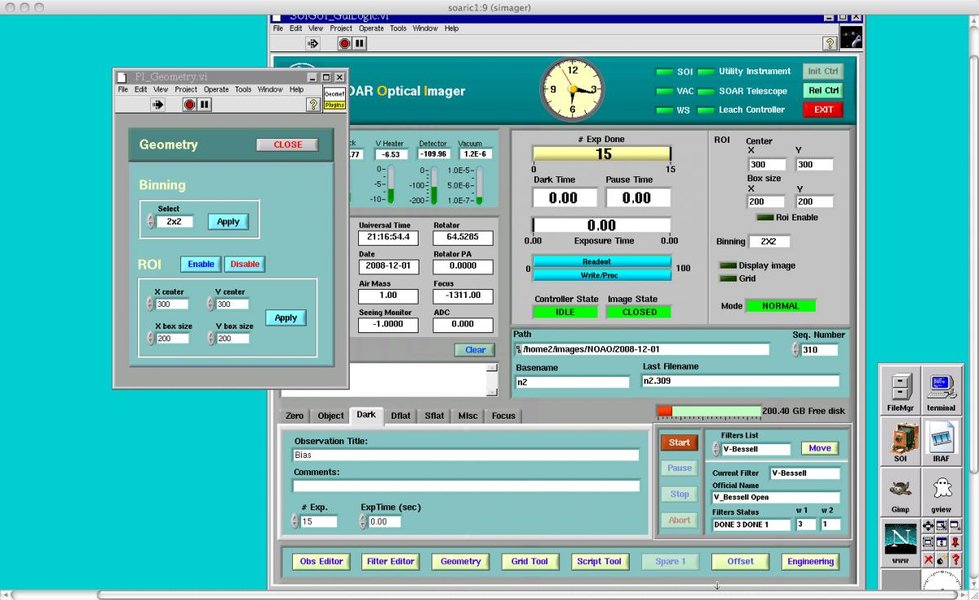
While this image is not specifically of QTPlaskin (as exact QTPlaskin screenshots weren't provided in the media sources), it illustrates the type of data visualization interface you'll encounter. QTPlaskin offers similar capabilities for visualizing plasma simulation data, including time evolution plots, reaction rate analyses, and species concentration tracking.
Key Interface Features
- Multi-panel visualization: View different aspects of simulation data simultaneously
- Interactive plotting: Zoom, pan, and select specific data ranges
- Species selection: Choose which plasma species to display
- Reaction analysis: Identify key reactions affecting plasma behavior
- Data export: Save processed data and figures for publications or presentations
Troubleshooting Common Installation Issues
Dependency Problems
Most installation issues stem from missing or incompatible dependencies. If you encounter errors, ensure all required libraries are installed and compatible with your Python version.
PyQt5 Errors
If you encounter Qt dependency errors, try:
pip uninstall pyqt5 pyqt5-sip
pip install pyqt5
Missing Libraries
For "module not found" errors, install the missing library with pip:
pip install [missing-library-name]Platform-Specific Issues
Windows Path Issues
On Windows, ensure Python and installed scripts are in your PATH. You can add them temporarily in a command prompt:
set PATH=%PATH%;C:\Path\to\Python\ScriptsLinux Permission Issues
If you encounter permission problems when running QTPlaskin, ensure the script is executable:
chmod +x /path/to/qtplaskin/scriptFrequently Asked Questions
References
- ZDPlasKin Official Website - Université de Toulouse
-
QTPlaskin Original Repository - GitHub (aluque)
- QTPlaskin Updated Fork - GitHub (erwanp)
- ZDPlasKin Discussion Group - Google Groups
- ZDPlasKin Download Page - Université de Toulouse
- ZDPlasKin Tutorials Video 1: Installation - YouTube
- ZDPlasKin Tutorials Video 3: Example 1 - YouTube
Recommended Searches
Last updated April 8, 2025