
Unlocking QubesOS: WiFi Hotspot over VPN and Tor
A comprehensive step-by-step guide to secure networking using two Alfa WiFi adapters with Mullvad VPN
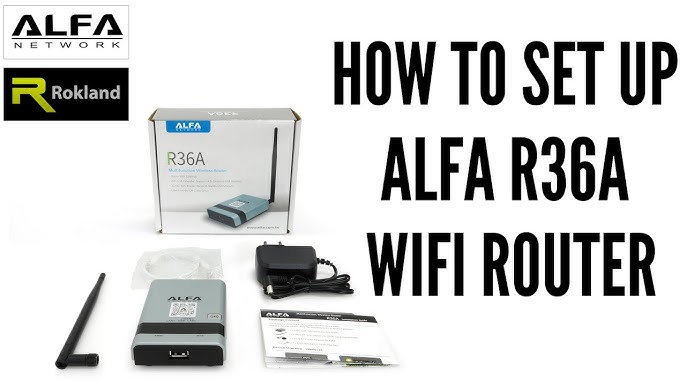
Key Highlights
- Secure VM Configuration: Separate VMs for VPN, Tor routing, and hotspot to compartmentalize network activities.
- Dual Alfa WiFi Adapters: One adapter acts as the WiFi client for internet access while the other creates a secure hotspot.
- Robust Privacy: Integrates Mullvad VPN over Tor ensuring that all station traffic is routed via secure tunnels.
Introduction
This guide provides clear, step-by-step instructions for setting up QubesOS as a secure WiFi hotspot that routes its traffic through Mullvad VPN over Tor. Using two Alfa WiFi adapters, one is dedicated to obtaining internet connectivity, while the other creates the hotspot. This configuration is especially beneficial for users who demand a highly compartmentalized and privacy-oriented networking solution.
Prerequisites and Preparation
Hardware and Software Requirements
Ensure you have the following before beginning the setup:
- QubesOS installed and fully updated (recommended version QubesOS 4 or later).
- Two Alfa WiFi adapters recognized by QubesOS (one for WiFi client and one for hotspot).
- A Mullvad VPN subscription with access credentials and configuration files (e.g., .ovpn files).
- Basic command line knowledge and familiarity with QubesOS VM management.
- Packages: OpenVPN (or WireGuard), hostapd for hotspot creation, dnsmasq for DHCP and DNS services, and Tor (or sys-whonix template) for anonymity.
Step-by-Step Configuration
Step 1: Environment Preparation and VM Creation
1.1 Update QubesOS and Install Required Templates
Start by ensuring your Qubes installation is up-to-date:
sudo qubes-dom0-updateInstall necessary templates (typically Fedora or Debian) that will be used for the VPN and hotspot VMs.
1.2 Create Dedicated VMs
You need to create several AppVMs to separate different networking components:
- VPN VM (vpn-mullvad): Configured to route traffic through Mullvad’s VPN.
- Tor Gateway VM (sys-whonix or tor-vm): Ensures traffic is routed over Tor; you may use the sys-whonix template if available.
- Hotspot VM (hotspot-vm): Uses the second Alfa WiFi adapter to serve as the WiFi hotspot.
- WiFi Client/Internet VM (client-vm): Optionally, for the first Alfa adapter, create a dedicated net VM that connects to the internet. This VM can supply network access to the VPN and Tor VMs if required.
Step 2: Configuring the Alfa WiFi Adapters
2.1 Assigning the First Alfa Adapter (WiFi Client)
The first Alfa adapter is used for connecting to an existing WiFi network providing internet access. In Qubes Manager:
- Right-click on your designated client VM (or VPN VM if merging roles) and select “Settings”.
- Under the Devices tab, attach the first Alfa WiFi adapter.
- Ensure it is configured under the VM’s network manager to join your available WiFi.
2.2 Assigning the Second Alfa Adapter (Hotspot)
The second Alfa adapter is dedicated to creating the hotspot. In Qubes Manager:
- Select the hotspot VM and attach the second Alfa adapter under Devices.
- Confirm that it is detected by the VM once booted up.
Step 3: Setting Up Mullvad VPN in the VPN VM
3.1 Installing VPN Software
Enter your VPN VM (vpn-mullvad) and install your chosen VPN client, such as OpenVPN:
sudo apt update
sudo apt install openvpn
3.2 Configure Mullvad VPN
Place your Mullvad configuration file (.ovpn) in the VPN VM and connect using:
sudo openvpn --config /path/to/mullvad_config.ovpnVerify that you’re connected to Mullvad by checking your IP address:
curl https://am.i.mullvad.net/connectedIf you require WireGuard instead, follow similar guidelines with the WireGuard client.
Step 4: Integrating Tor
4.1 Tor Gateway Setup
If using sys-whonix, follow the official documentation to get your Tor gateway working. Alternatively, if setting up a dedicated Tor VM:
- Install Tor in the VM (e.g., using
sudo apt install tor). - Ensure proper configuration so that this VM routes traffic over the Tor network.
- Configure the VPN VM or client VM to use the Tor VM as its NetVM if you intend to run VPN over Tor.
In many cases, routing VPN VM traffic through Tor enhances anonymity, though it may introduce latency.
4.2 Network Routing: VPN over Tor
Adjust your VM settings so that the VPN VM’s NetVM is set to your Tor gateway (sys-whonix or tor-vm). In Qubes Manager:
- Select the VPN VM, navigate to settings, and under Networking, set the NetVM to your Tor VM.
- This configuration ensures that all traffic in the VPN VM (and consequently in the hotspot) goes through Tor first, then through Mullvad VPN.
Step 5: Configuring the WiFi Hotspot in the Hotspot VM
5.1 Install Hostapd and Dnsmasq
In the hotspot VM (hotspot-vm), update your package manager and install the required software:
sudo apt update
sudo apt install hostapd dnsmasq
5.2 Configure Hostapd
Edit the Hostapd configuration file (usually /etc/hostapd/hostapd.conf) using your favorite text editor. An example configuration is:
interface=wlan1           # Replace with your second adapter's interface
driver=nl80211
ssid=SecureHotspot          # Desired network name
hw_mode=g
channel=6
wmm_enabled=1
macaddr_acl=0
auth_algs=1
ignore_broadcast_ssid=0
wpa=2
wpa_passphrase=Your_Secure_Password   # Set a strong password
rsn_pairwise=CCMP
5.3 Configure Dnsmasq
Create or modify the dnsmasq configuration file (typically /etc/dnsmasq.conf) to define your DHCP settings. A basic configuration is:
interface=wlan1          # Your hotspot interface
dhcp-range=192.168.1.2,192.168.1.20,12h
5.4 Enable IP Forwarding and Configure NAT
For the hotspot to route traffic correctly through the VPN over Tor chain, enable IP forwarding within the hotspot VM:
echo 1 | sudo tee /proc/sys/net/ipv4/ip_forwardTo make the change permanent, add or uncomment the following line in /etc/sysctl.conf:
net.ipv4.ip_forward=1
Configure NAT (Network Address Translation) to forward traffic from the hotspot VM through the VPN interface. For example, if your VPN interface is tun0, add the following iptables rule:
sudo iptables -t nat -A POSTROUTING -o tun0 -j MASQUERADEStep 6: Starting Services and Testing
6.1 Start the Hotspot Service
Start hostapd and dnsmasq in the hotspot VM:
sudo systemctl start hostapd
sudo systemctl start dnsmasq
sudo systemctl enable hostapd
sudo systemctl enable dnsmasq
6.2 Testing the Hotspot
On a client device (such as a smartphone or another laptop), search for your SSID (e.g., SecureHotspot). Connect using the password provided in the hostapd configuration. Once connected, verify that the traffic is passing through the VPN and subsequently through Tor by checking your public IP and performing DNS leak tests:
curl https://am.i.mullvad.net/connectedAdditionally, you can use online tools to verify that DNS requests are not leaking, ensuring maximum privacy.
Step 7: Integrating Configuration Components with a Summary Table
Below is a summary table that outlines the main components and their configuration roles:
| Component | Assigned Role | Key Configuration |
|---|---|---|
| VPN VM (vpn-mullvad) | Establishing Mullvad VPN connection | Configuring OpenVPN/WireGuard with Mullvad .ovpn file and firewall rules |
| Tor Gateway VM (sys-whonix/tor-vm) | Routing traffic via Tor | Setting NetVM for VPN VM to use Tor for anonymization |
| Client/WiFi Adapter VM | Connecting to an existing WiFi network | Utilizing first Alfa adapter to acquire internet access |
| Hotspot VM (hotspot-vm) | Creating WiFi hotspot for devices | Using hostapd, dnsmasq, and iptables for NAT & forwarding |
Maintenance and Security Considerations
Regular Updates
Always keep your QubesOS, templates, and individual VMs updated to ensure the latest security patches are applied. Regularly update the VPN configuration and monitor any Tor or network software for vulnerabilities.
Firewall and DNS Leak Prevention
It is crucial to maintain strict firewall rules across your VMs. Verify that traffic from the hotspot VM is only forwarded via the IP address of your VPN connection. Use DNS leak test services to confirm your DNS queries resolve through the VPN Tunnel.
Backup and Documentation
Document your setup, including custom configuration files and scripts. Regular backups of this documentation can help you quickly restore your secure configuration in the event of system changes or failures.
References
- GitHub - Qubes VPN Support - GitHub
- Mullvad VPN Setup Guide - Mullvad
- Qubes OS Documentation - Qubes OS Project
- VPN before Tor - Whonix
-
Hostapd and Access Point Setup - Debian Wiki
Recommended Related Queries
Last updated March 25, 2025