
Unlock a Responsive Taskbar: The Secret to Refreshing Windows 11 Without a Reboot!
Discover how to instantly revive your Windows 11 taskbar by targeting the right process, not a traditional service.
If your Windows 11 taskbar becomes unresponsive, frozen, or isn't displaying correctly, you might be looking for a quick fix without the hassle of a full system reboot. While your query mentions looking for a "service listed in services" (typically found in services.msc), the solution to refresh the taskbar lies elsewhere. Let's explore the correct approach.
Essential Insights: Key Takeaways
- The taskbar's behavior is primarily managed by the Windows Explorer (
explorer.exe) process, not a distinct service in the Windows Services console. - To refresh an unresponsive or glitchy taskbar without restarting your computer, you need to restart the Windows Explorer process.
- This can be accomplished through several methods, most commonly via the Task Manager or by using Command Prompt/PowerShell commands.
Understanding the Taskbar's Guardian: Not a Service, but a Process
It's a common misconception that every core Windows component is managed by a dedicated service that can be found in the Services management console (services.msc). However, the Windows 11 taskbar, along with the Start menu, desktop icons, and File Explorer windows, is part of the Windows Shell, which is handled by a crucial process called Windows Explorer (explorer.exe).
Therefore, to "refresh" the taskbar, you aren't looking to stop and start a traditional background service. Instead, you'll be restarting the explorer.exe process. This action effectively reloads the user interface elements it controls, often resolving minor glitches or unresponsiveness.
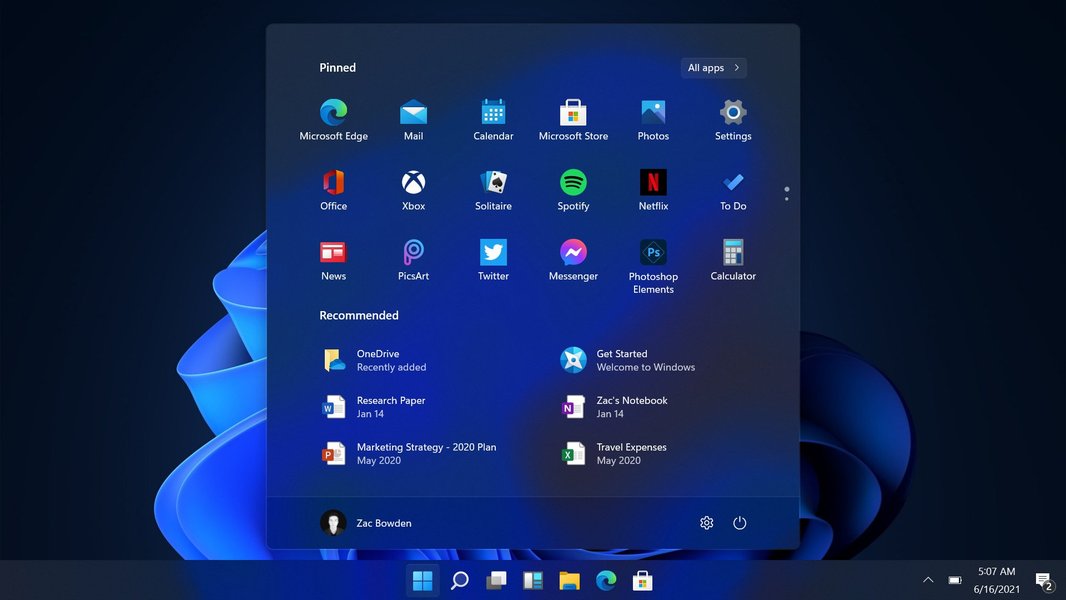
The Windows 11 taskbar, featuring the centered Start menu and app icons.
Refreshing the Taskbar: The Windows Explorer Restart Method
There are two primary methods to restart the Windows Explorer process and, consequently, refresh your taskbar without a full system reboot.
Method 1: Using Task Manager (Recommended)
Task Manager provides a graphical interface to manage running applications and processes, making it a user-friendly way to restart Windows Explorer.
Step-by-Step Guide:
- Open Task Manager:
- Press
Ctrl + Shift + Escon your keyboard to open Task Manager directly. - Alternatively, press
Ctrl + Alt + Deland select "Task Manager" from the options. - You can also right-click the Start button and select "Task Manager."
- Press
- Locate Windows Explorer:
- If Task Manager opens in a compact view, click "More details" at the bottom to expand it.
- Navigate to the "Processes" tab.
- Scroll down the list. You'll find "Windows Explorer" typically listed under "Apps" (if you have File Explorer windows open) or under "Windows processes."
- Restart Windows Explorer:
- Right-click on "Windows Explorer."
- Select "Restart" from the context menu. In some versions, this might be labeled "Restart task."
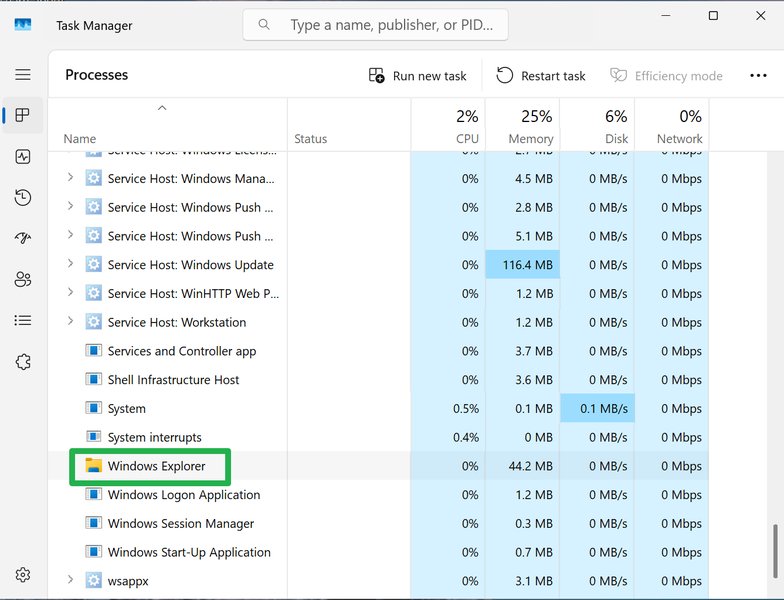
Windows Explorer process highlighted in Task Manager, ready to be restarted.
Upon restarting, your desktop icons, taskbar, and Start menu will momentarily disappear and then quickly reappear, refreshed. This usually resolves temporary taskbar glitches.
Method 2: Using Command Prompt or PowerShell
For users comfortable with command-line interfaces, restarting Windows Explorer can also be done via Command Prompt or PowerShell. This method can be particularly useful if Task Manager is also unresponsive.
Step-by-Step Guide:
- Open Command Prompt or PowerShell as Administrator:
- Type
cmd(for Command Prompt) orpowershell(for PowerShell) in the Start menu search bar. - Right-click on the result ("Command Prompt" or "Windows PowerShell").
- Select "Run as administrator."
- Type
- Execute the Commands:
- To forcefully stop the Windows Explorer process, type or paste the following command and press Enter:
taskkill /f /im explorer.exe - To restart the Windows Explorer process, type or paste the following command and press Enter:
start explorer.exe - Alternatively, you can combine these into a single command line in Command Prompt:
taskkill /f /im explorer.exe && start explorer.exe
- To forcefully stop the Windows Explorer process, type or paste the following command and press Enter:
Similar to using Task Manager, this will cause the taskbar and desktop to disappear briefly before reloading.
Why Restarting Windows Explorer Works
The explorer.exe process is fundamental to the Windows graphical shell. When it encounters temporary errors, memory leaks, or conflicts with other applications or system updates, its components—including the taskbar—can malfunction. Restarting explorer.exe clears its current state and reinitializes it, often resolving these transient issues without requiring you to close your open applications or reboot the entire operating system.
Visualizing Taskbar Management Components
The Windows Explorer process (explorer.exe) is central to many user interface elements beyond just the taskbar. Understanding its scope helps clarify why restarting it has such a broad impact on the visual shell of Windows. The mindmap below illustrates these relationships:
As shown, explorer.exe is a multifaceted process. When you restart it, you are essentially giving a fresh start to the entire user-facing shell, which is why it's an effective troubleshooting step for taskbar issues.
Comparing Taskbar Refresh Methods: Task Manager vs. Command Line
Both Task Manager and Command Line methods achieve the same goal of restarting explorer.exe, but they differ in ease of use, speed, and technical skill required. The radar chart below provides a visual comparison based on several factors. The scores are on a scale of 2 to 10, where higher is generally better or indicates a higher requirement.
The Task Manager method is generally easier for most users, while the command line offers more direct control and can be faster for those familiar with the commands. Note that for 'Technical Skill Required', a lower score indicates it's easier to use.
Troubleshooting Taskbar Issues: A Video Guide
Sometimes, taskbar problems can be multifaceted. While restarting Windows Explorer is a primary fix, other issues might require additional steps. The video below provides a broader overview of troubleshooting common Windows 11 taskbar problems, including unresponsive behavior or visual glitches. Restarting Windows Explorer is often one of the first steps in these guides.
Video guide on fixing various Windows 11 taskbar issues.
This video, "Fix Taskbar Not Working In Windows 11 | Blank, Unresponsive ..." by Technology Guy, covers various solutions including restarting Windows Explorer, checking for updates, and repairing system files, which can be helpful if a simple restart of explorer.exe doesn't suffice.
Key Differences: Process vs. Service
Understanding the distinction between a Windows Process (like explorer.exe) and a Windows Service is crucial for effective troubleshooting. The table below highlights their key differences:
| Feature | Windows Process (e.g., explorer.exe) |
Windows Service (e.g., Print Spooler) |
|---|---|---|
| Primary Role | Manages interactive user interface elements, user-launched applications, and some system tasks visible to the user. | Runs background tasks, system-level functions, and operations often without direct user interaction (e.g., networking, updates, printing). |
| User Interaction | Often directly interactive (e.g., File Explorer windows, application GUIs). explorer.exe provides the shell you interact with. |
Typically runs in the background. Users might interact indirectly (e.g., printing a document which uses the Print Spooler service). |
| Visibility & Management | Visible and manageable in Task Manager's "Processes" or "Details" tab. | Managed via the Services console (services.msc). Also listed in Task Manager's "Services" tab. |
| Lifecycle | Can be initiated by the user or system. Some processes (like explorer.exe for the user shell) start at login and end at logoff. Application processes end when the app is closed. |
Can be configured to start automatically with Windows, manually, or be triggered by an event. Many services run continuously, even if no user is logged in. |
| Example for UI Refresh | Restarting explorer.exe refreshes the taskbar, desktop, and Start Menu. |
Services generally do not directly control these core UI elements. Restarting a service typically affects its specific background function. |
| Impact of Restart | Restarting explorer.exe will briefly make the desktop and taskbar disappear and then reappear. Open applications are usually unaffected. |
Restarting a service will stop and then restart its specific background operations. This might temporarily interrupt functions dependent on that service. |
This distinction clarifies why you target explorer.exe for taskbar issues rather than looking through the list of system services.
Frequently Asked Questions (FAQ)
Is there a specific "Taskbar Service" I can restart in the Services app (services.msc)? ▼
No, the Windows 11 taskbar is not managed by a standalone service listed in the Services console (services.msc). Instead, its functionality is integral to the Windows Explorer (explorer.exe) process, which handles the overall graphical shell of the operating system, including the desktop, Start menu, and File Explorer windows.
What exactly happens when I restart Windows Explorer? Will my open applications close? ▼
When you restart Windows Explorer (explorer.exe), the taskbar, desktop icons, Start menu, and any open File Explorer windows will temporarily disappear and then reload. This process effectively refreshes these shell components. Importantly, restarting Windows Explorer generally does not close your other open applications (like web browsers, document editors, etc.). They should remain running and accessible once the shell reloads, although their taskbar icons will vanish and reappear.
Can I create a shortcut or script to restart Windows Explorer quickly? ▼
Yes, you can create a batch file (.bat) or a PowerShell script (.ps1) to automate the process. For a batch file, you could use the command:
@echo off
taskkill /f /im explorer.exe
start explorer.exe
exit
Save this as a .bat file (e.g., RestartExplorer.bat) and run it when needed. This can be a convenient way to quickly refresh your taskbar if you encounter issues frequently.
What if restarting Windows Explorer doesn't fix my taskbar issue? ▼
If restarting Windows Explorer doesn't resolve the problem, it might indicate a more persistent issue. Consider these further troubleshooting steps:
- Check for Windows Updates: Ensure your system is up to date, as updates can fix known bugs. Conversely, a recent problematic update might be the cause, which might require uninstalling.
- Run System File Checker (SFC): Corrupted system files can cause various issues. Open Command Prompt as administrator and run
sfc /scannow. - Run DISM Tool: If SFC finds issues it can't repair, the Deployment Image Servicing and Management (DISM) tool can help. Use commands like
DISM /Online /Cleanup-Image /RestoreHealthin an admin Command Prompt. - Check for Malware: Malicious software can interfere with system processes. Perform a full system scan with your antivirus software.
- Review Third-Party Applications: Some applications, especially those that modify the UI, can conflict with the taskbar. Try disabling or uninstalling recently installed software.
- Consider User Profile Corruption: In rare cases, the user profile might be corrupted. Try creating a new user account to see if the issue persists there.
Recommended Further Exploration
To deepen your understanding of Windows 11 taskbar management and troubleshooting, consider exploring these related queries:
- How can I extensively customize the Windows 11 taskbar appearance and behavior?
- What are the most common causes for Windows Explorer (explorer.exe) to crash or become unresponsive in Windows 11?
- What are the advanced troubleshooting steps if my Windows 11 taskbar is completely blank or missing?
- What are the key differences and interactions between Windows processes, services, and applications?
References
Last updated May 16, 2025