
Revitalize Your iMac: A Comprehensive Guide to Troubleshooting and Repair
From Software Glitches to Hardware Fixes: Empowering You to Restore Your iMac's Performance
Key Insights for iMac Repair
- Start Simple: Many iMac issues, especially software-related ones, can be resolved with basic troubleshooting steps like restarting, updating macOS, or force quitting unresponsive applications before attempting more complex repairs.
- Leverage Apple Diagnostics and Repair Manuals: For hardware issues, Apple Diagnostics can pinpoint problems, while official Apple Repair Manuals and resources from iFixit provide detailed, step-by-step instructions for self-service repairs, including part replacement.
- Consider Professional Help for Complex Issues: While many repairs are DIY-friendly with the right resources, certain intricate repairs, especially those involving the logic board or complex display assemblies on newer, sealed iMac models, may require the expertise of Apple Authorized Service Providers or professional repair shops.
Repairing an iMac can range from straightforward software troubleshooting to complex hardware replacements, depending on the nature of the problem. iMacs are known for their integrated, all-in-one design, which can make hardware repairs more challenging than with other desktop computers. However, with the right approach and resources, many common issues can be resolved at home. This guide will walk you through a systematic process, starting with basic troubleshooting and moving into more advanced repair techniques.
Initial Troubleshooting Steps: The Foundation of Repair
Addressing Common Software and Minor Glitches
Before diving into physical repairs, it's crucial to exhaust basic troubleshooting steps. Many performance issues, application crashes, or minor glitches are software-related and can often be fixed without opening your iMac.
Restart Your iMac
The simplest solution often proves to be the most effective. A quick restart can clear temporary glitches, refresh the system, and resolve unresponsive applications. For desktop systems like the iMac, if it's completely frozen, you might need to disconnect the power cord, wait 15 seconds, plug it back in, and then wait another five seconds before attempting to turn it on again.
Update macOS and Applications
Outdated software can lead to compatibility issues, performance slowdowns, and security vulnerabilities. Regularly checking for and installing macOS updates ensures your system benefits from the latest bug fixes and performance enhancements. Similarly, keeping all your applications updated can prevent crashes and improve stability.
Force Quit Unresponsive Applications
If a specific application is causing your iMac to freeze or become sluggish, force quitting it can often resolve the immediate issue. You can do this by pressing Cmd + Option + Escape or by clicking the Apple menu and selecting "Force Quit."
Clear Safari Cache and Cookies
Browser-related issues, such as slow loading times or website display problems, can often be resolved by clearing Safari's history, cache, and cookies. This removes corrupted data that might be interfering with your browsing experience.
Run Disk Utility's First Aid
Disk Utility is a built-in macOS tool that can diagnose and repair problems with your hard drive or SSD. Running "First Aid" can detect and fix directory structure errors, which can sometimes cause performance issues or prevent your iMac from booting correctly. To access Disk Utility, you can boot into macOS Recovery Mode (restart your Mac and hold Cmd + R).
Here's a quick overview of these initial steps:
| Troubleshooting Step | Description | When to Use |
|---|---|---|
| Restart iMac | Power cycle the device to clear temporary issues. | General unresponsiveness, minor glitches. |
| Update macOS/Apps | Install the latest software versions for bug fixes and performance. | System instability, app crashes, security concerns. |
| Force Quit Apps | Terminate unresponsive applications. | Specific app freezing or high resource usage. |
| Clear Safari Cache | Remove browsing data to resolve browser-related issues. | Slow web browsing, display issues on websites. |
| Run Disk Utility First Aid | Check and repair disk errors. | Slow performance, boot issues, suspected disk corruption. |
Diagnosing Hardware Issues: When Software Isn't Enough
Utilizing Apple's Diagnostic Tools
If basic troubleshooting doesn't resolve the issue, especially if you suspect a hardware problem, Apple provides tools to help identify the faulty component.
Apple Diagnostics (or Apple Hardware Test)
Apple Diagnostics is a built-in tool that can test your Mac for hardware issues related to components like the logic board, memory, and wireless modules. To run it, disconnect all external devices except your keyboard, mouse, display, and Ethernet connection (if used), then restart your Mac and immediately press and hold the D key. If your Mac doesn't start using macOS, you may still be able to start it with Apple Diagnostics.
Here's a visual representation of how different troubleshooting approaches stack up against various common iMac issues. This radar chart evaluates the effectiveness of different solutions across various problem categories, with higher values indicating greater effectiveness.
Self-Service Repair: DIY with Confidence
Accessing Official Resources and Community Support
Apple has increasingly supported self-service repair, providing access to genuine parts, tools, and repair manuals for out-of-warranty repairs. Independent platforms like iFixit also offer extensive free guides and community support.
Official Apple Repair Manuals and Self Service Repair Store
Apple's Self Service Repair program offers official repair manuals for various Mac models, including iMacs. These manuals provide detailed technical instructions for troubleshooting and replacing parts. You can also purchase genuine Apple parts and specialized tools directly from the Self Service Repair Store. This initiative empowers users to perform their own repairs with the same resources used by Apple-certified technicians.
For example, if you have a newer iMac, you can find repair manuals for models like the iMac (24-inch, 2024, Four ports) or iMac (24-inch, 2024, Two ports).
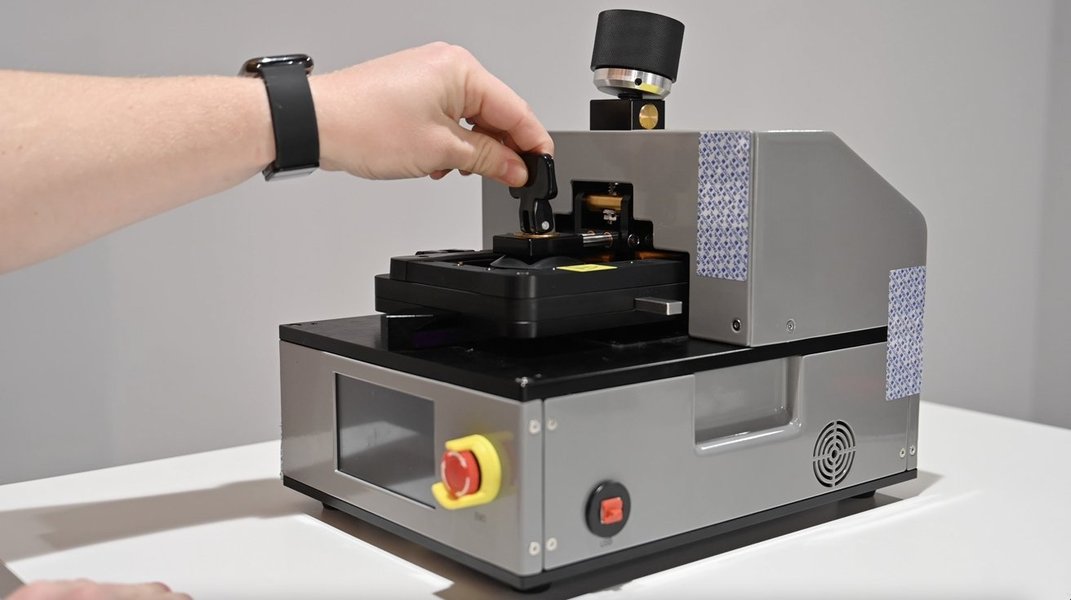
An example of specialized tools provided by Apple for self-service repairs, such as a display heater.
iFixit: Community-Driven Repair Guides
iFixit is an invaluable resource for DIY repairs, offering hundreds of free, step-by-step repair guides for almost every iMac model produced since 2004. These guides include detailed disassembly instructions, model identification tips, troubleshooting techniques, and upgrade information, often accompanied by high-quality photography and clear directions. They also offer an online store for parts like RAM, hard drives, power supplies, and specialized tools.
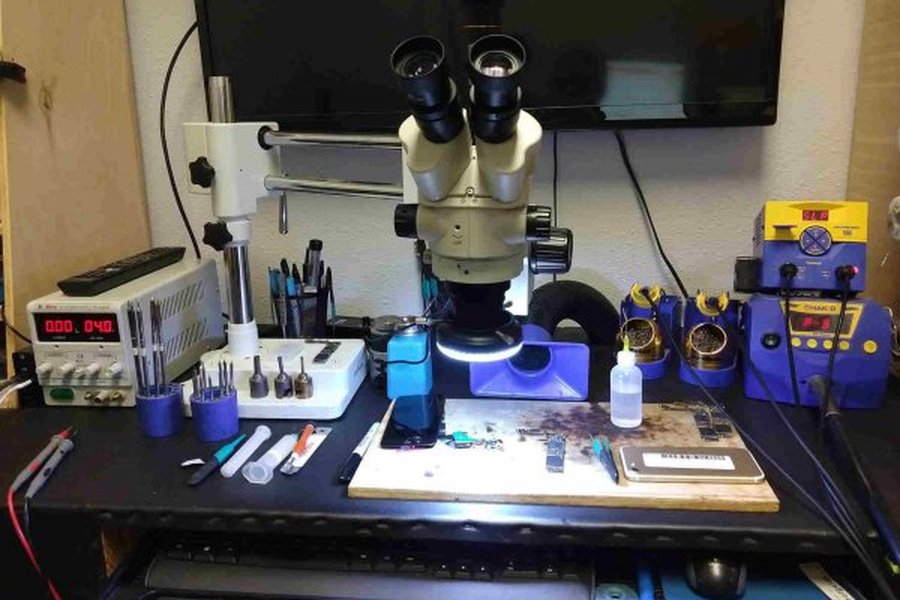
A typical workbench setup for self-service repair, featuring a variety of tools.
Common iMac Hardware Replacements
While newer iMacs are more challenging to open due to their sealed design, older models (especially 27-inch iMacs from 2012 onwards) often allow for user-upgradable RAM without display removal. Common parts that are often replaced in iMacs include the storage (SSD/HDD), graphics card, logic board, and power supply. Display issues, such as horizontal lines or a black screen, might sometimes be linked to internal cable problems or the display panel itself.
Advanced Troubleshooting and Repair Scenarios
Tackling More Complex Problems
Some issues require more in-depth solutions or a deeper understanding of macOS.
Reinstalling macOS
If hardware diagnostics come back clean but your iMac still misbehaves (e.g., persistent startup errors, crashes, or severe performance degradation), reinstalling macOS can often resolve a wide range of software-related problems without losing user data. This is typically done through macOS Recovery Mode.
This video provides a step-by-step guide on how to fix macOS startup errors, including reinstalling macOS using a USB installer or Internet Recovery. It's highly relevant for users encountering severe software issues that prevent their iMac from booting correctly, offering practical solutions before considering hardware intervention.
Resetting SMC and NVRAM/PRAM
These are low-level system resets that can resolve issues related to power management, startup, display, and fan behavior.
- SMC (System Management Controller) Reset: Affects power, battery management, fan behavior, and other low-level functions. For an iMac, you typically unplug the power cord for 15 seconds, then plug it back in and wait 5 seconds before pressing the power button.
- NVRAM/PRAM (Non-Volatile Random-Access Memory/Parameter RAM) Reset: Clears user settings for sound volume, display resolution, startup disk selection, and recent kernel panic information. To reset, restart your Mac and immediately press and hold
Option + Command + P + Rfor about 20 seconds until your Mac restarts a second time.
Dealing with Unresponsive Peripherals or Ports
If USB-C, Thunderbolt, Bluetooth, or Wi-Fi connectivity issues arise, first check cables and restart. For persistent problems, Apple Diagnostics can help identify hardware faults. For Wi-Fi or Bluetooth, toggling them off and on, forgetting and re-adding devices, or checking network settings can often resolve minor glitches.
Addressing Display and Image Issues
Display problems like horizontal lines, flickering, or no image can stem from various sources, including faulty cables, graphics cards, or the display panel itself. While some issues might be simple connection problems, others may necessitate internal repair or component replacement.
When to Seek Professional Help
Understanding the Limits of DIY Repair
While self-service options are increasingly available, some iMac repairs are highly complex and best left to professionals. Newer iMac models, with their increasingly integrated and sealed designs, can be particularly challenging to repair without specialized tools and expertise. Components like the logic board, which integrates the CPU and GPU, are often considered non-user-serviceable in modern iMacs.
If you encounter any of the following, consider professional assistance from an Apple Authorized Service Provider or a reputable third-party repair shop:
- The issue persists after exhausting all basic and advanced troubleshooting steps.
- You lack the necessary specialized tools or feel uncomfortable with the intricate disassembly required for certain repairs.
- The repair involves highly sensitive components like the logic board, which can be easily damaged.
- Your iMac is still under warranty or covered by AppleCare, as DIY repairs might void the warranty.
- You're dealing with a complex issue that requires specialized diagnostic equipment beyond what Apple Diagnostics offers.
Maintaining Your iMac for Longevity
Preventative Measures to Avoid Future Problems
Regular maintenance is key to extending the life of your iMac and preventing many common issues.
- Regular Software Updates: Always keep macOS and all applications updated.
- Sufficient Storage Space: Ensure your startup disk has enough free space (at least 15-20%) for optimal performance.
- Backup Your Data: Regularly back up your iMac using Time Machine or other backup solutions to protect against data loss in case of hardware failure.
- Proper Ventilation: Ensure your iMac has adequate airflow and is not placed in an enclosed space, as overheating can lead to hardware issues.
- Use a UPS: An Uninterruptible Power Supply (UPS) can protect your iMac from power fluctuations and sudden outages, which can prevent unexpected shutdowns and potential component damage.
Frequently Asked Questions (FAQ)
Can I really repair my iMac at home?
What is the most common reason for an iMac to stop working?
How do I know if my iMac problem is software or hardware?
Where can I get genuine Apple parts for self-repair?
Is it worth repairing an old iMac?
Conclusion
Repairing an iMac, whether it's a software glitch or a hardware malfunction, typically begins with a systematic approach. By starting with basic troubleshooting steps, leveraging Apple's diagnostic tools, and consulting comprehensive repair guides from Apple or iFixit, you can resolve many issues yourself. While the all-in-one design of iMacs can present challenges for hardware repairs, especially on newer models, access to official manuals and community support makes DIY repairs increasingly feasible. For complex internal component failures or when specialized tools and expertise are required, professional service remains the safest and most reliable option to restore your iMac to optimal performance.
Recommended Searches
- Explore advanced macOS troubleshooting techniques for stubborn software issues.
- Discover how to upgrade your iMac's RAM or storage for improved performance.
- Learn to interpret Apple Diagnostics results and what they mean for your iMac.
- Compare the typical costs of iMac repairs to the price of a new device.