

Key Insights into Report-to-PowerPoint Transformation
- Diverse Methods Available: From specialized AI tools to built-in features in common software like Microsoft Word and Power BI, numerous avenues exist for converting reports into PowerPoint.
- AI-Powered Efficiency: Artificial Intelligence tools are revolutionizing this process, summarizing content, extracting key data, and structuring visually appealing slides with minimal manual effort.
- Format Versatility: Whether your report is a Word document, PDF, Excel spreadsheet, or a Power BI dashboard, there are tailored solutions to facilitate its conversion into a presentation format.
In today's fast-paced professional environment, the ability to quickly and effectively transform comprehensive reports into concise and engaging PowerPoint presentations is invaluable. This capability streamlines communication, enhances visual storytelling, and allows for more impactful delivery of complex information. Thankfully, a variety of tools and methods have emerged, many leveraging the power of Artificial Intelligence, to make this conversion process efficient and accessible for everyone.

Example of a generic progress report template, highlighting the kind of content often converted to PowerPoint.
The Evolution of Report Conversion: From Manual to Automated
Historically, transforming a detailed report into a presentation was a painstaking manual process, involving extensive summarization, design work, and data visualization. Today, advancements in software and AI have significantly automated this workflow, drastically reducing the time and effort required. This evolution means that users can now focus more on refining their message and less on the mechanics of slide creation.
Leveraging AI for Intelligent Presentation Generation
Artificial Intelligence (AI) has emerged as a game-changer in the realm of report-to-PowerPoint conversion. AI-powered tools are designed to not only convert documents but also to intelligently analyze content, identify key themes, and suggest optimal visual layouts. These platforms go beyond simple format conversion; they aim to understand the essence of the report and translate it into a compelling narrative suitable for a presentation format.
How AI Tools Enhance the Conversion Process
- Content Summarization: AI algorithms can quickly distill lengthy reports into key takeaways, generating concise bullet points and headlines for slides.
- Data Extraction and Visualization: These tools can identify critical data points, charts, and tables within a report and automatically convert them into editable and visually appealing graphical representations on slides.
- Automated Slide Structuring: Based on the report's structure (headings, subheadings), AI can propose a logical flow for the presentation, creating a coherent sequence of slides.
- Design and Formatting: Many AI tools offer design templates and can apply consistent branding and formatting to ensure a professional and polished appearance.
Prominent examples of such AI tools include SlidesPilot and Presentia AI, which are specifically built to handle complex reports, Word documents, and PDFs, converting them into editable PowerPoint or Google Slides presentations. These tools often allow for subsequent customization, giving users control over the final output while saving significant initial effort.
Comparison of AI-Powered Tools vs. Manual Conversion methods across key presentation development aspects.
Specific Tools and Methods for Different Report Formats
The best approach for converting a report to PowerPoint often depends on the original format of the report. Various software and online services cater to specific document types.
Converting Word Documents to PowerPoint
Microsoft Word, a ubiquitous tool for report generation, includes a direct feature to export documents into PowerPoint presentations. This functionality leverages the document's structure, particularly its headings, to create individual slides. Users of Microsoft 365 or a regular Microsoft Account can access this built-in feature, streamlining the process significantly.
Steps for Word to PowerPoint Conversion (Microsoft 365)
- Ensure your Word document is well-structured with clear headings (e.g., Heading 1 for slide titles, Heading 2 for sub-points).
- In Word, navigate to File > Export > Export to PowerPoint presentation.
- Microsoft 365 will analyze your document and suggest a design theme.
- Review and refine the generated presentation within PowerPoint.
Transforming PDF Reports into Presentations
PDFs are a common format for sharing final reports. Converting them into editable PowerPoint slides requires specialized tools that can accurately extract text, images, and layouts. Online converters like Canva's Free PDF to PPT converter and CloudConvert are popular choices. These tools aim to preserve the original formatting and visual integrity as much as possible, providing an editable PPT file.
Considerations for PDF Conversion
- Layout Preservation: Good PDF converters strive to maintain the original report's layout, tables, and images.
- Editability: While text and overall layout are typically editable, complex charts or images from the PDF might be converted into static images in PowerPoint, limiting their direct editability.
- Online Accessibility: Many PDF to PPT converters are web-based, offering convenience without software installation.
Exporting Data-Rich Power BI Reports
For organizations relying on business intelligence, Power BI reports are crucial. Microsoft Power BI offers direct export functionality to PowerPoint, allowing users to share dynamic data insights in a presentation format. This can involve exporting the entire report as static images or, more advanced, embedding live data for interactive presentations.
Power BI Export Options
- Entire Report Export: Each page of the Power BI report can be converted into a separate slide in PowerPoint.
- Individual Visuals: Specific charts or tables can be exported as images to be incorporated into presentations.
- Live Data Embedding: Certain Power BI features allow for embedding live, interactive data directly into PowerPoint slides, enabling deeper exploration during presentations.
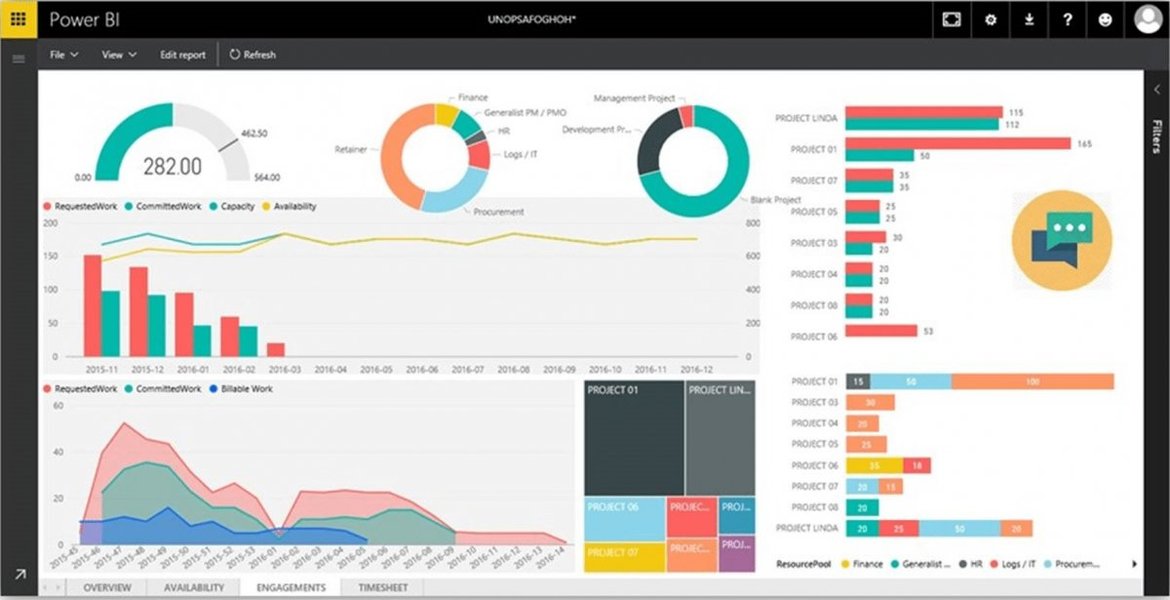
An example of a Power BI report dashboard, showcasing rich data visualizations.
Assessment of conversion ease for various report formats to PowerPoint.
Mermaid Mindmap: Report to PowerPoint Conversion Pathways
Below is a mindmap illustrating the various pathways and considerations when converting reports to PowerPoint presentations. It highlights the primary report formats, the types of tools available, and key aspects of the conversion process.
Important Considerations for Effective Conversion
While the tools simplify the process, a successful conversion also depends on several factors and best practices:
- Well-Structured Source Document: Reports with clear headings, subheadings, and a logical flow are more easily converted into structured presentations by both AI and built-in features.
- Post-Conversion Review: Always review the generated presentation for accuracy, visual appeal, and alignment with your branding. Automated tools provide a great starting point, but human refinement is often necessary.
- Editability vs. Static Images: Be aware that while text often remains editable, complex graphics or embedded objects from the original report might be converted into static images in PowerPoint, limiting their direct modification.
- Branding and Design: After the initial conversion, you may need to apply your organization's specific branding, color schemes, and fonts to ensure consistency.
The YouTube video below provides a practical guide on converting documents into stunning presentations, offering valuable insights that complement the various tools and methods discussed.
This video demonstrates how to transform a document into a captivating PowerPoint presentation, offering practical tips and workflows.
The video, "Convert Your Document into a Stunning Presentation with...", delves into the hands-on aspects of transforming written content into engaging slides. It likely covers practical tips on structuring content, choosing visual elements, and utilizing PowerPoint features effectively to enhance the presentation's impact. This visual guide is highly relevant as it bridges the gap between raw document content and a polished, professional presentation, a key objective of all report-to-PowerPoint conversion efforts.
Comprehensive Overview of Report Conversion Tools and Features
To further consolidate the available options, the following table summarizes various tools and their capabilities for converting reports to PowerPoint, highlighting their primary use cases and benefits.
| Tool/Method | Primary Report Format(s) | Key Features | Benefits |
|---|---|---|---|
| AI-Powered Converters (e.g., SlidesPilot, Presentia AI) | Word, PDF, General Reports | Automated summarization, content extraction, visual structuring, design automation. | Significant time-saving, professional output, reduces manual effort, adaptable for various report types. |
| Microsoft Word Export to PowerPoint | Word Documents | Leverages document headings for slide creation, integrated within Microsoft 365. | Seamless integration for Word users, maintains content hierarchy, good starting point for outlines. |
| Online PDF to PPT Converters (e.g., Canva, Smallpdf, CloudConvert) | PDF Files | Preserves layouts, images, and text during conversion; online accessibility. | Free and easy to use, quick conversion for static PDF content, retains visual fidelity. |
| Power BI Export Feature | Power BI Reports | Direct export of entire reports or individual visuals, potential for live data embedding. | Efficient for data-heavy reports, maintains data context, can be interactive. |
FAQ: Your Questions Answered
Can I convert any type of report to PowerPoint?
Will the converted PowerPoint presentation be fully editable?
Are AI tools safe to use with sensitive report data?
How can I ensure my charts and graphs look good after conversion?
Conclusion: Embracing Efficiency in Presentation Creation
Transforming reports into PowerPoint presentations is no longer a daunting task. With the proliferation of advanced tools, particularly those powered by AI, users can efficiently convert various document formats into professional and engaging slides. Whether you're working with a detailed Word document, a polished PDF, or a data-intensive Power BI report, there's a solution tailored to your needs. By understanding the capabilities of these tools and adhering to best practices, you can significantly enhance your workflow, saving valuable time and ensuring your presentations effectively convey your message.
Recommended Further Exploration
- Explore AI tools for presentation design and automation to streamline your workflow.
- Discover best practices for converting PDF documents into editable PowerPoint slides.
- Learn advanced techniques for exporting Power BI reports into dynamic PowerPoint presentations.
- Understand how to structure Word documents to achieve optimal PowerPoint conversion results.