
Unlock Your Word Files: Keyboard Commands to Fix Editing Locks
A step-by-step guide for Patty to regain editing access using efficient keyboard shortcuts and troubleshooting techniques.
Dealing with a Microsoft Word document that refuses to let you edit can be incredibly frustrating. Often, you'll see messages like "This file is locked for editing" or "The selection is locked." Fortunately, these issues can usually be resolved with a few targeted steps, many of which can be performed quickly using keyboard commands.
Key Troubleshooting Highlights
- End Lingering Processes: Use the Task Manager (Ctrl+Shift+Esc or Ctrl+Alt+Delete) to close hidden Word instances that might be locking the file.
- Check Document Restrictions: Access the Review tab (Alt+R) to disable any active editing restrictions or protections on the document.
- Address File Corruption: Utilize Word's "Open and Repair" feature (accessible via Alt+F, then navigate to Open) for potentially damaged files.
Email Guidance for Patty
Subject: Step-by-Step Guide to Resolving Locked Files in Microsoft Word (Using Keyboard Commands)
Dear Patty,
I hope this email finds you well. I understand you're encountering errors in Microsoft Word where files are locked for editing, preventing you from making changes. This is a common issue and can often be fixed with the right steps. As of today, May 05, 2025, here’s a guide focusing on keyboard commands to help you resolve this efficiently.
1. Close Hidden Word Processes using Task Manager
Sometimes, Word doesn't close completely, leaving a background process running that keeps the file locked. You can close these using the Task Manager:
- Press Ctrl + Shift + Esc simultaneously to open the Task Manager directly. (Alternatively, press Ctrl + Alt + Delete and select "Task Manager").
- If you see a simple view, click "More details" at the bottom.
- Navigate to the "Processes" or "Details" tab using Tab and arrow keys.
- Look for any entries named "Microsoft Word" or "WINWORD.EXE".
- Use the arrow keys to select the Word process.
- Press Alt + E or navigate to the "End task" button using Tab and press Enter.
- Repeat for any other instances of Word you find.
- Close Task Manager (Alt+F4) and try opening your document again.
Why this helps: This forces Word to shut down completely, releasing any file locks caused by improperly closed sessions or crashes. Word often creates temporary "owner files" (starting with ~$) when a document is open; ending the task helps clear these.
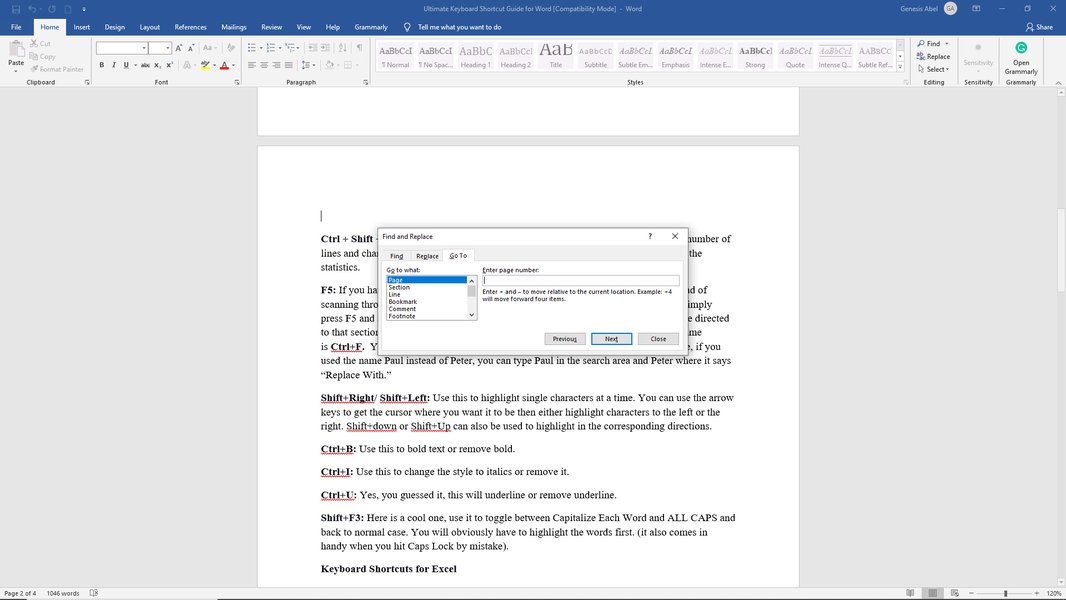
Using keyboard shortcuts like Ctrl+Shift+Esc can speed up troubleshooting.
2. Check and Remove Editing Restrictions
If the entire document or just parts of it are locked ("Selection is locked"), it might have editing restrictions enabled:
- Open the Word document.
- Press Alt + R to activate the "Review" tab on the ribbon.
- Press P, then E (or use Tab to navigate) to select "Restrict Editing" under the Protect group. This opens the Restrict Editing pane.
- Inside the pane, use Tab and arrow keys to navigate. Look for a button labeled "Stop Protection" at the bottom.
- If found, navigate to it and press Enter.
- If prompted for a password, you'll need to type it in and press Enter. If no password was set, protection should be removed immediately.
- Check if any boxes like "Allow only this type of editing in the document" are checked. Use the Spacebar to uncheck them if necessary.
Why this helps: Documents can be intentionally protected to prevent changes. This process disables those restrictions, allowing full editing access.
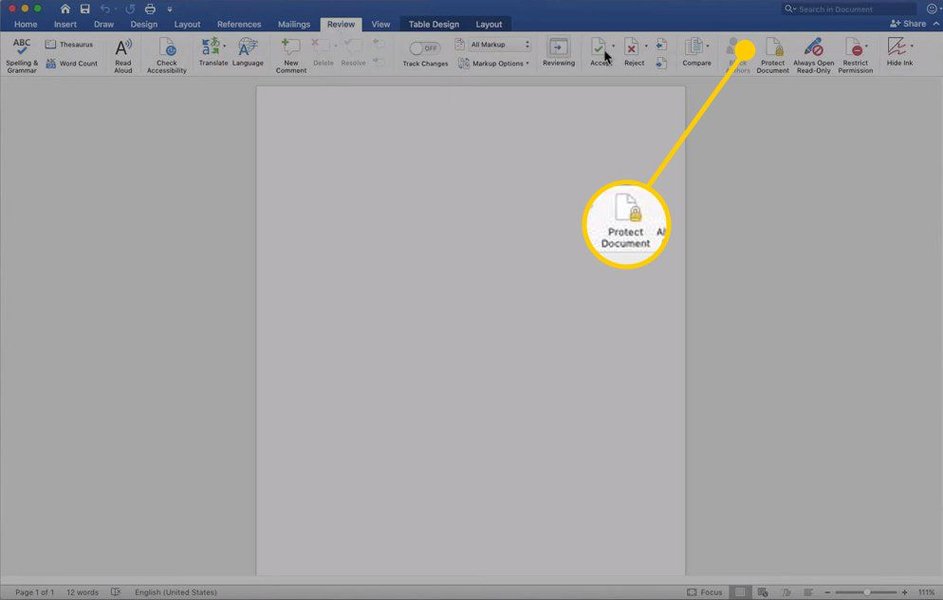
The Review tab contains options for removing document protection.
3. Address Potential File Corruption with "Open and Repair"
If the file lock might be due to corruption (perhaps after a crash), try Word's built-in repair function:
- Open Word (Press Windows key + R, type
winword, press Enter). - Press Alt + F to open the File menu.
- Use arrow keys or Tab to select "Open", then press Enter.
- Navigate to "Browse" or the location of your file and press Enter.
- In the Open dialog box, use arrow keys to select your locked file (click it once, don't double-click).
- Press Tab until focus moves to the "Open" button. Notice the small dropdown arrow next to it.
- Press Alt + Down Arrow (or sometimes just the Down Arrow) to open the dropdown menu next to the Open button.
- Use the arrow keys to select "Open and Repair" and press Enter.
Why this helps: This feature attempts to fix structural issues within the document that could be causing the lock or preventing it from opening correctly.
4. Handle "Selection Locked" Errors
If you get the specific error "You can't make this change because the selection is locked," it might relate to document protection (see Step 2) or sometimes an unusual input mode.
- First, try Step 2 (Restrict Editing). This is the most common cause.
- Some sources suggest pressing Fn + F7 (often used for spell check or touchpad toggling) or checking if Scroll Lock is accidentally enabled, though this is less common for this specific error in modern Word versions. Focus on the Restrict Editing feature first.
5. Other Considerations & Keyboard Shortcuts
- Shared Files: If the document is on a network drive or shared cloud service, someone else might genuinely have it open. Check with colleagues if applicable. Word usually tells you *who* has it locked if it's a shared file scenario.
- Read-Only Mode: Sometimes files open in Read-Only mode intentionally or accidentally. If it opens as read-only, press F12 to open the "Save As" dialog. Use Tab and arrow keys to choose a new name or location, then press Enter to save a new, editable copy.
- Restart Computer: If none of the above works, a simple computer restart (Press Ctrl + Alt + Delete, navigate to the power icon using Tab, select "Restart," and press Enter) can clear temporary glitches holding the file lock.
- Saving Regularly: Press Ctrl + S frequently while working to save your progress.
Please try these steps, focusing on the keyboard commands provided. If the issue persists after trying these methods, let me know, and we can investigate further. There might be other factors involved, like add-in conflicts or specific network configurations.
Best regards,
[Your Name]
[Your Position/Company]
Visualizing Solutions: Causes and Fixes
Understanding the Locked File Problem
The "locked file" issue in Word can stem from various sources. This mindmap provides a visual overview of the common causes and their corresponding solutions, helping to clarify the troubleshooting process outlined in the email.
Video Guide: Fixing Locked Word Documents
Visual Walkthrough
Sometimes seeing the steps performed can be helpful. This video provides a visual guide on how to address common scenarios where a Word document might be locked for editing, complementing the keyboard command instructions.
Video demonstrating common fixes for locked Word documents.
Effectiveness of Common Solutions
Comparing Troubleshooting Approaches
Different methods for unlocking Word files have varying levels of success depending on the root cause. This radar chart offers an opinionated view on the typical effectiveness and frequency needed for common solutions discussed. For instance, ending the Word process via Task Manager is often highly effective for locks caused by improper shutdowns, while checking shared access is crucial but only relevant for networked files.
This chart helps visualize that while restarting the computer is often effective, simpler steps like checking Task Manager might resolve the issue faster and are frequently needed for common glitches.
Summary of Useful Keyboard Shortcuts
Quick Reference Table
Here's a table summarizing the key keyboard shortcuts mentioned for resolving locked Word files:
| Shortcut | Action | Context/Purpose |
|---|---|---|
| Ctrl + Shift + Esc | Open Task Manager directly | To find and end lingering Word processes (WINWORD.EXE). |
| Ctrl + Alt + Delete | Open Security Options screen | Alternative way to access Task Manager or restart/shut down. |
| Alt + E | End Task (in Task Manager) | After selecting a process like WINWORD.EXE. |
| Alt + R | Activate Review Tab | To access options like "Restrict Editing". |
| P, E (after Alt+R) | Navigate to Restrict Editing | Opens the restriction pane (sequence might vary slightly based on Word version/customization). |
| Tab / Arrow Keys | Navigate UI elements | Move between buttons, options, and list items in dialogs and panes. |
| Enter | Select / Activate button | Confirm selections or actions. |
| Spacebar | Toggle Checkbox | Check or uncheck options like editing restrictions. |
| Alt + F | Open File Menu | Access options like Open, Save As, Options. |
| Alt + Down Arrow | Open Dropdown Menu | Used on buttons like "Open" to access "Open and Repair". |
| F12 | Open Save As dialog | To save a read-only file as a new, editable copy. |
| Ctrl + S | Save Document | Save current changes. |
| Windows key + R | Open Run Dialog | To quickly start programs like Word (type winword). |
Remember that navigating menus might require sequential key presses (e.g., Alt followed by a letter key shown underlined in the menu) or using Tab and Arrow keys extensively.
Frequently Asked Questions (FAQ)
Common Questions About Locked Word Files
Why does Word say a file is locked by 'another user' when it's just me?
This is often the most confusing scenario! It usually happens because a previous session of Word didn't close correctly (due to a crash, forced shutdown, or glitch). Even though you're not actively using it, Windows thinks Word still has the file open. Sometimes, a hidden "owner file" (a temporary file Word creates, often named like ~$filename.docx) remains in the same folder, signaling the file is in use. Using Task Manager (Ctrl+Shift+Esc) to end any lingering WINWORD.EXE processes is the most direct way to fix this.
What's the difference between a locked file and a 'locked selection'?
A "locked file" generally means you can't open the document for editing at all, often because Word thinks it's already open elsewhere (by you or another user). A "locked selection" means you *can* open the file, but you can't type or make changes in certain (or all) parts of the document. This is almost always due to "Restrict Editing" features being turned on (Review tab -> Restrict Editing). You need to turn off the protection, possibly with a password, to edit freely.
Can I just delete the temporary owner file (~$...) to unlock my document?
Sometimes, yes. If you can see the hidden owner file (you might need to enable viewing hidden files in File Explorer) and you are certain Word is closed (check Task Manager!), deleting this ~$ file *can* release the lock. However, it's generally safer and more effective to first try closing Word via Task Manager, as this should automatically clean up the owner file and ensure Word isn't actually still running with unsaved data related to that file.
What if the file is on OneDrive, SharePoint, or a network drive?
Shared environments add complexity. The lock could be legitimate – another user might have the file open. Word usually indicates the name of the person who has it locked. If you know they aren't using it, the lock could be due to a sync issue or a crash on their end that didn't release the lock. Sometimes, simply waiting a few minutes helps. For SharePoint/OneDrive, there might be options to "discard check out" or manage versions online via the web interface if the lock persists abnormally.
Recommended Next Steps
Explore Further
- How can I enable viewing hidden files in Windows to find Word owner files?
- What are the steps to disable Word add-ins for troubleshooting file issues?
- Can you explain how to properly use the Restrict Editing feature in Microsoft Word?
- How do I troubleshoot file synchronization issues with OneDrive and SharePoint that might cause locks?
References
Sources Used
 4ddig.tenorshare.com
Last updated May 5, 2025