
Mastering Touchscreen Rotation in XWayland: The Complete Technical Guide
Unlock perfect touch alignment when working with rotated displays in the XWayland environment
Key Insights for Touchscreen Rotation
- XWayland Challenge: XWayland handles input devices differently than traditional Xorg, requiring specialized approaches for touchscreen rotation
- Multiple Solution Paths: Options include coordinate transformation matrices, udev rules, compositor-specific settings, and dedicated calibration tools
- Environment-Specific Methods: Your solution will depend on your specific desktop environment, hardware, and compositor implementation
Understanding XWayland's Input Handling
XWayland serves as a compatibility layer that enables X11 applications to function within Wayland sessions. This creates unique challenges for touchscreen input rotation because the traditional X11 methods don't always work in this hybrid environment. When you rotate your display in XWayland, the touchscreen coordinates often don't automatically follow, resulting in misaligned touch input.
The fundamental challenge is that XWayland passes input events from Wayland to X11 applications differently than a native X server would. While display rotation might work correctly, touch input rotation requires special handling because of this translation layer.
This radar chart compares the effectiveness of different touchscreen rotation methods across six key dimensions, highlighting how each approach performs in different scenarios. The udev rules and compositor-specific tools generally work best in XWayland environments.
Method 1: Using xinput for Coordinate Transformation
While traditional xinput commands have limited effectiveness in XWayland, they can still work in some scenarios, especially when the touchscreen is properly recognized by the system.
Identifying Your Touchscreen Device
First, identify your touchscreen device using:
xinput listLook for entries that contain "touchscreen" or similar terms in their name. Note the device ID or name for use in subsequent commands.
Checking Current Properties
To view the current transformation matrix and other properties:
xinput list-props "Device Name"Replace "Device Name" with your actual device name or ID from the previous step. Look for the "Coordinate Transformation Matrix" property.
Applying the Transformation Matrix
Use the following command to set a new transformation matrix:
xinput set-prop "Device Name" --type=float "Coordinate Transformation Matrix" a b c d e f g h iWhere a b c d e f g h i are the nine floating-point values of your transformation matrix. The appropriate values depend on your desired rotation.
Common Transformation Matrices
| Rotation Angle | Transformation Matrix | Command Example |
|---|---|---|
| 0° (Normal) | 1 0 0 0 1 0 0 0 1 | xinput set-prop "Device Name" --type=float "Coordinate Transformation Matrix" 1 0 0 0 1 0 0 0 1 |
| 90° (Right) | 0 -1 1 1 0 0 0 0 1 | xinput set-prop "Device Name" --type=float "Coordinate Transformation Matrix" 0 -1 1 1 0 0 0 0 1 |
| 180° (Inverted) | -1 0 1 0 -1 1 0 0 1 | xinput set-prop "Device Name" --type=float "Coordinate Transformation Matrix" -1 0 1 0 -1 1 0 0 1 |
| 270° (Left) | 0 1 0 -1 0 1 0 0 1 | xinput set-prop "Device Name" --type=float "Coordinate Transformation Matrix" 0 1 0 -1 0 1 0 0 1 |
Note that these changes are session-specific and will not persist after a reboot or when the device is reconnected. To make the changes permanent, you'll need to add the command to a startup script or use one of the persistent methods described below.
Method 2: Using Udev Rules (More Persistent)
Udev rules provide a more permanent solution that applies each time the touchscreen is connected. This method works particularly well in Wayland environments since it targets libinput directly.
Identifying the Device with libinput
First, identify your touchscreen using:
libinput list-devicesNote the exact name of your touchscreen device as it appears in the output.
Creating a Udev Rule
Create a new file in the /etc/udev/rules.d/ directory:
sudo nano /etc/udev/rules.d/98-touchscreen-calibration.rulesAdd a rule like this:
ACTION=="add|change", KERNEL=="event[0-9]*", ATTRS{name}=="Your Touchscreen Name", ENV{LIBINPUT_CALIBRATION_MATRIX}="0 -1 1 1 0 0 0 0 1"Replace "Your Touchscreen Name" with the exact name from the previous step, and adjust the matrix values according to your desired rotation (using the same values from the table above).
Applying the Rule
Apply the rule without rebooting:
sudo udevadm control --reload-rules && sudo udevadm triggerThis method provides persistence across reboots and is more reliable in Wayland environments.
Method 3: Desktop Environment Settings and Tools
Many modern desktop environments provide built-in settings for display orientation that may also handle touchscreen rotation.
GNOME Desktop Environment
In GNOME, you can use the Settings app:
- Open Settings
- Navigate to Displays
- Select your touchscreen display
- Change the orientation using the provided options
Using gptouch for GNOME
For GNOME users, the gptouch utility provides an easy way to rotate both display and touch input:
gptouch rotate 90Replace "90" with your desired rotation angle (0, 90, 180, or 270).
Sway Compositor
For Sway (a Wayland compositor), you can use swaymsg to map your touchscreen to the rotated output:
swaymsg -t get_inputs  # Identify your touchscreen
swaymsg -t get_outputs  # Identify your display
swaymsg input "Your Touchscreen Identifier" map_to_output "Your Screen Identifier"
You can also set rotation in your Sway config file:
output HDMI-A-1 transform 90
input "Your Touchscreen Identifier" map_to_output HDMI-A-1
XWayland Touch Input Visualization
This mindmap illustrates the different approaches to handling touchscreen input rotation in XWayland, along with common rotation values and implementation challenges you might encounter.
Video Tutorial: Touchscreen Calibration in Linux
This educational video demonstrates the calibration of touchscreens in Linux using xinput-calibrator. While it focuses on traditional X11 environments, many of the principles apply to XWayland scenarios as well. The video walks through identifying touchscreen devices and applying appropriate calibration settings.
Example Images: Touchscreen Settings
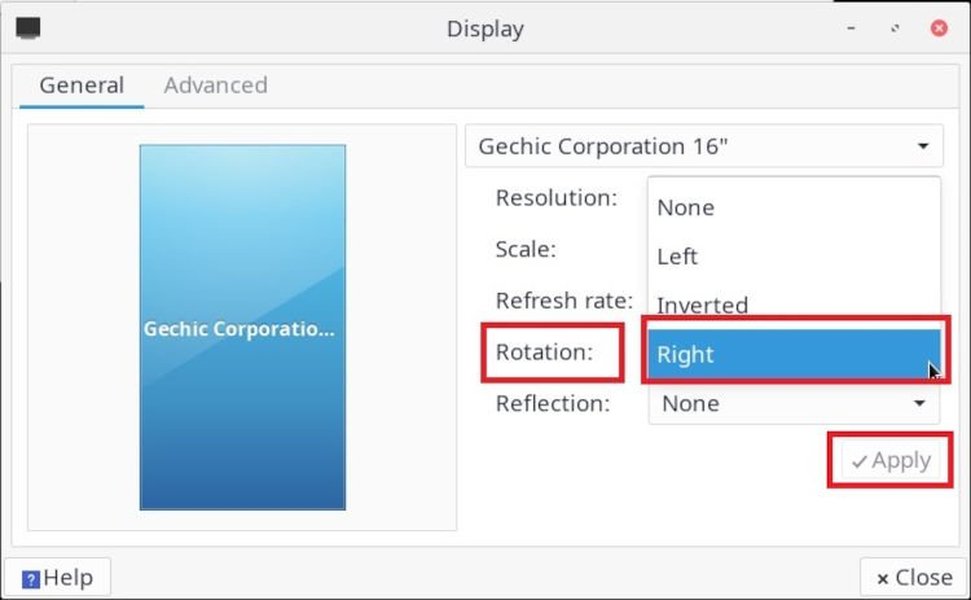
Manjaro Linux display settings interface showing rotation options

Ubuntu display settings interface with Wayland session options
Troubleshooting Common Issues
Touch Input Not Following Display Rotation
If your touch input doesn't match your display rotation despite applying the transformation matrix:
- Verify that you're using the correct device ID or name
- Try different transformation matrices; some devices may require custom values
- Check if your compositor has specific settings for touchscreen mapping
Changes Not Persisting
If your changes don't persist across sessions:
- Use udev rules instead of xinput commands
- Add your xinput command to a startup script
- Check your desktop environment's autostart capabilities
Incorrect Calibration After Matrix Application
If the touch input is rotated but misaligned after applying a transformation matrix:
- You may need to perform touch calibration in addition to rotation
- Consider using a dedicated calibration tool like xinput_calibrator (though with limited XWayland support)
- Try fine-tuning the transformation matrix values
Frequently Asked Questions
References
- Calibrating Touchscreen - Arch Linux Wiki
- Rotate touch screen input to match display rotation on Wayland - Ask Ubuntu
- gptouch.sh - Screen Orientation and Touchscreen Calibration Tool - GitHub
- XWayland Input Rotation - Unix & Linux Stack Exchange
- Touchscreen rotation with weston on wayland - NXP Community
- Rotate touchscreen on Raspberry Pi 4 with Wayland - Raspberry Pi Forums
- Touchscreen rotation on wayland? - GitHub Discussion
Recommended Queries
 prajoshpremdas.wordpress.com
Last updated April 8, 2025