
Securing a Small Office Network
Detailed Guide on Configuring a Cisco Router as a Packet Filtering Firewall
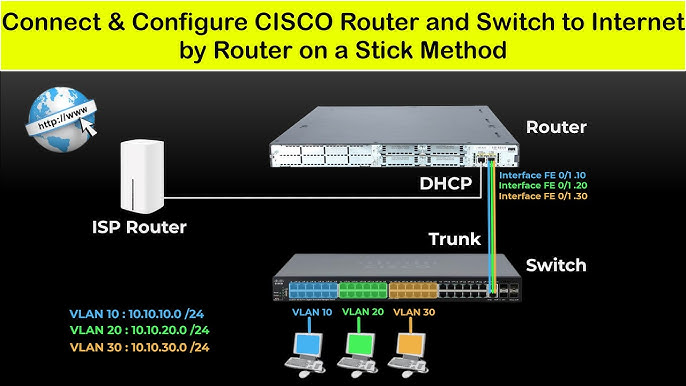
Key Highlights
- Interface Configuration: Properly set IP addresses on router interfaces for internal and external networks.
- Access Control Lists (ACLs): Create tailored ACLs to permit necessary traffic and block unauthorized access.
- Testing and Validation: Verify connectivity to ensure the firewall behaves as intended.
Overview
This guide provides a comprehensive walkthrough for configuring a Cisco router as a packet filtering firewall for a small office network. The network includes an Internal Network (192.168.1.0/24) with two employee laptops and an External Network (192.168.2.0/24) that hosts two servers – a Web Server and a File Server. By following the steps below, you will set up the correct interface configurations, design and apply ACLs, and test the firewall configuration to ensure network security.
Step 1: Configuring Router Interfaces
Assigning IP Addresses
Begin by accessing the Cisco router and entering configuration mode. You need to configure two interfaces: one connecting to the Internal Network and one to the External Network. The following settings are required:
Internal Interface Configuration
For the internal network, which serves the employee laptops, assign the interface an IP in the 192.168.1.0/24 range.
enable
configure terminal
interface GigabitEthernet0/0
 ip address 192.168.1.1 255.255.255.0
 no shutdown
exit
External Interface Configuration
For the external network where the servers are located, configure the interface with an IP from the 192.168.2.0/24 range.
interface GigabitEthernet0/1
 ip address 192.168.2.1 255.255.255.0
 no shutdown
exit
After configuring the interfaces, verify their status by using the command show ip interface brief
to ensure that the interfaces are active and assigned correctly.
| Interface | Network | IP Address | Subnet Mask |
|---|---|---|---|
| GigabitEthernet0/0 | Internal (192.168.1.0/24) | 192.168.1.1 | 255.255.255.0 |
| GigabitEthernet0/1 | External (192.168.2.0/24) | 192.168.2.1 | 255.255.255.0 |
Step 2: Creating and Applying Access Control Lists (ACLs)
Designing Security Policies
The next phase is to create ACLs that enforce the security policies. The objective is to allow essential traffic while blocking unauthorized access between the two networks. Here are two distinct ACL scenarios explained:
ACL for Internal to External Traffic
It is crucial to permit employees (internal network) to access services on the external servers. For instance, allowing web traffic from employees to the web server (Server0) and optionally file transfer access to the file server (Server1). An ACL can be created to permit such traffic while ensuring any undesired packets are dropped.
ACL for External to Internal Traffic
To secure the internal network, all incoming traffic from the external network should be dropped by default. Only specific traffic intended for legitimate control or response purposes may be permitted.
Implementing the ACL Configuration
Below is an example configuration that reflects typical security rules:
! ACL to allow internal network to initiate any traffic to external network
access-list 100 permit ip 192.168.1.0 0.0.0.255 any

! ACL to block external network from accessing the internal network
access-list 100 deny ip any 192.168.1.0 0.0.0.255

! Permit any remaining traffic as necessary (optional)
access-list 100 permit ip any any

! Apply the ACL to the external interface for inbound traffic filtering
interface GigabitEthernet0/1
 ip access-group 100 in
exit
In a more refined scenario, you might restrict external access further by only allowing certain protocols. For example, if the external network should only access HTTP services on Server0 (192.168.2.10) or FTP on Server1 (192.168.2.11), you can use an extended ACL:
! Allow HTTP traffic to web server
access-list 101 permit tcp any host 192.168.2.10 eq www

! Allow FTP traffic to file server
access-list 101 permit tcp any host 192.168.2.11 eq ftp

! Apply this ACL on the external interface if necessary for specific controls
interface GigabitEthernet0/1
 ip access-group 101 in
exit
Step 3: Testing and Validating the Configuration
Verification Procedures
Once the interface configurations and ACLs are applied, it is essential to ensure that the configuration meets the security requirements.
Testing Internal to External Connectivity
From the internal employee laptops (Laptop0: 192.168.1.10 and Laptop1: 192.168.1.11), perform the following tests:
-
Use the
pingcommand to test connectivity to the external interface IP (192.168.2.1) and servers (192.168.2.10, 192.168.2.11). -
Attempt connection to web services on Server0 using a web browser or
curl, e.g.,curl http://192.168.2.10.
Testing External to Internal Connectivity
To verify that the internal network remains secured:
- From an external source (simulate this if necessary), attempt to ping the IP addresses assigned to Laptop0 and Laptop1. The traffic should be blocked by the ACL rules.
- Optionally, test other protocols (like telnet) to ensure that no unauthorized access is permitted.
If all tests behave as expected—internal users can access external services while no external attempts can reach internal systems—the configuration is successful.
Additional Security Measures
Enhancing Router Firewall Capabilities
Beyond the basic ACL configuration, consider the following enhancements for a robust network defense:
- Refine ACL rules: Regularly update and review ACL rules to adapt to evolving network requirements.
- Implement Stateful Inspection: Use advanced features such as Cisco's Context-Based Access Control (CBAC) to dynamically track sessions and improve security for complex protocols.
- Logging and Monitoring: Enable logging for ACL hits to monitor suspicious activities and troubleshoot connectivity issues.
Saving the Configuration
After confirming that the ACLs and interface settings work correctly, ensure to save the configuration so it persists after a reboot:
write memory
! or
copy running-config startup-config
Router Configuration Summary Table
| Step | Configuration Commands | Description |
|---|---|---|
| Interface Configuration |
|
Assign IP addresses and activate interfaces on Internal and External networks. |
| ACL Setup |
|
Create filtering rules to allow internal traffic out while blocking unauthorized external access. |
| Verification & Save |
|
Test connectivity and save the configuration. |
References
- Cisco ACL Basics - CBT Nuggets
- Access List Samples - Cisco
- Cisco Access Control Lists - Pluralsight
- Cisco ACL Configuration - ManageEngine
- Router Interface Configuration - Cisco
Recommended Further Reading
Last updated March 19, 2025