
Running Your Java Applications as Windows Services
Transforming Your Java Programs into Background Services for Reliability and Automation
Running a Java application as a Windows service offers significant advantages over simply executing a JAR file from the command line. Services can start automatically when the system boots, run in the background without a logged-in user, and can be managed through the Windows Services console (services.msc), providing features like automatic restarts on failure.
While Java applications themselves are not inherently designed to run as Windows services, various wrapper programs and tools facilitate this integration. These tools allow the Windows Service Control Manager to interact with your Java application, managing its lifecycle (start, stop, restart).
Key Insights for Running Java as a Windows Service
- Wrapper utilities are essential: Java applications require a wrapper program to function as a Windows service, as they don't natively implement the service interface required by the Windows Service Control Manager.
- Several popular and effective tools exist: Options like NSSM, WinSW, Apache Commons Daemon (Procrun), and Yet Another Java Service Wrapper (YAJSW) are widely used and provide robust solutions for wrapping Java applications.
- Configuration is key: Each wrapper tool requires a configuration file (often XML) specifying how to launch your Java application, including the path to the Java executable, the JAR file, and any necessary arguments.
Understanding the Need for a Wrapper
When you run a Java application using java -jar your_application.jar from the command prompt, the application's lifecycle is tied to that command prompt window and the logged-in user. If the user logs off or the command prompt is closed, the application stops. This is not suitable for applications that need to run continuously and reliably in the background, such as server-side applications, monitoring tools, or scheduled tasks.
Windows services, on the other hand, are designed for this purpose. They run in the background, independent of a logged-in user, and their startup behavior can be configured (manual, automatic, delayed). However, a program must implement a specific interface to be recognized and managed as a Windows service. Standard Java applications do not have this built-in capability.
This is where service wrapper programs come into play. These wrappers act as an intermediary between the Windows Service Control Manager and your Java application. The wrapper is registered as a Windows service, and when the service is started, the wrapper launches your Java application. The wrapper monitors the Java process and responds to service control commands (start, stop, pause, continue) from the operating system.
Commonly Used Wrapper Tools
Several reliable and widely-used tools are available for wrapping Java applications as Windows services. Each has its own features, configuration methods, and licensing.
NSSM (Non-Sucking Service Manager)
NSSM is a popular choice known for its simplicity and ease of use. It can run any executable as a service and is often used for wrapping JAR files by telling it to run the java.exe command with the -jar argument pointing to your application's JAR file.
To use NSSM, you typically download the executable, navigate to its directory in a command prompt, and run nssm install <servicename>. This opens a GUI where you configure the path to your executable (java.exe) and the arguments (-jar your_application.jar).
# Example command to install a service using NSSM
nssm install MyJavaService
NSSM offers features like automatic restarts, dependency configuration, and environment variable management through its GUI or command-line options.
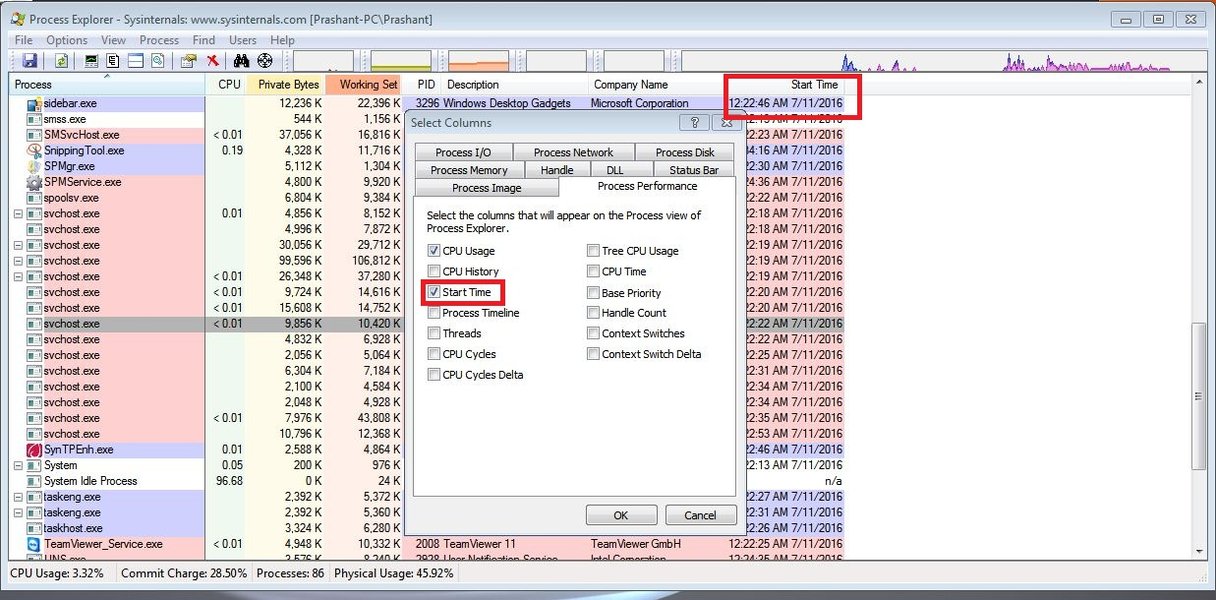
A potential view of a service configuration, highlighting parameters that might be set using a tool like NSSM.
WinSW (Windows Service Wrapper)
WinSW is another flexible and open-source solution. It is a wrapper executable that can be configured using an XML file. This XML file defines the service's properties, such as its ID, name, description, the executable to run (java.exe), and the arguments for your Java application.
Using WinSW typically involves downloading the WinSW executable, renaming it to your desired service name (e.g., MyJavaService.exe), and creating a corresponding XML file (e.g., MyJavaService.xml) in the same directory. The XML file specifies the command to run your JAR.
<configuration>
    <id>MyJavaApp</id>
    <name>My Java Application Service</name>
    <description>Runs my Java application as a service.</description>
    <executable>java</executable>
    <arguments>-jar my-java-app.jar</arguments>
</configuration>
Once the executable and XML file are set up, you can install the service by running MyJavaService.exe install from a command prompt with administrative privileges. WinSW is frequently used for deploying Spring Boot applications as services.
A video tutorial demonstrating how to run a Spring Boot application as a Windows service using WinSW.
Apache Commons Daemon (Procrun)
Apache Commons Daemon provides Procrun, a set of applications for wrapping Java applications as Windows services (and Unix daemons). Procrun consists of two main executables: prunsrv.exe (the service application) and prunmgr.exe (a GUI for monitoring and configuring services).
Using Procrun involves renaming prunsrv.exe to your desired service name and using command-line arguments or a properties file to configure the service. You define parameters like the Java class to run (if not using a JAR), the classpath, JVM options, and startup/shutdown methods.
# Example command using prunsrv to install a service
prunsrv.exe install MyJavaService --DisplayName="My Java Service" --Jvm="auto" --Classpath="path/to/your.jar" --Startup="auto" --StartMode="jvm" --StartClass="com.example.MyService" --StartMethod="start" --StopMode="jvm" --StopClass="com.example.MyService" --StopMethod="stop"
Procrun is known for its flexibility and is used by projects like Apache Tomcat to run as a Windows service.
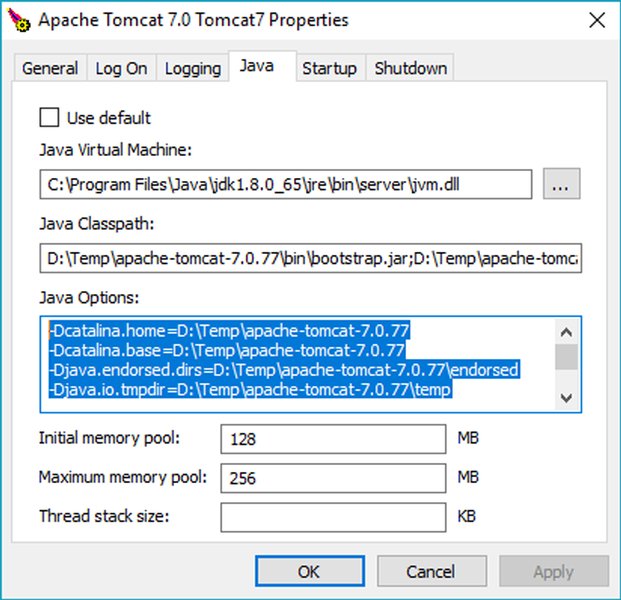
A screenshot showing configuration options for a Tomcat service, which often utilizes tools like Procrun.
Yet Another Java Service Wrapper (YAJSW)
YAJSW is another option that aims to be a flexible and powerful wrapper for Java applications. It supports running any native executable, Java process, or Groovy script as a Windows service or Linux daemon. YAJSW uses a configuration file to define the service parameters and how to launch the Java application.
Steps to Run a Java Application as a Windows Service (General Approach)
While the specifics vary depending on the chosen wrapper tool, the general process for running a Java application as a Windows service involves the following steps:
- Package your Java application: Ensure your Java application is packaged into a runnable JAR file. This JAR should contain all necessary classes and dependencies.
- Choose a wrapper tool: Select a suitable wrapper utility (NSSM, WinSW, Procrun, YAJSW, etc.) based on your requirements, ease of use, and licensing.
- Download and set up the wrapper: Download the chosen wrapper tool and place its executables in a convenient location on your Windows server.
- Configure the wrapper: Create the necessary configuration file (e.g., XML for WinSW, use the GUI for NSSM, command-line/properties for Procrun) to specify how to launch your Java application. This includes pointing to the Java executable and your application's JAR file.
- Install the service: Open a command prompt with administrative privileges and use the wrapper tool's command to install the service. This registers the wrapper executable with the Windows Service Control Manager.
- Configure service properties (optional but recommended): Use the Windows Services console (
services.msc) or thesc.execommand to configure the service's startup type (e.g., Automatic), recovery options (e.g., restart on failure), and dependencies. - Start the service: Start the service from the Windows Services console or using the command line (e.g.,
net start MyJavaServiceorsc start MyJavaService).
Comparing Wrapper Options
Here's a simplified comparison of some popular wrapper tools based on common criteria:
| Wrapper Tool | Configuration Method | Ease of Use | Licensing | Key Features |
|---|---|---|---|---|
| NSSM | GUI, Command Line | Very Easy | MIT License | Run any executable, automatic restart, simple configuration |
| WinSW | XML File | Easy | MIT License | XML-based configuration, widely used for Spring Boot |
| Apache Commons Daemon (Procrun) | Command Line, Properties File | Moderate | Apache License | Flexible configuration, used by large Java applications |
| YAJSW | Configuration File | Moderate | Apache V2.0 (mostly) | Wrap various process types, extensive configuration options |
Considerations for Running as a Service
When running your Java application as a Windows service, keep the following in mind:
- Logging: Configure your application's logging to write to files, as you won't have a console window to view output. Wrapper tools often provide options for redirecting stdout and stderr.
- Resource Management: Services run in the background, so be mindful of resource consumption (CPU, memory).
- User Account: Configure the service to run under a specific user account with appropriate permissions, rather than the Local System account, especially if your application needs access to network resources or specific file system locations.
- Dependencies: If your Java application depends on other services or resources, configure service dependencies to ensure they are started before your Java service.
Visualizing Wrapper Tool Characteristics
This radar chart provides a subjective comparison of the discussed wrapper tools based on various characteristics relevant to running a Java application as a Windows service. The ratings are relative and intended to give a general sense of each tool's strengths.
Additional Methods and Considerations
Using sc.exe (Service Control Command)
The built-in Windows sc.exe command can be used to interact with services, including creating, deleting, starting, and stopping them. While sc.exe itself cannot directly run a JAR file as a service, it can be used in conjunction with wrapper executables (like those generated by some installer tools or even simple batch scripts that launch your Java application).
# Example command to create a service using sc.exe (requires a wrapper executable)
sc create MyJavaService binPath="C:\path\to\wrapper.exe -jar C:\path\to\your.jar" start=auto DisplayName="My Java Application"
This method requires the binPath to point to an executable that will, in turn, execute your Java application. This is less common for direct JAR execution but relevant when using tools that generate native executables.
Java Service Wrapper (Tanuki Software)
The Java Service Wrapper from Tanuki Software is a commercial product (with a GPL licensed version available) that provides a robust and feature-rich solution for running Java applications as services. It offers advanced features like monitoring, reporting, and complex restart strategies.
Creating Installers
For distributing your Java application as a Windows service to end-users, creating an installer (MSI or EXE) is often the preferred approach. Installer creation tools can bundle your JAR file and a chosen wrapper utility, automating the service installation and configuration process for the user.
An example interface from an installer creation tool, showing how files for a Java service might be included.
Tools like Advanced Installer can streamline the creation of MSI or EXE installers that handle the complexities of service installation, including setting up the wrapper, configuring service parameters, and managing file placement.
Running Spring Boot Applications as Services
Spring Boot applications, which are often packaged as executable JARs, are frequently deployed as Windows services using the wrapper tools mentioned above, particularly WinSW and NSSM. The executable JAR nature of Spring Boot applications makes them well-suited for this approach.
Frequently Asked Questions
Recommended Further Exploration
- Explore detailed configuration options for NSSM when wrapping a Java service.
- Learn how to create an MSI installer for your Java application that includes service installation.
- Understand the configuration of the commercial Java Service Wrapper from Tanuki Software.
- Discover best practices for managing logging in a Java application running as a Windows service.
References
Last updated May 21, 2025