
Integrating a Client's SAML-Supported IDP with Your AWS SaaS Offering Using Auth0
A comprehensive guide to enabling seamless SAML authentication for your users.
Key Takeaways
- Configuration: Properly setting up Auth0 as a SAML Service Provider is crucial for successful integration.
- Metadata Exchange: Accurate retrieval and configuration of metadata from the client's IDP ensures secure authentication flow.
- Testing & Deployment: Rigorous testing followed by careful deployment and monitoring guarantees a smooth user experience.
1. Understanding the Integration Requirements
Before initiating the integration process, it's essential to fully understand the requirements and the roles of each component involved. In this scenario:
- Your AWS SaaS application uses Auth0 as its authentication provider.
- Your client possesses a SAML-supported Identity Provider (IDP) that manages user credentials and authentication processes.
- The goal is to allow users from the client's IDP to authenticate seamlessly when accessing your AWS SaaS offering.
Roles and Responsibilities
- Auth0: Acts as the Service Provider (SP) facilitating the authentication process between your application and the client's IDP.
- Client's IDP: Serves as the Identity Provider, handling user authentication and providing necessary SAML assertions to Auth0.
- Your Application: Integrates with Auth0 to leverage the authentication mechanism established between Auth0 and the client's IDP.
2. Configuring Auth0 as a SAML Service Provider (SP)
The first step involves setting up Auth0 to act as a SAML Service Provider. This setup allows Auth0 to communicate with the client's IDP effectively.
Step 2.1: Accessing the Auth0 Dashboard
Begin by logging into your Auth0 Dashboard:
- Navigate to Auth0 Dashboard and sign in with your credentials.
- Once logged in, go to the Applications section by selecting Applications > Applications from the left-hand menu.
Step 2.2: Enabling the SAML2 Web App Addon
To enable SAML authentication:
- Select the specific application you wish to configure for SAML integration.
- Navigate to the Addons tab within the application settings.
- Enable the SAML2 Web App Addon by toggling it on.
- Configure the necessary SAML settings, including the Assertion Consumer Service (ACS) URL and Entity ID, which will be provided by the client's IDP.
3. Obtaining and Configuring Client's IDP Metadata
Accurate metadata is vital for establishing trust and ensuring secure communication between Auth0 and the client's IDP.
Step 3.1: Requesting Metadata from the Client's IDP
Reach out to the client's IT or Identity team to obtain the following:
- SAML Metadata XML File or URL: Contains essential details such as the SSO URL, X.509 Certificate, and Entity ID.
- Single Sign-On (SSO) URL: The endpoint for sending authentication requests.
- X.509 Certificate: Used to sign SAML assertions ensuring their authenticity.
Step 3.2: Uploading Metadata to Auth0
- In the Auth0 Dashboard, navigate to Applications > SSO Integrations.
- Create a new SSO integration by selecting SAML as the protocol.
- Upload the client's SAML Metadata XML file or manually input the details such as the SSO URL, Entity ID, and X.509 Certificate.
- Configure the Name Identifier Format and other necessary SAML attributes as specified by the client's IDP.
4. Mapping SAML Attributes
Proper mapping of SAML attributes ensures that user information is accurately transmitted and utilized within your application.
Step 4.1: Identifying Essential Attributes
Common SAML attributes that need to be mapped include:
- Email: User's email address.
- Name: User's full name.
- Roles: User's assigned roles or permissions.
Step 4.2: Configuring Attribute Mapping in Auth0
- Within the SAML connection settings in Auth0, navigate to the Mappings section.
- Map each SAML attribute from the client's IDP to the corresponding fields in Auth0. For example:
- email: Map to
user.email - name: Map to
user.name - roles: Map to
user.roles - If there are any custom attributes needed by your application, ensure they are also mapped correctly.
Step 4.3: Handling Custom Attributes
In cases where the client's IDP sends additional custom attributes:
- Define these attributes within the Auth0 Rules or Actions to process and integrate them into your application's user profile.
- Ensure that these custom attributes adhere to your application's data handling and security policies.
5. Testing the SAML Integration
Before deploying the integration to production, thorough testing is imperative to identify and rectify any potential issues.
Step 5.1: Using Auth0's Testing Tools
- In the Auth0 Dashboard, select the newly configured SAML connection.
- Click on the Test SAML Connection feature to initiate a test authentication flow.
- Monitor the authentication process to ensure that the SAML assertions are correctly sent and received.
Step 5.2: Validating Attribute Mapping
- After a successful test login, verify that all mapped attributes (e.g., email, name, roles) are correctly populated in the Auth0 user profile.
- Ensure that any custom attributes are also accurately reflected and usable within your application.
Step 5.3: Reviewing Auth0 Logs
Check the authentication logs in Auth0 to identify any errors or warnings that occurred during the test:
- Navigate to Logs in the Auth0 Dashboard.
- Review entries related to the test to ensure there are no issues with certificate mismatches, attribute mappings, or response formatting.
6. Updating Your Application to Utilize Auth0 for Authentication
Integrate the SAML connection with your AWS SaaS application to enable users to authenticate using their corporate IDP.
Step 6.1: Configuring Application Settings
- In the Auth0 Dashboard, go to Applications > Applications and select your application.
- Ensure that the Callback URL in your application matches the one configured in Auth0. This URL is where users will be redirected after authentication.
- Link your application to the newly created SAML connection by enabling it in the connection settings.
Step 6.2: Implementing Domain-Based Authentication Routing (If Necessary)
If your application serves multiple clients, consider implementing domain-based routing to direct users to the appropriate SAML connection based on their email domain:
- Use Auth0 Rules or Actions to inspect the user's email domain during login.
- Redirect users to the corresponding SAML connection based on their domain.
7. Deploying and Monitoring the Integration
Once testing is successful, proceed to deploy the integration to your production environment and establish monitoring mechanisms.
Step 7.1: Deploying to Production
- Publish the updated authentication settings within your application.
- Ensure that all configurations are correctly reflected in the production environment.
- Communicate the changes to your client, providing necessary details such as the SP Entity ID and ACS URL if required.
Step 7.2: Continuous Monitoring
- Utilize Auth0's logging and monitoring tools to oversee authentication attempts and identify any anomalies.
- Set up alerts for failed authentication attempts, unusual activity patterns, or other security concerns.
- Regularly review logs to ensure the integrity and performance of the authentication flow.
Step 7.3: Maintenance and Updates
Maintain the integration by:
- Updating certificates before expiration to prevent authentication disruptions.
- Addressing any changes in the client's IDP configuration or policies.
- Enhancing attribute mappings as your application evolves to incorporate new user information needs.
8. Implementing Role-Based Access Control (Optional)
For applications requiring granular access control, mapping user roles from the client's IDP can be beneficial.
Step 8.1: Defining Role Mappings
- Identify the roles defined within the client's IDP that correspond to your application's authorization requirements.
- Within Auth0, navigate to Rules or Actions to implement custom logic for role mapping.
- Map the roles received from the SAML assertion to your application's internal role system.
Step 8.2: Applying Role-Based Permissions
- Configure your application to enforce permissions based on the mapped roles.
- Ensure that users receive appropriate access levels aligning with their assigned roles.
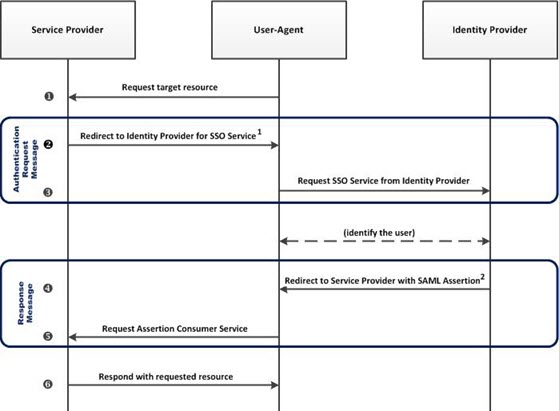
9. Final Authentication Flow Overview
Understanding the complete authentication flow helps in troubleshooting and optimizing the user experience.
Step 9.1: User Initiates Login
- A user accesses your AWS SaaS web application and clicks the “Login” button.
Step 9.2: Redirection to Auth0
- Your application redirects the user to Auth0 to commence the authentication process.
Step 9.3: Auth0 Redirects to Client's IDP
- Auth0 further redirects the user to the client's SAML-supported Identity Provider for authentication.
Step 9.4: User Authenticates with Client's IDP
- The user enters their credentials on the client's IDP portal.
- Upon successful authentication, the IDP sends a SAML assertion back to Auth0.
Step 9.5: Auth0 Processes the SAML Assertion
- Auth0 validates the SAML assertion using the provided metadata and certificates.
- User attributes are mapped according to the predefined configurations.
Step 9.6: Access Granted to the Application
- Upon successful validation, Auth0 generates a session for the user and redirects them back to your AWS SaaS application.
- The user gains access to the application with the permissions and roles assigned based on the SAML attributes.
10. Recap and Best Practices
Integrating a client's SAML-supported IDP with your AWS SaaS offering using Auth0 involves meticulous configuration and testing. Here are the key points to remember:
-
Thorough Planning: Understand the requirements and roles of each component before initiating the integration.
-
Accurate Configuration: Ensure that all metadata and settings are correctly configured in both Auth0 and the client's IDP.
-
Comprehensive Testing: Utilize Auth0's testing tools to validate the authentication flow before going live.
-
Continuous Monitoring: Keep an eye on authentication logs and set up alerts to promptly address any issues.
-
Secure Practices: Implement security best practices, such as using signed and encrypted SAML assertions and regularly updating certificates.
-
Documentation: Maintain clear documentation for the integration process to aid in future maintenance and onboarding of additional clients.
References
 docs.aws.amazon.com
Last updated January 21, 2025