
Unveiling the Reasons Behind a Non-Bootable SATA Drive on Windows 10 Installation
Explore detailed troubleshooting steps and solutions for your issue
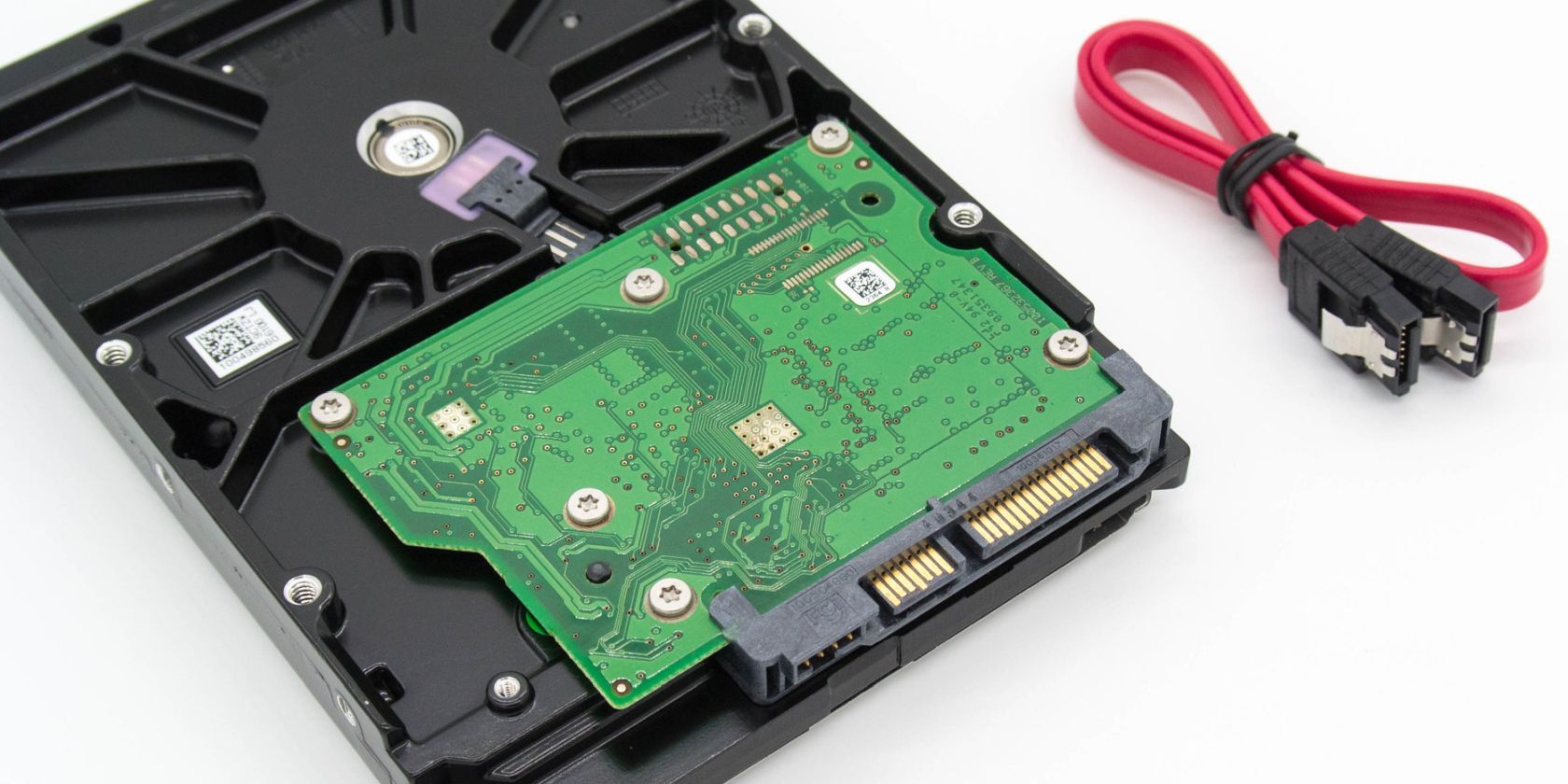
Key Insights
- BIOS/UEFI Misconfigurations: Incorrect boot orders, mode selection (UEFI vs. Legacy), or disabled SATA ports can prevent boot recognition.
- Partitioning and Boot Loader Issues: Mismatches between partition schemes (GPT/MBR), missing EFI partitions, or corrupted boot records can halt the boot process.
- Hardware and Connection Problems: Loose or defective SATA cables and potential drive hardware issues may obstruct proper detection.
Detailed Analysis and Troubleshooting
Overview
When installing Windows 10 on a SATA drive using the official installation media, several underlying factors may result in the drive not being recognized as bootable upon reboot. The problem can manifest due to misconfigurations in the BIOS/UEFI settings, improper handling of partition types, hardware connection issues, or even problems with the installation media itself. Below, we provide an extended explanation of these factors and corresponding viable solutions to resolve the issue.
1. BIOS/UEFI Settings and Boot Order Configuration
Understanding BIOS and UEFI
A common cause for your SATA drive not being recognized as bootable is incorrect BIOS/UEFI configuration. Modern motherboards offer both Legacy BIOS and UEFI firmware modes which affect how drives are recognized and booted.
If Windows 10 is installed in UEFI mode, the BIOS must also be configured to operate under UEFI. Conversely, if the installation was done using Legacy BIOS, the settings must align with that mode. Additionally, certain BIOS settings might disable specific SATA ports. If a SATA drive is connected to a port that is disabled by default, it will not be detected as a bootable device.
Common BIOS/UEFI Configuration Pitfalls
- Boot Order Priority: The SATA drive or the EFI System Partition (ESP) may not be set as the primary boot option. The boot order must list your Windows drive at the top.
- UEFI/Legacy Boot Mode Mismatch: If you've installed Windows 10 in UEFI mode but the BIOS is set to Legacy mode (or vice versa), the necessary boot files may not be detected.
- CSM (Compatibility Support Module): Some motherboards require CSM to be enabled when a non-native boot device is connected, especially if using non-UEFI components.
To verify and adjust these settings, reboot and enter the BIOS/UEFI setup (commonly by pressing keys like F2, Del, or Esc during startup). Review and modify the boot sequence and ensure the drive is active.
2. Partitioning Scheme and Boot Loader Related Issues
GPT vs. MBR Partition Styles
Another key factor is the partitioning scheme of your SATA drive. Windows 10 supports both Master Boot Record (MBR) and GUID Partition Table (GPT). However, the system firmware must align with the partition type. Modern systems in UEFI mode require a GPT-partitioned drive, while Legacy BIOS systems commonly use MBR.
When installing Windows 10, the installation media should automatically configure the drive with the appropriate partitioning scheme. In some scenarios, however, either due to human error or issues with the media, the drive might be left with an incompatible partition layout.
EFI System Partition (ESP) and Boot Files
In a UEFI environment, the EFI System Partition (ESP) is critical as it contains the boot loader and drivers required to start Windows. If this partition is missing, corrupted, or not properly flagged during installation, your drive will not be recognized as bootable. It is essential to ensure that:
- The installation media successfully creates an ESP (usually around 100 MB to 260 MB in size).
- The ESP is formatted with the FAT32 file system.
- The drive's primary Windows partition is marked correctly (active in MBR systems).
3. Hardware Connection and Drive Integrity
SATA Cables and Connection Points
Physical hardware issues, such as a defective or loose SATA cable, are often overlooked. When a drive connects improperly, not only can it cause detection issues in the BIOS, but it might also result in the drive being non-bootable. An inspection of all cable connections, ensuring they are tightly seated, is a vital troubleshooting step.
Drive Faults and Controller Compatibility
Hardware-level defects can occur in either the drive or the SATA ports on the motherboard. Faults in the drive, such as corrupted firmware or internal component failure, might also cause the situation where the drive appears correctly during Windows installation but fails to show as bootable afterward.
Additionally, some modern SATA drives come with advanced functionalities (or are sometimes confused with NVMe drives) that require appropriate drivers. If the motherboard or the Windows installation media lacks these drivers, especially for newer drive models, the drive may not boot properly.
4. Installation Media and Driver Concerns
Correct Creation of Installation Media
Errors during the construction of the Windows 10 installation media can directly affect the bootability of the SATA drive. The media must be created using authentic tools provided by Microsoft, ensuring it includes all the necessary files, such as boot loaders and device drivers.
Sometimes, if the USB drive or DVD used for installation is corrupted or improperly prepared, the installation process might proceed partially but fail during the reboot phase when the system attempts to find the correct boot files.
Driver Compatibility
While Windows 10 generally comes with a robust set of drivers, there are exceptions. Missing or outdated SATA controller drivers might cause the operating system, especially when rebooting, to fail in recognizing the drive. In such cases, downloading and pre-installing the latest motherboard chipset or SATA controller drivers from the manufacturer’s website may resolve the issue.
5. Handling Boot Record and Startup Repair
Boot Record and Active Partition Issues
For systems using the MBR partitioning scheme, the active partition must be appropriately configured. If the partition with your Windows installation isn't marked as “active,” the BIOS won't load the boot files, resulting in the system not recognizing the drive as bootable.
Additionally, a corrupted boot record can impede the boot process. Tools like bootrec and BCDboot in the Windows Recovery Environment are designed to repair such issues. Run a series of commands (for instance, using bootrec /fixmbr and bootrec /fixboot) after booting into the recovery mode to attempt a repair of the boot configuration.
6. Comprehensive Troubleshooting Table
The following table synthesizes the potential causes and corresponding troubleshooting steps for your SATA drive issue:
| Potential Cause | Description | Recommended Troubleshooting Step |
|---|---|---|
| Incorrect BIOS/UEFI Settings | Boot order not prioritizing the SATA drive, incorrect UEFI/Legacy selection. | Access BIOS, adjust boot order, set correct boot mode (UEFI for GPT, Legacy for MBR), and enable relevant SATA ports. |
| Faulty or Loose SATA Cable | SATA cable not properly connected to the drive or motherboard. | Physically inspect and reconnect or replace the SATA cable. |
| Improper Partition Scheme | The drive may be set up as MBR when UEFI expects GPT (or vice versa). | Use disk management or Windows setup to convert the partition, ensuring matching boot mode. |
| Missing or Incorrect EFI Partition | Lack of a correctly configured EFI System Partition on UEFI-based installations. | Reinitialize the drive during installation ensuring proper creation and formatting of the EFI partition. |
| Corrupted Boot Files/Records | Error during installation may lead to incomplete or corrupted boot files. | Run startup repair tools such as bootrec or BCDboot from the recovery environment. |
| Driver Compatibility Issues | Missing or outdated SATA controller drivers affecting boot detectability. | Download and install the latest drivers from the motherboard's or SATA controller’s manufacturer website. |
| Faulty Installation Media | Errors in the Windows installation media creation process. | Recreate the media using the official Microsoft Media Creation Tool to ensure correctness. |
Additional Insights and Practical Recommendations
Driver and Firmware Verification
Beyond the initial troubleshooting, any installation process benefits considerably from verifying that all system firmware and drivers are current. If the motherboard firmware (BIOS/UEFI) is outdated, it might not fully support recent drive models or new boot-related standards. Similarly, drivers for the SATA controller might need updating to ensure compatibility, especially if you’re using a new or advanced SATA device.
It is a good practice to check the motherboard manufacturer’s website for the latest BIOS updates and recommended setups for installing modern operating systems. Often, release notes associated with these updates provide guidance on setting up boot options and configuring the firmware for optimal compatibility.
System Recovery and Boot Configuration Tools
Using Windows Recovery Environment
In cases where boot files may be missing or corrupted due to an incomplete installation, the Windows Recovery Environment (WinRE) offers several tools. Command-line utilities like bootrec and BCDboot are designed to fix Master Boot Record (MBR) errors, reconstruct the boot configuration data (BCD), and ultimately restore bootability. For example:
  rem Launch Command Prompt from the recovery options
  bootrec /fixmbr
  bootrec /fixboot
  bootrec /scanos
  bootrec /rebuildbcd
These commands can often repair faults created during installation, especially when coupled with proper partition checks using disk management tools.
Verifying Hardware Integrity
Checking Physical Connections
Sometimes overlooked, the physical connections between the SATA drive and the motherboard play a pivotal role. Ensure that the SATA data and power cables have secure connections. Testing the drive with another cable or connecting it to a different SATA port may also help isolate the issue to either a faulty cable or port.
Hardware Diagnostics
If all configuration settings and cable connections are verified as correct, then consider using hardware diagnostic tools to evaluate the health of the SATA drive. Many manufacturers offer proprietary software to check drive integrity. Running such diagnostics can reveal if the drive has latent issues that might interfere with the boot process.
Integrating the Troubleshooting Steps
Step-by-Step Checklist
To synthesize all the troubleshooting details into actionable steps, follow this checklist:
- Enter BIOS/UEFI Setup: Restart the system and enter the BIOS/UEFI. Confirm the SATA drive is detected in the settings.
- Adjust Boot Order: Set the SATA drive (or EFI partition in UEFI mode) as the primary boot device.
- Verify Boot Mode: Ensure that if your Windows installation is in UEFI mode, then UEFI is enabled; if it is in Legacy mode, make sure Legacy/CSM mode is active.
- Inspect SATA Connections: Check that the SATA cable is properly connected, and swap cables or ports if necessary.
- Review Partition Setup: Use Windows Setup or Disk Management to confirm that the drive has the appropriate partition scheme (GPT for UEFI, MBR for Legacy) and that an EFI System Partition exists for UEFI installations.
-
Repair Boot Records: If boot issues persist, utilize tools like
bootrecto fix the Master Boot Record and rebuild the boot configuration. - Update Drivers and Firmware: Ensure that all relevant drivers and the motherboard BIOS/UEFI firmware are up-to-date.
- Test with Fresh Installation Media: If all else fails, recreate the Windows 10 installation media using the official Microsoft Media Creation Tool.
References
- HDD Not Detected During Windows Installation - Auslogics
- Hard Drive Not Detected - EaseUS
- BIOS Does Not Detect ATA/SATA Hard Drive - MakeUseOf
-
Cannot Boot from SSD - Microsoft Answers
- Fix Hard Drive Not Detected in Windows 10 Installation - Recoverit
Recommended Related Queries
 4ddig.tenorshare.com
Last updated March 24, 2025