
Securely Managing PowerShell Secrets with Azure Key Vault
Elevating Script Security by Storing and Retrieving Sensitive Information
Key Highlights
- Azure Key Vault is a robust cloud service designed for securely storing and managing sensitive information like passwords, keys, and certificates.
- The PowerShell SecretManagement module provides a standardized interface for interacting with various secret vaults, including Azure Key Vault via an extension.
- Accessing secrets in Azure Key Vault from PowerShell scripts can be secured using methods like Managed Identities or Service Principals with appropriate role assignments.
Storing client secrets directly within PowerShell scripts poses a significant security risk. Hardcoded credentials can be easily exposed if the script is compromised. A best practice is to externalize these secrets and store them in a secure, centralized location. Azure Key Vault is a cloud-based service that offers a highly secure solution for managing secrets, keys, and certificates. By integrating PowerShell scripts with Azure Key Vault, you can significantly enhance the security posture of your automation workflows.
Azure Key Vault encrypts secrets at rest, and access to the vault is controlled through robust access policies or Azure role-based access control (RBAC). This ensures that only authorized entities can retrieve sensitive information. Furthermore, Azure Key Vault provides auditing capabilities, allowing you to monitor access to your secrets.
Understanding Azure Key Vault
Azure Key Vault serves as a central repository for managing and securing sensitive data. It's not just for passwords; you can store connection strings, API keys, and other confidential information. The service offers different object types: keys for cryptographic operations, secrets for storing sensitive values, and certificates for managing SSL/TLS certificates.
Key Vault Fundamentals
Key Vault provides several benefits, including increased security, compliance with regulatory requirements, and improved secret management lifecycle. By using Key Vault, you reduce the risk of accidentally exposing secrets in code, configuration files, or scripts.
Access to a Key Vault is governed by access policies or Azure RBAC. You define which users, groups, or applications have permissions to perform operations like get, list, set, or delete on secrets, keys, or certificates within the vault. It's crucial to apply the principle of least privilege, granting only the necessary permissions.
Here's a visual representation of how Azure Key Vault fits into an application's security architecture:
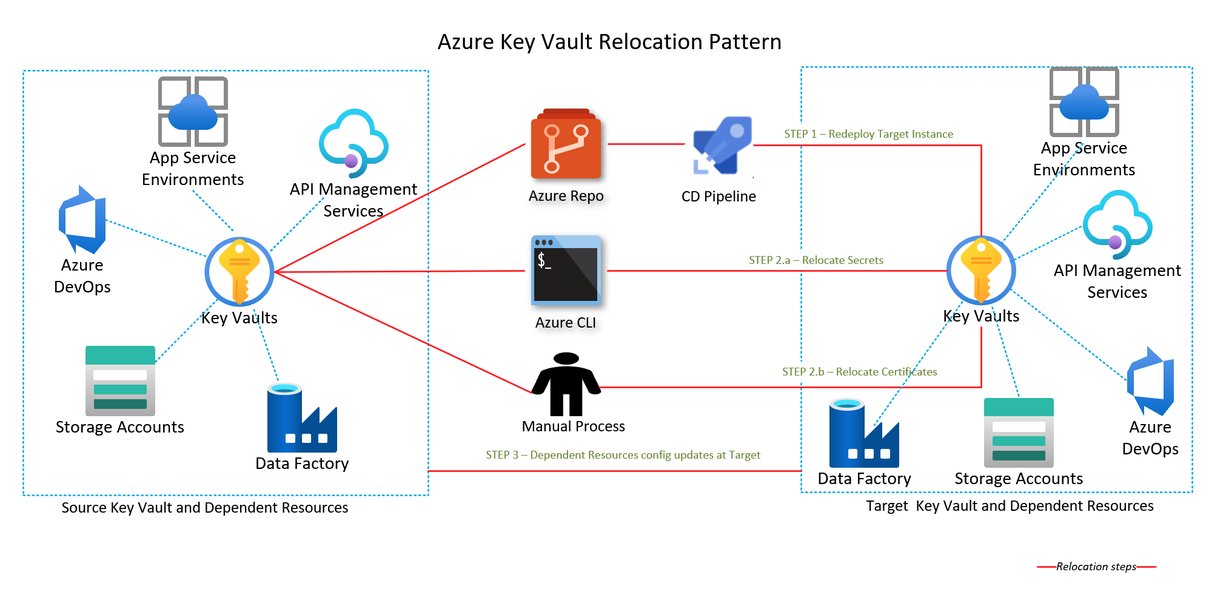
Conceptual diagram illustrating the role of Azure Key Vault in a secure setup.
Leveraging the PowerShell SecretManagement Module
The PowerShell SecretManagement module provides a standardized and consistent way to interact with various secret storage solutions, known as extension vaults. This module abstracts the underlying storage mechanism, allowing scripts to retrieve secrets using a common set of cmdlets regardless of where the secrets are physically stored.
Video introducing the new PowerShell Secrets Management Module and its capabilities.
Integrating with Azure Key Vault
To use Azure Key Vault with the SecretManagement module, you need to install the necessary extension vault module, such as Az.KeyVault.SecretManagement. Once installed and registered, you can configure a connection to your Azure Key Vault instance.
# Install the SecretManagement and Az.KeyVault.SecretManagement modules
Install-Module Microsoft.PowerShell.SecretManagement -Force
Install-Module Az.KeyVault.SecretManagement -Force

# Register the Azure Key Vault as a secret vault
# Replace 'MyKeyVault' with your desired vault name in SecretManagement
# Replace 'YourAzureKeyVaultName' with the actual name of your Azure Key Vault
# Replace 'YourSubscriptionId' with your Azure subscription ID
Register-SecretVault -Name MyKeyVault -ModuleName Az.KeyVault.SecretManagement -VaultParameters @{ AZKVaultName = 'YourAzureKeyVaultName'; SubscriptionId = 'YourSubscriptionId' }
After successfully registering the Azure Key Vault, you can use SecretManagement cmdlets like Set-Secret to store secrets and Get-Secret to retrieve them.
# Store a secret in the registered Azure Key Vault
# Replace 'MySecretName' with the desired name for your secret
# Replace 'YourSecretValue' with the actual secret value
Set-Secret -Vault MyKeyVault -Name MySecretName -Secret 'YourSecretValue'

# Retrieve a secret from the registered Azure Key Vault
$secret = Get-Secret -Vault MyKeyVault -Name MySecretName -AsPlainText
Write-Host "Retrieved Secret: $($secret)"
The -AsPlainText parameter is used to retrieve the secret value as a plain string. Be cautious when displaying secrets in plain text, especially in production environments.
Storing Secrets in Azure Key Vault
You can add secrets to Azure Key Vault through various methods, including the Azure portal, Azure CLI, Azure PowerShell, or programmatically using the Azure SDKs. When storing a secret, you provide a name and the secret value. Optionally, you can add tags and set an expiration date.
Using the Azure Portal
The Azure portal provides a user-friendly interface for managing Key Vault secrets. You can navigate to your Key Vault instance, select "Secrets" under "Objects," and then click "Generate/Import" to add a new secret.

Adding a new secret within the Azure Key Vault interface in the Azure portal.
Using Azure PowerShell
The Set-AzKeyVaultSecret cmdlet is used to create or update a secret in Azure Key Vault. If the secret with the specified name doesn't exist, it will be created.
# Connect to your Azure account (if not already connected)
Connect-AzAccount

# Set a secret in Azure Key Vault
# Replace 'YourResourceGroupName' with your resource group name
# Replace 'YourAzureKeyVaultName' with the name of your Key Vault
# Replace 'MySecretName' with the desired name for your secret
# Replace 'YourSecretValue' with the actual secret value
Set-AzKeyVaultSecret -VaultName 'YourAzureKeyVaultName' -Name 'MySecretName' -SecretValue (ConvertTo-SecureString 'YourSecretValue' -AsPlainText -Force)
Using ConvertTo-SecureString is recommended for handling sensitive values before passing them to cmdlets.
Retrieving Secrets from Azure Key Vault in PowerShell
Accessing secrets from Azure Key Vault in your PowerShell scripts requires appropriate authentication and authorization. Several methods can be used to achieve this securely.
Authentication Methods
The most secure ways to authenticate to Azure Key Vault from a script running in Azure are:
- Managed Identities: Assign a managed identity to the Azure resource running the script (e.g., a Virtual Machine, Azure Function, or Azure Automation Runbook). This eliminates the need to manage credentials for authentication.
- Service Principals with Certificates: Use an Azure Active Directory (Azure AD) service principal configured with a certificate for authentication. This is more secure than using a client secret.
Using a client secret directly in a script, even to access Key Vault, is generally discouraged as it replicates the initial problem of hardcoded credentials. If you must use a service principal, prioritize using a certificate.
Using the Az.KeyVault Module
The Az.KeyVault PowerShell module provides cmdlets for interacting directly with Azure Key Vault. You can use Get-AzKeyVaultSecret to retrieve a secret.
# Connect to your Azure account (if not already connected and using a method like Managed Identity or Service Principal)
Connect-AzAccount

# Retrieve a secret from Azure Key Vault
# Replace 'YourAzureKeyVaultName' with the name of your Key Vault
# Replace 'MySecretName' with the name of the secret you want to retrieve
$secretBundle = Get-AzKeyVaultSecret -VaultName 'YourAzureKeyVaultName' -Name 'MySecretName'

# Access the secret value
$secretValue = $secretBundle.SecretValueText
Write-Host "Retrieved Secret: $($secretValue)"
When using Get-AzKeyVaultSecret without the SecretManagement module, the secret value is contained within the SecretValueText property of the returned object.
Azure Key Vault Access Control
Controlling who can access your secrets in Azure Key Vault is paramount. Azure provides two models for access control:
- Vault access policies: This model grants permissions directly on the Key Vault.
- Azure role-based access control (RBAC): This is the recommended model, offering more granular control and integration with Azure AD identities.
For securing access from PowerShell scripts running on Azure resources, using Managed Identities with Azure RBAC is the most secure approach. You assign a built-in or custom role with appropriate permissions (e.g., "Key Vault Secrets Officer" or a custom role with "Microsoft.KeyVault/vaults/secrets/get/action") to the managed identity of the resource.
If your script is running on-premises or outside of Azure, you would typically use a Service Principal. Assign the Service Principal an Azure RBAC role with the necessary Key Vault permissions.
Comparing Secret Storage Options
While Azure Key Vault is a highly recommended solution, it's helpful to understand other methods that have been used to handle secrets in PowerShell and why Key Vault is preferred for many scenarios.
| Method | Description | Security Level | Best Use Case |
|---|---|---|---|
| Hardcoded in Script | Secret is written directly in the PowerShell script file. | Very Low | Never recommended. |
| Prompt (Get-Credential) | User is prompted to enter credentials when the script runs. | Low to Medium (depends on execution context) | Interactive scripts where user presence is guaranteed. |
| SecureString (Export/Import) | Credentials are stored in an encrypted file using ConvertTo-SecureString and Export-Clixml. |
Medium | Limited use cases, encryption is tied to the user account and machine. |
| Windows Credential Manager | Credentials are stored securely in the Windows Credential Manager. | Medium to High (local security) | Scripts running interactively or as a scheduled task under a specific user account on a Windows machine. |
| Azure Key Vault | Secrets are stored and managed in a centralized cloud service with robust access control. | High | Cloud automation, scripts running on Azure resources, centralized secret management for teams/applications. |
Azure Key Vault offers significant advantages in terms of centralized management, scalability, auditing, and integration with other Azure services and security features.
Implementing Secure Retrieval in Scripts
When retrieving secrets within your PowerShell scripts, follow these best practices:
- Use the SecretManagement module for a consistent interface.
- Authenticate to Azure using Managed Identities whenever possible.
- If using a Service Principal, authenticate with a certificate.
- Grant the script's identity (Managed Identity or Service Principal) the least privilege necessary in Key Vault (e.g., only 'Get' permission for the specific secrets required).
- Avoid outputting sensitive secret values to console or logs.
- Handle errors gracefully if a secret cannot be retrieved.
Example with SecretManagement and Managed Identity
This example assumes your script is running on an Azure resource with a Managed Identity configured and assigned appropriate Key Vault permissions.
# Ensure SecretManagement and Az.KeyVault.SecretManagement modules are available
# (Installation and registration would typically be done during environment setup)

# Retrieve the secret using the registered vault
# Assuming 'MyKeyVault' is the registered name for your Azure Key Vault
# Replace 'MySecretName' with the name of the secret you want to retrieve
try {
    $clientSecret = Get-Secret -Vault MyKeyVault -Name 'MySecretName' -AsPlainText
    # Use the retrieved secret for your operations
    Write-Host "Successfully retrieved secret."
    # Example usage (replace with your actual logic)
    # Connect-MyService -Secret $clientSecret

} catch {
    Write-Error "Failed to retrieve secret: $($_.Exception.Message)"
    # Handle the error appropriately, e.g., exit the script
    Exit 1
}
This approach keeps the sensitive secret value out of the script code itself and relies on the secure identity of the executing environment.
FAQ
What is the difference between Azure Key Vault and PowerShell Secret Store?
Azure Key Vault is a cloud service for centralized secret management, offering high availability, scalability, and robust security features like hardware security modules (HSMs). The PowerShell Secret Store is a local extension vault for the PowerShell SecretManagement module, storing secrets encrypted locally for the current user. Azure Key Vault is suitable for managing secrets across multiple applications and environments, while Secret Store is more for local script execution needs.
Can I use Azure Key Vault to store certificates for my PowerShell scripts?
Yes, Azure Key Vault can securely store and manage certificates. You can then retrieve these certificates in your PowerShell scripts for tasks like authenticating to services or encrypting/decrypting data.
How can I rotate secrets stored in Azure Key Vault?
Azure Key Vault supports secret versioning. When you update a secret, a new version is created. You can automate secret rotation using Azure Automation, Azure Functions, or other automation platforms that can interact with Azure Key Vault.
Is it possible to access Azure Key Vault from a script running on-premises?
Yes, you can access Azure Key Vault from on-premises scripts. This typically involves using a Service Principal for authentication. Ensure your network allows connectivity to the Azure Key Vault endpoint, and securely manage the Service Principal's credentials (preferably using a certificate).
Recommended Queries
- How to use Azure Key Vault with Managed Identity in PowerShell scripts?
- Exploring different extension vaults for PowerShell SecretManagement module
- Configuring Azure RBAC permissions for Azure Key Vault access
- Strategies for automating the rotation of secrets in Azure Key Vault
References
Last updated May 19, 2025