
Securing a Small Office Network
Implementing a Packet Filtering Firewall on a Cisco Router
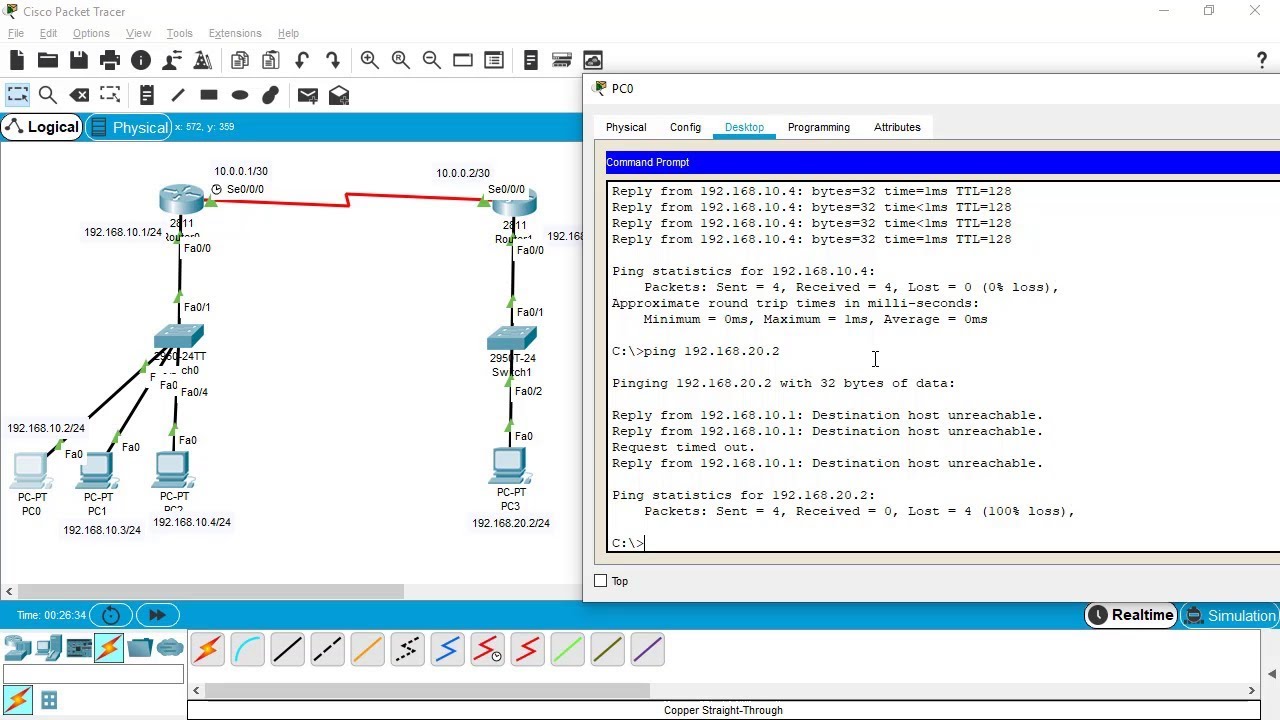
Key Highlights
- Router Interface Setup: Proper configuration of interfaces with IP addresses for internal (192.168.1.0/24) and external (192.168.2.0/24) networks.
- Access Control List Implementation: Creation and application of extended ACLs to effectively filter traffic by protocols, IP addresses, and ports.
- Thorough Testing: Step-by-step verification including ping tests, service access, and traffic monitoring to ensure the firewall behaves as expected.
Detailed Configuration Process
Overview
In this lab, you are required to secure a small office network through the implementation of a packet filtering firewall on a Cisco router. Your network comprises two departments: an internal network with employee laptops and an external network hosting two servers—a web server and a file server. This configuration not only protects your internal resources by controlling the traffic flow between these networks but also ensures that only legitimate and essential communications are permitted. The steps outlined below include configuring interfaces, developing tailored ACLs, and performing comprehensive testing of the configuration.
Step 1: Configuring the Router Interfaces
Interface Assignment
The primary step is setting up the router’s interfaces so that each department (internal and external) can be accessed via correctly assigned IP addresses. The internal network interface should be configured with an IP address within the 192.168.1.0/24 subnet. Similarly, the external network interface must be configured with an IP address from the 192.168.2.0/24 subnet.
The following example demonstrates how to assign IP addresses in Cisco IOS:
enable
configure terminal
!
! Configure Internal Network Interface (e.g., FastEthernet0/0)
interface FastEthernet0/0
 ip address 192.168.1.1 255.255.255.0   ! Router’s IP on the internal network
 no shutdown
exit
!
! Configure External Network Interface (e.g., FastEthernet0/1)
interface FastEthernet0/1
 ip address 192.168.2.1 255.255.255.0   ! Router’s IP on the external network
 no shutdown
exit
!
copy running-config startup-config
Ensure that the interfaces are activated with the no shutdown command. This step is essential for the router to properly participate within both network segments.
Step 2: Creating and Applying an Access Control List (ACL)
Understanding ACLs and Their Purpose
Access Control Lists (ACLs) are vital in a packet filtering firewall because they enforce security policies by allowing or denying traffic based on specific parameters such as source and destination IP addresses, protocols, and port numbers. By examining each packet that traverses the network, ACLs decide if it should be forwarded or dropped.
In this lab scenario, the goal is to allow certain traffic (for example, HTTP traffic to the web server or FTP traffic to the file server) while blocking any unauthorized flow from the external network towards the internal network.
Extended ACL Configuration
Extended ACLs are used due to their ability to filter on both IP addresses and protocols. Here is the configuration example that demonstrates how to create an extended ACL:
configure terminal
!
! Example: ACL 100 to allow specific traffic
! Permit TCP traffic from the internal network to the Web Server at port 80 (HTTP)
access-list 100 permit tcp 192.168.1.0 0.0.0.255 host 192.168.2.10 eq 80
!
! Permit TCP traffic from the internal network to the File Server at port 21 (FTP)
access-list 100 permit tcp 192.168.1.0 0.0.0.255 host 192.168.2.11 eq 21
!
! Deny all other IP traffic as a security measure
access-list 100 deny ip any any
!
exit
The ACL configuration begins with allowing the necessary traffic from internal devices to access the web and file servers using specified ports. The final line commanding deny ip any any stops any other traffic from being permitted by default.
Applying the ACL
After creating the ACL, it must be applied to the relevant interface. For example, applying the ACL inbound on the external interface ensures that incoming traffic is scrutinized before reaching internal network resources.
configure terminal
!
! Apply ACL 100 inbound on the external (e.g., FastEthernet0/1) interface to filter incoming traffic
interface FastEthernet0/1
 ip access-group 100 in
exit
!
copy running-config startup-config
Applying an ACL at the correct interface and direction is critical. On the external side, inbound traffic is filtered before it can propagate further into the network. Adjust the ACL as necessary to fine-tune which services are accessible based on your office’s security policy.
Step 3: Testing the Configuration
Verifying Interface Connections
Before testing the ACLs, verify that the router’s interfaces are correctly configured and active, using commands like show ip interface brief:
show ip interface brief
This command displays the status and IP configurations for each interface, ensuring that both internal and external interfaces are operational.
Performing Traffic Tests
Testing should focus on ensuring that only the desired traffic passes through the firewall.
- Ping Tests: Test connectivity from the employee laptops (e.g., 192.168.1.10 and 192.168.1.11) to the router interfaces. For example, ping the external router IP (192.168.2.1) to verify connectivity.
- HTTP and FTP Access: From a laptop on the internal network, attempt to access the web server (192.168.2.10) using a browser with
http://192.168.2.10and access the file server (192.168.2.11) using an FTP client. These tests confirm that the necessary traffic (HTTP, FTP) is allowed. - External Traffic Block Verification: Attempt to initiate connections from the external network to the internal network. Such attempts should be denied, as specified by the ACL.
To further analyze and capture traffic for troubleshooting, you may use debugging commands like debug ip packet (with care in a production environment) or monitor the logs if a syslog server is enabled.
Table of Critical Steps
| Step | Action | Command/Example |
|---|---|---|
| 1 | Configure Internal Interface |
interface FastEthernet0/0
|
| 2 | Configure External Interface |
interface FastEthernet0/1
|
| 3 | Create Extended ACLs |
access-list 100 permit tcp 192.168.1.0 0.0.0.255 host 192.168.2.10 eq 80
|
| 4 | Apply ACL to Interface |
interface FastEthernet0/1
|
| 5 | Test Connectivity |
Use ping and service access tests (HTTP, FTP)
|
Enhanced Security Considerations
Implementing Additional Security Features
While basic ACL configuration is effective, enhancing security can involve additional techniques and inspections:
- Stateful Inspection: Consider implementing stateful firewall features if the router supports them. This inspects packets more deeply by tracking the state of connections, providing an extra layer of protection.
- Firewall Auditing and Logging: Enable logging on the Cisco router to monitor and audit access attempts. This helps in troubleshooting and tracking any unauthorized access attempts.
- IP Inspection: Configure IP inspection rules using commands such as
ip inspectto monitor both TCP and UDP traffic for anomalies.
For example, you can set up basic IP inspection as follows:
configure terminal
!
! Configure IP inspection for TCP and UDP traffic
ip inspect name myfirewall tcp
ip inspect name myfirewall udp
!
! Apply inspection on the internal interface for outbound traffic
interface FastEthernet0/0
 ip inspect myfirewall out
exit
!
copy running-config startup-config
These additional measures serve to further secure your perimeter and ensure that even if a malicious packet is crafted to bypass a simple ACL, further filters and logging mechanisms will help mitigate the risk.
Monitoring and Troubleshooting
Effective Techniques for Troubleshooting
Troubleshooting is an essential part of network security. Once your ACLs are in place, routinely check the following:
- Use "show" commands: Commands like
show access-listandshow ip interfacegive you current statuses of your ACLs and interfaces. - Examine logs: Enable logging to capture denied packets. This provides insight into possible misconfigurations or attack attempts.
- Step-by-step testing: Conduct tests from various devices and segments of the network to pinpoint which traffic is being permitted or blocked.
- Backup configurations: Always save your correct configuration using
copy running-config startup-configafter changes are made.
Additionally, if issues persist, you can utilize troubleshooting commands like debug ip packet (with caution) to capture output and analyze traffic flow in real time.
References
- Cisco - Configuring Access Control Lists
- Cisco - ACL Samples
- Networks Training - CCNA ACL Guide
- Computer Networking Notes - ACL Examples
- IT Exam Answers - ACL Lab Guide
Recommended Further Exploration
Last updated March 19, 2025