
Unlock Your Own Git Powerhouse: A Comprehensive Guide to Setting Up Forgejo
Step-by-step instructions for installing, configuring, and securing your self-hosted Forgejo instance.
Forgejo is a lightweight, self-hosted software forge – a platform for hosting Git repositories, managing projects, collaborating on code, and running CI/CD pipelines. It's designed for ease of installation, low resource consumption, and minimal maintenance, making it an excellent alternative to services like GitHub or GitLab if you prefer control over your own infrastructure. This guide provides a comprehensive walkthrough for setting up your own Forgejo server.
Highlights
- Multiple Installation Paths: Choose the method that best suits your needs – Binary for simplicity, Docker for containerization, or Package Managers for system integration.
- Configuration is Key: Proper setup involves configuring the database, server domain, SSH access, and email notifications via the web UI and configuration files.
- Extend with Runners: Optional Forgejo Runners enable powerful CI/CD capabilities, automating your build, test, and deployment workflows directly from your repositories.
Understanding Forgejo
Forgejo emerged as a community-driven fork of Gitea, focusing on sustainability, community governance, and maintaining a lean, efficient codebase. It provides core functionalities like Git repository hosting, issue tracking, pull requests, wikis, user/organization management, and increasingly powerful CI/CD features via Forgejo Actions (compatible with GitHub Actions).
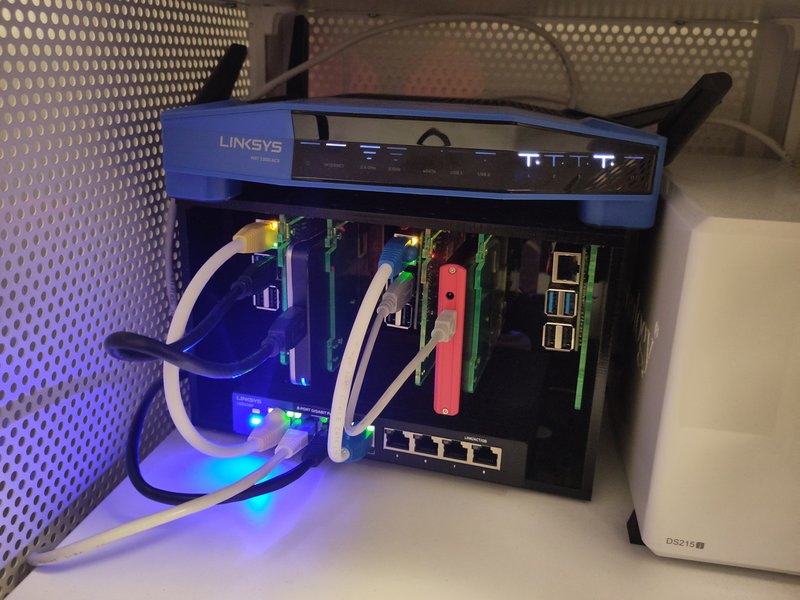
A conceptual diagram of a self-hosted server environment, similar to one used for Forgejo.
Choosing Your Installation Path
Forgejo offers flexibility in how you install it. Consider these main options:
- Binary Installation: Download a pre-compiled binary for your operating system and architecture. This method is straightforward and gives you direct control over the installation location and configuration files.
- Docker/Docker Compose: Use official Docker images to run Forgejo in a containerized environment. This simplifies dependency management, isolates the application, and makes updates potentially easier, especially when paired with Docker Compose for managing Forgejo and its database.
- Package Manager: If your operating system's distribution (like Debian, Fedora, Arch Linux, Alpine, NixOS) includes Forgejo in its repositories, you can use the system's package manager (e.g.,
apt,dnf,pacman) for installation and updates. This integrates Forgejo tightly with your system's update mechanisms.
Preparing Your Server Environment
Before installing Forgejo, ensure your server meets the basic requirements and is properly prepared:
System Requirements
- Operating System: A Linux distribution (Ubuntu, Debian, Fedora, CentOS, Arch etc.), macOS, or Windows. Linux is most common for server deployments.
- CPU: At least 1 core (more recommended for larger teams).
- RAM: Minimum 512MB, but 1GB+ is recommended for better performance, especially with CI/CD.
- Disk Space: Sufficient space for the Forgejo installation, repositories, LFS objects, database, and logs. SSDs are recommended for better performance.
- Dependencies:
- Git: Git (version 1.8.3 or later) must be installed and accessible in the system's PATH.
- Database: Choose one: SQLite3 (simplest, good for single-user or small teams), PostgreSQL (recommended for production), MySQL/MariaDB.
- SSH Server: Required if you want SSH access to your Git repositories (standard practice). OpenSSH is typical.
Initial Server Setup Steps
1. Update Your Server
Ensure your system packages are up to date:
# For Debian/Ubuntu
sudo apt update && sudo apt upgrade -y

# For Fedora/CentOS/RHEL
sudo dnf update -y
2. Install Git
Install Git if it's not already present:
# For Debian/Ubuntu
sudo apt install git -y

# For Fedora/CentOS/RHEL
sudo dnf install git -y
3. Create a Dedicated User
For security, run Forgejo under a dedicated system user (e.g., git or forgejo). Avoid running it as root.
sudo adduser --system --shell /bin/bash --group --disabled-password --home /home/git git
# Note: Some guides use 'forgejo' as the username instead of 'git'. Choose one consistently.
4. Set Up Database (if not using SQLite)
If using PostgreSQL or MySQL/MariaDB, install the database server and create a dedicated database and user for Forgejo.
Example for PostgreSQL:
sudo apt install postgresql postgresql-contrib # Or equivalent for your OS
sudo -u postgres psql -c "CREATE USER forgejo WITH PASSWORD 'your_strong_password';"
sudo -u postgres psql -c "CREATE DATABASE forgejo OWNER forgejo;"
Remember to replace 'your_strong_password' with a secure password.
5. Networking Considerations
Ensure the necessary ports are open in your firewall:
- HTTP Port: Default is 3000 (configurable).
- SSH Port: Default is 22. It is highly recommended to configure Forgejo to use a different SSH port (e.g., 2222) to avoid conflicts if the system's main SSH server runs on port 22. This is configured during the initial Forgejo setup or in
app.ini. - HTTPS Port: Usually 443, handled by a reverse proxy.
Installation Walkthroughs
Method 1: Installing from Binary
- Download Binary: Go to the Forgejo Download Page and get the binary for your server's architecture (e.g.,
linux-amd64). Also download the corresponding.ascfile for verification. - Verify Signature (Recommended): Import the Forgejo signing key and verify the download:
# Obtain the key ID from Forgejo documentation/website if needed gpg --keyserver keys.openpgp.org --recv <KEY_ID> gpg --verify forgejo-<version>-linux-amd64.asc forgejo-<version>-linux-amd64 - Place Binary: Copy the binary to a suitable location, like
/usr/local/bin/, and make it executable.sudo cp forgejo-<version>-linux-amd64 /usr/local/bin/forgejo sudo chmod +x /usr/local/bin/forgejo - Create Directories: Create necessary directories for configuration and data, ensuring the dedicated user (e.g.,
git) owns them.sudo mkdir -p /etc/forgejo /var/lib/forgejo sudo chown git:git /etc/forgejo /var/lib/forgejo sudo chmod 750 /etc/forgejo /var/lib/forgejo - Run Forgejo for Initial Setup: Switch to the dedicated user and run Forgejo. It will guide you through the initial web setup.
Alternatively, create a systemd service file (sudo -u git /usr/local/bin/forgejo web --config /etc/forgejo/app.ini/etc/systemd/system/forgejo.service) to manage the process. - Web Setup: Access
http://your_server_ip:3000in your browser and complete the initial configuration wizard (Database settings, Domain, SSH port, Admin user). The configuration will be saved in/etc/forgejo/app.ini(or the path specified).
Method 2: Installing with Docker/Docker Compose
- Install Docker & Docker Compose: Follow the official Docker documentation to install Docker Engine and Docker Compose on your server.
- Create Project Directory & Compose File:
mkdir forgejo-docker cd forgejo-docker nano docker-compose.yml - Populate
docker-compose.yml: Use a configuration like the example below. This sets up Forgejo and a PostgreSQL database. Adjust volumes, ports, passwords, and potentially UID/GID as needed.
Important: Replaceversion: '3.8' services: forgejo: image: codeberg.org/forgejo/forgejo:7 # Use a specific version tag for stability container_name: forgejo_server environment: - USER_UID=1000 # Match your host user if needed, or run as root inside container (less secure) - USER_GID=1000 # Match your host user if needed - FORGEJO__database__DB_TYPE=postgres - FORGEJO__database__HOST=db:5432 - FORGEJO__database__NAME=forgejo - FORGEJO__database__USER=forgejo - FORGEJO__database__PASSWD=your_db_password # CHANGE THIS! - FORGEJO__server__DOMAIN=your_domain_or_ip # Set this correctly - FORGEJO__server__SSH_DOMAIN=your_domain_or_ip # Set this correctly - FORGEJO__server__HTTP_PORT=3000 - FORGEJO__server__ROOT_URL=http://your_domain_or_ip:3000 # Change to https if using reverse proxy - FORGEJO__server__DISABLE_SSH=false - FORGEJO__server__SSH_PORT=2222 # Expose this port below if needed - FORGEJO__server__START_SSH_SERVER=true - FORGEJO__service__DISABLE_REGISTRATION=false # Set to true after admin creation if desired volumes: - ./forgejo:/data # Mount persistent data volume - /etc/timezone:/etc/timezone:ro - /etc/localtime:/etc/localtime:ro ports: - "3000:3000" # Web UI - "2222:2222" # SSH access (mapping container 2222 to host 2222) depends_on: - db restart: always db: image: postgres:15 # Or your preferred version container_name: forgejo_db environment: - POSTGRES_USER=forgejo - POSTGRES_PASSWORD=your_db_password # CHANGE THIS to match above! - POSTGRES_DB=forgejo volumes: - ./postgres:/var/lib/postgresql/data # Mount persistent DB data volume restart: always volumes: forgejo: postgres:your_db_passwordandyour_domain_or_ipwith your actual values. Ensure theUSER_UIDandUSER_GIDmatch the user owning the./forgejoand./postgresdirectories on the host, or manage permissions appropriately. If using a reverse proxy for HTTPS, changeROOT_URLtohttps://.... - Start Containers:
docker-compose up -d - Web Setup: Access
http://your_server_ip:3000(or your configured domain/port). Some settings might be pre-filled from environment variables, but review and complete the setup, especially creating the administrator account.
Method 3: Using Package Managers
If Forgejo is available in your distribution's official or community repositories (e.g., Arch Linux AUR, Debian, Fedora), you can typically install it using:
# Example for Debian/Ubuntu (check availability first)
sudo apt install forgejo

# Example for Arch Linux
yay -S forgejo # Or use another AUR helper
Installation via package managers often handles creating the user, service files, and directory structure automatically. However, you will still need to configure the database (if not using SQLite) and perform the initial web setup. Consult your distribution's specific Forgejo package documentation.
Initial Configuration via Web Interface
Whether you installed via binary or Docker, the first time you access Forgejo through your browser (http://your_server_ip:3000 or equivalent), you'll be presented with an initial setup page. Key settings include:
- Database Type: Select SQLite3, PostgreSQL, or MySQL/MariaDB.
- Database Settings: Provide host, port, username, password, and database name if not using SQLite3.
- Site Title: The name displayed in the browser tab.
- Server Domain: The domain name users will use to access Forgejo (e.g.,
git.example.comor your server's IP). - SSH Server Domain: The domain name used for SSH Git operations (usually the same as Server Domain).
- SSH Port: The port Forgejo's built-in SSH server will listen on. **Change this from 22 to something like 2222** if your host OS already uses port 22 for system SSH.
- Forgejo Base URL: The full URL for accessing Forgejo (e.g.,
http://git.example.com:3000orhttps://git.example.comif using a reverse proxy). This MUST be correct for links and Git clone URLs to work properly. - Administrator Account Settings: Create the initial admin user.
- Optional Settings: Configure email notifications, disable self-registration, enable/disable features.
Click "Install Forgejo" to save these settings (usually to /data/forgejo/conf/app.ini inside the container or /etc/forgejo/app.ini for binary installs) and initialize the database.
Advanced Configuration (app.ini)
Most Forgejo settings are controlled via the app.ini configuration file. The location depends on your installation method (e.g., /etc/forgejo/app.ini, /data/forgejo/conf/app.ini in Docker, /var/lib/forgejo/custom/conf/app.ini). You can manually edit this file (and restart Forgejo) to fine-tune behavior.
Key sections include:
[server]: Core settings likeDOMAIN,ROOT_URL,HTTP_PORT,SSH_DOMAIN,SSH_PORT,LFS_START_SERVER,OFFLINE_MODE.[database]: Database connection details (DB_TYPE,HOST,NAME,USER,PASSWD).[repository]: Default settings for new repositories.[ui]: Theme, default visibility, etc.[service]: Enable/disable features like Issue Tracking, Pull Requests, Registration (DISABLE_REGISTRATION), Captcha.[mailer]: SMTP settings for email notifications.[session],[security],[log]: Other important operational settings.
Refer to the Forgejo Config Cheat Sheet for a full list of options.
Securing Your Forgejo Instance
Using a Reverse Proxy for HTTPS
For production environments, running Forgejo behind a reverse proxy like Nginx, Caddy, or Apache is highly recommended. This allows you to:
- Serve Forgejo over standard HTTPS (port 443).
- Easily manage SSL/TLS certificates (e.g., using Let's Encrypt).
- Serve Forgejo under a subdomain (e.g.,
https://git.example.com). - Add security headers and potentially handle load balancing.
When using a reverse proxy:
- Configure the proxy to forward requests to Forgejo's HTTP port (e.g.,
http://127.0.0.1:3000). - Ensure the proxy sends necessary headers like
X-Forwarded-For,X-Forwarded-Proto, andHost. - Update Forgejo's
app.ini[server]section:- Set
PROTOCOL = https(if the proxy handles TLS termination). - Set
ROOT_URLto the public HTTPS URL (e.g.,https://git.example.com). - Set
DOMAINandSSH_DOMAINaccordingly.
- Set
Security Best Practices
- Run as Non-Root User: Use the dedicated
gitorforgejouser. - Change Default SSH Port: Use a non-standard port like 2222 for Forgejo SSH access.
- Use HTTPS: Always configure a reverse proxy with TLS/SSL.
- Strong Passwords: Enforce strong passwords for users and the database.
- Disable Registration: If it's a private instance, set
DISABLE_REGISTRATION = trueinapp.iniafter creating necessary accounts. - Regular Updates: Keep Forgejo, your OS, database, and reverse proxy updated. Forgejo has regular stable and LTS releases.
- Firewall Rules: Only open necessary ports (e.g., 443 for HTTPS, your chosen SSH port).
- Backups: Regularly back up the Forgejo database and the data directory (repositories, LFS objects, attachments).
Setting Up Email Notifications
Email is crucial for account verification, password resets, and notifications about issues and pull requests. Configure the [mailer] section in app.ini or via the Admin Panel (/admin/config):
[mailer]
ENABLED = true
HOST = smtp.example.com:587 ; Or your SMTP server and port (e.g., 465 for SMTPS)
FROM = forgejo@example.com ; Email address Forgejo sends from
USER = smtp_username       ; Your SMTP username
PASSWD = 'your_smtp_password' ; Your SMTP password
PROTOCOL = smtp            ; Can be smtp, smtps, sendmail etc.
SKIP_VERIFY = false        ; Set true only if using self-signed certs (not recommended)
USE_SENDMAIL = false       ; Set true if using local sendmail binary instead of SMTP
Ensure ENABLED is true. Use STARTTLS (port 587) or SMTPS (port 465) for encrypted connections. Test the configuration using the tool in the admin panel.
Integrating CI/CD with Forgejo Runner
Forgejo Actions allow you to automate workflows (CI/CD). This requires setting up one or more Forgejo Runners – separate daemons that poll your Forgejo instance for jobs, execute them, and report back the results.
- Security: It is strongly recommended to run runners on separate machines from the main Forgejo server to isolate build environments.
- Installation: Runners can be installed via binary or Docker/OCI images. Download from the Forgejo releases page.
- Registration: Register the runner with your Forgejo instance using a registration token obtained from the Forgejo UI (Site Administration -> Actions -> Runners).
Use labels (# Example registration command for binary runner ./forgejo-runner register --no-interactive --instance https://your-forgejo-url.com --token YOUR_REGISTRATION_TOKEN --name my-linux-runner --labels docker:docker://docker-host:2375,linux_amd64--labels) to specify the runner's capabilities (e.g., OS, architecture, available tools like Docker). - Running: Start the runner daemon. It will connect to your Forgejo instance and wait for jobs matching its labels.
Consider running the runner as a systemd service for reliability../forgejo-runner daemon
Refer to the Forgejo Runner Installation Guide for detailed instructions.
Visualizing Forgejo Setup Components
This mindmap illustrates the key components involved in setting up and running a Forgejo server:
This overview helps visualize the relationships between the different parts of a Forgejo deployment.
Comparing Installation Methods
Choosing an installation method depends on your technical comfort level and environment. This radar chart provides a subjective comparison across key factors:
Interpretation: Docker excels in dependency management, isolation, and potentially update simplicity, while Package Managers offer the best system integration. Binary installs provide high flexibility but require more manual setup for dependencies and updates.
Forgejo Installation in Action (Video Guide)
For a visual walkthrough, this video demonstrates installing Forgejo using Docker on an Ubuntu server. While specifics might vary slightly based on the Forgejo version, the core concepts of using Docker Compose, configuring environment variables, and accessing the initial setup remain relevant.
This video provides practical steps for deploying Forgejo within a containerized environment, highlighting the use of environment variables for configuration and demonstrating the initial web UI access.
Installation Checklist Table
Here's a quick checklist to ensure a smooth Forgejo installation:
| Step | Task | Status (Manual Check) | Notes |
|---|---|---|---|
| 1 | Server Preparation | [ ] Done | OS updated, Git installed, Firewall configured (ports 3000, SSH port, maybe 443). |
| 2 | Dedicated User | [ ] Done | System user (e.g., 'git' or 'forgejo') created. |
| 3 | Database Setup | [ ] Done / N/A | PostgreSQL/MySQL installed & configured, or confirmed using SQLite3. DB name, user, password noted. |
| 4 | Choose Installation Method | [ ] Decided | Binary, Docker, or Package Manager selected. |
| 5 | Install Forgejo | [ ] Done | Binary placed/executable, Docker image pulled/compose file created, or package installed. |
| 6 | Initial Web Configuration | [ ] Done | Accessed UI (e.g., http://server:3000), configured DB, Domain, Base URL, SSH Port (non-22 recommended), Admin User created. |
| 7 | Service/Daemon Setup | [ ] Done / N/A | Forgejo running via systemd service or docker-compose up -d. |
| 8 | Reverse Proxy (Optional) | [ ] Done / N/A | Nginx/Caddy/Apache configured for HTTPS, ROOT_URL updated in app.ini. |
| 9 | Email Configuration | [ ] Done / Pending | SMTP settings added in app.ini or UI, tested. |
| 10 | Runner Setup (Optional) | [ ] Done / N/A | Runner installed (ideally separate machine), registered, running. |
| 11 | Security Checks | [ ] Done | Registration disabled (if private), backups planned, updates checked. |
Frequently Asked Questions (FAQ)
What database should I use for Forgejo?
It depends on your scale and needs:
- SQLite3: Simplest option, requires no separate database server. Suitable for single-user instances, small teams, or testing. Performance might degrade with many users or large repositories.
- PostgreSQL: Generally recommended for production deployments, offering robustness, scalability, and good performance.
- MySQL / MariaDB: Also suitable for production, widely used and well-supported.
For most production use cases involving multiple users or significant activity, PostgreSQL or MySQL/MariaDB are preferred over SQLite3.
How do I change the SSH port Forgejo uses?
You should configure this during the initial web setup. If you need to change it later:
- Edit your `app.ini` configuration file.
- In the `[server]` section, modify the `SSH_PORT` value to your desired port (e.g., `SSH_PORT = 2222`).
- Ensure `START_SSH_SERVER = true` if you want Forgejo to run its own SSH server.
- Ensure the `SSH_DOMAIN` is set correctly (usually the same as your `DOMAIN`).
- If using Docker, make sure you expose the new port in your `docker-compose.yml` or `docker run` command (e.g., `ports: - "2222:2222"`).
- Ensure your firewall allows connections on the new SSH port.
- Restart the Forgejo service/container for the changes to take effect.
Using a non-standard port like 2222 is recommended to avoid conflict with the system's SSH daemon typically running on port 22.
How do I update Forgejo?
The update process depends on your installation method:
- Binary:
- Stop the Forgejo service.
- Download the new binary version.
- Replace the old binary (e.g., in `/usr/local/bin/forgejo`) with the new one.
- Start the Forgejo service. Forgejo usually handles database migrations automatically on startup.
- Docker:
- Pull the new Docker image: `docker pull codeberg.org/forgejo/forgejo:latest` (or a specific version tag).
- Stop and remove the existing container: `docker-compose down`.
- Start the container with the new image: `docker-compose up -d`. Ensure your `docker-compose.yml` references the desired image tag.
- Package Manager: Use your system's standard update command (e.g., `sudo apt update && sudo apt upgrade`, `sudo dnf update`, `yay -Syu`).
Important: Always back up your database and Forgejo data directory before performing an update.
Can I migrate from Gitea to Forgejo?
Yes, migrating from Gitea to Forgejo is generally straightforward, as Forgejo is a fork of Gitea. For many versions, you can often replace the Gitea binary/Docker image with the corresponding Forgejo version, and it should work with the existing database and data files.
However, always consult the official Forgejo documentation for specific migration instructions relevant to the versions you are moving between. It's crucial to back up your Gitea installation (database and data directory) before attempting the migration.
The basic steps usually involve:
- Backing up your Gitea instance.
- Stopping the Gitea service/container.
- Replacing the Gitea binary/image with the Forgejo one.
- Starting Forgejo, pointing it to the existing configuration, data, and database.
- Forgejo should handle any necessary migrations on startup.
Check the Forgejo migration documentation for details.
Recommended Further Exploration
- How can I configure Forgejo with an Nginx reverse proxy and Let's Encrypt SSL?
- What is the best way to back up and restore a Forgejo instance, including database and repositories?
- Can you provide a detailed guide on setting up Forgejo Actions with self-hosted runners using Docker?
- What are some common issues encountered during Forgejo setup and how can they be resolved?
References
 mteixeira.wordpress.com
mteixeira.wordpress.com
mteixeira.wordpress.com
Last updated May 6, 2025