
Unlock Seamless Cross-Border Finance: Integrating Wise Canada with QuickBooks Online
Streamline your international transactions and bookkeeping with a comprehensive setup guide for Wise (formerly TransferWise) in QuickBooks Online for Canadian businesses.
Key Integration Highlights
- Multi-Currency Capability is Essential: Wise accounts often handle multiple currencies, making QuickBooks Online's multi-currency feature a mandatory prerequisite for proper integration, even if you primarily transact in CAD or USD.
- Plan Upgrade May Be Required: To leverage Wise's full multi-currency features and direct bank connections, QuickBooks Online Simple Start plan users will likely need to upgrade to Essentials, Plus, or Advanced.
- Automated Syncing and Reconciliation: Once connected, Wise and QuickBooks Online facilitate automatic syncing of transactions, marking bills as paid, and categorizing fees, significantly reducing manual data entry and simplifying bookkeeping.
Integrating Wise (formerly TransferWise) with QuickBooks Online (QBO) for Canadian businesses revolutionizes how international transactions are managed. This comprehensive guide details the process, from essential prerequisites and step-by-step setup to managing the connection and troubleshooting common issues. By leveraging this integration, Canadian businesses can streamline multi-currency operations, automate bookkeeping, and achieve significant cost savings on international payments through Wise's mid-market exchange rates.
Understanding the Wise-QuickBooks Synergy for Canadian Businesses
The synergy between Wise and QuickBooks Online offers substantial benefits for Canadian businesses engaged in international trade. Wise provides a robust platform for sending, receiving, and holding multiple currencies, while QuickBooks Online offers comprehensive accounting software. The integration bridges these two functionalities, allowing for streamlined financial management.
Core Benefits of Integration
Effortless International Payments:
Wise enables payments to vendors and employees in over 80 countries using the real mid-market exchange rate, often at significantly lower costs than traditional banks. This directly syncs with QuickBooks, marking bills as paid and recording expenses.Multi-Currency Management:
Wise Business accounts offer local bank details for various currencies. When integrated, QuickBooks Online can track these multi-currency transactions accurately, simplifying reconciliation and providing a clearer financial picture.Automated Syncing and Reconciliation:
The integration automates the import of Wise transactions into QuickBooks, including bank feeds, payments, and associated fees. This reduces manual data entry, minimizes errors, and speeds up the reconciliation process.Streamlined Bookkeeping:
By automating transaction syncing and bill payments, the integration helps maintain accurate cash flow records, simplifies financial reporting, and reduces the administrative burden of managing international transactions.
Essential Prerequisites for a Successful Setup
Before initiating the connection between Wise Canada and QuickBooks Online, certain prerequisites must be met to ensure a smooth and error-free integration. Adhering to these foundational requirements will prevent common pitfalls and ensure optimal performance of the integrated system.
Required Accounts and Subscriptions
You must possess an active Wise Business account configured for Canada, which provides local bank details for multiple currencies. Simultaneously, a compatible QuickBooks Online subscription is essential. It's crucial to understand that not all QuickBooks Online plans support the necessary multi-currency functionality for Wise integration.
QuickBooks Online Plan Compatibility
The Simple Start plan in QuickBooks Online does not support multi-currency features or direct bank connections required for Wise. To fully leverage Wise's capabilities, particularly its multi-currency functionality, you will need to upgrade to at least the Essentials, Plus, or Advanced plan. This upgrade enables QuickBooks to properly handle accounts in different currencies, even if your primary transactions are in CAD or USD within Canada.
Enabling Multi-Currency in QuickBooks Online
Multi-currency must be enabled in QuickBooks Online to accurately record and reconcile Wise transactions, which often involve foreign exchange. To do this:
- Navigate to Settings (Gear icon) in QuickBooks Online.
- Select Account and Settings.
- Go to the Advanced tab.
- Locate the Currency section and click Edit (pencil icon).
- Turn on the Multi-currency feature and save your changes.
Once enabled, QuickBooks will convert all transactions involving different currencies to your home currency (e.g., CAD) for consistent bookkeeping. Be aware that this setting cannot be reversed once activated.
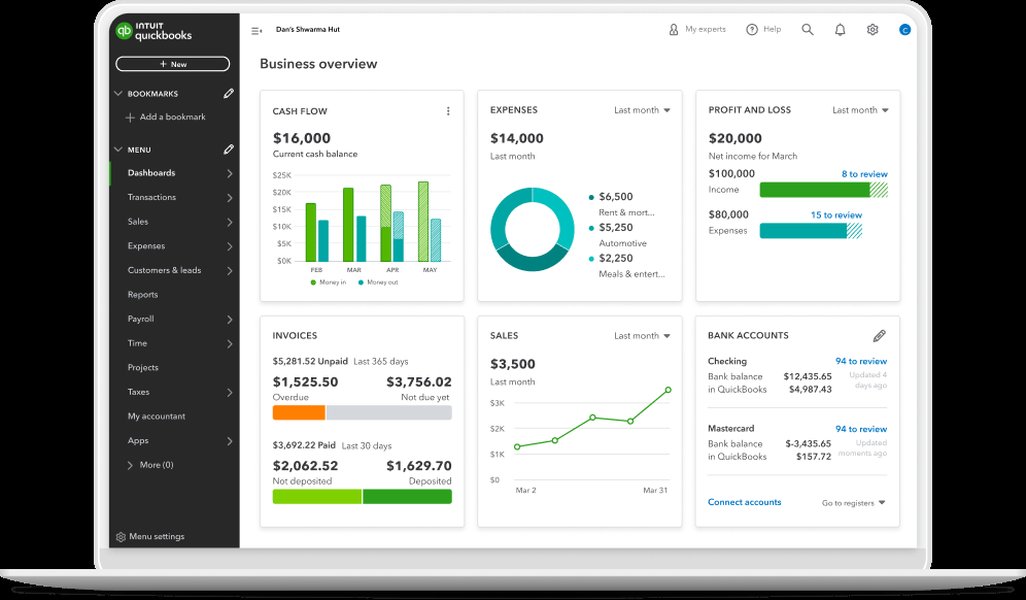
A view of the QuickBooks Online dashboard, illustrating its comprehensive business overview capabilities.
Administrative Permissions and Data Readiness
Ensure you have administrative access to both your Wise account and QuickBooks Online. In Wise, you may need to access "Advanced Settings" to configure specific sync preferences. In QuickBooks, banking management permissions are required to link accounts. Additionally, verify that your Wise account has recent transactions ready for import, as the integration will pull in details like payments and fees.
Step-by-Step Guide to Connecting Wise Canada to QuickBooks Online
The process of connecting your Wise Canada account to QuickBooks Online involves a series of straightforward steps that ensure proper synchronization of your financial data. This integration can be initiated either from within QuickBooks Online or directly from your Wise account.
Initiating the Connection from QuickBooks Online
- Access Banking Menu: Log in to your QuickBooks Online account and navigate to the "Banking" or "Transactions" menu, typically found on the left sidebar.
- Link an Account: Click on the "Link account" or "Add an account" button to begin the process of connecting a new financial institution.
- Search for Wise: In the search bar, type "Wise" or "Wise Business." It's crucial to select the correct regional Wise option, such as "Wise (Canada)," based on your registered business address to prevent connection errors.
- Authorize Connection: Follow the on-screen prompts to securely log in to your Wise account using your credentials. You will then be asked to authorize QuickBooks Online to share your data, including bank feeds, invoices, and payments. This authorization typically expires after 90 days, requiring periodic re-authorization.
- Select Accounts to Sync: After authorization, you will be prompted to select which Wise currency balances you wish to connect to your QuickBooks chart of accounts. If you skip this step, Wise will attempt to find corresponding accounts automatically.
Initiating the Connection from Wise
While the QuickBooks Online method is common, you can also start the integration from your Wise account:
- Log in to Wise: Access your Wise Business account.
- Navigate to Settings: Go to the "Advanced settings" or "Integrations" section within your Wise account.
- Enable QuickBooks Integration: Turn on features like "Import bills to Wise" and "Automatically mark bills as paid in QuickBooks" according to your business needs.
- Select QuickBooks Accounts: Choose which QuickBooks bank accounts to link with your Wise currency balances.
Regardless of the starting point, the goal is to establish a secure and functional link that allows for automated data exchange between the two platforms.
Managing and Reconciling Wise Transactions
Once your Wise Canada account is successfully connected to QuickBooks Online, the focus shifts to managing and reconciling your international transactions effectively. The integration automates much of this process, but understanding how currency conversions, fees, and reconciliation work is crucial for accurate bookkeeping.
Automated Syncing and Bill Management
Upon connection, QuickBooks will begin daily syncing of your Wise account transactions. This means that bank feeds, including payments and transfers, will automatically appear in your QuickBooks Banking Transactions section. A key benefit is that bills paid through Wise will be automatically marked as "paid" in QuickBooks, eliminating the need for manual updates. Any associated Wise fees will also be recorded, typically categorized as "Bank Charges" or a similar expense account.
Recording Transfers and Fees Between Currencies
Wise frequently involves currency conversions, which need to be accurately reflected in QuickBooks. For instance, when transferring funds from a Canadian Dollar (CAD) bank account to a Wise US Dollar (USD) account, you should record the transfer as follows:
- Use the Transfer function in QuickBooks (via "+New" > "Transfer").
- Enter the amount in the originating currency (e.g., CAD) and manually adjust the exchange rate if necessary to match the USD amount deposited by Wise.
Separate from the transfer, the Wise fee should be recorded as an expense:
- Create an Expense transaction (+New > Expense).
- Select the CAD account as the payment account.
- Enter the exact fee amount to ensure proper tracking of Wise's transaction charges.
Currency Conversion Impact on Bookkeeping
QuickBooks Online converts all multi-currency transactions into your home currency (e.g., CAD) for reporting purposes. While Wise uses the real mid-market exchange rate, minor discrepancies might arise due to different daily rate updates or rounding. It's advisable to regularly review these transactions during reconciliation and make any necessary adjustments to ensure accuracy.
Troubleshooting Common Integration Issues
While the integration is designed to be seamless, users might encounter a few common issues. Knowing how to troubleshoot these can save time and ensure continuous data flow.
- Wise Not Appearing in Search: If "Wise" doesn't appear when linking a bank account, confirm your QuickBooks Online plan (Essentials or higher is required). Also, ensure you are searching for the correct regional Wise connection (e.g., "Wise Canada").
- Connection Failures: Persistent connection issues or error codes might stem from authorization problems. Try disconnecting and then reconnecting the Wise app within QuickBooks. Ensure your Wise account details are current and active.
- Syncing Discrepancies: If transactions aren't syncing, check the sync settings in both Wise and QuickBooks to ensure the correct accounts are mapped. For multi-currency discrepancies, verify that multi-currency is correctly enabled in QuickBooks' advanced settings.
- Manual Upload as a Fallback: If direct integration issues persist or if you are on a QuickBooks plan that doesn't support direct connections, you can always manually download transaction files (QBO, CSV, or QFX format) from Wise and upload them into QuickBooks Online via the Banking page.
For complex or persistent issues, contacting QuickBooks Online support is recommended, as they can provide specialized assistance and diagnose specific problems.
To better illustrate the functionalities and how different aspects of Wise and QuickBooks integration interact, consider the following radar chart. It provides an opinionated analysis of the perceived strengths across key financial management areas when these two platforms are combined.
This radar chart visually compares the perceived strengths of integrating Wise with QuickBooks Online against a traditional banking and manual QuickBooks Online setup. The "Wise + QuickBooks Integration" dataset shows high scores across all metrics, particularly for "International Payment Efficiency" and "Cost Savings on Transfers," reflecting its advantage in cross-border transactions. "Automated Reconciliation" and "Multi-Currency Accuracy" also score highly, emphasizing the streamlined bookkeeping benefits. In contrast, "Traditional Banking + Manual QBO" shows lower scores, especially in areas related to international payments and cost efficiency, highlighting the challenges of managing global finances without specialized tools.
Video Guide: Connecting Your Wise Account with QuickBooks
For a visual walkthrough of the connection process, the following video provides a step-by-step tutorial. It demonstrates how to link your Wise account to QuickBooks Online, which can be particularly helpful for understanding the interface and flow of the integration.
This video, titled "How to Connect Your Wise Account With QuickBooks (2025)," offers a practical demonstration of the integration process. It walks users through the necessary steps within both platforms, from logging in and authorizing permissions to verifying the connection. Watching this video can clarify any uncertainties regarding the on-screen prompts and ensure a smooth setup experience, especially for those who prefer visual instructions.
Comparative Analysis of Key Integration Aspects
To further illustrate the advantages and specific requirements of integrating Wise Canada with QuickBooks Online, the following table provides a comparative analysis of key aspects. This overview highlights the unique benefits and considerations for businesses leveraging this powerful combination.
| Feature/Aspect | Wise + QuickBooks Online Integration | Traditional Banking + Manual QuickBooks |
|---|---|---|
| International Payments | Effortless, using real mid-market rates; direct payment of international bills and vendors. | Higher fees, less favorable exchange rates; manual processing of international transfers. |
| Multi-Currency Handling | Automated tracking and reconciliation of multiple currency balances; local bank details for 10+ currencies. | Requires manual tracking and conversion; often higher fees for foreign currency transactions. |
| Transaction Syncing | Automatic daily sync of bank feeds, payments, and fees; bills marked as paid automatically. | Manual entry of transactions; requires downloading and uploading bank statements. |
| QuickBooks Plan Requirement | Essentials, Plus, or Advanced plan required to enable multi-currency and direct connection. | Simple Start plan can be used, but multi-currency functionality is limited or non-existent. |
| Reconciliation Process | Streamlined and largely automated; fees are automatically categorized. | Time-consuming manual matching of transactions; manual categorization of fees. |
| Cost Savings | Significant savings on international transfer fees (up to 6x cheaper than some traditional banks). | Higher fees for international transfers and currency conversions. |
| Ease of Setup | Relatively straightforward with clear step-by-step guides; initial authorization required. | No "setup" per se, but manual data entry and reconciliation are continuous tasks. |
This table underscores the strategic advantages of integrating Wise with QuickBooks Online, particularly for Canadian businesses dealing with cross-border financial activities. The automated processes, multi-currency support, and cost efficiencies offered by the integration far outweigh the manual efforts and higher costs associated with traditional banking methods when operating internationally.
Strategic Integration Mindmap
This mindmap outlines the strategic aspects of integrating Wise Canada with QuickBooks Online, highlighting the prerequisites, key setup steps, ongoing management, and the overarching benefits for Canadian businesses. It provides a visual representation of how different components interact to create a comprehensive financial management system.
This mindmap illustrates the interconnectedness of setting up and managing Wise in QuickBooks Online. The "Prerequisites" branch emphasizes crucial pre-integration steps like plan compatibility and multi-currency settings. The "Setup Steps" detail the practical actions to link the accounts, including authorization and sync configuration. "Managing Transactions" covers ongoing operations such as automated syncing and proper recording of currency conversions. The "Benefits" highlight the core advantages like cost savings and streamlined processes, while "Troubleshooting" provides quick solutions for common issues, offering a holistic view of the integration.
Frequently Asked Questions (FAQ)
Does the QuickBooks Simple Start plan support Wise integration?
Why do I need to enable multi-currency in QuickBooks Online if I primarily transact in CAD?
How often do Wise transactions sync with QuickBooks Online?
What if I encounter connection issues between Wise and QuickBooks Online?
Conclusion
Integrating Wise Canada with QuickBooks Online offers a robust solution for Canadian businesses seeking to optimize their international financial operations. By following the outlined steps—from ensuring plan compatibility and enabling multi-currency features to connecting accounts and managing transactions—businesses can achieve significant benefits. These include effortless international payments at favorable exchange rates, automated reconciliation, streamlined bookkeeping, and substantial cost savings on foreign exchange. This powerful synergy minimizes manual effort, reduces errors, and provides a clear, real-time financial overview, empowering Canadian businesses to navigate the complexities of global commerce with greater efficiency and accuracy.
Recommended Further Exploration
- How to optimize multi-currency settings in QuickBooks Online for international business?
- Best practices for reconciling Wise transactions in QuickBooks Online?
- Comparing Wise to traditional banks for international payments in Canada?
- Advanced features of Wise Business accounts for Canadian users?