
Troubleshooting Your SharePoint List Syncing Issue
Explore common causes and step-by-step fixes for incomplete list items display
Key Insights and Quick Fixes
- Review View and Filter Settings: Ensure that there are no filters or view limitations that hide some items.
- Check Permissions & Offline Settings: Verify that you have proper access, and that offline client availability is enabled.
- Clear Cache and Reindex: Address potential browser cache issues and consider reindexing the list.
Understanding the Issue
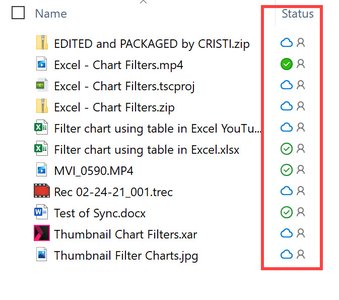
In SharePoint, the appearance of a "Syncing Changes" icon usually indicates that an ongoing synchronization process is underway. This process is responsible for updating and aligning data between the client (your browser or app) and the SharePoint server. However, when you see only 5 out of 12 items in your list while still witnessing a syncing indicator, it suggests that some items may not have been fully synchronized, filtered out, or subject to visibility restrictions.
From your description, you mention that you are a member of the list and that you did not manually initiate a sync. The partial display of items (with one additional item appearing upon reboot) can be attributed to several factors, including view settings, permissions, caching issues, or conflicts in the synchronization process.
Common Causes and Detailed Explanations
1. View Settings & Filters
SharePoint lists have configurable views that determine how many items show up based on the applied filters or limitations. It is possible that the default view for this list is configured to show only a subset of items. Check the view settings:
Action Items
- Navigate to the list's settings and select the current view (e.g., "All Items").
- Examine any active filters or item limits that may be in place.
- Modify or remove filters to ensure all items are displayed.
2. Permissions and User Access
Even for list members, insufficient or misconfigured permissions can lead to certain items not being visible. It’s important to verify that your user account has comprehensive permissions for viewing all items in the list. Advanced permissions settings may restrict which items you can see based on item-level security.
Action Items
- Review your permissions in the list settings and ensure that there are no restrictions applying to your account.
- Confirm that no permissions-based filters are affecting the display of list items.
3. Browser Cache and Client Issues
Caching issues can sometimes hinder the proper display of list items. Your browser might be showing an outdated version of the page. Moreover, using a specific browser can also trigger client-side issues that affect sync. Even though you did not manually trigger a sync, cached data might lead to an incomplete load.
Action Items
- Clear your browser's cache and cookies and then reload the SharePoint page.
- Alternatively, try accessing the list using a different browser or the SharePoint mobile app.
4. Reindexing the List
SharePoint offers a "Reindex List" option that helps resolve issues related to how items are indexed and subsequently displayed. If some items are not indexed properly due to previous sync errors or item conflicts, reindexing can force the system to rebuild the index and ensure that all items are updated.
Action Items
- Go to the list settings.
- Select the option to reindex the list.
- Wait for the process to complete, then check if the missing items reappear.
5. Offline Client Availability Setting
For SharePoint libraries, there is an "Offline Client Availability" setting which, when enabled, permits items to be downloaded and synchronized for offline access. If this setting is disabled, it might affect how items appear during the syncing process.
Action Items
- Navigate to Library Settings and select Advanced Settings.
- Ensure that the setting "Allow items from this document library to be downloaded to offline clients" is enabled ("Yes").
6. Sync Process Conflicts
The "Syncing Changes" icon indicates that SharePoint is actively synchronizing changes. Sometimes sync conflicts or issues in the background process might stop some items from being fully displayed. This can happen due to transient network issues, system conflicts, or even bugs in the SharePoint service.
Action Items
- Monitor the sync icon and note if it remains for an unusually long time.
- If persistent sync is noticed, consider terminating the Microsoft SharePoint process via Task Manager (for Windows users) and then refreshing your browser.
- If the issue persists, contacting your IT support or Microsoft support may help diagnose deeper server-side issues.
7. Large List or Indexing Threshold Issues
Although not directly mentioned in your issue, it is important to consider the possibility of exceeding list view thresholds, particularly if the list had many items previously. SharePoint imposes certain limits on how many items are returned in a default view, which might be causing some items to be temporarily hidden.
Action Items
- Review the list item limits and threshold settings in SharePoint administration.
- Consider using indexing on columns that are frequently filtered to ensure efficient item retrieval.
Troubleshooting Steps Summary
The following table summarizes the key actions to resolve the partial display and syncing issues observed in your SharePoint list:
| Step | Description | Action |
|---|---|---|
| View Settings | Check and update any filters or view limitations applied in the list view. | Modify view settings in List Settings. |
| Permissions | Confirm that your user role has sufficient permissions to view all list items. | Review user permissions in List Settings. |
| Browser Cache | Cached data might result in an incomplete display of items. | Clear cache and try a different browser. |
| Reindex List | Improper indexing might be missing some items during sync. | Use the reindex option in List Settings and wait for completion. |
| Offline Settings | Ensures that items are available for offline sync, which affects visibility. | Enable the Offline Client Availability setting in Library Settings. |
| Sync Process | Active synchronization may lead to temporary issues with item display. | Monitor and consider restarting the SharePoint process via Task Manager. |
| Indexing Threshold | A large number of items might hit the SharePoint view threshold. | Review list size and implement indexing for better performance. |
Additional Considerations
It is important to note that while these troubleshooting steps often resolve the syncing issues, there might be cases where the underlying problem is related to a temporary service glitch or a backend issue on the SharePoint server. In such situations, persistence of the issue may require intervention from your IT department or Microsoft support.
Often, a combination of these measures resolves the recurring problem. For example, after a reboot, minor changes in the list view can occur simply because cached data refreshes mid-sync. This indicates that the SharePoint server is updating, but a complete resolution requires ensuring that filters, permissions, and indexing are all correctly configured.
References
- List Not Showing All Items - Migrator Wizard
- SharePoint List Not Showing All Items - SysTools
-
SharePoint List Issue Discussion - TechCommunity
- Common Sync Issues - Microsoft Docs
- SharePoint Sync Button Missing - SharePoint Diary
Recommended Further Queries
Last updated March 27, 2025