
Unlock Dynamic Content: Build Simple WordPress Blocks with PHP Conditions (No JSX!)
Easily create Gutenberg blocks that display different text based on server-side logic, without complex JavaScript frameworks.
Creating custom Gutenberg blocks for WordPress allows you to build unique content experiences. If you need a block to display text that changes based on specific conditions (like user roles, time of day, or custom field values) and want to avoid using JSX (JavaScript XML), the solution lies in **dynamic blocks**. This guide will walk you through building a simple, non-JSX WordPress block that leverages PHP for conditional text output.
✨ Highlights
- Dynamic Rendering Power: Learn how dynamic blocks use server-side PHP to generate content on the fly, perfect for conditional logic.
- No JSX Needed: Discover how to build the block's editor interface using plain JavaScript (
React.createElement) instead of JSX syntax. - Step-by-Step Process: Follow clear instructions from setting up the block structure to implementing the PHP condition and deploying the block.
Understanding Dynamic vs. Static Blocks
Why Choose a Dynamic Block?
WordPress blocks can be broadly categorized into two types: static and dynamic.
- Static Blocks: The content and structure are defined in JavaScript (often using JSX) and saved directly into the post's content (
post_content) as HTML markup. The output is fixed unless the post is edited and saved again. Examples include basic Paragraph or Heading blocks. - Dynamic Blocks: The editor interface is handled by JavaScript (like static blocks), but the front-end output is generated by PHP on the server *every time the page is loaded*. The block's content is not saved directly in
post_content; instead, WordPress calls a specific PHP function or file associated with the block to render its HTML. This is ideal for content that needs to change based on external factors or conditions without requiring a post update, such as displaying the latest posts, user-specific greetings, or conditional messages based on custom field values.
For displaying text based on a PHP condition without using JSX for the rendering logic, a dynamic block is the required approach. The PHP condition runs on the server, determining the final text output just before the page is sent to the user's browser.
Comparing Block Types
The radar chart below illustrates the key differences and trade-offs between dynamic and static blocks across several criteria. Dynamic blocks excel in server-side logic flexibility, while static blocks often offer more accurate editor previews ("What You See Is What You Get" - WYSIWYG) and can be easier to cache.
As shown, dynamic blocks are superior for tasks requiring server-side processing and real-time updates based on conditions, which perfectly matches your requirement.
Core Components of a Non-JSX Dynamic Block
Files and Their Roles
Creating a dynamic block, especially using the modern block.json approach, involves several key files within your WordPress plugin:
| File / Component | Purpose | Key Details |
|---|---|---|
block.json |
Metadata and Registration | Defines block name, title, category, attributes, and crucially, points to the PHP file for rendering ("render": "file:./render.php"). It also links editor scripts and styles. |
edit.js (or similar) |
Block Editor Interface | Contains the JavaScript code (using React.createElement instead of JSX) that defines how the block looks and behaves within the Gutenberg editor. It typically shows a placeholder or basic controls. |
render.php |
Server-Side Rendering Logic | This PHP file contains the core logic. It receives block attributes (if any) and executes your PHP conditions to generate the final HTML output displayed on the website's front end. |
save.js (or function within JS) |
Content Saving (Static Blocks) | For dynamic blocks, this function should return null because the content is generated by PHP on the fly, not saved statically in the post content. |
style.css / editor.css |
Styling | CSS files to style the block on the front end (style.css) and within the editor (editor.css). |
This structure separates the editor experience (JavaScript) from the front-end rendering logic (PHP), allowing you to leverage PHP's strengths for dynamic content generation.
Step-by-Step: Building Your Dynamic Block
Using @wordpress/create-block
The easiest way to start is by using the official @wordpress/create-block tool, which scaffolds the necessary files and configuration for a dynamic block.
1. Scaffold the Block
Open your terminal in your WordPress wp-content/plugins directory and run:
npx @wordpress/create-block my-dynamic-block --variant dynamicReplace my-dynamic-block with your desired block name. This command creates a new plugin folder (my-dynamic-block) containing the basic structure for a dynamic block.
2. Configure block.json
Navigate into the my-dynamic-block/src directory (or similar, depending on the tool version) and open block.json. Ensure it looks something like this, paying attention to the "render" property:
{
    "apiVersion": 2,
    "name": "my-plugin/my-dynamic-block",
    "title": "My Dynamic Text Block",
    "category": "widgets",
    "icon": "megaphone",
    "description": "Displays dynamic text based on a PHP condition.",
    "attributes": {
        "messageOption": {
            "type": "string",
            "default": "default"
        }
    },
    "editorScript": "file:./index.js",
    "editorStyle": "file:./index.css",
    "style": "file:./style.css",
    "render": "file:./render.php"
}
Here, we've added a simple messageOption attribute (though it's optional for this basic example). The crucial line is "render": "file:./render.php", telling WordPress to use render.php for front-end output.
3. Implement the Editor View (edit.js / index.js - No JSX)
Open the main JavaScript file for the editor (often index.js or edit.js inside the src folder). Modify the Edit function to use React.createElement instead of JSX. This function defines what the block looks like *in the editor only*.
import { __ } from '@wordpress/i18n';
import { useBlockProps } from '@wordpress/block-editor';
// Note: No import for React is needed if using WordPress scripts which provide it globally or via wp.element

const el = wp.element.createElement; // Shortcut for React.createElement

export default function Edit( { attributes, setAttributes } ) {
    const blockProps = useBlockProps();

    // Example: Add a simple control if needed, otherwise just show placeholder text
    // const onChangeOption = ( event ) => {
    //     setAttributes( { messageOption: event.target.value } );
    // };

    return el(
        'div', // Element type
        blockProps, // Element properties (like className)
        el( // Child element 1: Paragraph with placeholder text
            'p',
            {}, // Empty properties object
            __( 'Dynamic Content Block: Output is generated on the front-end via PHP.', 'my-dynamic-block' )
        )
        // Example: Add a select dropdown if using attributes
        // el(
        //     'select',
        //     { value: attributes.messageOption, onChange: onChangeOption },
        //     el('option', { value: 'default' }, 'Default Message'),
        //     el('option', { value: 'special' }, 'Special Message')
        // )
    );
}

// Ensure your save function returns null
export function save() {
    return null;
}
This code uses wp.element.createElement (WordPress's wrapper for React's createElement) to construct the editor preview. It simply displays a placeholder paragraph. The save function must return null for dynamic blocks.
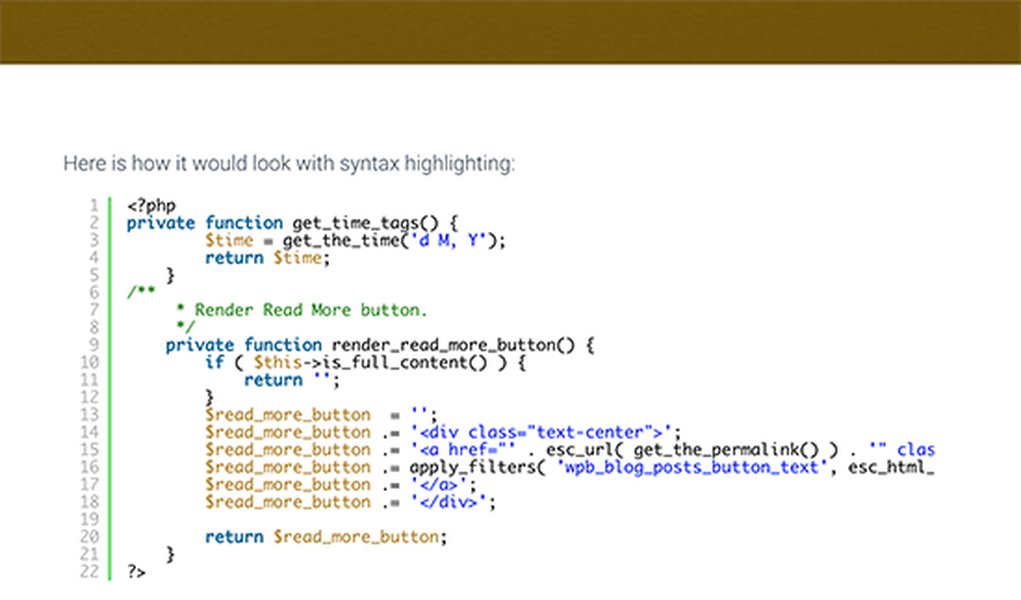
Example of how code might appear within a WordPress block editor.
4. Implement the PHP Rendering Logic (render.php)
Create or open the render.php file in the same directory (src). This is where your PHP condition lives.
<?php
/**
 * Dynamic Block Template: Renders the <code>my-plugin/my-dynamic-block block on the server.
 *
 * @param   array    $attributes Block attributes.
 * @param   string   $content    Block inner content (empty for self-closing blocks).
 * @param   WP_Block $block      Block instance.
 * @package my-dynamic-block
 */

// Example PHP Condition: Check if the user is logged in
if ( is_user_logged_in() ) {
    $current_user = wp_get_current_user();
    $dynamic_text = 'Welcome back, ' . esc_html( $current_user->display_name ) . '!';
} else {
    $dynamic_text = 'Welcome, guest! Please log in to see more.';
}

// Example Condition 2: Based on time of day
// $hour = date('H'); // Get current hour (24-hour format)
// if ($hour < 12) {
//     $dynamic_text = 'Good Morning!';
// } elseif ($hour < 18) {
//     $dynamic_text = 'Good Afternoon!';
// } else {
//     $dynamic_text = 'Good Evening!';
// }

// Example Condition 3: Check a post meta field (e.g., 'event_status')
// $post_id = get_the_ID(); // Get the current post ID
// $event_status = get_post_meta($post_id, 'event_status', true); // Get custom field value
// if ($event_status === 'active') {
//    $dynamic_text = 'This event is currently active!';
// } elseif ($event_status === 'upcoming') {
//    $dynamic_text = 'This event is upcoming.';
// } else {
//    $dynamic_text = 'Check back soon for event details.';
// }


// Get block properties defined in block.json
$wrapper_attributes = get_block_wrapper_attributes();

?>
<div >
    <p><?php echo $dynamic_text; ?></p>
</div>
This PHP code checks if a user is logged in and sets the $dynamic_text variable accordingly. You can replace this condition with any PHP logic you need (checking time, post meta, user roles, etc.). Finally, it outputs the text within a div using the block's wrapper attributes for proper styling and alignment.
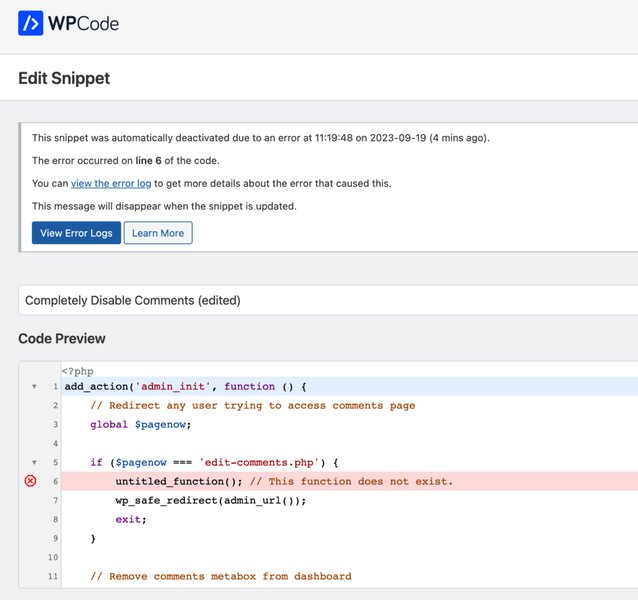
PHP code within the WordPress environment, highlighting potential error reporting.
5. Build and Activate
Run the build command in your terminal from the plugin's root directory (if your setup includes a build step, typically provided by @wordpress/scripts):
npm run buildThen, activate the "My Dynamic Block" plugin through your WordPress admin dashboard.
6. Use the Block
Go to the post or page editor, click the '+' icon to add a block, and search for "My Dynamic Text Block". Add it to your content. You'll see the placeholder from edit.js in the editor, but on the live site (front end), you will see the dynamic text generated by render.php based on your PHP condition.
Visualizing the Block Creation Process
Mindmap Overview
This mindmap provides a visual summary of the steps and components involved in creating your non-JSX dynamic WordPress block using the block.json method.
@wordpress/create-block"]
id1c["--variant dynamic flag"]
id2["2. Configuration (block.json)"]
id2a["Define name, title, icon"]
id2b["Set render property to render.php"]
id2c["Declare attributes (optional)"]
id2d["Link JS/CSS files"]
id3["3. Editor Experience (edit.js)"]
id3a["Use wp.element.createElement (No JSX)"]
id3b["Import { useBlockProps }"]
id3c["Display placeholder or basic controls"]
id3d["save() function returns null"]
id4["4. Server-Side Logic (render.php)"]
id4a["Receive $attributes"]
id4b["Implement PHP condition (if/else, switch)"]
id4c["Use WP functions (is_user_logged_in, get_post_meta, etc.)"]
id4d["Generate final HTML output"]
id4e["Use get_block_wrapper_attributes()"]
id4f["Escape output (esc_html, esc_attr)"]
id5["5. Build & Activate"]
id5a["Run npm run build (if needed)"]
id5b["Activate the plugin in WordPress Admin"]
id6["6. Test"]
id6a["Add block in Gutenberg editor"]
id6b["Verify editor placeholder"]
id6c["Check front-end output for dynamic text"]
Following these steps ensures your block correctly separates editor presentation from dynamic server-side rendering.
Dynamic Block Development Insights
Watch How It's Done
Visual guides can be incredibly helpful. This video provides a great overview of building dynamic blocks in WordPress, covering concepts similar to what we've discussed, focusing on the PHP aspect which is central to your requirement.
The video explains the distinction between static and dynamic blocks and demonstrates the process of creating a block where PHP handles the final output, aligning well with the goal of using PHP conditions for dynamic text.
Frequently Asked Questions (FAQ)
Common Queries About Non-JSX Dynamic Blocks
► What exactly is a dynamic block in WordPress?
► Why does the `save` function in JavaScript need to return `null`?
► Can I still use block attributes with dynamic blocks?
► Is using `React.createElement` the only way to avoid JSX in the editor?
Recommended Next Steps
Explore Further
- How can I pass attributes from the WordPress block editor to the render.php file for more complex conditions?
- What are some common PHP conditions used in WordPress dynamic blocks beyond user login status?
- How do I properly style a dynamic WordPress block for both the front-end and the editor view?
- Is it possible to create a dynamic block manually without using the @wordpress/create-block tool?
References
Sources Used
 wordpress.com
 modularwp.com
 javascriptforwp.com
Last updated May 5, 2025