
Troubleshooting SLAM Toolbox and Nav2 for Improved Mapping
Comprehensive guide to diagnosing and resolving mapping issues with SLAM Toolbox and Nav2 in ROS2.
Key Takeaways for Fixing Bad Mapping with SLAM Toolbox and Nav2
- Odometry Quality: Poor odometry is a primary cause of bad mapping. Ensure accurate odometry data is fed into the SLAM Toolbox.
- Parameter Tuning: Incorrect parameter settings in SLAM Toolbox can lead to mapping errors. Review and adjust parameters like loop closure and scan matching.
- TF Configuration: Proper TF (transform) configuration between robot base, LiDAR, and map frames is crucial for accurate map generation and navigation.
Understanding the SLAM Toolbox and Nav2 Integration
The slam_toolbox package is a powerful suite of tools for 2D Simultaneous Localization and Mapping (SLAM) within ROS2, designed to handle potentially vast maps. It's officially supported by Nav2, making it a go-to choice for robotic setups requiring SLAM. Nav2, the ROS2 navigation stack, relies on accurate maps for path planning and autonomous movement. When slam_toolbox generates poor-quality maps, the navigation performance of Nav2 suffers.
slam_toolbox operates by processing odometry and sensor data (typically from a LiDAR) to create a map of the environment while simultaneously estimating the robot's pose within that map. Nav2 then uses this map to plan paths, avoid obstacles, and achieve navigation goals. The quality of the map directly impacts Nav2's ability to perform these tasks effectively.
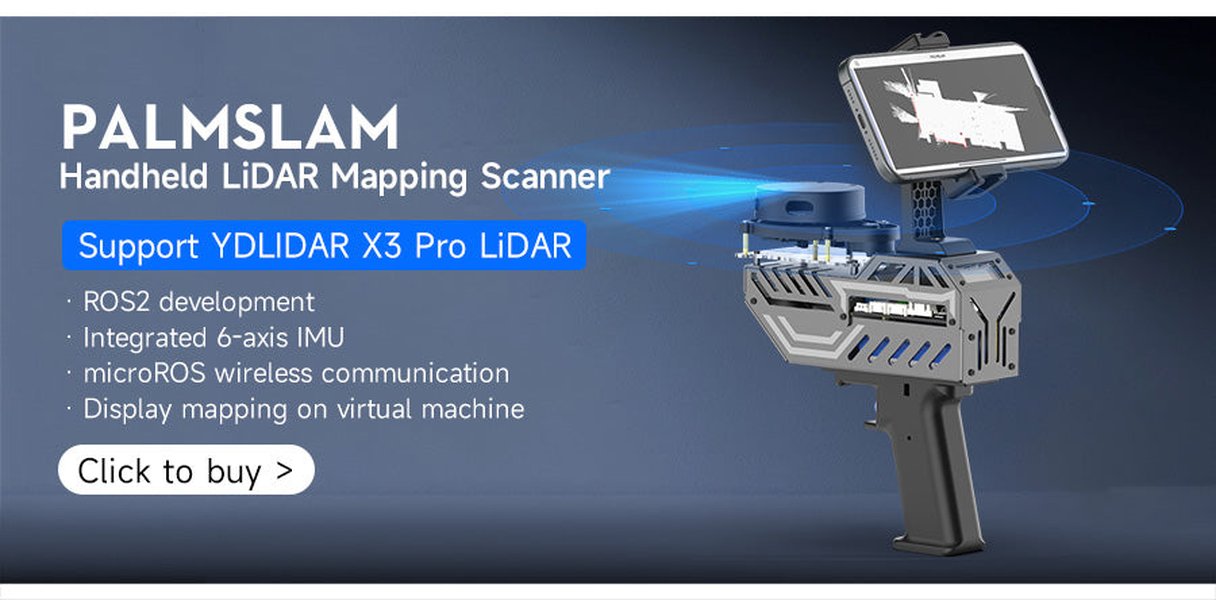
YDLIDAR X3 Lidar TOF 360° Scanning Sensor
Common issues include maps that are distorted, incomplete, or jump around erratically. These problems often stem from poor odometry data, incorrect parameter settings within slam_toolbox, or misconfigurations in the TF (transform) tree. By addressing these underlying causes, you can significantly improve the quality of maps generated by slam_toolbox and, consequently, the performance of Nav2.
Diagnosing the Root Causes of Bad Mapping
Before attempting to fix a bad map, it's crucial to diagnose the underlying cause. Here are some common culprits:
Poor Odometry
Odometry provides an estimate of the robot's motion over time. If the odometry data is noisy or inaccurate, slam_toolbox will struggle to create a consistent map. Issues such as wheel slippage, encoder errors, or inaccurate IMU data can all contribute to poor odometry.
Verifying Odometry Quality
Ensure that your robot's odometry is accurate and reliable. If odometry is poor, SLAM algorithms will struggle. High-quality odometry is crucial for accurate map building. You can visualize the odometry data in Rviz to check for discontinuities or erratic behavior.
Incorrect Parameter Settings
slam_toolbox has numerous parameters that control its behavior. Incorrect settings can lead to various mapping issues. For instance, if the loop closure parameters are not properly tuned, the map may fail to correct for accumulated drift, leading to distortions.
Tuning Loop Closure Parameters
Experiment with loop closure parameters to improve map accuracy. Bad parameters can lead to a bad loop closure map. Loop closure is the process of recognizing previously visited locations and correcting the map to reduce drift.
TF Configuration Problems
The TF (transform) tree defines the relationships between different coordinate frames in your robot setup. If the TF configuration is incorrect, slam_toolbox may not be able to correctly transform sensor data into the map frame, leading to mapping errors.
Ensuring Correct TF Transformations
Verify that the transformations between the robot base, LiDAR, and map frames are correctly defined. TF issues can manifest as the map "flying all over the place." Use ros2 run tf2_tools view_frames to visualize the TF tree and identify any potential issues.
Step-by-Step Solutions to Improve Mapping Quality
Improving Odometry Data
If poor odometry is the culprit, focus on improving the accuracy and reliability of your odometry source.
Calibrating Encoders
Calibrate wheel encoders to minimize errors. Wheel slippage or encoder errors directly impact odometry accuracy. Ensure proper calibration to mitigate these issues.
Sensor Fusion
Fuse IMU data with wheel encoder data to improve odometry accuracy. Fusing data from multiple sensors provides a more robust estimate of the robot's motion.
Tuning SLAM Toolbox Parameters
Experiment with different parameter settings in slam_toolbox to optimize its performance for your specific environment and robot setup.
Adjusting Scan Matching Parameters
Modify scan matching parameters to improve alignment of laser scans. Poor scan matching can lead to map distortions and inaccuracies. Adjust parameters related to scan resolution and search radius.
Configuring Loop Closure
Tune loop closure parameters to effectively correct accumulated drift. Effective loop closure is essential for creating consistent and accurate maps over large areas.
Correcting TF Configuration
Ensure that the TF tree is correctly defined and that all necessary transformations are being published.
Verifying Frame Relationships
Confirm that the parent-child relationships between frames are accurate. Incorrect frame relationships can lead to misaligned sensor data and mapping errors.
Checking for Missing Transformations
Ensure that all required transformations are being broadcast. Missing transformations can prevent slam_toolbox from correctly processing sensor data.
Specific Scenarios and Solutions
Map Jumps or Drifts
If the map suddenly jumps or drifts, this could indicate a problem with loop closure or odometry.
- Solution: Tune loop closure parameters and verify odometry accuracy.
Incomplete or Empty Maps
If the map has areas that are not being updated correctly, this could be due to incorrect sensor topic subscriptions or parameter settings.
- Solution: Ensure that
slam_toolboxis subscribed to the correct sensor topics (e.g.,/scan) and that the sensor data is being properly processed.
Map Corruption in Localization Mode
Map corruption during localization mode can stem from issues with how the saved map is being used or inconsistencies in the TF tree.
-
Solution: Double-check the integrity of the saved map file and ensure that the transformations between the map frame and other relevant frames (like
odomandbase_link) are correctly defined and broadcasted.
Integrating SLAM Toolbox with Nav2
To effectively use slam_toolbox with Nav2, ensure that Nav2 is configured to use the map generated by slam_toolbox. This involves setting the correct parameters in Nav2's configuration files.
Configuring Nav2 to Use SLAM Toolbox Map
Modify Nav2 parameters to point to the map topic published by slam_toolbox (typically /map).
Launching Nav2 Without AMCL and Map Server
When using slam_toolbox for mapping, launch Nav2 without nav2_amcl and nav2_map_server. The SLAM node will publish to the /map topic and provide the map->odom transform.
Troubleshooting Tools and Techniques
Rviz Visualization
Use Rviz to visualize the map, robot pose, and sensor data. Rviz is a powerful tool for debugging ROS 2 applications. Visualize topics such as /map, /tf, and /laserscan to diagnose mapping issues.
ROS 2 Command-Line Tools
Utilize ROS 2 command-line tools to inspect topics, nodes, and parameters. Tools like ros2 topic list, ros2 node info, and ros2 param get can help you understand the state of your system and identify potential problems.
Illustrative Table of Common Issues and Solutions
Here's a consolidated table summarizing common problems encountered with slam_toolbox and Nav2, along with targeted solutions:
| Issue | Possible Causes | Solutions |
|---|---|---|
| Map Jumps/Drifts | Poor odometry, incorrect loop closure parameters | Improve odometry calibration, tune loop closure parameters |
| Incomplete Maps | Incorrect sensor topic subscriptions, parameter settings | Verify topic subscriptions, adjust scan matching parameters |
| Map Corruption (Localization) | Corrupted map file, TF tree inconsistencies | Check map file integrity, correct TF transformations |
| Robot Doesn't Move (Nav2) | Nav2 not using SLAM map, incorrect Nav2 parameters | Configure Nav2 to use /map topic, verify Nav2 parameters |
Youtube Video: ROS2 Nav2 - Generate a Map with slam_toolbox
This video provides a step-by-step guide on how to use the slam_toolbox package with Nav2 to generate a map for navigation. It demonstrates the necessary configurations and steps to create a map, which can be invaluable for users facing mapping issues. It walks through the process of configuring slam_toolbox and visualizing the map in Rviz, offering practical insights for troubleshooting common problems.
FAQ: Troubleshooting SLAM Toolbox and Nav2 Mapping Issues
Why is my SLAM Toolbox map so distorted?
Distorted maps often result from poor odometry or incorrect parameter settings. Ensure your odometry data is accurate and tune the scan matching and loop closure parameters in slam_toolbox.
How do I check if SLAM Toolbox is receiving data from my LiDAR?
Use ros2 topic echo /scan (or the appropriate topic name for your LiDAR data) to verify that the slam_toolbox node is receiving laser scan data. Also, ensure that the topic name in your launch files matches the topic being published by your LIDAR.
What should I do if my robot isn't moving after setting a goal in Nav2?
First, confirm that Nav2 is correctly configured to use the map generated by slam_toolbox. Also, check that the TF transformations between the map, odom, and base_link frames are correctly defined.
How can I improve loop closure in SLAM Toolbox?
Experiment with the loop closure parameters in slam_toolbox, such as loop_search_space and loop_match_minimum_score. Increasing these values may improve loop closure performance, but it could also increase computational cost.
What is the role of the TF tree in SLAM and Nav2?
The TF tree defines the relationships between different coordinate frames in your robot setup. Accurate TF transformations are crucial for correctly transforming sensor data and ensuring that Nav2 can accurately localize the robot within the map.
References
Last updated April 17, 2025