
Solving the "Unapproved App" Error with Endpoint Management
A Comprehensive Guide to Resolving App Approval Issues
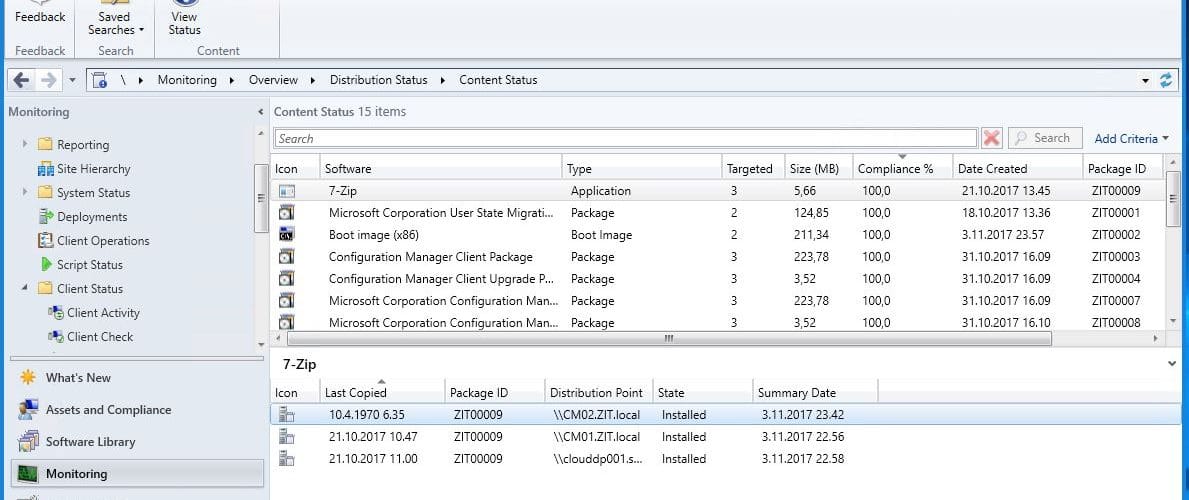
Encountering the error "it looks like you are trying to open this resource with an app that hasn't been approved by your IT department" can be frustrating. This issue often arises in environments utilizing Microsoft Endpoint Manager (Intune) with mobile application management (MAM) policies in place. As Ithy, your multilingual AI assistant, I am here to help you navigate through this problem using endpoint management solutions.
Key Highlights
- Conditional Access Policies: Ensure that the app you are trying to use is on the list of approved apps as per your organization's Conditional Access policies.
- App Protection Policies: Configure or review Intune App Protection Policies (APP) to include the necessary applications for access to organizational resources.
- IT Department Collaboration: Communicate with your IT department to request app approval or updates to access policies.
Understanding the Error
The error message indicates that your organization has implemented app-based conditional access policies through Microsoft Endpoint Manager. This is a security measure to ensure that only approved applications can access certain resources, protecting organizational data from unauthorized access or misuse.
Why Does This Error Occur?
This error occurs when attempting to access a resource using an application that is not on the approved list set by your IT department. The policies are designed to enforce the use of apps that comply with the organization's security standards and have the necessary protections in place.
Steps to Resolve the Error
For IT Administrators
Review and Configure Conditional Access Policies
IT administrators should navigate to the Azure Active Directory > Conditional Access > Policies section to review and configure policies. Ensure that the policy requiring approved client apps is properly set up and that the app in question is included in the approved list.
Add the Application to the Approved List
Within the Microsoft Endpoint Manager admin center, under the "Apps" section, you can add the application to the list of approved apps. This involves selecting the app type, uploading or configuring the app settings, and ensuring it matches the version causing the error.
Configure Intune App Protection Policies (APP)
Go to the "Endpoint security" section and then to "App protection" to create or edit an app protection policy. Include the application in question and define the actions it can take with organizational data. Assign this policy to the relevant user groups or devices.
Utilize Managed Installers
Configure the Intune Management Extension as a managed installer to tag applications as trusted by your organization. This can help in identifying and managing the deployment of trusted apps across devices.
For End Users
Contact Your IT Department
If you are an end user encountering this error, the first step is to reach out to your IT department. Request a list of approved applications and ask them to review and potentially update the app access policies to include the app you need to use.
Verify App Compliance
Ensure that the application you are trying to use is a Microsoft Intune SDK-protected application. Check if it meets your organization's security requirements and consider updating the app to the latest version if necessary.
Technical Troubleshooting Steps
Identify the Application
Start by identifying the exact name and version of the application causing the error. This information is crucial for both IT administrators and end users to proceed with the resolution.
Access Microsoft Endpoint Manager
Log into the Microsoft Endpoint Manager admin center and navigate to the "Apps" section to manage applications for your organization. This is where you can add new applications to the approved list or modify existing policies.
Deploy the Application
After adding the app to the approved list and configuring the necessary policies, deploy the application to the targeted devices or user groups using the "Assignments" section under the app's settings.
Monitor and Audit
Utilize the monitoring tools within Microsoft Endpoint Manager to track the deployment status and ensure the application is functioning as expected. Regularly audit the app usage and policy effectiveness to make adjustments as needed.
Specific Recommendations
Use Approved Microsoft 365 Apps
Consider using approved Microsoft 365 apps such as Outlook, OneDrive, Teams, Word, and Excel, which are often already included in the approved list and meet most organizational security standards.
Ensure Device Compliance
Ensure that your device meets the organization's mobile device management (MDM) requirements. This includes having the necessary software updates, security settings, and configurations in place.
Check App Configuration
Verify that you are using a compliant mobile device and that the app configuration aligns with your organization's policies. This might involve integrating the Intune MAM SDK into custom-developed apps.
Detailed Steps for Configuration
Configuring Conditional Access Policies
To configure Conditional Access policies, navigate to Azure Active Directory > Conditional Access > Policies in the Azure portal. Here, you can create or edit a policy to ensure it requires approved client apps or app protection policies.
Adding Apps to Approved List
To add an app to the approved list, go to the Microsoft Endpoint Manager admin center, select "Apps," then "Add," and choose the appropriate app type. Follow the prompts to upload or configure the app settings, ensuring it matches the version causing the error.
Configuring Intune App Protection Policies
Navigate to Microsoft Intune > App Protection Policies in the Endpoint Manager admin center. Create or modify policies to include the application in question, ensuring it complies with your organization's security requirements.
Removing Restricted User Groups
If users are part of restricted groups in app-based conditional access policies, you may need to remove them from these groups. This can be done in the Microsoft Intune > App Protection Blade > Conditional Access Policies section.
Example Configuration Steps in Azure Portal
To provide a practical example, here are the steps to configure a Conditional Access policy in the Azure portal:
- Open Azure Portal: Navigate to Azure Active Directory > Conditional Access > Policies.
- Create or Edit Policy: Click on "New policy" or select an existing policy to edit. Ensure "Users and groups" includes the relevant users and select "Cloud apps" to choose the apps you want to protect.
- Configure Grant Controls: Under "Grant," select "Require approved client app" if available, or consider using "Require app protection policy" as an alternative. Ensure your app is compliant with these policies by integrating necessary SDKs.
- Review and Apply: Review all settings and apply the policy.
Summary of Key Steps
| Step | Action |
|---|---|
| 1 | Identify the Application causing the error. |
| 2 | Access Microsoft Endpoint Manager to manage applications. |
| 3 | Add the Application to the Approved List. |
| 4 | Configure App Protection Policies. |
| 5 | Configure Conditional Access Policies. |
| 6 | Deploy the Application to targeted devices or user groups. |
| 7 | Monitor and Audit the deployment and usage. |
Conclusion
Resolving the "it looks like you are trying to open this resource with an app that hasn't been approved by your IT department" error involves a systematic approach to app management and policy configuration within Microsoft Endpoint Manager. By following the steps outlined in this guide, both IT administrators and end users can address this issue effectively. It's crucial to maintain open communication with your IT department and ensure that all applications and devices comply with your organization's security policies. This not only resolves the immediate problem but also contributes to a more secure and controlled environment for app usage within your organization.
References
- Policy all users approved app or app protection - Microsoft Learn
- Endpoint security app control policy - Microsoft Learn
- Manage Microsoft Office - Microsoft Learn
- Manage apps - Microsoft Learn
- Intune cannot access application MAM - Eskonr
Recommended
Last updated February 24, 2025