
Unlock Seamless Task Management: Sync Your macOS Notes with Your To-Do List
Discover how to transform notes into actionable tasks and keep everything synchronized across your Apple devices.
Key Insights for Syncing Notes and Tasks
- Leverage Native Integration: The primary method involves using Apple's built-in Share feature to convert content from Notes into tasks within the Reminders app.
- iCloud is Essential: Ensure iCloud syncing is enabled for both Notes and Reminders on all your Apple devices for seamless updates.
- Explore Automation & Third-Party Apps: Use Apple's Shortcuts app for automation or consider dedicated apps like NotePlan or Agenda for a more integrated notes-and-tasks experience.
Understanding the Apple Ecosystem: Notes, Reminders, and iCloud
Apple provides a suite of productivity tools designed to work together. While the Notes app is excellent for capturing ideas, meeting minutes, and unstructured information (including simple checklists), it doesn't function as a fully-fledged task manager with automatic synchronization to dedicated to-do lists. This role is filled by the Reminders app.
The Role of Notes and Reminders
Apple Notes
Think of Notes as your digital notebook. It's perfect for brainstorming, drafting text, storing snippets of information, and creating basic checklists. While you can create checkable items within a note, these lists live *inside* the Notes app and don't automatically populate your primary task list in Reminders.
Apple Reminders
Reminders is Apple's dedicated task management application. It allows you to create specific to-do items, assign due dates and times, set priorities, add locations, organize tasks into lists, and receive notifications. It's designed to be your central hub for actionable tasks.
The Power of iCloud Syncing
iCloud is the glue that holds the Apple ecosystem together. By enabling iCloud sync for Notes and Reminders, any changes you make on one device (like your Mac) are automatically reflected on your other devices (like your iPhone or iPad), provided they are signed in to the same Apple ID.
How to Enable iCloud Syncing on macOS
- Open System Settings (or System Preferences on older macOS versions).
- Click on your Apple ID (your name) at the top of the sidebar.
- Select iCloud.
- In the list of "Apps Using iCloud," click Show All (or "Show More Apps" if needed).
- Ensure the toggles next to both Notes and Reminders are turned ON.
Ensure this is done on all your Apple devices for complete synchronization.
Method 1: Manually Converting Notes to Reminders
The most direct way to get tasks from Notes into your Reminders to-do list is by manually converting them using the Share feature. This method creates a link back to the original note within the reminder, providing easy access to the context.
Steps to Convert Notes Content to Reminders on macOS
- Open the Notes app and navigate to the note containing the task(s) you want to convert.
- You can either share the entire note or just specific text:
- Share Entire Note: Click on the note in the sidebar.
- Share Specific Text: Open the note and select the specific text (e.g., a line item or paragraph) that represents the task.
- Click the Share button (a square with an arrow pointing upwards) located in the Notes toolbar.
- From the sharing options that appear, select the Reminders app icon.
- A new reminder creation sheet will pop up. You can edit the reminder details (like the list it belongs to, due date, priority) here. The reminder text will be pre-filled with the note title or the selected text.
- Click Add.
This newly created task will now appear in your Reminders app and sync via iCloud to all your other devices. The reminder often includes a small Notes icon, which links back to the original note.
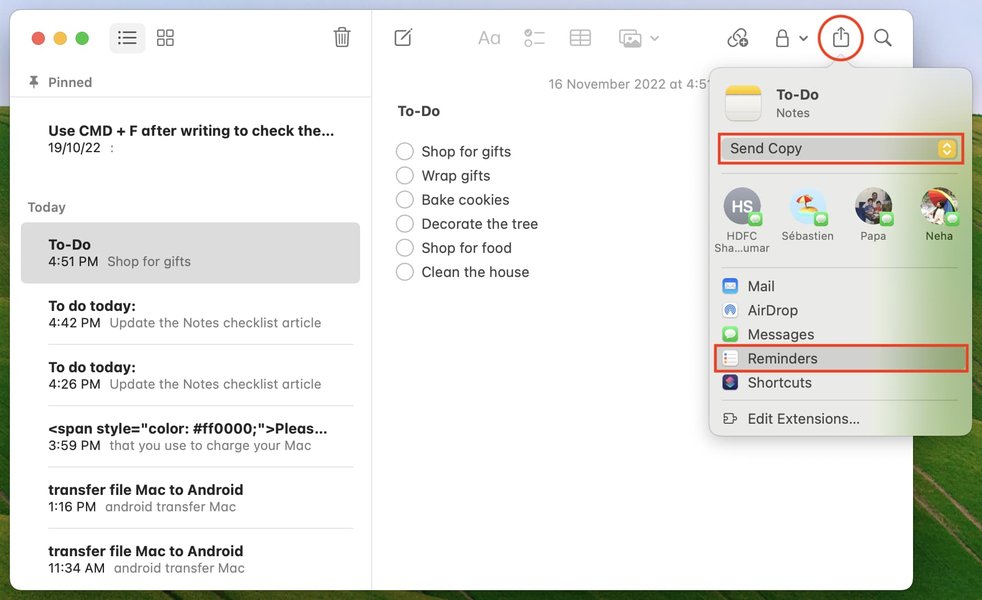
Use the Share menu in Notes to send content directly to Reminders.
Working with Checklists in Notes
You can create interactive checklists directly within Apple Notes using the checklist button. While convenient for tracking simple tasks within the context of a note, these checklist items do not automatically sync or appear as individual tasks in the Reminders app. To get a checklist item into Reminders, you must manually select the text of that item and use the Share-to-Reminders process described above.
Method 2: Automation with the Shortcuts App
If you find yourself frequently transferring tasks from Notes to Reminders, you can automate parts of this process using Apple's Shortcuts app, available on macOS, iOS, and iPadOS.
Creating a Simple Notes-to-Reminders Shortcut
You could build a Shortcut that, for example:
- Prompts you to select a specific note or finds notes with a particular tag (e.g., #todo).
- Extracts the text content (perhaps line by line).
- Creates a new reminder in a specified list for each line or for the entire note content.
While setting up shortcuts requires some initial effort, it can significantly speed up your workflow if you have a consistent process for capturing tasks in Notes.
Example Shortcut Concept:
- Action: Find Notes - Filter notes based on title, folder, or tags.
- Action: Get Text from Input - Extract the text content of the found note(s).
- Action: Split Text - Break down the text by lines if needed.
- Action: Repeat with Each Item - Loop through each line (or the whole text).
- Action: Add New Reminder - Create a reminder from the current item in the loop, potentially asking for list selection or setting defaults.
Explore the Shortcuts Gallery or online resources for pre-made shortcuts or inspiration for creating your own.
Method 3: Using Third-Party Integrated Apps
For users seeking a more seamless blend of note-taking and task management within a single application, several third-party apps offer robust solutions. These often provide deeper integration than Apple's native apps allow.
Popular Integrated Apps
- NotePlan: Combines markdown notes, calendar events, and tasks/reminders in one interface. It syncs with Apple Calendar and Reminders via iCloud, allowing tasks created within NotePlan notes to appear in the Reminders app.
- Agenda: A date-focused note-taking app that links notes to calendar events. While it doesn't directly sync tasks *from* notes, it integrates with Reminders, allowing you to easily create reminders based on note content.
- Craft: A visually appealing notes and document app that supports linking, backlinking, and task management features within documents.
These applications typically use iCloud or their own syncing services to keep data consistent across macOS and iOS/iPadOS devices. They often come with subscription costs but offer features beyond the scope of native Notes and Reminders.
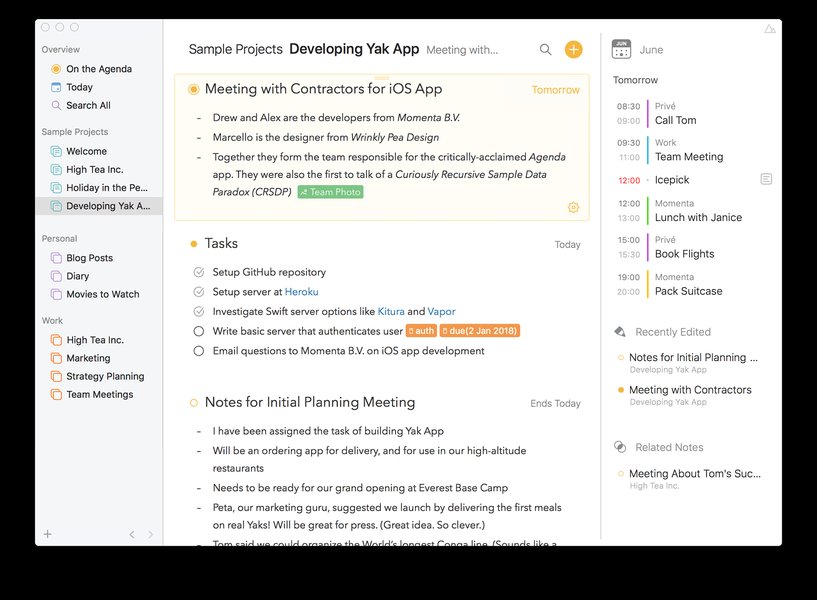
Third-party apps like Agenda offer integrated note-taking and calendar features.
Syncing with Non-Apple To-Do Lists (e.g., Todoist, Microsoft To Do)
What if your primary to-do list isn't Apple Reminders? Direct synchronization from Apple Notes to apps like Todoist or Microsoft To Do isn't natively supported. However, you can often achieve this indirectly:
Indirect Syncing via Apple Reminders
Many popular to-do list services offer integration *with* Apple Reminders. The typical workflow is:
- Convert your task from Apple Notes to Apple Reminders (using Method 1).
- Set up the integration between Apple Reminders and your chosen to-do app (e.g., Todoist, Microsoft To Do). This usually involves connecting your accounts within the third-party app's settings or using an intermediary service.
- Tasks created in Reminders (originating from Notes) will then sync over to your main to-do list app.
Example: Syncing with Microsoft To Do
You can connect your Microsoft account (like Outlook.com or Exchange) to your Apple ecosystem. In some configurations (often requiring a Microsoft 365 subscription or specific account types), enabling Reminders sync for that account can mirror tasks between Apple Reminders and Microsoft To Do.
Example: Syncing with Todoist
Todoist offers integrations, sometimes direct or via services like IFTTT (If This Then That) or Zapier, to pull tasks from Apple Reminders into Todoist projects. You might also find specific Shortcuts or scripts designed for this purpose.
Using Automation Services (IFTTT, Zapier)
Services like IFTTT and Zapier allow you to create custom workflows ("Zaps" or "Applets") that connect different apps. You could potentially set up a workflow that monitors Apple Reminders for new tasks (created from Notes) and automatically adds them to your preferred third-party to-do list.
Comparing Synchronization Methods
Choosing the right method depends on your workflow complexity, preferred tools, and desire for automation. This radar chart provides a visual comparison of the main approaches discussed, evaluating them across key factors. Higher scores indicate better performance in that category.
This chart illustrates the trade-offs: Native sharing is easiest but manual. Shortcuts offer free automation but require setup. Third-party apps provide the most integrated experience, often at a cost. Indirect syncing is complex but necessary for non-Apple platforms.
Visualizing Your Syncing Options
This mindmap outlines the different pathways you can take to synchronize tasks originating in Apple Notes with various to-do list solutions.
from macOS Notes"] id1["Native Apple Ecosystem"] id1a["Apple Notes"] id1a1["Create Note/Checklist"] id1b["Share Feature"] id1b1["Select Text or Note"] id1b2["Share to Reminders"] id1c["Apple Reminders"] id1c1["Task Appears"] id1c2["Manage (Dates, Lists)"] id1d["iCloud Sync"] id1d1["Syncs Across Devices
(Mac, iPhone, iPad)"] id2["Automation"] id2a["Shortcuts App"] id2a1["Create Custom Workflow"] id2a2["Trigger Manually or Automatically"] id2a3["Actions: Find Notes, Get Text,
Create Reminders"] id3["Third-Party Apps"] id3a["Integrated Apps"] id3a1["NotePlan"] id3a2["Agenda"] id3a3["Craft"] id3a4["Features:
- Notes + Tasks + Calendar
- Direct Sync/Integration"] id3b["Sync Services"] id3b1["App-Specific Sync"] id3b2["iCloud"] id4["External To-Do Lists"] id4a["Indirect Sync via Reminders"] id4a1["Notes -> Reminders (Share)"] id4a2["Reminders -> External App Sync"] id4a2a["Microsoft To Do (Account Sync)"] id4a2b["Todoist (Integration/IFTTT/Zapier)"] id4a2c["Other Apps..."] id4b["Automation Services"] id4b1["IFTTT"] id4b2["Zapier"] id4b3["Connect Reminders to External App"]
The mindmap shows the core path through the Apple ecosystem (Notes -> Share -> Reminders -> iCloud), alongside alternative routes using automation (Shortcuts), dedicated third-party apps, and methods for connecting to external to-do list services.
Video Guide: Integrating Notes and Reminders
Visual learners might find a video walkthrough helpful. This video demonstrates how you can leverage Apple Notes and Reminders together for a productive workflow, covering aspects relevant to turning notes into actionable tasks.
This video explores connecting Apple Notes, Reminders, and Calendar for an integrated productivity system.
The video titled "Apple Notes + Reminders + Calendars - The PERFECT ..." discusses integrating these core Apple apps. Key takeaways often include how to effectively link notes to reminders (similar to the manual 'Share' method described earlier) and potentially using Calendar integration to schedule those tasks, creating a comprehensive productivity setup solely within the Apple ecosystem.
Comparing Synchronization Methods and Tools
Here's a table summarizing the different approaches to syncing tasks from Notes, highlighting their pros and cons:
| Method | Primary Mechanism | Setup Effort | Automation Level | Flexibility | Cost | Best For |
|---|---|---|---|---|---|---|
| Native Share | Manual 'Share' from Notes to Reminders | Low (Enable iCloud Sync) | None (Manual per task) | Low (Only Notes -> Reminders) | Free | Simple, occasional task conversion within Apple ecosystem. |
| Shortcuts App | Custom automation scripts | Medium (Building the shortcut) | High (Can be fully automated) | Medium (Limited by Shortcut actions) | Free | Users comfortable with automation who want a tailored workflow within Apple ecosystem. |
| Third-Party Integrated Apps | Dedicated app features (e.g., NotePlan) | Low-Medium (Install app, configure sync) | High (Often built-in) | High (App-dependent features) | Often Subscription-based | Users wanting a unified Notes/Tasks/Calendar experience in one app. |
| Indirect Sync (via Reminders) | Notes -> Reminders -> External App Integration | Medium-High (Requires multiple setups) | Medium (Relies on external app's sync) | Medium (Connects to specific external apps) | Variable (Depends on external app/service costs) | Users needing to sync Notes-originated tasks to non-Apple platforms like Todoist or Microsoft To Do. |
Troubleshooting Syncing Issues
If your notes or reminders aren't syncing correctly between devices, try these steps:
- Check Internet Connection: Ensure all devices have a stable Wi-Fi or cellular connection.
- Verify Apple ID: Confirm you are signed in with the *same* Apple ID on all devices in iCloud settings.
- Check iCloud Settings: Double-check that Notes and Reminders syncing is enabled in iCloud settings on *all* relevant devices (Mac, iPhone, iPad). See the steps outlined earlier.
- Restart Apps: Quit and reopen the Notes and Reminders apps on the affected devices.
- Restart Devices: Sometimes a simple restart of your Mac, iPhone, or iPad can resolve syncing glitches.
- Check iCloud Storage: Ensure you have sufficient iCloud storage space available. Syncing may pause if your storage is full.
- Check Account Type in Notes: Ensure the notes you want to sync are stored under the 'iCloud' account within the Notes app, not 'On My Mac' or another account type (like Gmail). You can move notes between accounts if needed.
- Sign Out/In of iCloud: As a last resort, try signing out of iCloud on one device, restarting it, and signing back in. Be aware this may take some time to re-sync data.
- Update Software: Make sure your macOS, iOS, and iPadOS are updated to the latest versions, as updates often include bug fixes for syncing issues.
Frequently Asked Questions (FAQ)
Do checklists I create in Apple Notes automatically appear in Apple Reminders?
Can I sync tasks from Notes directly to Todoist or Microsoft To Do without using Reminders?
What happens to the original note when I share it to Reminders?
Is there a way to make this syncing process automatic without third-party apps?
Recommended Further Exploration
- Learn how to create advanced automations with Apple Shortcuts for task management.
- Explore a comparison of NotePlan vs. Agenda vs. Craft for integrated notes and task management.
- Discover how to effectively use tags and folders in Apple Notes for better organization.
- Find a detailed guide on syncing Apple Reminders with Microsoft To Do.
References
Last updated May 4, 2025