
Unlocking the Full Potential of Tasker Documentation
Discover how to master automation with comprehensive guides and resources
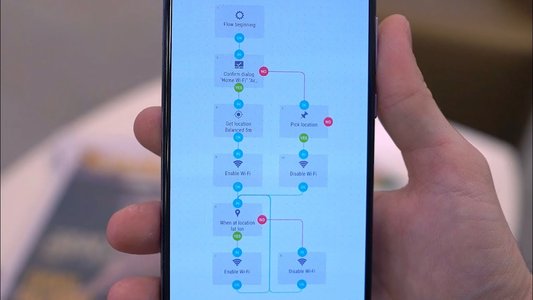
Highlights
- Understanding Core Components: Dive into profiles, tasks, scenes, and variables for tailored automation.
- Comprehensive Guides: Utilize official documentation, community tutorials, and troubleshooting tips.
- Practical Tips: Learn through experimentation and community advice to overcome the learning curve.
Introduction
Tasker is a powerful automation application for Android devices that enables users to create custom workflows and trigger actions based on various conditions such as time, location, and specific events. Whether you are a beginner or an advanced user, the official and community-driven Tasker documentation provides a wealth of information that can help you understand, utilize, and extend the capabilities of this robust tool.
The documentation is designed to guide you through the complexity of Tasker by breaking down its core components, providing detailed tutorials, and offering troubleshooting advice from experienced users. This guide synthesizes the key points from multiple sources to help you navigate Tasker’s extensive features and unlock its true potential.
Core Components of Tasker
Profiles
Profiles are one of the central elements of Tasker. They serve as triggers that activate tasks based on a set of specified conditions. Whether these conditions are time-based, location-specific, or linked with an application's state, profiles allow you to automate actions precisely when needed.
Tasks
Tasks in Tasker represent the series of actions that are executed once a profile’s conditions are satisfied. These actions can range from simple functions such as turning on Wi-Fi or adjusting the phone’s volume to complex sequences that involve multiple steps and conditions. Tasks can be created independently or in conjunction with profiles.
Scenes
Scenes offer a way to create custom user interfaces within Tasker. They allow you to design interactive elements like buttons, menus, and pop-ups which can engage with other tasks, making your automation not only functional but also visually appealing. Despite being one of the more advanced features, scenes are highly useful once you have mastered the basics.
Variables
Variables represent placeholders for data in Tasker. They let you store dynamic values (like battery levels, time, or user inputs) that can change based on context. Starting with the percent symbol (%) for user-defined variables, Tasker differentiates between built-in uppercase variables and customizable global or local ones. This flexibility is what makes Tasker a potential programming platform.
Navigating Tasker Documentation
Official Resources
The official Tasker documentation is the starting point for understanding the basics and intricacies of the app. It includes a user guide, help files, and comprehensive articles on each component such as profiles, tasks, scenes, and variables. This official documentation is regularly updated by the developers and contains essential information that is crucial for both novice and experienced users.
Additionally, in many of Tasker’s configuration screens, you can find a question mark icon that leads to help pages, providing context-specific documentation at your fingertips. This embedded help system ensures that you're never too far from finding guidance directly when working within the app.
Community-Driven Guides and Tutorials
Beyond the official documentation, Tasker benefits greatly from a vibrant community. Forums, user guides, and crowdsourced documentation projects have created a repository of knowledge that covers both the simplest automation tasks and the most complex scripting possibilities. This community support is invaluable for troubleshooting and discovering innovative solutions to challenging automation scenarios.
Several websites and YouTube channels offer step-by-step tutorials. For instance, beginner guides from sites like Android Authority and Android Police simplify complex concepts by demonstrating practical applications of Tasker in real-world scenarios. Over time, these resources have evolved into comprehensive tutorials that include visuals, video guides, and forum discussions, making learning Tasker a collaborative experience.
Structured Learning Through Documentation
Tasker documentation is structured to help you learn at your own pace. For beginners, guides often start with an introduction to the basic components and gradually move towards advanced automation scripts involving multiple variables and conditions. As you progress, you’ll need to explore more advanced resources like the Tasker Wiki, which has a detailed index of plugin usage, variable manipulation, and custom scene creation.
Whether you start with official documentation or leverage the community resources, the key is to experiment with different features and gradually build your understanding. The layered approach to documentation allows you to dive deeper into specific aspects as your proficiency with Tasker grows.
Detailed Overview and Practical Tips
Step-by-Step Guide for Beginners
For those just starting out with Tasker, the following steps outline a practical approach to mastering the app:
1. Familiarize Yourself with the UI
Understand the overall layout of Tasker which is divided into profiles, tasks, and scenes. Explore each section by navigating through the menus, and use the embedded help icons to learn more about individual features.
2. Start Small with Basic Profiles and Tasks
Begin by creating simple profiles based on time or location triggers. Implement tasks that handle single actions, such as adjusting your device's brightness or launching an app.
3. Experiment with Variables
Introduce variables gradually as you become comfortable with basic automation. Learn how to use both global and local variables to store and manipulate data within tasks, which will open the door to more dynamic and responsive automations.
4. Explore and Create Scenes
Once you are confident with profiles and tasks, proceed to design custom scenes. These can improve your automation experience by providing interactive elements that are both functional and aesthetically pleasing.
5. Engage with the Community
Join Tasker forums, participate in discussions, and view crowdsourced documentation. The insights shared by experienced users can help you solve complex issues faster and learn best practices for creating robust automation scripts.
Advanced Documentation and Plugin Usage
Advanced users can benefit from delving deeper into Tasker's capabilities by exploring topics such as plugin development, intricate variable management, and custom scene deployments. These advanced guides help you push the boundaries of what can be automated on your Android device.
In addition to the official documentation, you can find advanced guides in developer forums and on GitHub repositories that showcase innovative uses of Tasker. These resources are particularly useful when integrating Tasker with other apps or services to streamline workflows.
Comparative Overview Table
The table below summarizes the primary components of Tasker, their functionalities, and references for in-depth documentation:
| Component | Description | Documentation Source |
|---|---|---|
| Profiles | Triggers based on conditions like time, location, or events that dictate when a task should run. | Tasker Userguide, Android Authority |
| Tasks | A series of sequential actions executed in response to a profile trigger. Can be basic or highly complex. | Android Police Guide, Official Documentation |
| Scenes | Custom interactive user interfaces that allow for enhanced engagement with your automations. | XDA Forums Guide, Community Tutorials |
| Variables | Dynamic placeholders that store values and enable conditional logic and advanced task configurations. | Tasker Documentation Help, Community Resources |
Resources and Advanced Tips for Tasker
Experimentation and Practical Use
Tasker's true strength lies in its flexibility and the ability to tailor automations to specific needs. As you familiarize yourself with the available documentation, take time to experiment:
- Test various profile triggers in different scenarios to see how tasks interact with real-time conditions.
- Combine multiple tasks into a single profile for complex automation. This is especially useful when you need to perform a series of actions based on environmental factors.
- Leverage variables to create dynamic automation scripts that adapt based on changing device states such as battery level, connectivity, or user activity.
Learning from the Community
Community engagement is one of the most effective ways to learn Tasker. Participate in online forums, join Reddit discussions, and follow YouTube tutorials from Tasker experts. This community-driven learning approach not only helps resolve specific issues but also introduces innovative ways to combine automation features.
Utilizing Official Documentation
The official Tasker documentation remains a cornerstone for anyone serious about mastering the application. It is organized in a way that covers the basics before progressing to more intricate details. Frequently consulting the official guides and help sections will ensure that you are up-to-date with the latest functionalities and changes introduced in Tasker.
References
- Tasker Userguide - Tasker Official
- How to Use Tasker - Android Authority
- Beginners Guide to Tasker - Android Police
- Ultimate Noob/Beginners Guide - XDA Forums
- Crowdsourced Tasker Documentation Initiative - Reddit
Recommended Exploration
Last updated March 26, 2025