
Unlock Thunderbird's Potential: Automatically Using Templates for Emails and Replies
Discover how to streamline your workflow with Thunderbird templates, even without a native default option.
Mozilla Thunderbird offers robust features for managing emails, including the ability to create and use templates. However, you might be wondering if it's possible to set a specific template to automatically apply every time you compose a new message or send a reply. While Thunderbird doesn't have a built-in setting for this exact function, there are effective ways to achieve similar results using native features and powerful add-ons.
Highlights: Key Takeaways on Thunderbird Templates
- No Native Default: Thunderbird does not allow you to designate a user-created template as the automatic default for all new emails or replies out-of-the-box.
- Manual Usage is Standard: The default workflow involves manually selecting and opening a template from the dedicated "Templates" folder each time you want to use one.
- Add-ons Provide Automation: Extensions like SmartTemplate⁴, Stationery, and Quicktext can bridge this gap, offering features to automatically apply specific templates for new messages, replies, and forwards, often with advanced customization options.
Understanding Thunderbird's Native Template System
Thunderbird includes a straightforward system for creating and managing email templates, which can significantly speed up communication for repetitive tasks.
Creating Templates in Thunderbird
Creating a template is simple:
- Compose a new email message exactly as you want your template to appear. Include text, formatting (bold, italics, lists), images, and even placeholders for information you'll add later.
- Instead of sending the message, go to the menu: File → Save As → Template. Alternatively, click the arrow next to the "Save" button in the compose window toolbar and select "Template".
- Thunderbird saves this message into a special "Templates" folder, usually located under your account or "Local Folders" in the main folder pane.
You can create as many templates as you need for different purposes, such as standard replies, outreach emails, or newsletters.
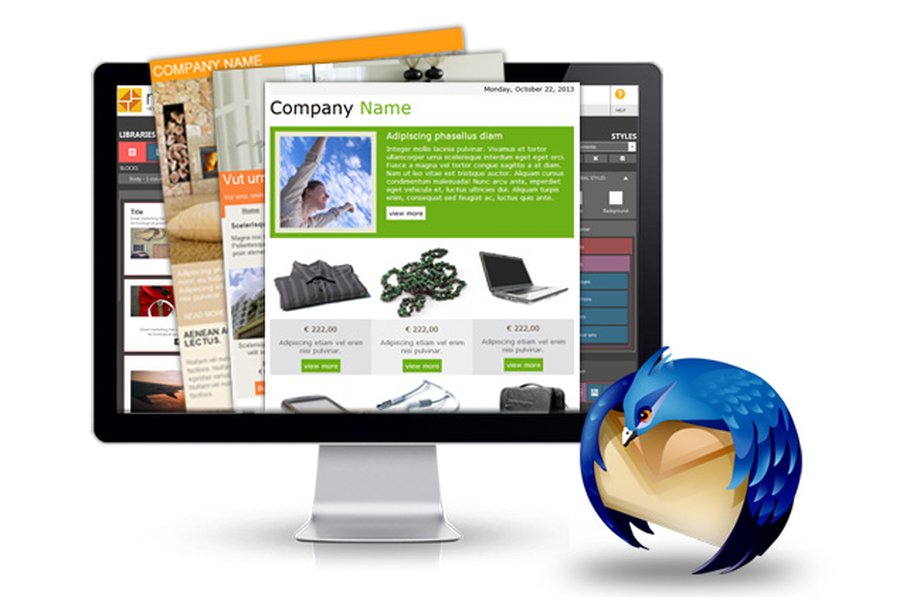
Saving a composed email as a template in Thunderbird.
Using Templates Manually
To use a saved template for a new message using Thunderbird's built-in functionality:
- Navigate to the "Templates" folder in the folder pane on the left side of the main Thunderbird window.
- Locate the template you wish to use.
- Double-click the template. This opens it in a new compose window.
- Alternatively, you can right-click the template and select "Edit As New", or select the template and use the "Message" menu option "New Msg From Template".
- Fill in the recipient(s), modify any necessary content, and send the email as usual.
This manual process is the standard way Thunderbird handles template usage without additional modifications or add-ons.
The Limitation: No Automatic Default Template Setting
A key point confirmed across multiple resources is that Thunderbird lacks a native feature to automatically apply a *specific*, user-defined template whenever the "Write" button is clicked for a new message or the "Reply" button is used. The default behavior is always to open a blank compose window (for new messages) or a standard reply window quoting the original message.
This limitation means that without taking extra steps, you must always perform the manual selection process described above to use a template.
Bridging the Gap: Solutions and Workarounds
Fortunately, several methods exist to streamline template usage and achieve functionality close to having a default template, primarily through the use of add-ons.
Leveraging Add-ons for Automation
Thunderbird's extensibility through add-ons is the most effective way to automate template usage.
SmartTemplate⁴
This is a highly recommended and popular add-on specifically designed to enhance template management. Key features include:
- Defining separate default templates for new messages, replies, and forwarded messages.
- Applying templates automatically based on the action (Write, Reply, Forward).
- Using variables (like recipient name, date, original subject) within templates for dynamic content.
- Configuring different templates per email account or identity.
- Integrating with Thunderbird's signature settings.
SmartTemplate⁴ effectively provides the "default template" functionality missing in native Thunderbird.
Stationery
Stationery allows you to use HTML files as email templates, mimicking the stationery feature found in some other email clients. It offers:
- Ability to use external HTML files as templates for new, reply, and forward actions.
- An option to make the *last used* template the default (though this can be disabled).
- Compatibility and potential integration with SmartTemplate⁴ for richer features.
Quicktext
Quicktext focuses on inserting predefined text snippets or full templates quickly. While not fully automatic like SmartTemplate⁴, it significantly speeds up the process:
- Create templates with placeholders.
- Organize templates into groups. * Insert templates into the compose window using a dedicated toolbar button or keyboard shortcuts.
This requires a manual click to insert but is faster than navigating the Templates folder.
Using Message Filters for Automated Replies
Thunderbird's built-in message filters offer a limited form of automation specifically for replies. You can configure a filter to automatically reply to certain incoming emails using a specific template:
- Go to Tools → Message Filters.
- Select the account and click "New".
- Define the conditions for the filter (e.g., specific sender, subject line keyword).
- Under "Perform these actions", choose "Reply with Template" and select your desired template.
Important Note: This only works for *incoming* emails that meet the filter criteria. It does not apply a template to *all* replies you manually initiate.
Video Guide: Enhancing Replies with SmartTemplate
The following video provides an introduction to the SmartTemplate⁴ add-on, demonstrating how it can simplify the process of using templates, particularly for replies, showcasing its potential to automate and customize your email workflow.
Introduction to the SmartTemplate⁴ add-on for Thunderbird.
Visualizing Template Management Options
To better understand the strengths and weaknesses of different approaches to using templates in Thunderbird, consider the following comparison based on key features. This radar chart evaluates the native manual method against popular add-on solutions and filters based on criteria like automation level, customization potential, ease of setup, ability to target specific actions (new vs. reply), and support for dynamic content (variables).
As the chart suggests, add-ons like SmartTemplate⁴ offer the highest levels of automation and customization for both new messages and replies, including variable support. Native methods are easy but lack automation, while filters provide conditional automation only for replies.
Exploring Template Relationships in Thunderbird
This mindmap illustrates the core concepts around using templates in Thunderbird, highlighting the native capabilities, the main limitation (no automatic default), and the various solutions available to enhance functionality.
(File > Save As > Template)"] id1b["Manual Usage"] id1b1["Open from 'Templates' Folder"] id1b2["'Edit As New' Option"] id1c["Limitation:
No Automatic Default Setting"] id2["Solutions & Workarounds"] id2a["Add-ons (Automation & Features)"] id2a1["SmartTemplate⁴
(Auto-apply, Variables, Per-account)"] id2a2["Stationery
(HTML Templates, Last-used option)"] id2a3["Quicktext
(Manual Insert via Toolbar/Shortcut)"] id2b["Message Filters"] id2b1["Conditional Automatic Replies
(Based on Incoming Email Criteria)"] id2b2["Action: 'Reply with Template'"]
The mindmap shows that while native template creation and manual use are straightforward, achieving automatic application for new emails and general replies typically requires installing and configuring add-ons like SmartTemplate⁴, Stationery, or Quicktext. Message filters offer a separate, condition-based automation route specifically for replies.
Comparing Approaches: Template Methods at a Glance
The following table provides a quick comparison of the different methods for using templates in Thunderbird, focusing on key features relevant to setting defaults for new messages and replies.
| Method | Automatic Default Application | Template for New Messages | Template for Replies | Variable Support | Primary Mechanism | Ease of Use |
|---|---|---|---|---|---|---|
| Native Thunderbird | No | Yes (Manual) | Yes (Manual) | No | Manual selection from Templates folder | Simple but repetitive |
| SmartTemplate⁴ (Add-on) | Yes (Configurable) | Yes (Automatic/Manual) | Yes (Automatic/Manual) | Yes | Add-on configuration per action/account | Moderate setup, very easy use |
| Stationery (Add-on) | Optional (Last Used) | Yes (Manual/Last Used) | Yes (Manual/Last Used) | Limited (Basic HTML) | Add-on configuration, uses HTML files | Moderate setup and use |
| Quicktext (Add-on) | No (Manual Insert) | Yes (Manual Insert) | Yes (Manual Insert) | Yes | Toolbar button/shortcut insertion | Easy setup and use (requires click) |
| Message Filters | Yes (Conditional for Replies Only) | No | Yes (Automatic, condition-based) | No | Filter rules based on incoming mail | Moderate setup, automatic for matches |
This table highlights that for true automatic default template behavior for both new emails and general replies, add-ons like SmartTemplate⁴ are the most comprehensive solution. Other methods offer partial solutions or require manual steps.
Frequently Asked Questions (FAQ)
Where are Thunderbird templates saved?
Templates are saved in a dedicated "Templates" folder. This folder is usually located under each specific email account configured in Thunderbird, or sometimes under "Local Folders" if you're saving templates globally. You can access it directly from the folder pane on the left side of the main Thunderbird window.
Can I use HTML formatting in Thunderbird templates?
Yes, absolutely. When composing the message you intend to save as a template, you can use Thunderbird's formatting toolbar to add HTML elements like different fonts, colors, sizes, images, links, tables, and lists. Ensure your Thunderbird composition settings are set to HTML (usually the default) rather than plain text when creating the template.
What's the difference between a template and a signature?
A signature is typically a small block of text and/or images automatically appended to the *end* of every email sent from an account (or identity). A template, on the other hand, represents the *entire* body (and potentially subject line or recipients) of an email. Templates provide the full structure and content for a message, whereas signatures are just the closing part. Add-ons like SmartTemplate⁴ can intelligently combine templates and signatures.
Do add-ons like SmartTemplate⁴ work with the latest Thunderbird versions?
Add-on compatibility depends on the add-on developer keeping it updated. Popular add-ons like SmartTemplate⁴ are generally well-maintained to work with current Thunderbird releases. It's always best to check the add-on's page on the official Thunderbird Add-ons website for the latest compatibility information before installing.
Recommended Further Exploration
- How can I effectively use variables within the SmartTemplate⁴ add-on for dynamic Thunderbird emails?
- What are some advanced ways to configure Thunderbird message filters beyond simple template replies?
- Beyond templates, what are the best Thunderbird add-ons to boost email productivity in 2025?
- How can I manage multiple email identities, each with its own signature or template settings in Thunderbird?
References
Last updated May 5, 2025