
Unveiling the Secret Hideout: Where Does Thunderbird Keep Your SmartTemplates Files on Windows 10?
Navigate the digital labyrinth to pinpoint the exact location of your SmartTemplates extension source files within Thunderbird's profile.
When you install an extension like SmartTemplates in Mozilla Thunderbird on your Windows 10 system, its files are neatly tucked away within your Thunderbird user profile. This profile is a dedicated space that stores all your personal email data, settings, and, importantly, your add-ons. Understanding where these files reside can be helpful for troubleshooting, backup purposes, or simply for those curious about the inner workings of their software.
Key Insights: Locating SmartTemplates Files
- Profile Folder is Key: The primary location for SmartTemplates (and other extensions) source files is within your unique Thunderbird profile folder, not the main program installation directory.
- Access via Thunderbird: The easiest way to find your profile folder is through Thunderbird's built-in "Troubleshooting Information" page, which directly links to it.
- File Structure: Inside the profile, extensions are typically found in an
extensionssubfolder or abrowser-extension-datafolder, often as.xpifiles (which are essentially ZIP archives) or as unpacked directories.
The Heart of the Matter: Your Thunderbird Profile Folder
Thunderbird is designed to keep your personal data separate from the main application files. This is achieved through the use of a "profile." Each user can have one or more profiles, though most will have a single default profile. This profile contains your emails, account settings, address books, saved passwords, customizations, and, crucially, your installed add-ons like SmartTemplates.
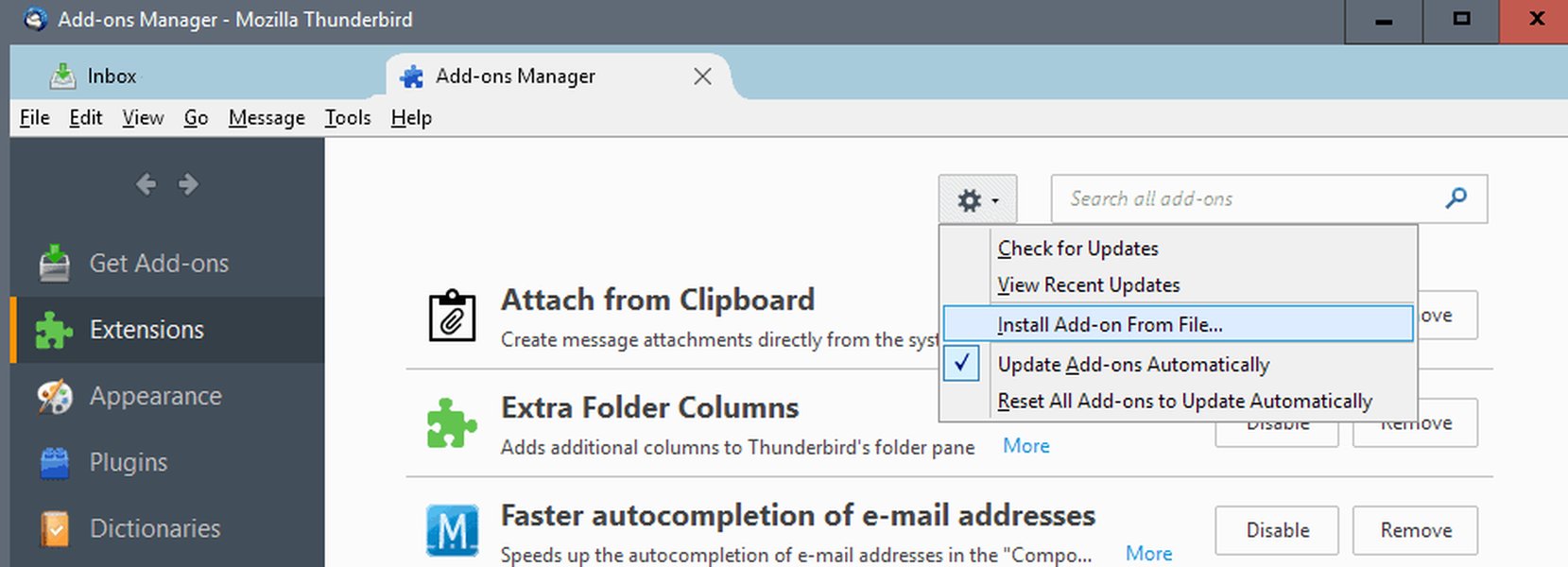
A typical Thunderbird extension installation prompt. SmartTemplates files are managed within this system.
Method 1: The Quickest Route via Thunderbird Interface
Thunderbird provides a straightforward way to access your profile folder directly from within the application:
- Open Mozilla Thunderbird.
- Click on the menu button (often represented by three horizontal lines ≡) in the top-right corner.
- Navigate to Help.
- Select More Troubleshooting Information. (In older versions, this might be just "Troubleshooting Information").
- A new tab will open. Under the Application Basics section, find the row labeled Profile Folder or Profile Directory.
- Click the Open Folder button next to it. This will open your Thunderbird profile folder directly in Windows File Explorer.
Method 2: Manual Navigation Through File Explorer
If you prefer to navigate manually or if Thunderbird isn't opening, you can find the profile folder using its typical path on Windows 10. The AppData folder is hidden by default, so you may need to enable "Show hidden files, folders, and drives" in File Explorer's View options.
Standard Path
The profile folder is usually located at:
C:\Users\[YourUserName]\AppData\Roaming\Thunderbird\Profiles\
Replace [YourUserName] with your actual Windows user name. Inside the Profiles folder, you'll see one or more folders with names like xxxxxxxx.default or xxxxxxxx.default-release (where xxxxxxxx is a random string of characters). This is your specific profile directory.
Using the Run Command
A quicker way to get to the parent Thunderbird directory within AppData\Roaming is:
- Press
Windows Key + Rto open the Run dialog. - Type
%APPDATA%\Thunderbird\Profiles\and press Enter. - This will open the folder containing your profile(s). Navigate into your specific profile folder (e.g.,
xxxxxxxx.default).
Inside the Profile: Finding SmartTemplates Files
Once you are inside your specific profile folder (e.g., xxxxxxxx.default), the SmartTemplates extension files will be in one of these common locations:
extensions\folder: This is the traditional location. The SmartTemplates extension might be stored here as an.xpifile (e.g.,{some-unique-id}.xpior a name related to SmartTemplates) or as an unpacked folder with the extension's ID as its name. An.xpifile is essentially a ZIP archive; you can rename it to.zipand extract its contents to view the source files.browser-extension-data\folder: Newer WebExtension-based add-ons, which SmartTemplates is, might store their data or even be unpacked into subfolders here. Look for a folder named after the extension's internal ID or a recognizable name.
The SmartTemplates extension ID is typically something like smarttemplate4@thunderbird.extension or similar. The folder or .xpi file might incorporate this ID in its name.
Visualizing the File Path Hierarchy
To help you understand the directory structure leading to your Thunderbird extension files, the mindmap below illustrates the typical paths on a Windows 10 system. The journey starts from your main drive and navigates through user-specific application data folders to where extensions like SmartTemplates are stored.
(Primary location for .xpi files or unpacked extensions)"] id8a["SmartTemplates files (e.g., {ID}.xpi or folder named with ID)"] id9["browser-extension-data
(Alternative location for WebExtension data)"] id9a["Subfolder for SmartTemplates data"] id10["Other profile data (emails, settings, etc.)"]
This mindmap provides a clear visual guide to navigate to the likely locations of the SmartTemplates extension files within your Thunderbird profile.
Understanding Extension File Management Factors
Locating and understanding Thunderbird extension files involves several factors. The radar chart below provides a qualitative assessment of these aspects, such as the ease of accessing these files, the potential system impact of modifications, the level of user control, data integrity considerations, and their utility for troubleshooting.
This chart highlights that while accessing files via the UI is relatively easy, manual access requires a bit more know-how. Modifying these files carries a risk to system stability and data integrity, but understanding their location is highly useful for troubleshooting purposes.
Summary of Key Locations and Considerations
The following table summarizes the important paths and what you might find there. Remember that [YourUserName] and [xxxxxxxx.default] are placeholders for your specific system details.
| Path Type | Example Path | Description | Contains SmartTemplates Files? |
|---|---|---|---|
| Thunderbird Main Profile Access | %APPDATA%\Thunderbird\Profiles\ |
Parent directory for all Thunderbird user profiles. | No (it's a container for profiles) |
| Specific User Profile | C:\Users\[YourUserName]\AppData\Roaming\Thunderbird\Profiles\[xxxxxxxx.default]\ |
Contains all data for a specific Thunderbird profile, including emails, settings, and extensions. | Yes (within subfolders) |
| Extensions Subfolder | ...\[xxxxxxxx.default]\extensions\ |
Common location for installed extension files, often as .xpi archives or unpacked directories. |
Likely |
| Browser Extension Data Subfolder | ...\[xxxxxxxx.default]\browser-extension-data\ |
Location for data related to WebExtensions, can include unpacked extension files or their settings. | Possible |
| Global Extensions (Less Common) | C:\Program Files\Mozilla Thunderbird\extensions\ |
Location for extensions installed system-wide (rare for user-installed add-ons like SmartTemplates). | Unlikely for user-installed |
It's crucial to distinguish between the source files of the SmartTemplates extension itself (which this guide helps you find) and the templates you create using the extension. Your custom templates created via SmartTemplates are also stored within your profile, managed by the extension, but their exact storage mechanism within the profile's data structures is determined by how SmartTemplates is programmed.
Guidance on Handling These Files
While knowing the location of these files is useful, it's generally not recommended to manually delete or modify files within your Thunderbird profile unless you are following specific troubleshooting instructions from a trusted source or are an advanced user. Incorrect changes can lead to Thunderbird instability or loss of data. For most users, managing extensions should be done through the Thunderbird Add-ons Manager.
Exploring Thunderbird File Locations: Video Guide
For a visual walkthrough on how to locate Thunderbird's data files, including the profile folder where extensions like SmartTemplates reside, the following video provides a helpful demonstration. Understanding the profile structure is key to managing your Thunderbird data effectively.
This video explains how to find Thunderbird email file locations, which includes the profile folder relevant to extensions.
The video demonstrates accessing the profile folder, which is the central hub for all your Thunderbird user data, including add-ons. While it might focus on email files, the profile location is the same for extension storage.
Frequently Asked Questions (FAQ)
What is a Thunderbird profile?
A Thunderbird profile is a collection of files and folders that stores all your personal Thunderbird data. This includes your email messages, account settings, address books, passwords, preferences, and installed add-ons like SmartTemplates. It's kept separate from the Thunderbird program files, allowing you to update or reinstall Thunderbird without losing your personal data.
Why are extension files stored in the profile folder?
Storing extension files within the profile folder ensures that each user's add-ons and their configurations are specific to that user and are maintained separately from other users on the same computer. It also makes it easier to back up all your personalized Thunderbird data, including extensions, by simply backing up the profile folder. Furthermore, it allows extensions to be managed on a per-profile basis.
Is it safe to modify extension source files directly?
Generally, it is not recommended to modify extension source files directly unless you are an extension developer or have explicit instructions for troubleshooting. Incorrect modifications can cause the extension to malfunction, lead to instability in Thunderbird, or even result in data loss. Managing extensions should typically be done through Thunderbird's Add-ons Manager.
What is an .xpi file?
An .xpi (pronounced "zippy") file is an installation package used by Mozilla applications like Thunderbird and Firefox to distribute add-ons. It's essentially a ZIP file that contains all the necessary files for an extension, such as JavaScript code, HTML, CSS, images, and manifest files. You can rename an .xpi file to .zip to explore its contents with a standard archive utility.
How do I find an extension's ID in Thunderbird?
You can usually find an extension's ID through the Thunderbird Add-ons Manager. Go to Tools > Add-ons and Themes (or click the menu button ≡ > Add-ons and Themes). Find the extension in the list, click the "More options" (three dots) button for that extension, and sometimes the ID is visible there or by inspecting debugging information (often by going to `about:debugging` in Thunderbird, then "This Thunderbird," and finding the extension).
Recommended Next Steps
To deepen your understanding of Thunderbird and its customization, consider exploring these related topics:
- Learn how to effectively backup and restore your entire Thunderbird profile, including all extensions and settings.
- Discover common troubleshooting steps for when Thunderbird extensions are not working as expected.
- Explore how to create and manage multiple profiles in Thunderbird for different users or purposes.
- Delve deeper into the various files and folders within a Thunderbird profile and their functions.
References
Last updated May 15, 2025